Article Purpose
 The intention of this article is to explain and illustrate the various possible combinations that can be implemented when swapping the underlying colour channels related to a Bitmap image. The concepts explained can easily be replicated by making use of the included sample application.
Sample source code
 This article is accompanied by a sample source code Visual Studio project which is available for download here.

Using the sample Application
 The sample application associated with this article allows the user to select a source image, apply a colour shifting option. The user is provided with the option to save to disk the resulting new image. The image below is a screenshot of the Bitmap ARGB Swapping application in action:
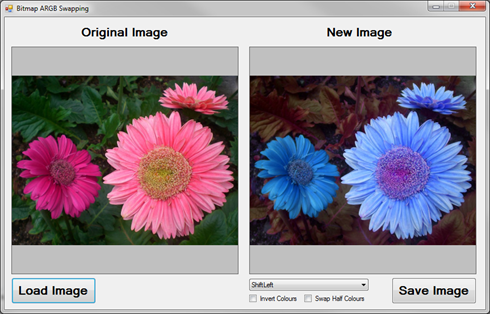
 The scenario illustrated above shows an image of flowers being transformed by swapping the underlying colour channels. In this case the ShiftLeft algorithm had been applied. The original image is licenced under the Creative Commons Attribution-Share Alike 3.0 Unported, the original image can be downloaded from Wikipedia.
Types of Colour Swapping
 The sample source code defines the enum type ColorSwapType, which represents the possible combinations of colour channel swapping that can be applied to a Bitmap. The source code extract below provides the definition of the ColorSwapType enum:
public enum ColorSwapType
{
    ShiftRight,
    ShiftLeft,
    SwapBlueAndRed,
    SwapBlueAndGreen,
    SwapRedAndGreen,
}
 When directly manipulating a Bitmap object’s pixel values an important detail should be noted: Bitmap colour channels in memory are represented in the order Blue, Green, Red and Alpha despite being commonly referred to by abbreviation ARGB!
The following list describes each colour swapping type’s outcome:
- ShiftRight: Starting at Blue, each colour’s value is set to the colour channel to the right. The value of Blue is applied to Red, Red’s original value applied to Green, Green’s original value applied to Blue.
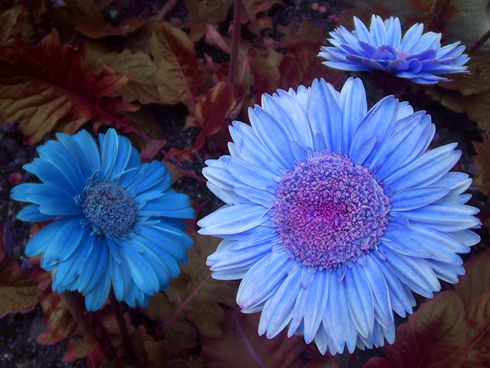
- ShiftLeft: Starting at Blue, each colour’s value is set to the colour channel to the left. The value of Blue is applied to Green, Green’s original value applied to Red, Red’s original value applied to Blue.
- SwapBlueAndRed: The value of the Blue channel is applied to the Red channel and the original value of the Red channel is then applied to the Blue channel. The value of the Green channel remains unchanged.
- SwapBlueAndGreen: The value of the Blue channel is applied to the Green channel and the original value of the Green channel is then applied to the Blue channel. The value of the Red channel remains unchanged.
- SwapRedAndGreen: The value of the Red channel is applied to the Green channel and the original value of the Green channel is then applied to the Red channel. The value of the Blue channel remains unchanged.
The Colour Swap Filter
 The sample source code defines the ColorSwapFilter class. This class provides several member properties, which in combination represent the options involved in applying a colour swap filter. The source code snippet below provides the definition of the ColorSwapFilter type:
public class ColorSwapFilter
{
   private ColorSwapType swapType = ColorSwapType.ShiftRight;
   public ColorSwapType SwapType
   {
        get{ return swapType;}
        set{ swapType = value;}
   }


   private bool swapHalfColorValues = false;
   public bool SwapHalfColorValues
   {
        get{ return swapHalfColorValues;}
        set{ swapHalfColorValues = value;}
   }


   private bool invertColorsWhenSwapping = false;
   public bool InvertColorsWhenSwapping
   {
        get{ return invertColorsWhenSwapping;}
        set{ invertColorsWhenSwapping = value;}
   }


   public enum ColorSwapType
   {
        ShiftRight,
        ShiftLeft,
        SwapBlueAndRed,
        SwapBlueAndGreen,
        SwapRedAndGreen,
   }
}
The member properties defined by the ColorSwapFilter class:
- Implementing the ColorSwapType enum discussed earlier, the SwapType member property defines the type of colour channel swapping to apply.
- Before swapping colour channel values, colour values can be inverted depending on whether InvertColorsWhenSwapping equates to true.
- In order to reduce the intensity of the resulting image, the SwapHalfColorValues property should be set to true. The end result being destination colour channels are set to 50% of relevant source colour channel values.
Applying the Colour Swap Filter
 The sample source code accompanying this article defines the SwapColorsCopy method, an extension method targeting Bitmap class. When invoking the SwapColorsCopy extension method, the calling code is required to specify an input Bitmap and an instance of the ColorSwapFilter class. By virtue of being an extension method the input/source Bitmap will be specified by the Bitmap object instance invoking the SwapColorsCopy method.
 The source code listing below provides the definition of the SwapColorsCopy extension method.
public static Bitmap SwapColorsCopy(this Bitmap originalImage, ColorSwapFilter swapFilterData)
{
    BitmapData sourceData = originalImage.LockBits
                            (new Rectangle(0, 0, originalImage.Width, originalImage.Height),
                            ImageLockMode.ReadOnly, PixelFormat.Format32bppArgb);


    byte[] resultBuffer = new byte[sourceData.Stride * sourceData.Height];
    Marshal.Copy(sourceData.Scan0, resultBuffer, 0, resultBuffer.Length);
    originalImage.UnlockBits(sourceData);


    byte sourceBlue = 0, resultBlue = 0,
            sourceGreen = 0, resultGreen = 0,
            sourceRed = 0, resultRed = 0;
    byte byte2 = 2, maxValue = 255;


    for (int k = 0; k < resultBuffer.Length; k += 4)
    {
        sourceBlue = resultBuffer[k];
        sourceGreen = resultBuffer[k + 1];
        sourceRed = resultBuffer[k + 2];


        if (swapFilterData.InvertColorsWhenSwapping == true)
        {
            sourceBlue = (byte)(maxValue - sourceBlue);
            sourceGreen = (byte)(maxValue - sourceGreen);
            sourceRed = (byte)(maxValue - sourceRed);
        }


        if (swapFilterData.SwapHalfColorValues == true)
        {
            sourceBlue = (byte)(sourceBlue / byte2);
            sourceGreen = (byte)(sourceGreen / byte2);
            sourceRed = (byte)(sourceRed / byte2);
        }


        switch (swapFilterData.SwapType)
        {
            case ColorSwapFilter.ColorSwapType.ShiftRight:
               {
                    resultBlue = sourceGreen;
                    resultRed = sourceBlue;
                    resultGreen = sourceRed;

                    break;
               }
            case ColorSwapFilter.ColorSwapType.ShiftLeft:
               {
                    resultBlue = sourceRed;
                    resultRed = sourceGreen;
                    resultGreen = sourceBlue;

                    break;
               }
            case ColorSwapFilter.ColorSwapType.SwapBlueAndRed:
               {
                    resultBlue = sourceRed;
                    resultRed = sourceBlue;

                    break;
               }
            case ColorSwapFilter.ColorSwapType.SwapBlueAndGreen:
               {
                    resultBlue = sourceGreen;
                    resultGreen = sourceBlue;

                    break;
               }
            case ColorSwapFilter.ColorSwapType.SwapRedAndGreen:
               {
                    resultRed = sourceGreen;
                    resultGreen = sourceGreen;

                    break;
               }
        }


        resultBuffer[k] = resultBlue;
        resultBuffer[k + 1] = resultGreen;
        resultBuffer[k + 2] = resultRed;
    }


    Bitmap resultBitmap = new Bitmap(originalImage.Width, originalImage.Height,
                                        PixelFormat.Format32bppArgb);

    BitmapData resultData = resultBitmap.LockBits
                            (new Rectangle(0, 0, resultBitmap.Width, resultBitmap.Height),
                            ImageLockMode.WriteOnly, PixelFormat.Format32bppArgb);


    Marshal.Copy(resultBuffer, 0, resultData.Scan0, resultBuffer.Length);
    resultBitmap.UnlockBits(resultData);


    return resultBitmap;
}
 Due to the architecture and implementation of the .net Garbage Collector when manipulating a Bitmap object’s underlying colour values we need to ensure locking the relevant data buffer in memory. When invoking the Bitmap class’ LockBits method the calling code prevents the Garbage Collector from shifting and updating memory references. Once a Bitmap’s underlying pixel buffer has been locked in memory the source code creates a data buffer of type byte array and then copies the Bitmap’s underlying pixel buffer data.
BitmapData sourceData = originalImage.LockBits
                        (new Rectangle(0, 0, originalImage.Width, originalImage.Height),
                        ImageLockMode.ReadOnly, PixelFormat.Format32bppArgb);


byte[] resultBuffer = new byte[sourceData.Stride * sourceData.Height];
Marshal.Copy(sourceData.Scan0, resultBuffer, 0, resultBuffer.Length);
originalImage.UnlockBits(sourceData);
 The sample source code next iterates the pixel buffer array. Notice how the for loop increments by 4 with each loop. Every four elements of the data buffer in combination represents one pixel, each colour channel expressed as a byte value ranging from 0 to 255 inclusive.
for (int k = 0; k < resultBuffer.Length; k += 4)
 If required each colour channel will first be assigned to a value equating to its inverse value by subtracting from 255.
if (swapFilterData.InvertColorsWhenSwapping == true)
{
     sourceBlue = (byte)(maxValue - sourceBlue);
     sourceGreen = (byte)(maxValue - sourceGreen);
     sourceRed = (byte)(maxValue - sourceRed);
}
 When the supplied ColorSwapFilter object method parameter defines SwapHalfColorValues as true the source colour value will be divided by 2.
if (swapFilterData.SwapHalfColorValues == true)
{
     sourceBlue = (byte)(sourceBlue / byte2);
     sourceGreen = (byte)(sourceGreen / byte2);
     sourceRed = (byte)(sourceRed / byte2);
}
 The next section implements a case statement, each option implementing the required colour channel swap algorithm. The last step expressed as part of the for loop results in assigning newly manipulated values to the data buffer.
 The SwapColorsCopy extension method can be described as being immutable in the sense that the input value remains unchanged, instead manipulating and returning a copy of the input data. Following the data buffer iteration the sample source creates a new instance of the Bitmap class and locks it into memory by invoking the LockBits method. By implementing the Marshal.Copy method the source code copies the data buffer to the underlying buffer associated with the newly created Bitmap object.
 Bitmap resultBitmap = new Bitmap(originalImage.Width, originalImage.Height,
                                     PixelFormat.Format32bppArgb);


 BitmapData resultData = resultBitmap.LockBits
                         (new Rectangle(0, 0, resultBitmap.Width, resultBitmap.Height),
                         ImageLockMode.WriteOnly, PixelFormat.Format32bppArgb);


 Marshal.Copy(resultBuffer, 0, resultData.Scan0, resultBuffer.Length);
 resultBitmap.UnlockBits(resultData);


 return resultBitmap;
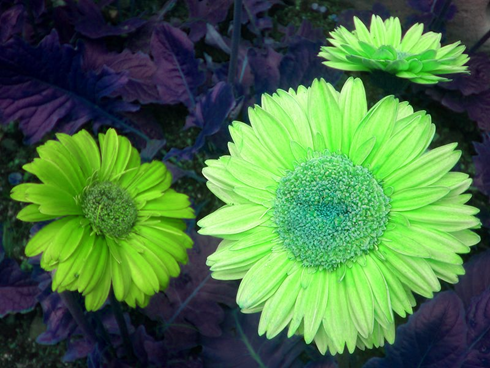
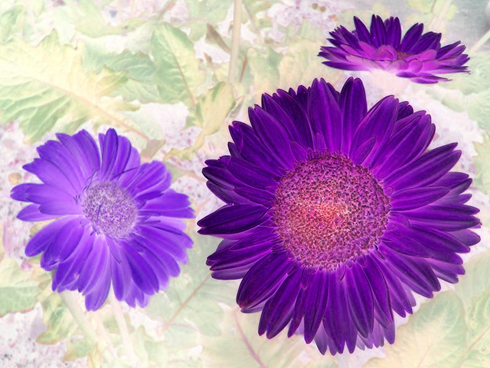
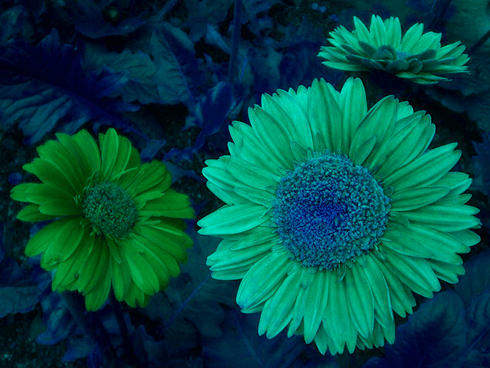
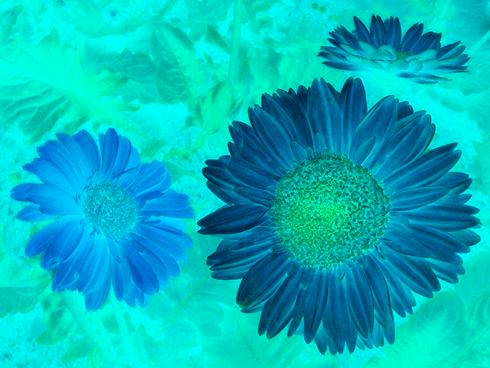
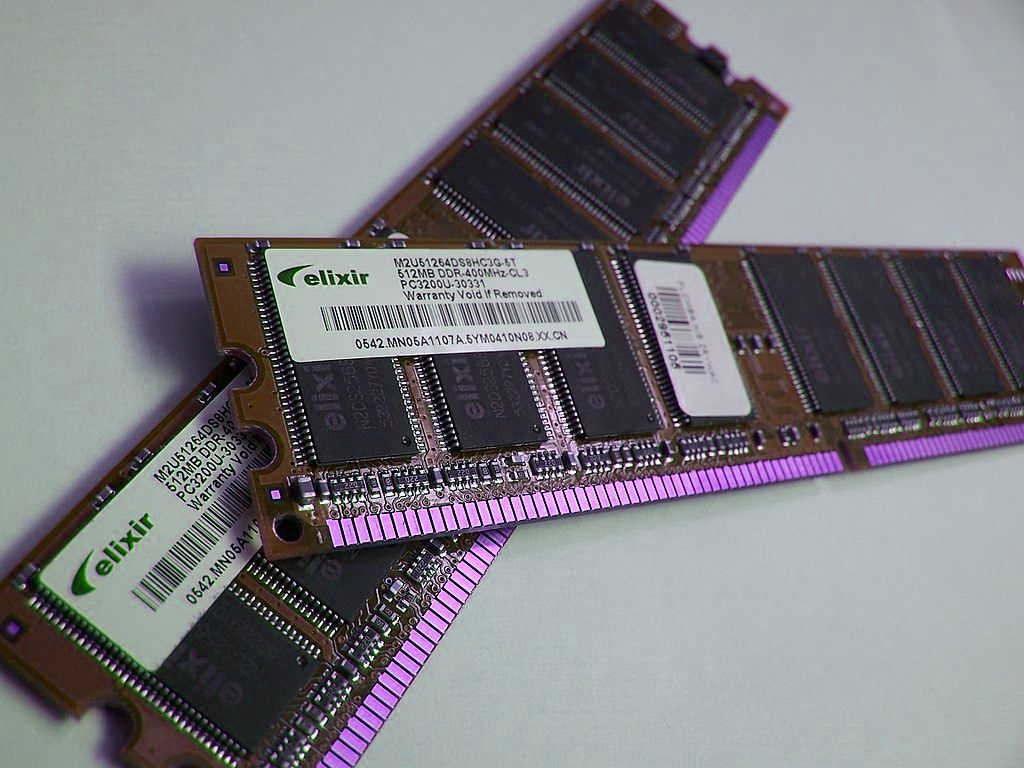
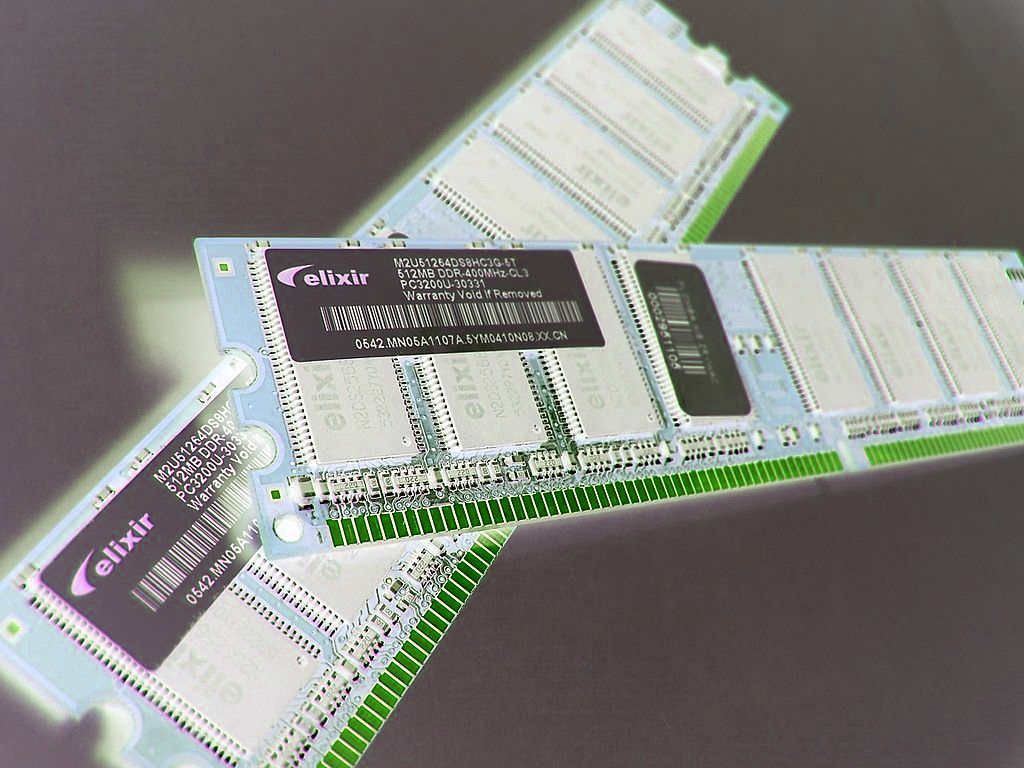
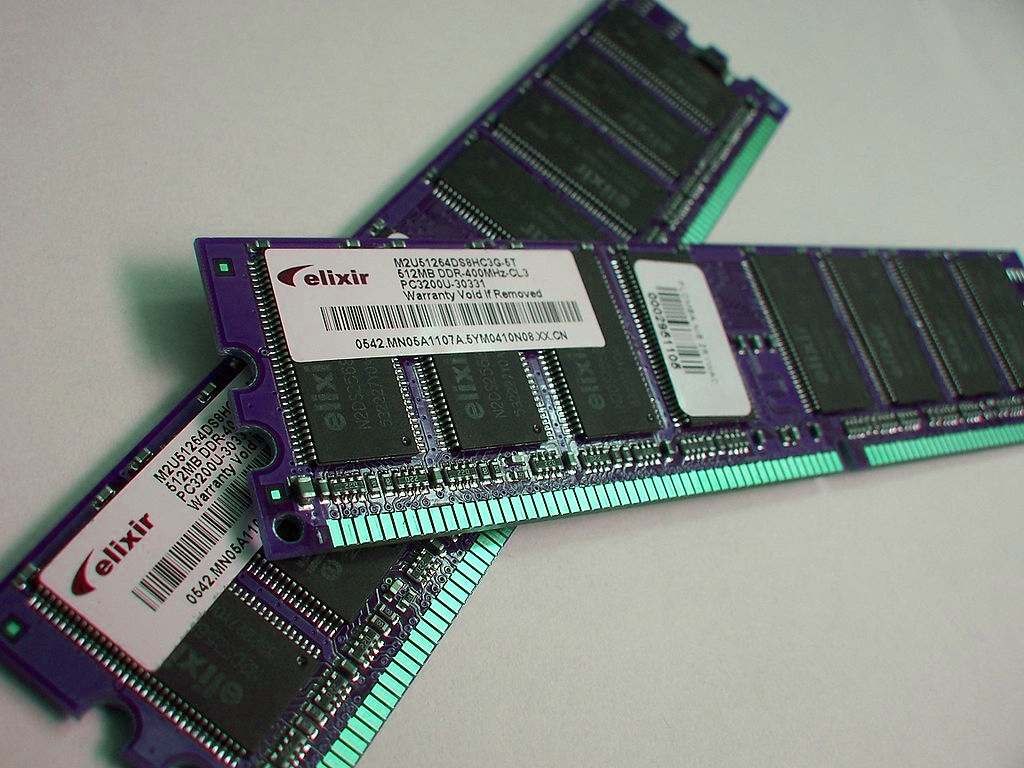
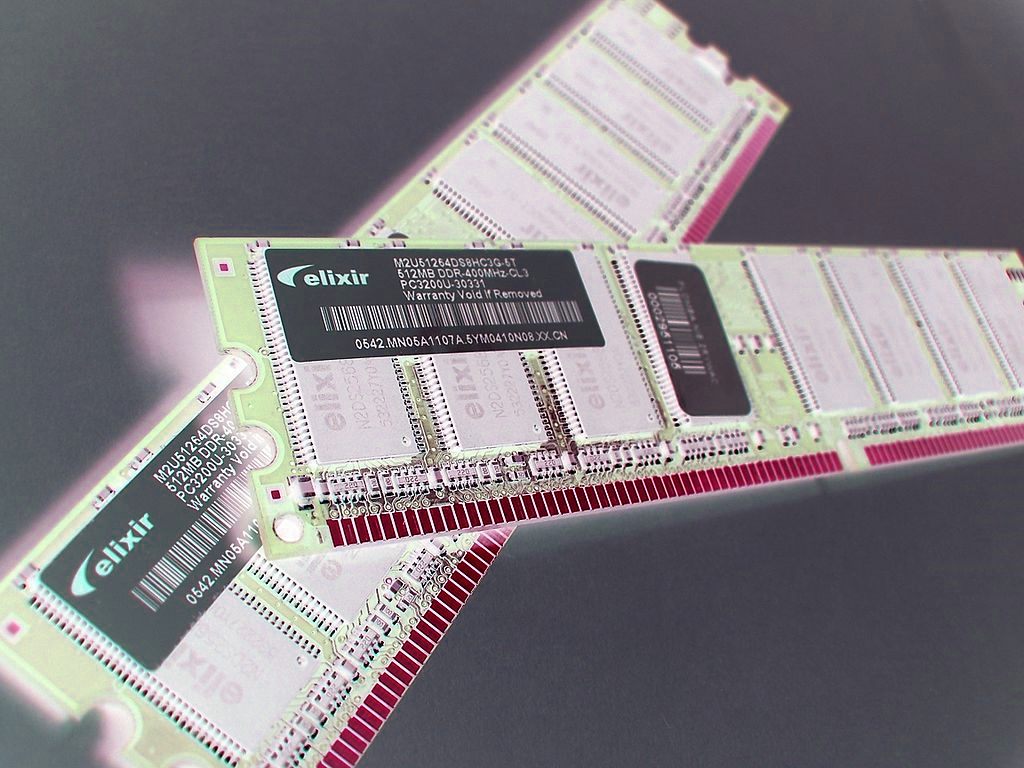
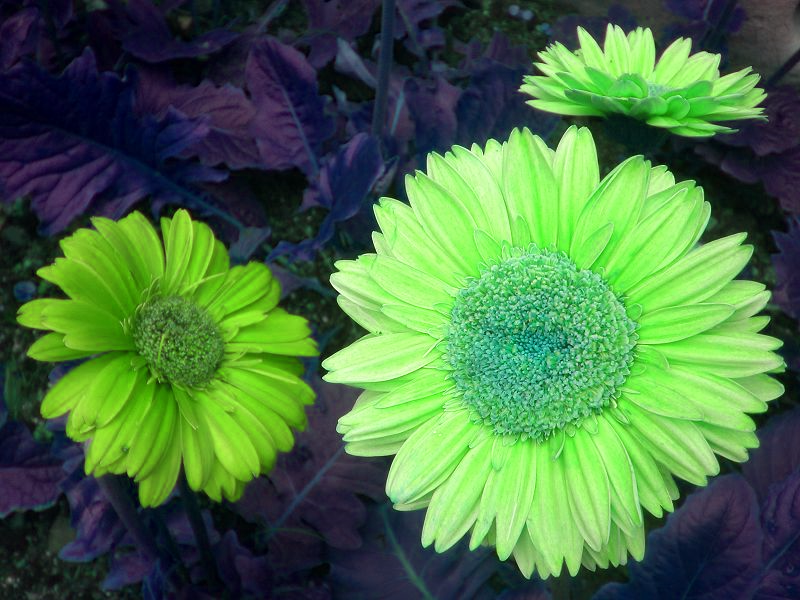
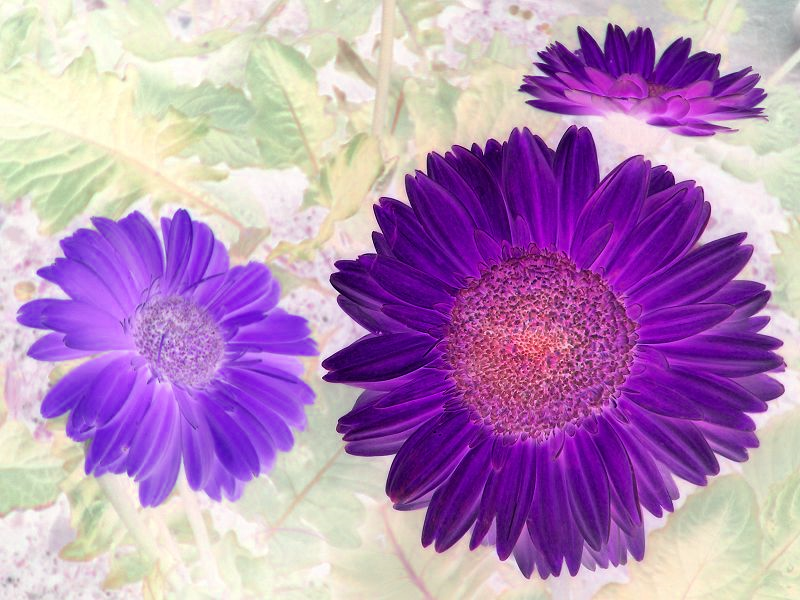
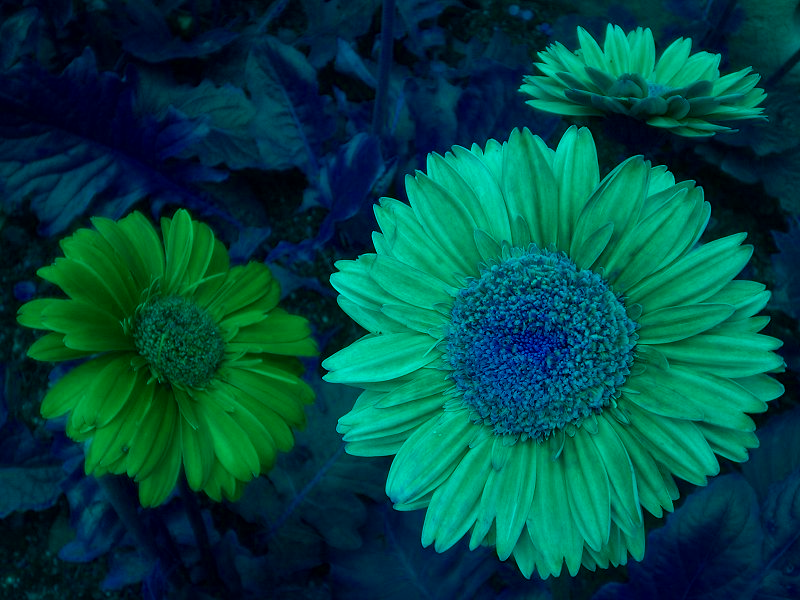
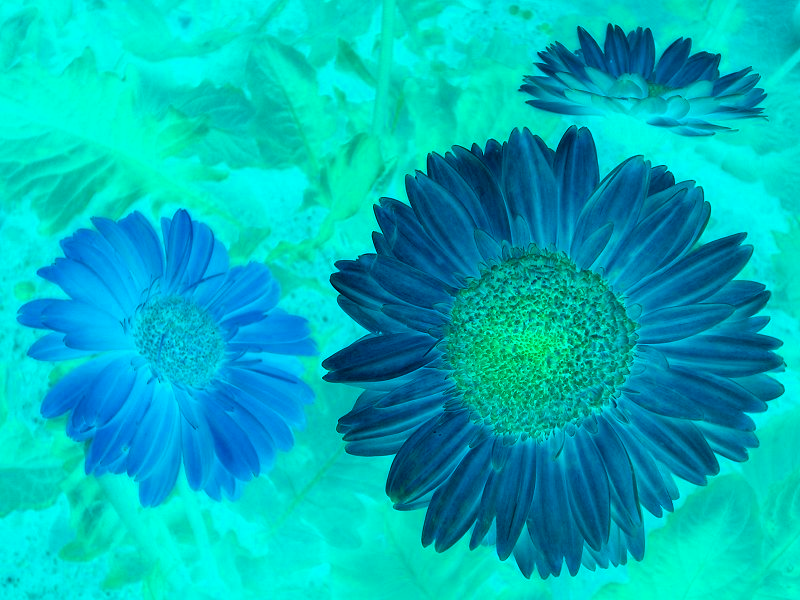
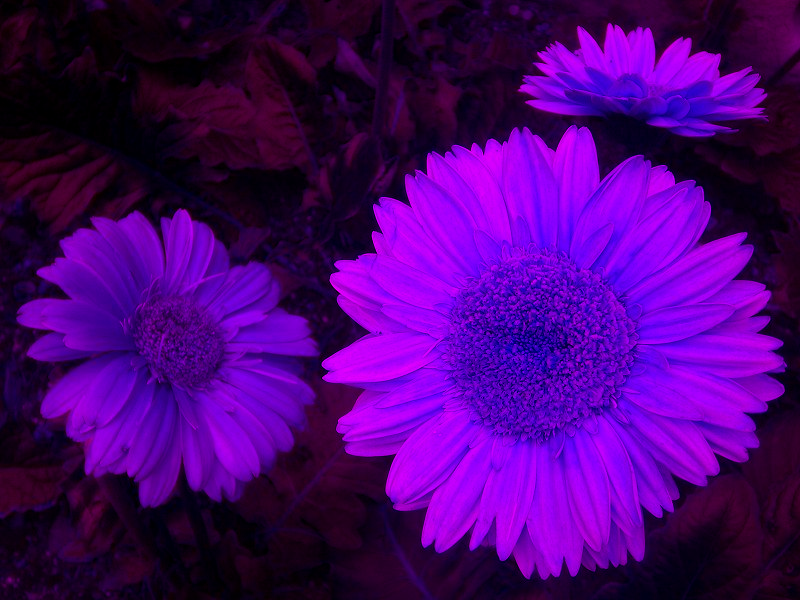
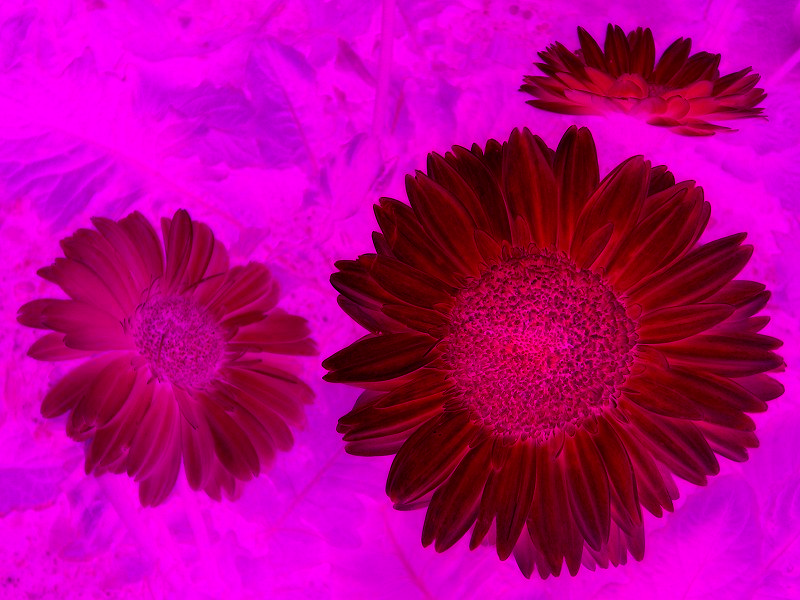
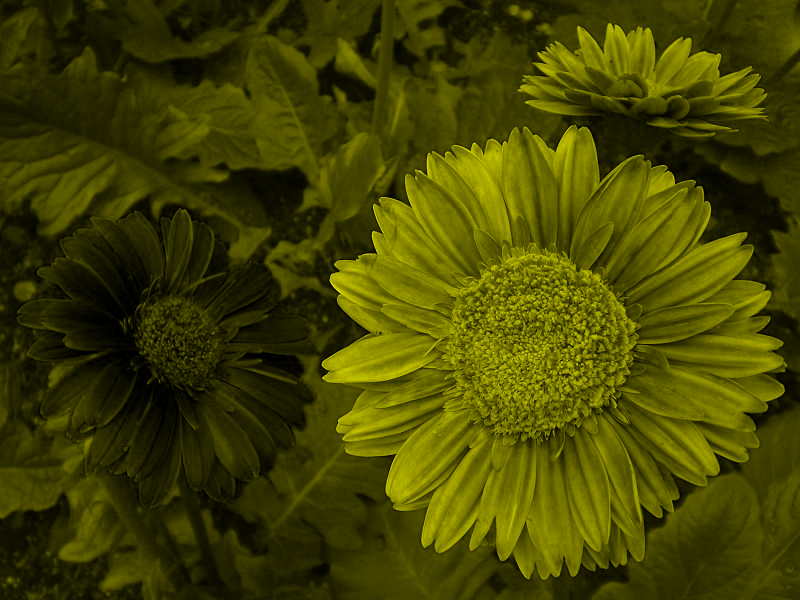
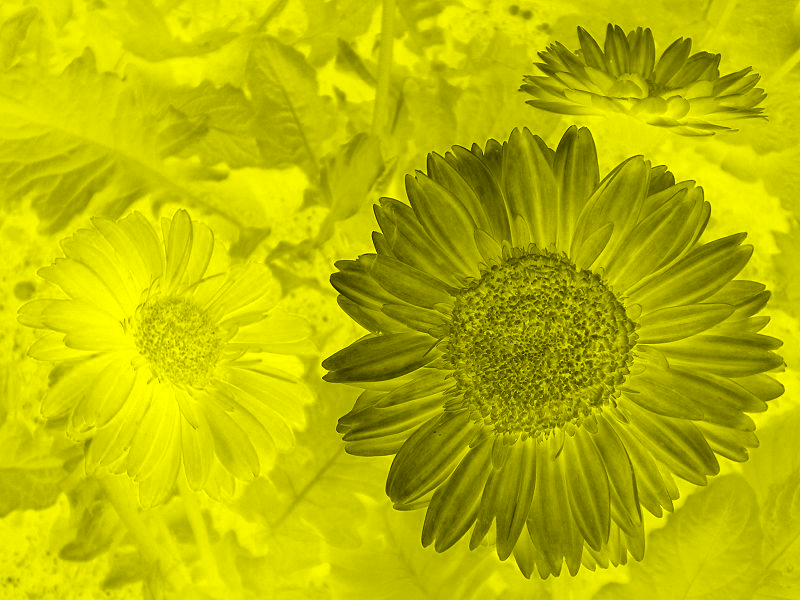
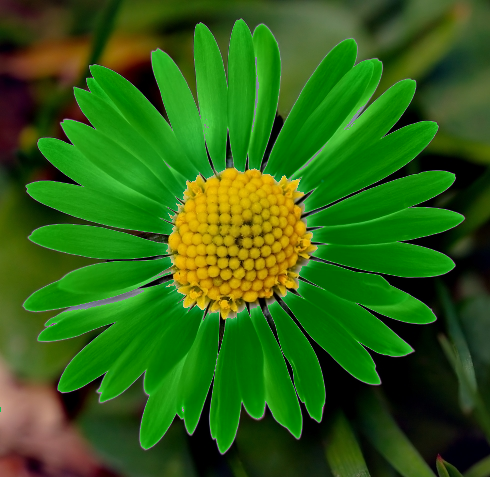
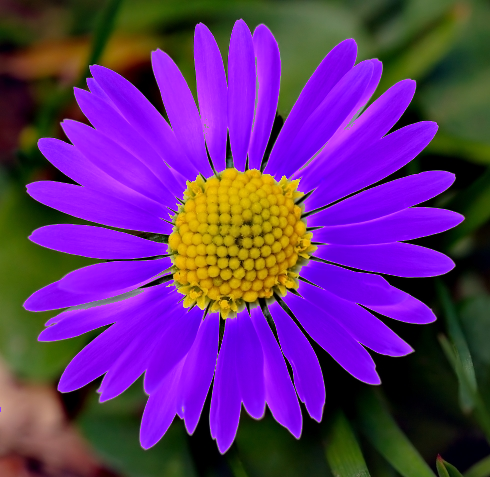
 The sample source code accompanying this article defines a Windows Forms application, the intention of which being to illustrate a test implementation. The following series of images were created using the sample application:
The source/input image is licenced under the Creative Commons Attribution-Share Alike 3.0 Unported, the original image can be downloaded from Wikipedia.
The Original Image
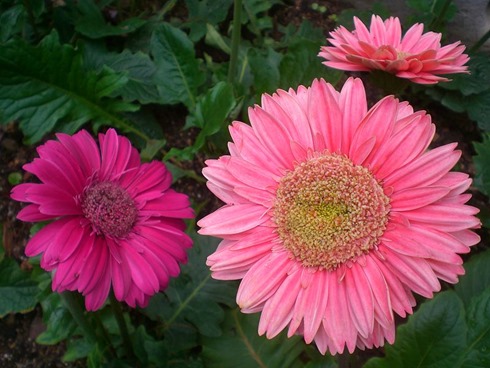
The ShiftLeft Colour Swapping algorithm:
Inverted:
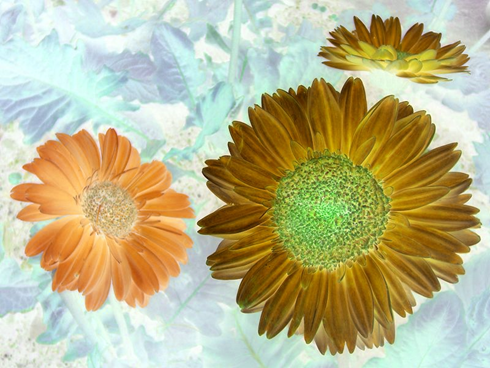
The ShiftRight Colour Swapping algorithm:
Inverted:
The SwapBlueAndGreen Colour Swapping algorithm:
Inverted:
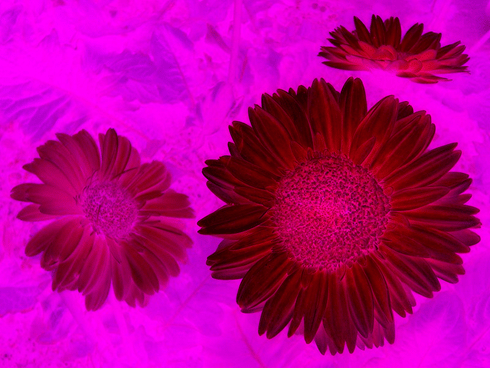
The SwapBlueAndRed Colour Swapping algorithm:
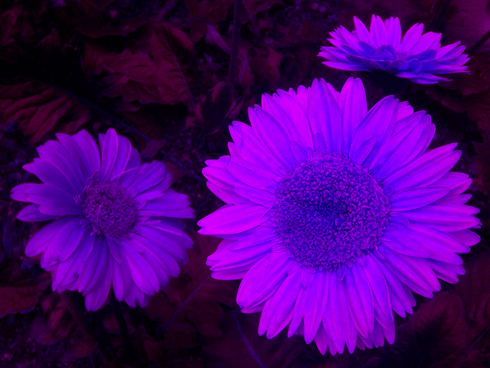
Inverted:
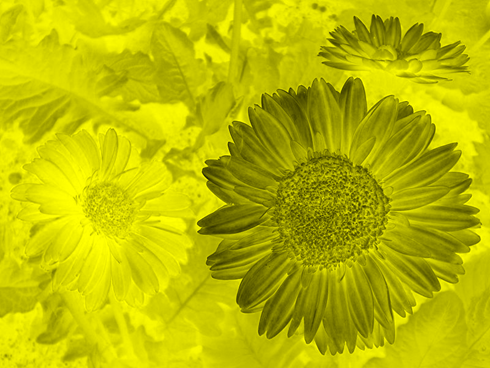
The SwapRedAndGreen Colour Swapping algorithm:
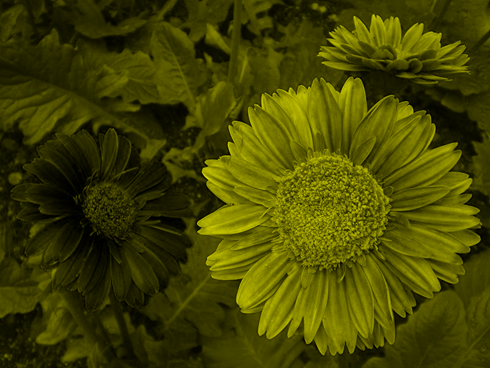
Inverted:
Related Articles and Feedback
Feedback and questions are always encouraged. If you know of an alternative implementation or have ideas on a more efficient implementation please share in the comments section.
Dewald Esterhuizen
I’ve published a number of articles related to imaging and images of which you can find URL links here:



















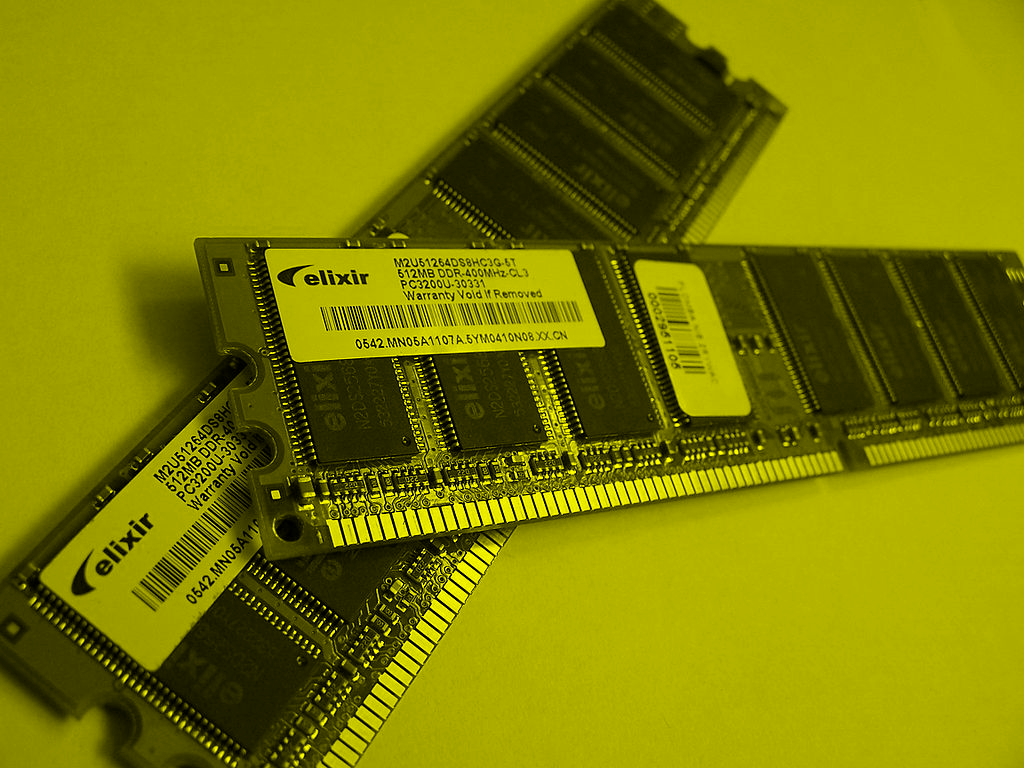
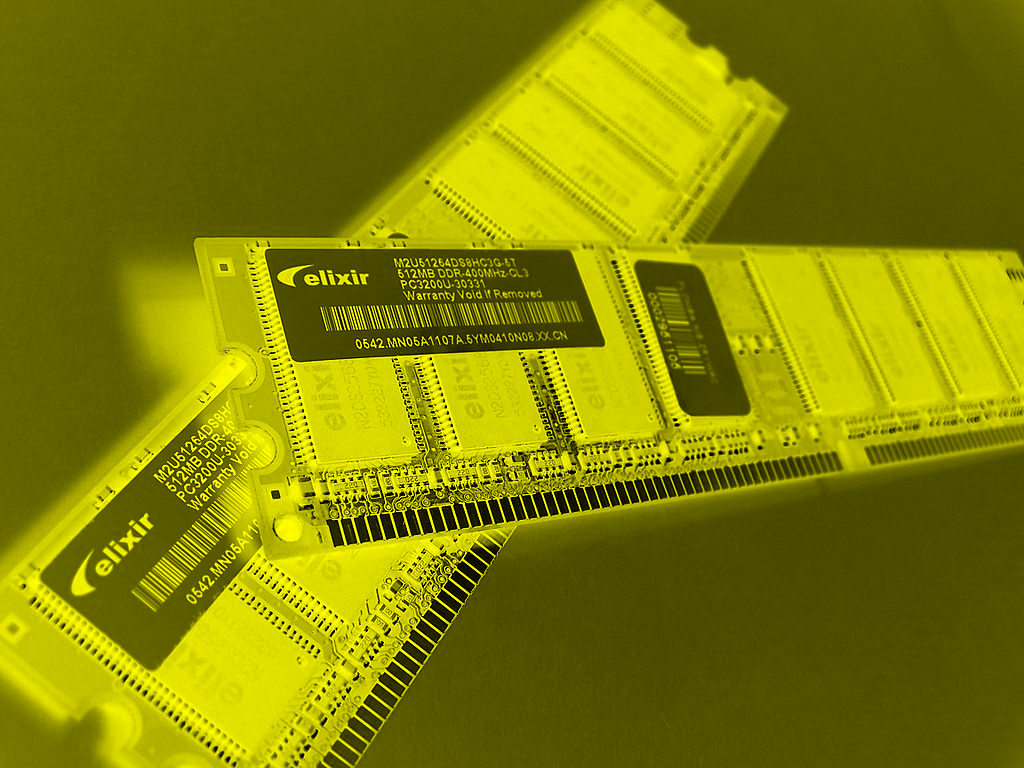


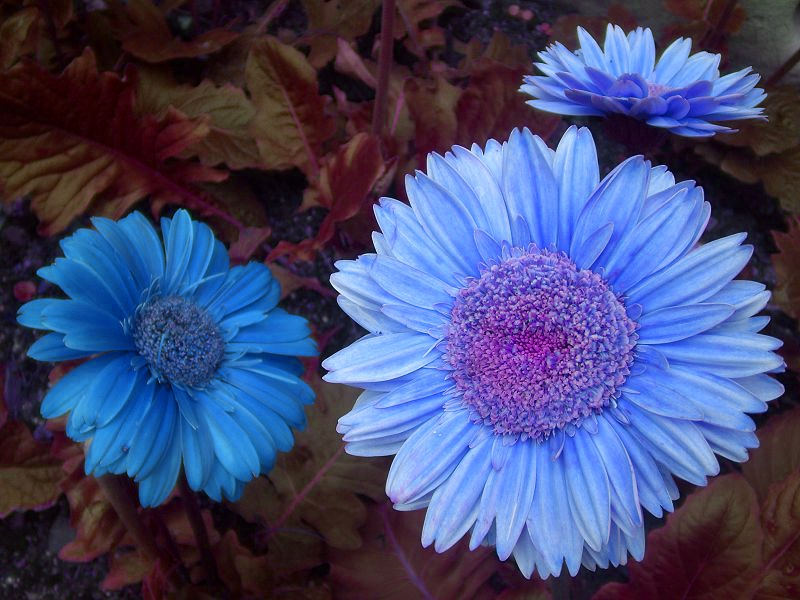
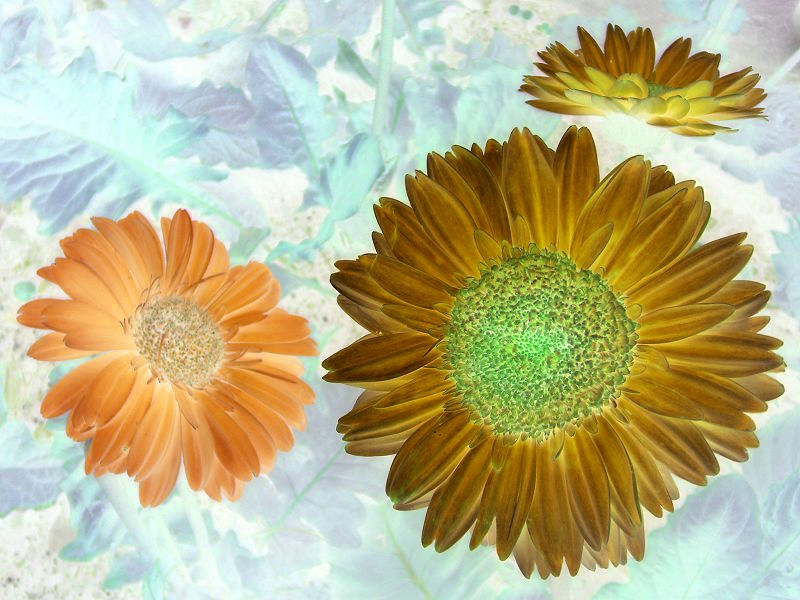








 Software by Default