Archive for the 'New Version' Category


C# How to: Difference Of Gaussians

Article purpose

In we explore the concept of . implements as a means of achieving . All of the concepts explored are implemented by accessing  and manipulating the raw pixel data exposed by an , no GDI+ or conventional drawing code is required.

Sample source code

is accompanied by a sample source code Visual Studio project which is available for download .

Using the Sample Application

The concepts explored in can be easily replicated by making use of the Sample Application, which forms part of the associated sample source code accompanying this article.

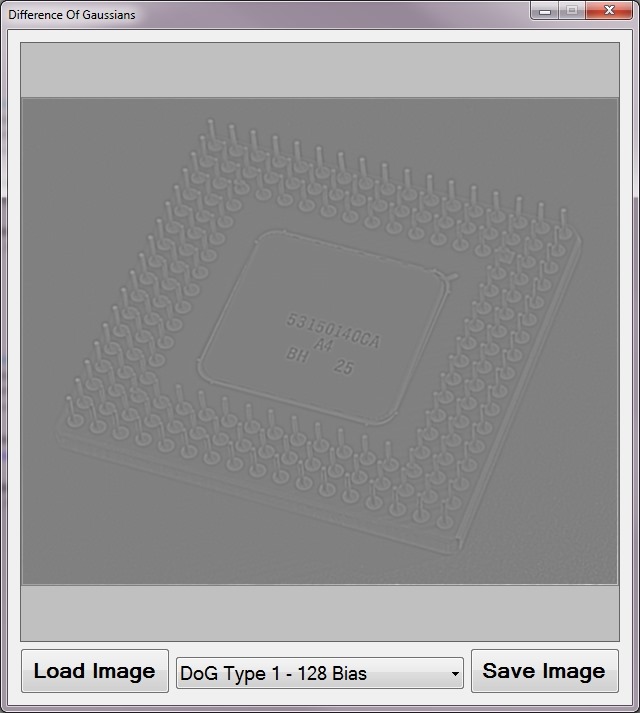
When using the Difference Of Gaussians sample application you can specify a input/source image by clicking the Load Image button. The dropdown towards the bottom middle part of the screen relates the various methods discussed.

If desired a user can save the resulting image to the local file system by clicking the Save Image button.

The following image is screenshot of the Difference Of Gaussians sample application in action:

Difference Of Gaussians Sample Application

What is Difference of Gaussians?

, commonly abbreviated as DoG, is a method of implementing  . Central to the method of is the application of .

From we gain the following :

In , Difference of Gaussians is a enhancement algorithm that involves the subtraction of one blurred version of an original image from another, less blurred version of the original. In the simple case of , the blurred images are obtained by the original with Gaussian kernels having differing standard deviations. Blurring an image using a suppresses only information. Subtracting one image from the other preserves spatial information that lies between the range of frequencies that are preserved in the two blurred images. Thus, the difference of Gaussians is a that discards all but a handful of spatial frequencies that are present in the original grayscale image.

In simple terms can be implemented by applying two of different intensity levels to the same source . The resulting is then created by subtracting the two of different .

Applying a Matrix filter

In the sample source code accompanying is applied by invoking the ConvolutionFilter method. This method accepts a two dimensional array of type double representing the convolution /. This method is also capable of first converting source to , which can be specified as a method parameter. Resulting sometimes tend to be very dark, which can be corrected by specifying a suitable bias value.

The following code snippet provides the implementation of the ConvolutionFilter method:

 private static Bitmap ConvolutionFilter(Bitmap sourceBitmap,  
                                     double[,] filterMatrix,  
                                          double factor = 1,  
                                               int bias = 0,  
                                     bool grayscale = false )  
{ 
     BitmapData sourceData = sourceBitmap.LockBits(new Rectangle (0, 0, 
                              sourceBitmap.Width, sourceBitmap.Height), 
                                                ImageLockMode.ReadOnly,  
                                          PixelFormat.Format32bppArgb); 

byte[] pixelBuffer = new byte[sourceData.Stride * sourceData.Height]; byte[] resultBuffer = new byte[sourceData.Stride * sourceData.Height];
Marshal.Copy(sourceData.Scan0, pixelBuffer, 0, pixelBuffer.Length); sourceBitmap.UnlockBits(sourceData);
if (grayscale == true) { float rgb = 0;
for (int k = 0; k < pixelBuffer.Length; k += 4) { rgb = pixelBuffer[k] * 0.11f; rgb += pixelBuffer[k + 1] * 0.59f; rgb += pixelBuffer[k + 2] * 0.3f;
pixelBuffer[k] = (byte )rgb; pixelBuffer[k + 1] = pixelBuffer[k]; pixelBuffer[k + 2] = pixelBuffer[k]; pixelBuffer[k + 3] = 255; } }
double blue = 0.0; double green = 0.0; double red = 0.0;
int filterWidth = filterMatrix.GetLength(1); int filterHeight = filterMatrix.GetLength(0);
int filterOffset = (filterWidth-1) / 2; int calcOffset = 0;
int byteOffset = 0;
for (int offsetY = filterOffset; offsetY < sourceBitmap.Height - filterOffset; offsetY++) { for (int offsetX = filterOffset; offsetX < sourceBitmap.Width - filterOffset; offsetX++) { blue = 0; green = 0; red = 0;
byteOffset = offsetY * sourceData.Stride + offsetX * 4;
for (int filterY = -filterOffset; filterY <= filterOffset; filterY++) { for (int filterX = -filterOffset; filterX <= filterOffset; filterX++) {
calcOffset = byteOffset + (filterX * 4) + (filterY * sourceData.Stride);
blue += (double)(pixelBuffer[calcOffset]) * filterMatrix[filterY + filterOffset, filterX + filterOffset];
green += (double)(pixelBuffer[calcOffset + 1]) * filterMatrix[filterY + filterOffset, filterX + filterOffset];
red += (double)(pixelBuffer[calcOffset + 2]) * filterMatrix[filterY + filterOffset, filterX + filterOffset]; } }
blue = factor * blue + bias; green = factor * green + bias; red = factor * red + bias;
if (blue > 255) { blue = 255; } else if (blue < 0) { blue = 0; }
if (green > 255) { green = 255; } else if (green < 0) { green = 0; }
if (red > 255) { red = 255; } else if (red < 0) { red = 0; }
resultBuffer[byteOffset] = (byte )(blue); resultBuffer[byteOffset + 1] = (byte )(green); resultBuffer[byteOffset + 2] = (byte )(red); resultBuffer[byteOffset + 3] = 255; } }
Bitmap resultBitmap = new Bitmap(sourceBitmap.Width, sourceBitmap.Height); BitmapData resultData = resultBitmap.LockBits(new Rectangle (0, 0, resultBitmap.Width, resultBitmap.Height), ImageLockMode .WriteOnly, PixelFormat.Format32bppArgb);
Marshal.Copy(resultBuffer, 0, resultData.Scan0, resultBuffer.Length); resultBitmap.UnlockBits(resultData);
return resultBitmap; }

The Gaussian Matrix

The sample source code defines three / values, a 3×3 and two slightly different 5×5 matrices. The Gaussian3x3 requires a factor of 1 / 16, the Gaussian5x5Type1 a factor of 1 / 159 and the factor required by the Gaussian5x5Type2 equates to 1 / 256.

public static class Matrix
{
    public static double[,] Gaussian3x3
    {
        get
        {
            return new double[,]  
            { { 1, 2, 1, }, 
              { 2, 4, 2, },
              { 1, 2, 1, }, };
        }
    }

public static double[,] Gaussian5x5Type1 { get { return new double[,] { { 2, 04, 05, 04, 2 }, { 4, 09, 12, 09, 4 }, { 5, 12, 15, 12, 5 }, { 4, 09, 12, 09, 4 }, { 2, 04, 05, 04, 2 }, }; } }
public static double[,] Gaussian5x5Type2 { get { return new double[,] { { 1, 4, 6, 4, 1 }, { 4, 16, 24, 16, 4 }, { 6, 24, 36, 24, 6 }, { 4, 16, 24, 16, 4 }, { 1, 4, 6, 4, 1 }, }; } } }

Subtracting Images

When implementing the method of after having applied two varying levels of the resulting need to be subtracted. The sample source code associated with implements the SubtractImage when subtracting .

The following code snippet details the implementation of the SubtractImage :

private static void SubtractImage(this Bitmap subtractFrom,  
                                  Bitmap subtractValue,  
                                  bool invert = false,
                                  int bias = 0) 
{ 
    BitmapData sourceData = 
               subtractFrom.LockBits(new Rectangle(0, 0, 
               subtractFrom.Width, subtractFrom.Height), 
               ImageLockMode.ReadWrite, 
               PixelFormat.Format32bppArgb); 

byte[] resultBuffer = new byte[sourceData.Stride * sourceData.Height];
Marshal.Copy(sourceData.Scan0, resultBuffer, 0, resultBuffer.Length);
BitmapData subtractData = subtractValue.LockBits(new Rectangle(0, 0, subtractValue.Width, subtractValue.Height), ImageLockMode.ReadOnly, PixelFormat.Format32bppArgb);
byte[] subtractBuffer = new byte[subtractData.Stride * subtractData.Height];
Marshal.Copy(subtractData.Scan0, subtractBuffer, 0, subtractBuffer.Length);
subtractValue.UnlockBits(subtractData);
int blue = 0; int green = 0; int red = 0;
for (int k = 0; k < resultBuffer.Length && k < subtractBuffer.Length; k += 4) { if (invert == true ) { blue = 255 - resultBuffer[k] - subtractBuffer[k] + bias;
green = 255 - resultBuffer[k + 1] - subtractBuffer[k + 1] + bias;
red = 255 - resultBuffer[k + 2] - subtractBuffer[k + 2] + bias; } else { blue = resultBuffer[k] - subtractBuffer[k] + bias;
green = resultBuffer[k + 1] - subtractBuffer[k + 1] + bias;
red = resultBuffer[k + 2] - subtractBuffer[k + 2] + bias; }
blue = (blue < 0 ? 0 : (blue > 255 ? 255 : blue)); green = (green < 0 ? 0 : (green > 255 ? 255 : green)); red = (red < 0 ? 0 : (red > 255 ? 255 : red));
resultBuffer[k] = (byte )blue; resultBuffer[k + 1] = (byte )green; resultBuffer[k + 2] = (byte )red; resultBuffer[k + 3] = 255; }
Marshal.Copy(resultBuffer, 0, sourceData.Scan0, resultBuffer.Length);
subtractFrom.UnlockBits(sourceData); }

Difference of Gaussians Extension methods

The sample source code implements   by means of two : DifferenceOfGaussians3x5Type1 and DifferenceOfGaussians3x5Type2. Both methods are virtually identical, the only difference being the 5×5 being implemented.

Both methods create two new , each having a of different levels of intensity applied. The two new are subtracted in order to create a single resulting .

The following source code snippet provides the implementation of the DifferenceOfGaussians3x5Type1 and DifferenceOfGaussians3x5Type2 :

public static Bitmap DifferenceOfGaussians3x5Type1(
                                  this Bitmap sourceBitmap,  
                                  bool grayscale = false, 
                                  bool invert = false, 
                                  int bias = 0) 
{
    Bitmap bitmap3x3 = ExtBitmap.ConvolutionFilter(sourceBitmap, 
                       Matrix.Gaussian3x3, 1.0 / 16.0, 
                       0, grayscale); 

Bitmap bitmap5x5 = ExtBitmap.ConvolutionFilter(sourceBitmap, Matrix.Gaussian5x5Type1, 1.0 / 159.0, 0, grayscale);
bitmap3x3.SubtractImage(bitmap5x5, invert, bias);
return bitmap3x3; }
public static Bitmap DifferenceOfGaussians3x5Type2( this Bitmap sourceBitmap, bool grayscale = false, bool invert = false, int bias = 0) { Bitmap bitmap3x3 = ExtBitmap.ConvolutionFilter(sourceBitmap, Matrix.Gaussian3x3, 1.0 / 16.0, 0, true );
Bitmap bitmap5x5 = ExtBitmap.ConvolutionFilter(sourceBitmap, Matrix.Gaussian5x5Type2, 1.0 / 256.0, 0, true );
bitmap3x3.SubtractImage(bitmap5x5, invert, bias);
return bitmap3x3; }

Sample Images

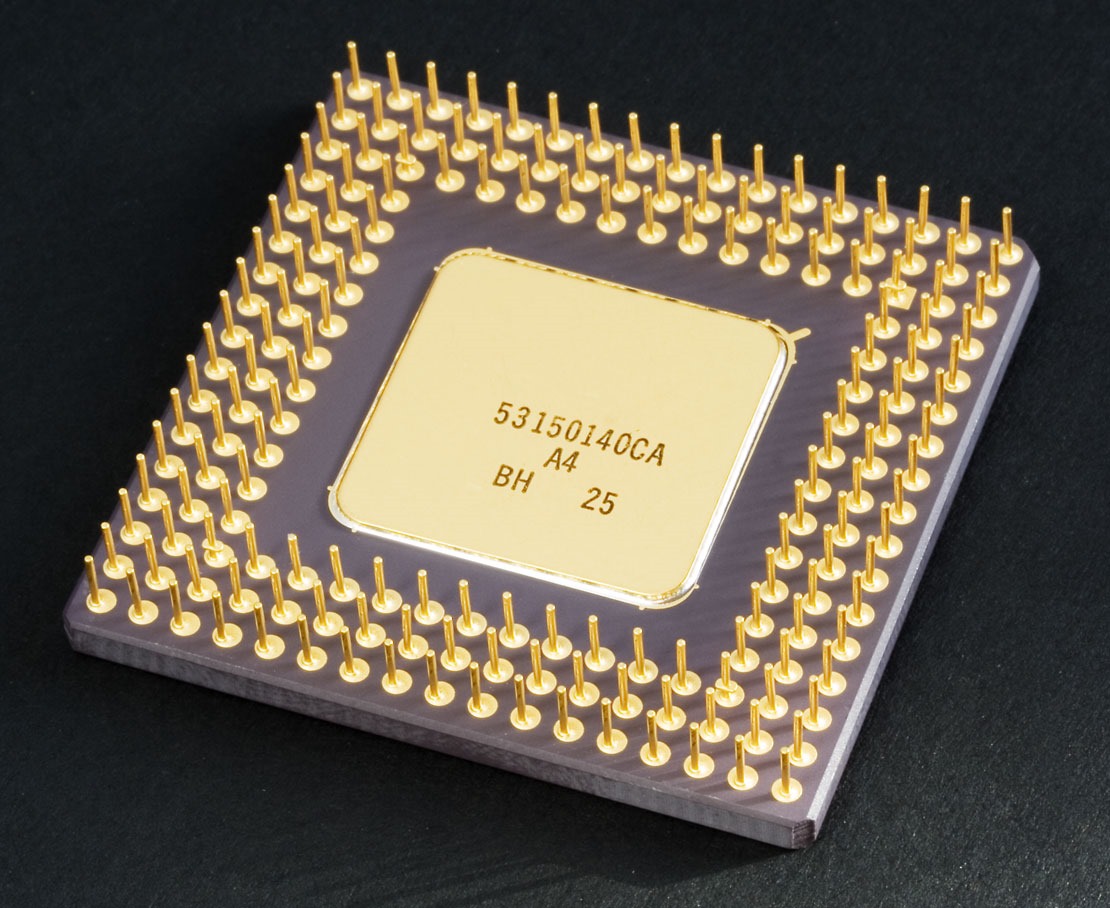
The original sample image used in this article is licensed under the Creative Commons Attribution-Share Alike 2.0 Generic license. The original author is attributed as Andrew Dunnhttp://www.andrewdunnphoto.com/

The Original Image

Intel_80486DX2_bottom

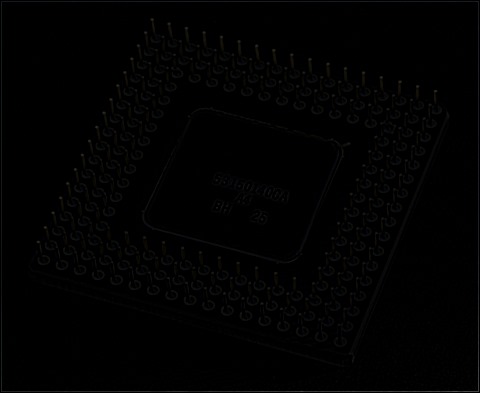
Difference Of Gaussians 3×5 Type1

Difference Of Gaussians 3x5 Type 1

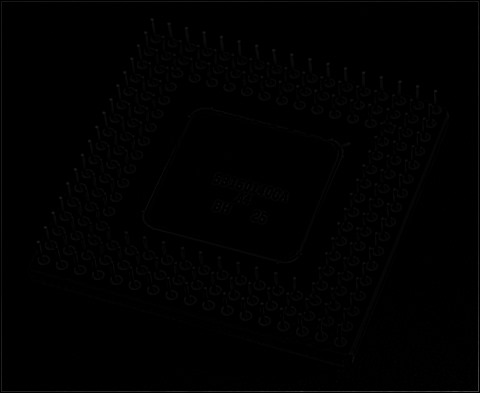
Difference Of Gaussians 3×5 Type2

Difference Of Gaussians 3x5 Type 2

Difference Of Gaussians 3×5 Type1 Bias 128

Difference Of Gaussians 3x5 Type 1 Bias 128

Difference Of Gaussians 3×5 Type 2 Bias 96

Difference Of Gaussians 3x5 Type 2 Bias96

Related Articles and Feedback

Feedback and questions are always encouraged. If you know of an alternative implementation or have ideas on a more efficient implementation please share in the comments section.

I’ve published a number of articles related to imaging and images of which you can find URL links here:

C# How to: Bitmap Colour Balance

Article Purpose

This explores the concept of manipulating the of a  . values are updated by directly manipulating a ’s underlying pixel data, no GDI drawing code required.

Sample source code

This is accompanied by a sample source code Visual Studio project which is available for download here.

Download Sample Source Code

Using the sample Application

The concepts explored in this are easily illustrated using the Sample Application provided with the sample source code. The sample application is implemented as a .

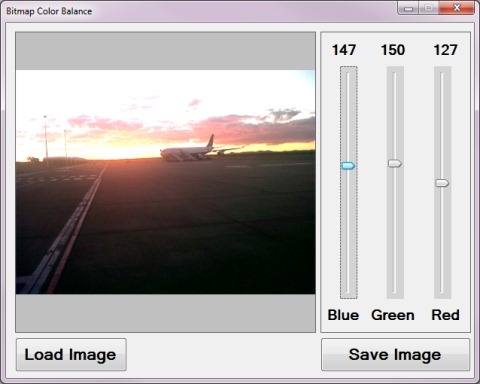
The Bitmap Colour Balance application enables the user to load an input image file from the local file system. The user interface provides three trackbar controls representing the colour components Blue, Green and Red. Possible values range from 0 to 255 inclusive. The application performs image filtering on the specified image as the user moves the colour component sliders.

If the user desires to save modified/filtered images to the local file system the sample application makes provision through the Save Button.

The following image provides a screenshot of the Bitmap Colour Balance application in action:


BitmapColorBalance


Colour Balance

Whilst developing the sample source code and writing this I found the article on to be very informative and comprehensive. I would recommend it as a must read for developers with little or no experience around colour representation in digital imaging.

From Wikipedia we get the following quote:

In and , color balance is the global adjustment of the intensities of the colors (typically red, green, and blue ). An important goal of this adjustment is to render specific colors – particularly neutral colors – correctly; hence, the general method is sometimes called gray balance, neutral balance, or white balance. Color balance changes the overall mixture of colors in an image and is used for color correction; generalized versions of color balance are used to get colors other than neutrals to also appear correct or pleasing.

From the quoted text we determine that refers to a method of implementing image filtering as a corrective action when the colours expressed by an image vary from the expected norm.

Literally as the name implies filtering attempts to provide greater balance in image colours. The colours considered to be out of balance with the rest of the image will be filtered out to varying degrees resulting in an image having a more natural appearance.

Accessing Pixel data directly

In this we do not perform traditional drawing operations such as the functionality exposed by the GDI+ Library. We are going to explore the tasks involved in directly accessing and manipulating the pixel buffer data that underlies a object instance. In order for our changes to persist we will also explore the tasks required to re-create an instance of the class and explicitly set/populate pixel data. The tasks referred to are discussed and implemented in the following section.

Locking the bytes inside a Bitmap

In this section we’ll be exploring a brief overview of how to access a ’s underlying array of colour components. Its important to remember that colour components are ordered: Blue, Green, Red, Alpha.

To access a ’s internal array of colour components we make use of the method. From :

Use the method to lock an existing bitmap in system memory so that it can be changed programmatically. You can change the color of an image with the method, although the LockBits method offers better performance for large-scale changes.

The specifies the attributes of the , such as size, pixel format, the starting address of the pixel data in memory, and length of each scan line (stride).

When calling this method, you should use a member of the enumeration that contains a specific bits-per-pixel (BPP) value. Using values such as and will throw an . Also, passing the incorrect pixel format for a bitmap will throw an .

Why lock a in memory? The architecture behind the and memory management through the necessitates locking a in memory before accessing the underlying data. As an application executes periodically the invokes various operations. Part of the ’s function involves relocating objects in memory. As described by :

A garbage collection has the following phases:

  • A marking phase that finds and creates a list of all live objects.

  • A relocating phase that updates the references to the objects that will be compacted.

  • A compacting phase that reclaims the space occupied by the dead objects and compacts the surviving objects. The compacting phase moves objects that have survived a garbage collection toward the older end of the segment.

When locking a through invoking the method you are effectively signalling the to not relocate in memory the being locked. Consider a scenario where, whilst accessing and manipulating a array of colour components, the starts to relocate the associated instance in memory. Without warning the memory being referenced is no longer associated with the object initially referenced.

Note: If you lock a into memory you must also unlock the object by invoking the method.

The method defines a return value of type . Properties exposed by the class to pay attention to: and , as discussed in the following section.

Copying  bytes from a Bitmap

The property is described by as follows:

The stride is the width of a single row of pixels (a scan line), rounded up to a four-byte boundary. If the stride is positive, the bitmap is top-down. If the stride is negative, the bitmap is bottom-up.

In essence a scan line refers to how many are required to represent a row of pixels. A 32 bits per pixel Argb equates to each pixel occupying 4 bytes of memory. The value of the property can be calculated as [Bitmap Width x 4] : rounded up to the first multiple of 4.

Also defined by the class is the property . We can consider a as a grid of rows and columns, essentially a two dimensional array with each element being 1 . The property provides us with how many colour components are expressed by a ’s row of pixels. To determine the total number of colour components expressed by a we simply have to multiply the properties and .

The property, which is of type , is described by as follows:

Gets or sets the address of the first pixel data in the bitmap. This can also be thought of as the first scan line in the bitmap.

We now know the size of the data we want to copy, we also know the address in memory where to start copying a ’s internal colour component array. To perform the actual copy operation we invoke the method.

The ColorBalance Extension method

The crux of this can be found in the ColorBalance extension method. It is only within the ColorBalance method that we will be referencing pixel data directly. Note that this method is defined as an extension method targeting the class.

The ColorBalance method requires 3 parameters. The parameters represent the values to be used in calculating resulting Blue, Green and Red colour component values. The following code snippet details the definition of the ColorBalance method:

 public static Bitmap ColorBalance(this Bitmap sourceBitmap, byte blueLevel,  
                                    byte greenLevel, byte redLevel) 
{ 
     BitmapData sourceData = sourceBitmap.LockBits(new  ectangle (0, 0,  
                                 sourceBitmap.Width, sourceBitmap.Height),  
                                 ImageLockMode.ReadOnly, PixelFormat.Format32bppArgb); 

byte[] pixelBuffer = new byte[sourceData.Stride * sourceData.Height];
Marshal.Copy(sourceData.Scan0, pixelBuffer, 0, pixelBuffer.Length);
sourceBitmap.UnlockBits(sourceData);
float blue = 0; float green = 0; float red = 0;
float blueLevelFloat = blueLevel; float greenLevelFloat = greenLevel; float redLevelFloat = redLevel;
for (int k = 0; k + 4 < pixelBuffer.Length; k += 4) { blue = 255.0f / blueLevelFloat * (float )pixelBuffer[k]; green = 255.0f / greenLevelFloat * (float)pixelBuffer[k + 1]; red = 255.0f / redLevelFloat * (float)pixelBuffer[k + 2]; if (blue > 255) {blue = 255;} else if (blue < 0) {blue = 0;} if (green > 255) {green = 255;} else if (green < 0) {green = 0;} if (red > 255) {red = 255;} else if (red < 0) {red = 0;} pixelBuffer[k] = (byte)blue; pixelBuffer[k + 1] = (byte)green; pixelBuffer[k + 2] = (byte)red; }
Bitmap resultBitmap = new Bitmap(sourceBitmap.Width, sourceBitmap.Height);
BitmapData resultData = resultBitmap.LockBits(new Rectangle(0, 0, resultBitmap.Width,resultBitmap.Height), ImageLockMode.WriteOnly, PixelFormat.Format32bppArgb);
Marshal.Copy(pixelBuffer, 0, resultData.Scan0, pixelBuffer.Length); resultBitmap.UnlockBits(resultData);
return resultBitmap; }

As discussed in previous sections we create an array of and copy the specified object’s underlying values.

The bulk of the work performed by this method happens within the for loop which iterates through the buffer of colour components. Notice how with each loop we increment by 4, the reason being each loop operation modifies 4 at a time. One pixel in terms of the ARGB format equates to 4 , thus each time we loop, we modify 1 pixel.

The formula implemented can be expressed as follows:

R = 255 / Rw * R1

G = 255 / Gw * G1

B = 255 / Bw * B1

Where Rw  Gw and Bw represents the value of a colour component believed to represent White and R1 G1 and B1 representing the original value of a colour component before implementing the colour balance formula.

The value of a colour component can only range between 0 and 255 inclusive. Before setting the newly calculated values we have to check if calculated values range between 0 and 255.

The last operation performed by the ColorBalance Extension method involves creating a new image based on the same size dimensions as the source image. Once the has been locked into memory we copy the modified buffer using the method.

Sample Images

This section illustrates a few scenarios implementing the filter.

Fun Fact: The first image is a photograph I snapped at OR Tambo International Airport, Johannesburg, South Africa. The second photograph I snapped at Hosea Kutako International Airport, Windhoek, Namibia.

The Original Image


Airport_Original1


Colour Balanced Images


Airport1 Airport2
Airport3 Airport4
Airport5 Airport6

The Original Image


Airport_Original2


Colour Balanced Images


Airport7 Airport8
Airport9 Airport10
Airport11 Airport12

Related Articles

Image Filters: Colourful Processors

Overview

Today has been my best day in terms of Likes and Views on my website. I have come to the obvious conclusion that most people are more interested in seeing pretty pictures than they are in reading articles on source code.

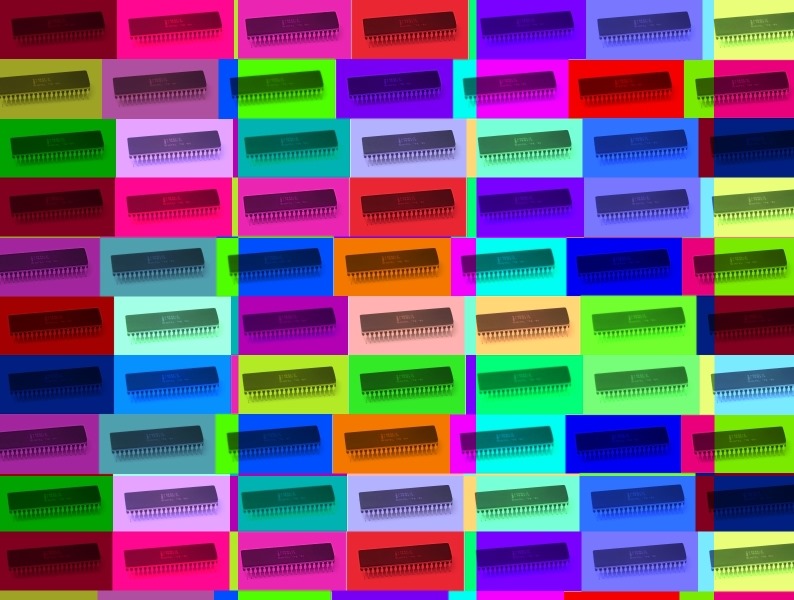
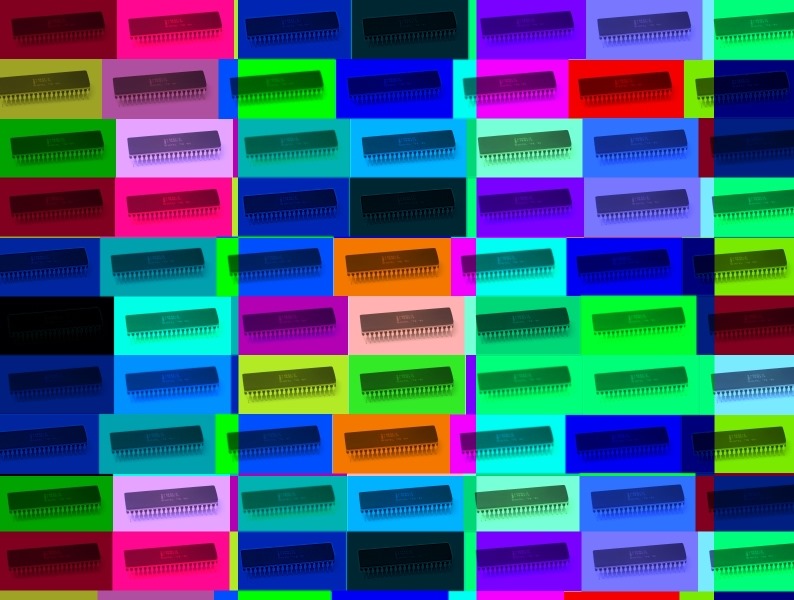
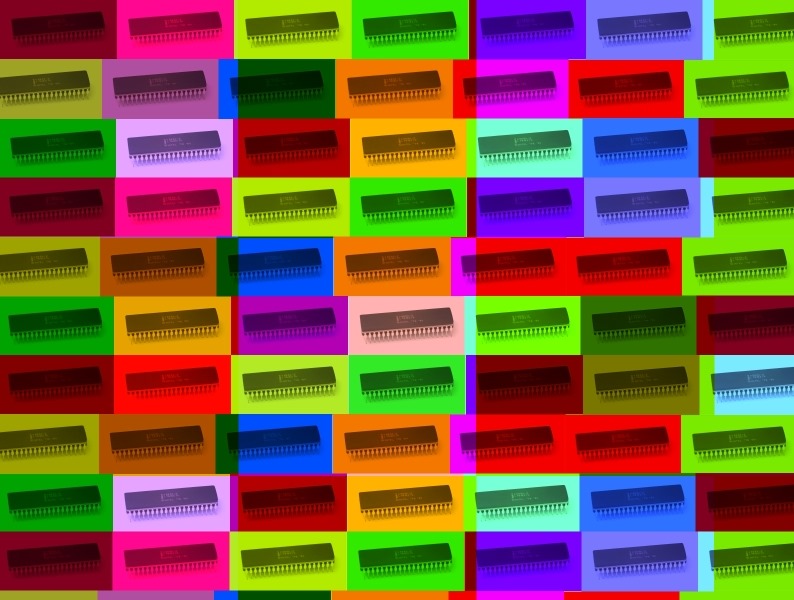
That’s ok, I also like pretty pictures SmileI have uploaded some more eye candy. The images were created by modifying an image originally authored by Konstantin Lanzet. The original image file is licensed under the Attribution-Share Alike 3.0 Unported license, and can be downloaded from .
As a point of interest, all of the filters implemented were done through software I had written from scratch. Most of the application source code have been discussed in various articles and published here on my . All applications and related source code are of course open source.

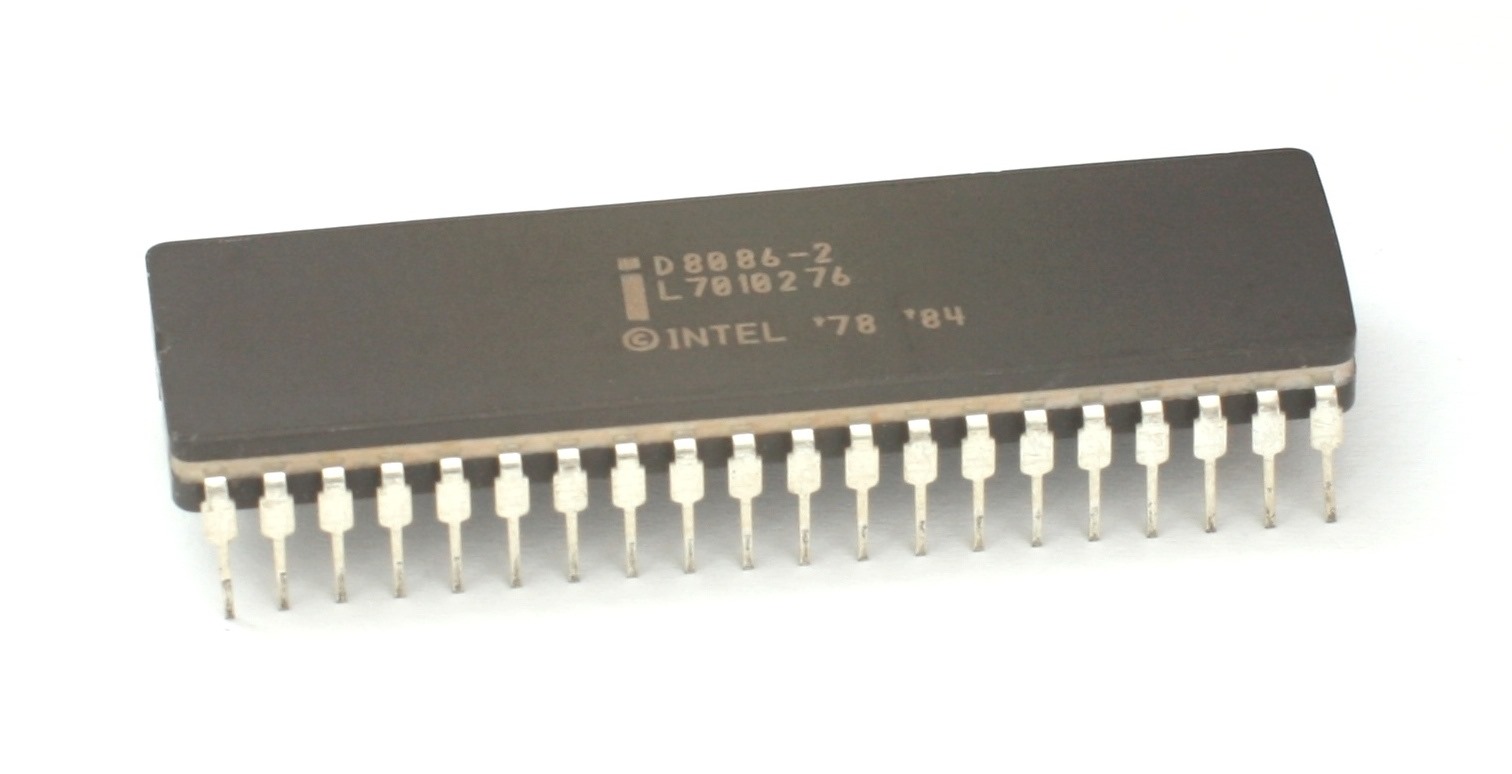
This is what the original image looks like:


KL_Intel_D8086


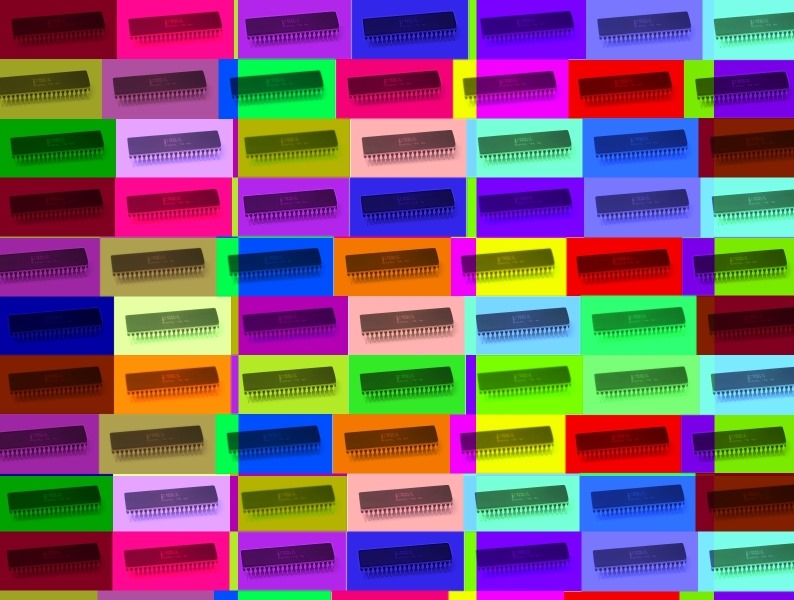
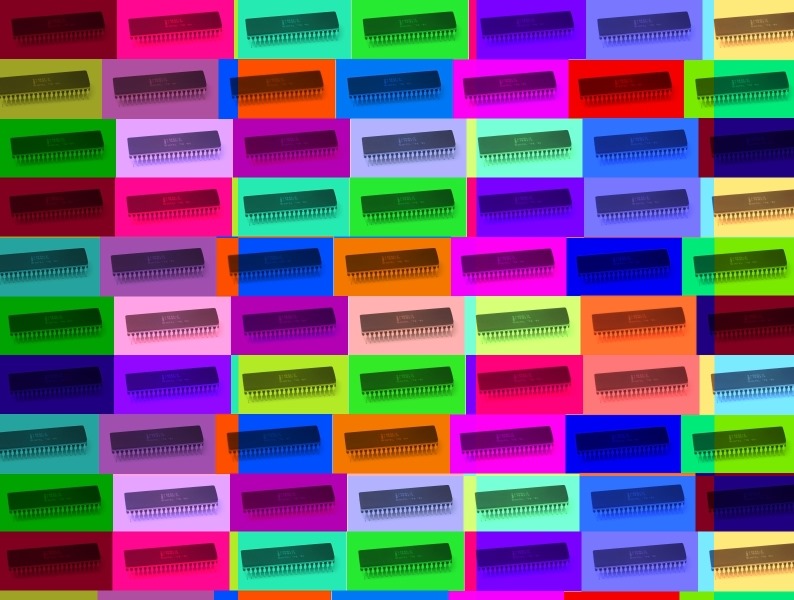
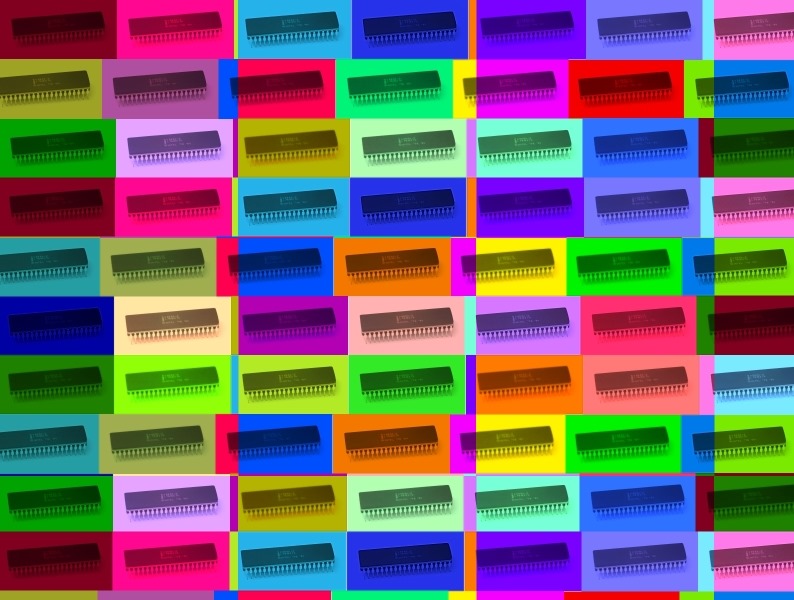
After applying various colour filters and a bit of copy and paste the result:

Chips_1


Chips_2


Chips_3 


Chips_5


Chips_6


Chips_7

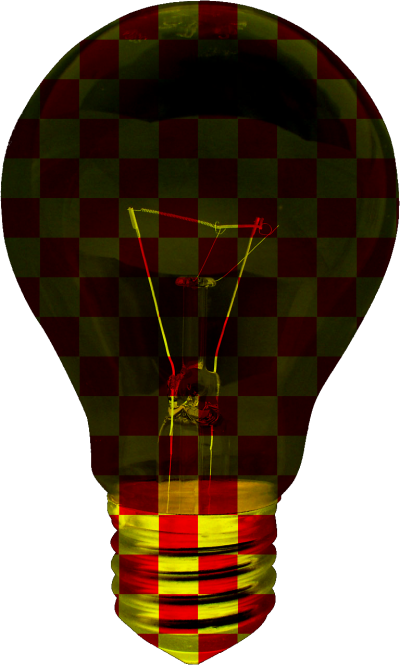
Image Filters: Light bulb Patterns

Overview

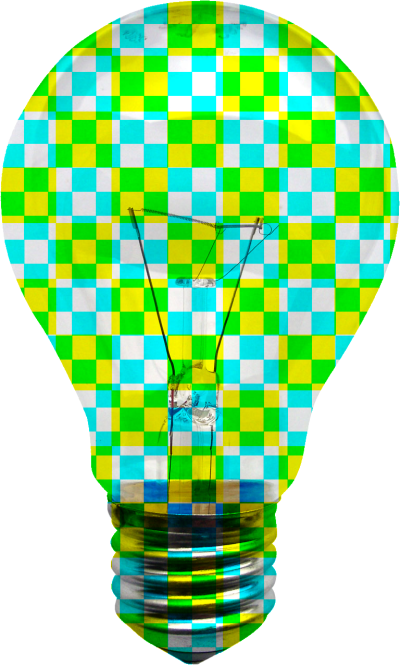
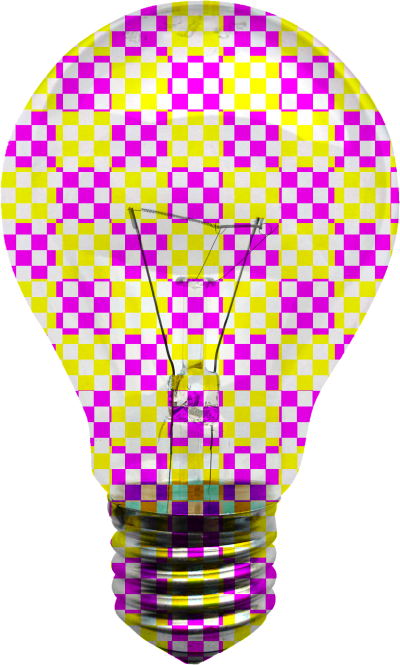
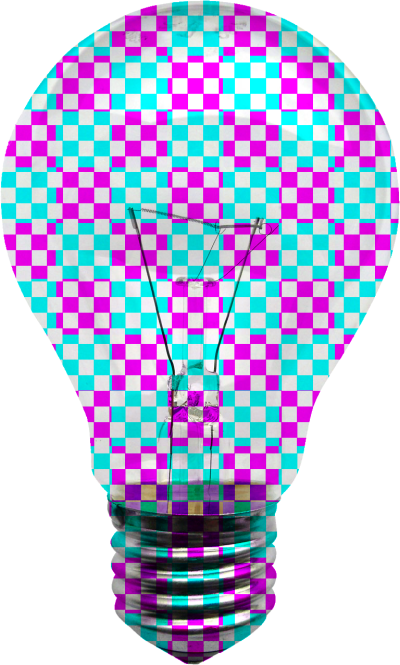
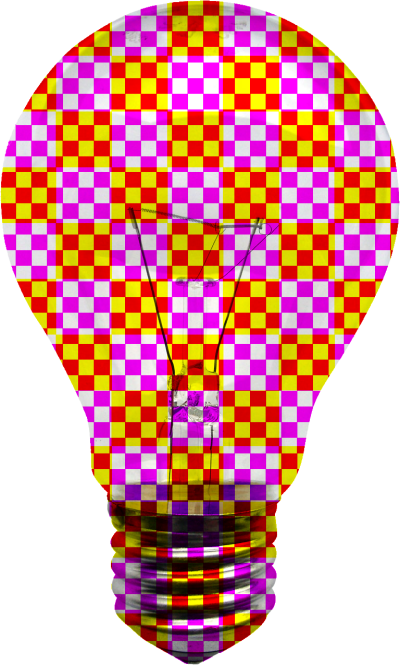
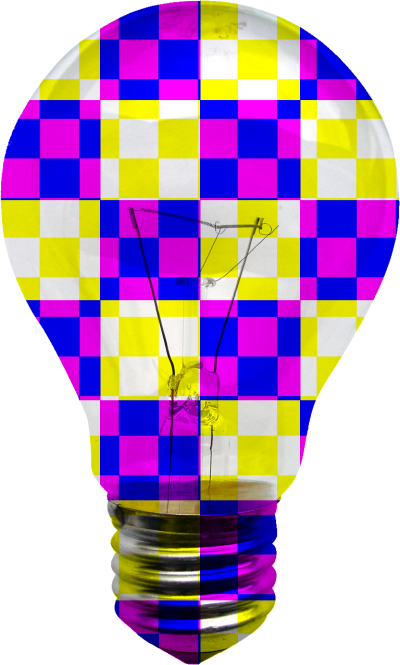
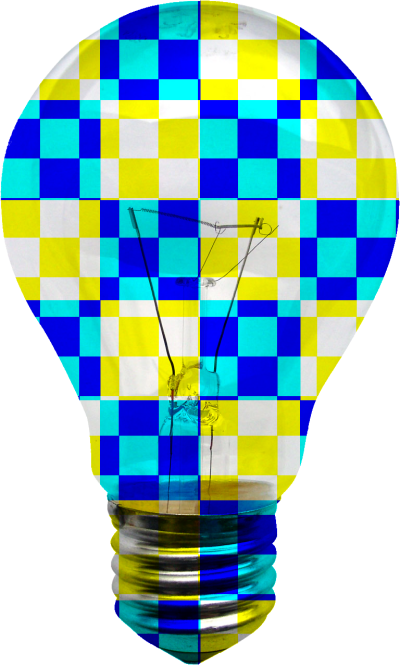
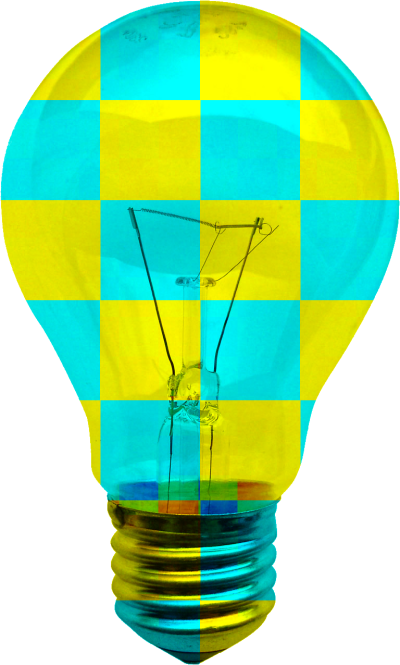
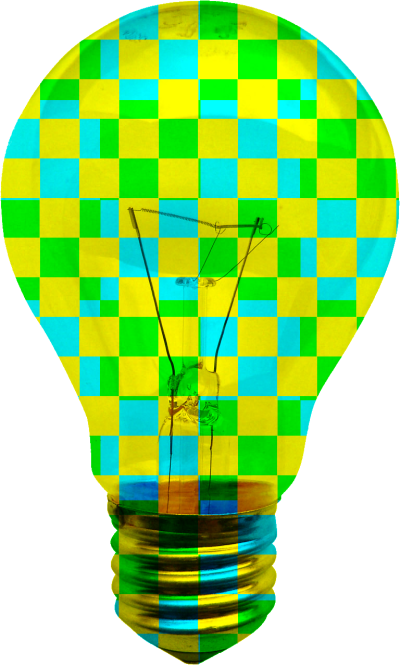
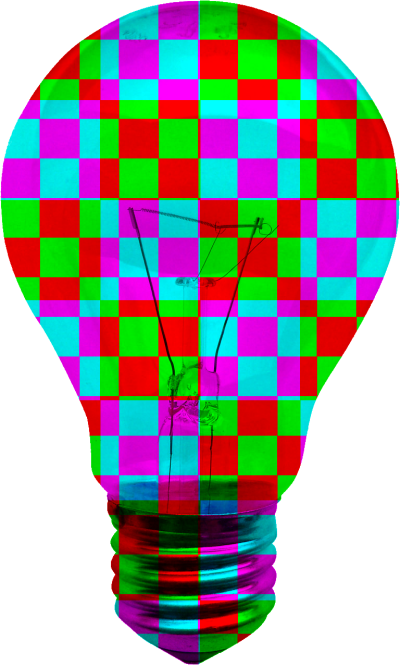
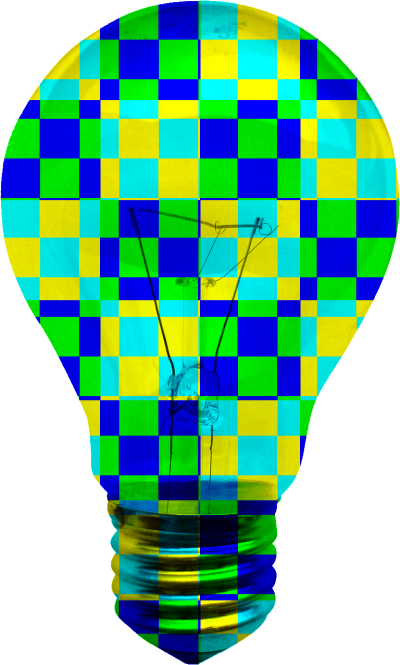
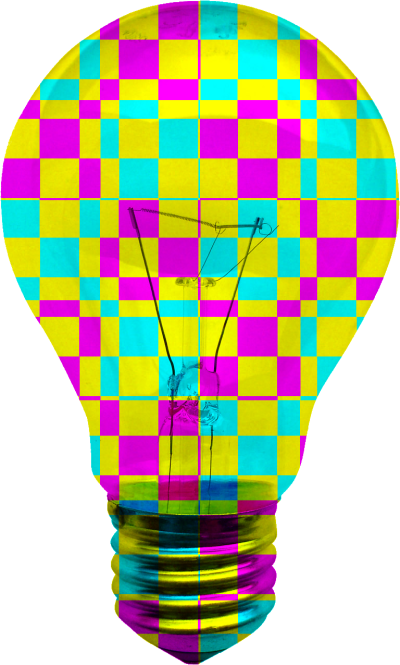
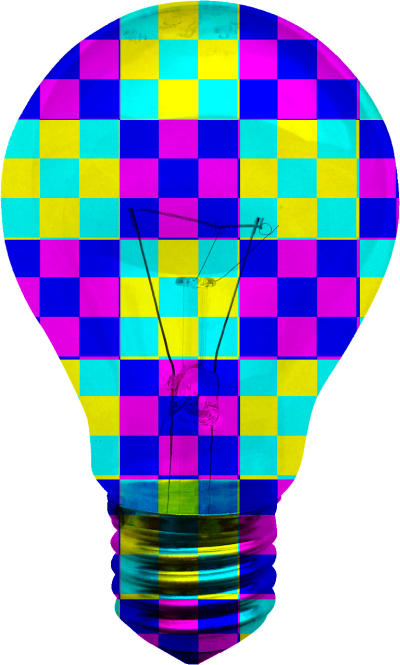
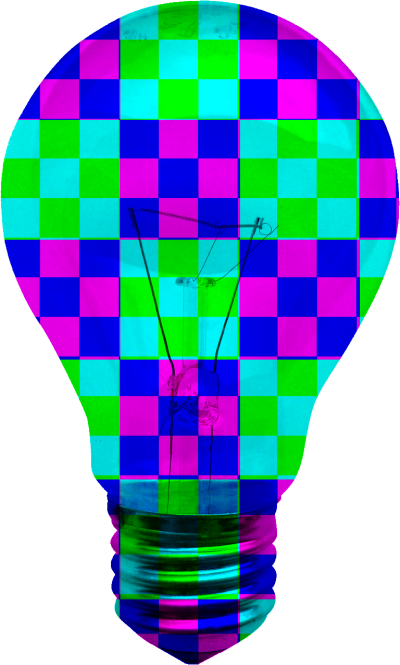
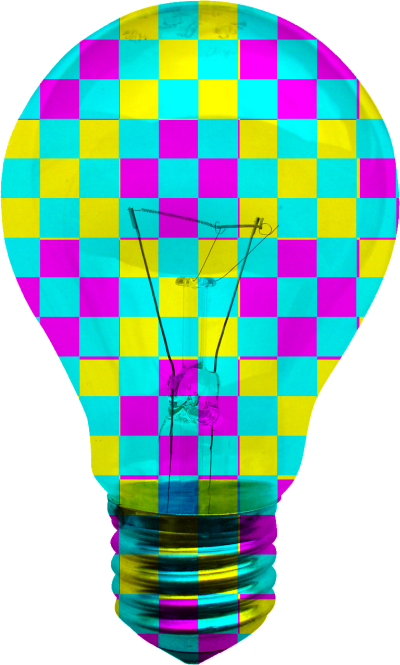
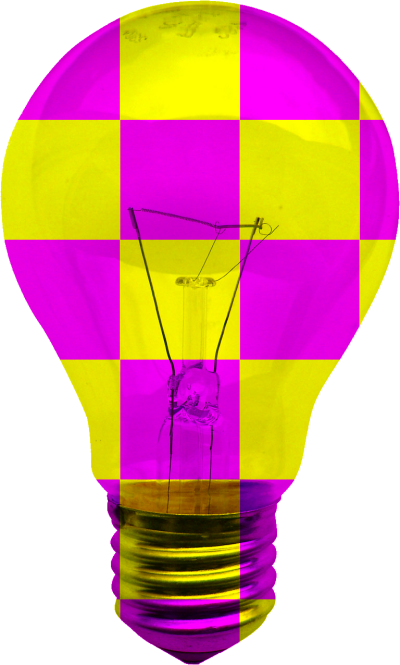
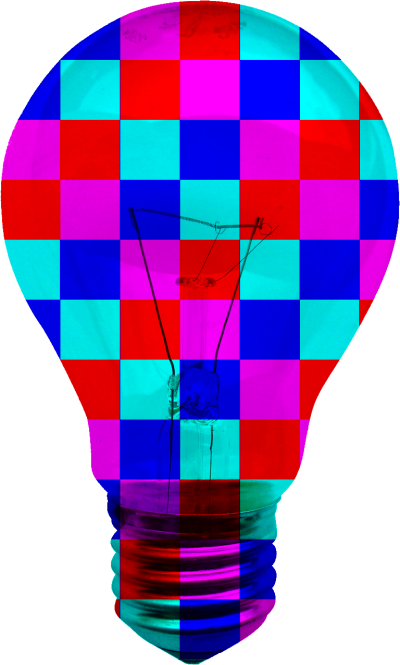
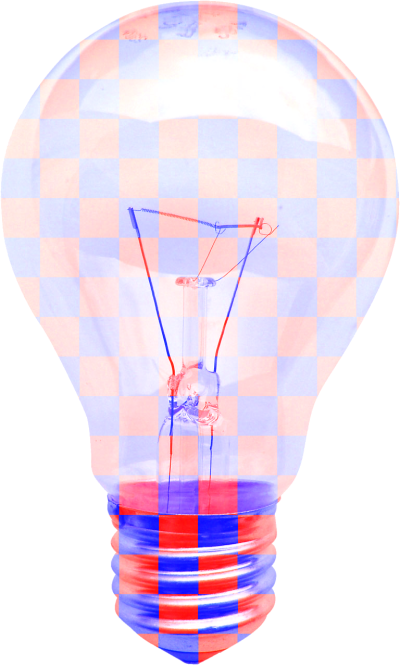
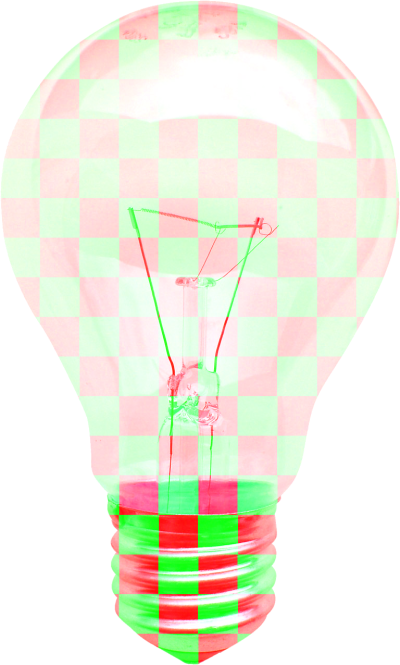
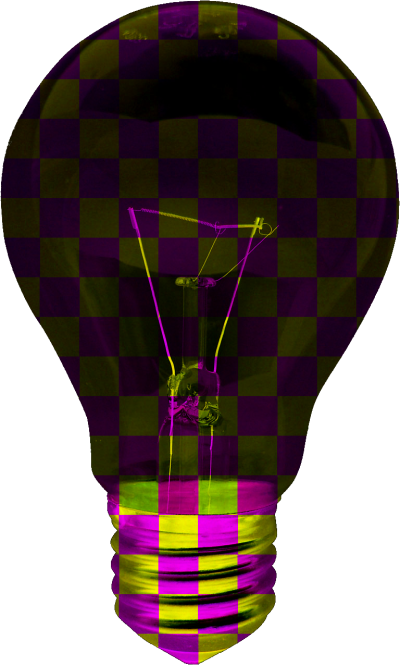
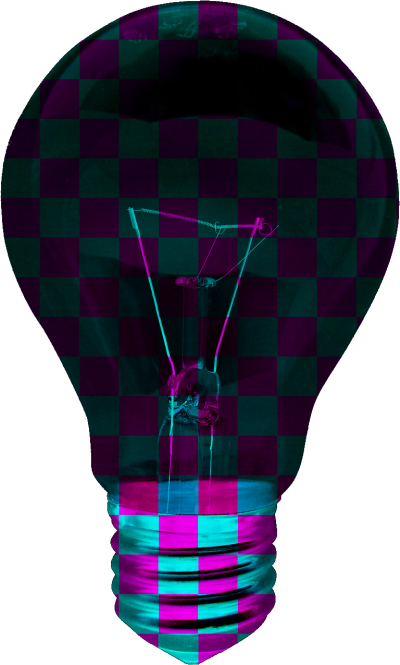
I’ve started development on pattern based colour filtering today. The software still needs some work, but so far the results are starting to look quite promising.

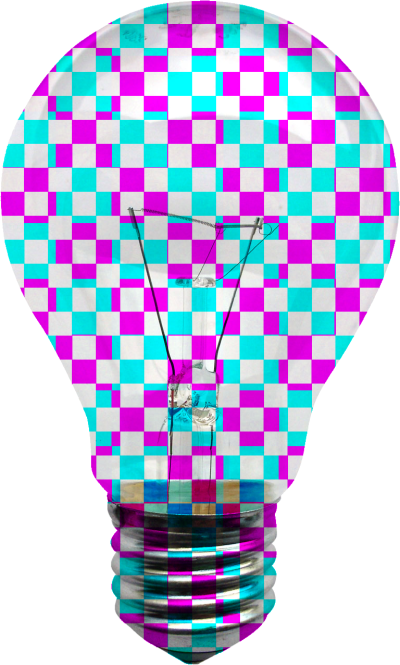
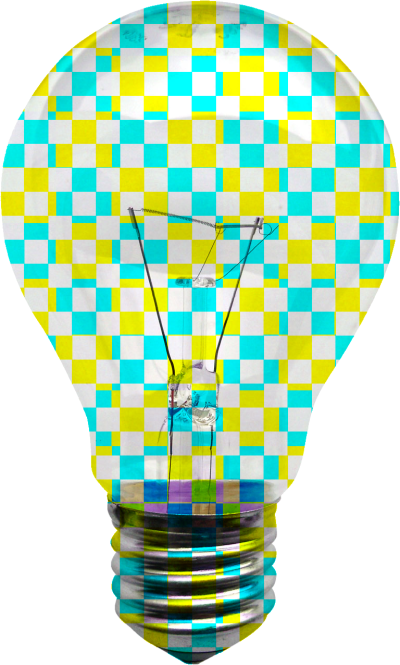
At this point I’ve only implemented variable sized checkerboard patterns. The idea being to divide an image into a number of squares and then to only include alternating squares when applying various colour filters.

Keep in mind all of the images shown below were generated from the same source image. The original image reflects a fairly standard image of a clear glass bayonet light bulb.

The original source image used to generate the images featured in this article has been licensed under the Creative Commons Attribution-Share Alike 3.0 Unported license and can be downloaded from Wikipedia.


LightBulb_1 LightBulb_2
LightBulb_3 LightBulb_4
LightBulb_5 LightBulb_6
LightBulb_7 LightBulb_8
LightBulb_9 LightBulb_10
LightBulb_11 LightBulb_12
LightBulb_13 LightBulb_14
LightBulb_15 LightBulb_16
LightBulb_17 LightBulb_18
LightBulb_20 LightBulb_21
LightBulb_22 LightBulb_23
LightBulb_24  

C# How to: Bitmap Colour Substitution implementing thresholds

Article Purpose

This article is aimed at detailing how to implement the process of substituting the colour values that form part of a image. Colour substitution is implemented by means of a threshold value. By implementing a threshold a range of similar colours can be substituted.

Sample source code

This article is accompanied by a sample source code Visual Studio project which is available for download here.

Using the sample Application

The provided sample source code builds a Windows Forms application which can be used to test/implement the concepts described in this article. The sample application enables the user to load an file from the file system, the user can then specify the colour to replace, the replacement colour and the threshold to apply. The following image is a screenshot of the sample application in action.

BitmapColourSubstitution_Scaled

The scenario detailed in the above screenshot shows the sample application being used to create an where the sky has more of a bluish hue when compared to the original .

Notice how replacement colour does not simply appear as a solid colour applied throughout. The replacement colour gets implemented matching the intensity of the colour being substituted.

The colour filter options:

FilterOptions

The colour to replace was taken from the original , the replacement colour is specified through a colour picker dialog. When a user clicks on either displayed, the colour of the pixel clicked on sets the value of the replacement colour. By adjusting the threshold value the user can specify how wide or narrow the range of colours to replace should be. The higher the threshold value, the wider the range of colours that will be replaced.

The resulting image can be saved by clicking the “Save Result” button. In order to apply another colour substitution on the resulting image click the button labelled “Set Result as Source”.

Colour Substitution Filter Data

The sample source code provides the definition for the ColorSubstitutionFilter class. The purpose of this class is to contain data required when applying colour substitution. The ColorSubstitutionFilter class is defined as follows:

public class ColorSubstitutionFilter
{
    private int thresholdValue = 10;
    public int ThresholdValue
    {
        get { return thresholdValue; }
        set { thresholdValue = value; }
    }

private Color sourceColor = Color.White; public Color SourceColor { get { return sourceColor; } set { sourceColor = value; } }
private Color newColor = Color.White; public Color NewColor { get { return newColor; } set { newColor = value; } } }

To implement a colour substitution filter we first have to create an object instance of type ColorSubstitutionFilter. A colour substitution requires specifying a SourceColor, which is the colour to replace/substitute and a NewColour, which defines the colour that will replace the SourceColour. Also required is a ThresholdValue, which determines a range of colours based on the SourceColor.

Colour Substitution implemented as an Extension method

The sample source code defines the ColorSubstitution extension method which targets the class. Invoking the ColorSubstitution requires passing a parameter of type ColorSubstitutionFilter, which defines how colour substitution is to be implemented. The following code snippet contains the definition of the ColorSubstitution method.

public static Bitmap ColorSubstitution(this Bitmap sourceBitmap, ColorSubstitutionFilter filterData)
{
    Bitmap resultBitmap = new Bitmap(sourceBitmap.Width, sourceBitmap.Height, PixelFormat.Format32bppArgb);

BitmapData sourceData = sourceBitmap.LockBits(new Rectangle(0, 0, sourceBitmap.Width, sourceBitmap.Height), ImageLockMode.ReadOnly, PixelFormat.Format32bppArgb); BitmapData resultData = resultBitmap.LockBits(new Rectangle(0, 0, resultBitmap.Width, resultBitmap.Height), ImageLockMode.WriteOnly, PixelFormat.Format32bppArgb);
byte[] resultBuffer = new byte[resultData.Stride * resultData.Height]; Marshal.Copy(sourceData.Scan0, resultBuffer, 0, resultBuffer.Length);
sourceBitmap.UnlockBits(sourceData);
byte sourceRed = 0, sourceGreen = 0, sourceBlue = 0, sourceAlpha = 0; int resultRed = 0, resultGreen = 0, resultBlue = 0;
byte newRedValue = filterData.NewColor.R; byte newGreenValue = filterData.NewColor.G; byte newBlueValue = filterData.NewColor.B;
byte redFilter = filterData.SourceColor.R; byte greenFilter = filterData.SourceColor.G; byte blueFilter = filterData.SourceColor.B;
byte minValue = 0; byte maxValue = 255;
for (int k = 0; k < resultBuffer.Length; k += 4) { sourceAlpha = resultBuffer[k + 3];
if (sourceAlpha != 0) { sourceBlue = resultBuffer[k]; sourceGreen = resultBuffer[k + 1]; sourceRed = resultBuffer[k + 2];
if ((sourceBlue < blueFilter + filterData.ThresholdValue && sourceBlue > blueFilter - filterData.ThresholdValue) &&
(sourceGreen < greenFilter + filterData.ThresholdValue && sourceGreen > greenFilter - filterData.ThresholdValue) &&
(sourceRed < redFilter + filterData.ThresholdValue && sourceRed > redFilter - filterData.ThresholdValue)) { resultBlue = blueFilter - sourceBlue + newBlueValue;
if (resultBlue > maxValue) { resultBlue = maxValue;} else if (resultBlue < minValue) { resultBlue = minValue;}
resultGreen = greenFilter - sourceGreen + newGreenValue;
if (resultGreen > maxValue) { resultGreen = maxValue;} else if (resultGreen < minValue) { resultGreen = minValue;}
resultRed = redFilter - sourceRed + newRedValue;
if (resultRed > maxValue) { resultRed = maxValue;} else if (resultRed < minValue) { resultRed = minValue;}
resultBuffer[k] = (byte)resultBlue; resultBuffer[k + 1] = (byte)resultGreen; resultBuffer[k + 2] = (byte)resultRed; resultBuffer[k + 3] = sourceAlpha; } } }
Marshal.Copy(resultBuffer, 0, resultData.Scan0, resultBuffer.Length); resultBitmap.UnlockBits(resultData);
return resultBitmap; }

The ColorSubstitution method can be labelled as due to its implementation. Being implies that the source/input data will not be modified, instead a new instance will be created reflecting the source data as modified by the operations performed in the particular method.

The first statement defined in the ColorSubstitution method body instantiates an instance of a new , matching the size dimensions of the source object. Next the method invokes the method on the source and result instances. When invoking the underlying data representing a will be locked in memory. Being locked in memory can also be described as signalling/preventing the Garbage Collector to not move around in memory the data being locked. Invoking results in the Garbage Collector functioning as per normal, moving data in memory and updating the relevant memory references when required.

The source code continues by copying all the representing the source to an array of bytes that represents the resulting . At this stage the source and result s are exactly identical and as yet unmodified. In order to determine which pixels based on colour should be modified the source code iterates through the byte array associated with the result .

Notice how the for loop increments by 4 with each loop. The underlying data represents a 32 Bits per pixel Argb , which equates to 8 bits/1 representing an individual colour component, either Alpha, Red, Green or Blue. Defining the for loop to increment by 4 results in each loop iterating 4 or 32 bits, in essence 1 pixel.

Within the for loop we determine if the colour expressed by the current pixel adjusted by the threshold value forms part of the colour range that should be updated. It is important to remember that an individual colour component is a byte value and can only be set to a value between 0 and 255 inclusive.

The Implementation

The ColorSubstitution method is implemented by the sample source code  through a Windows Forms application. The ColorSubstitution method requires that the source specified must be  formatted as a 32 Bpp Argb . When the user loads a source image from the file system the sample application attempts to convert the selected file by invoking the Format32bppArgbCopy which targets the class. The definition is as follows:

public static Bitmap Format32bppArgbCopy(this Bitmap sourceBitmap)
{
    Bitmap copyBitmap = new Bitmap(sourceBitmap.Width, sourceBitmap.Height, PixelFormat.Format32bppArgb);

using (Graphics graphicsObject = Graphics.FromImage(copyBitmap)) { graphicsObject.CompositingQuality = System.Drawing.Drawing2D.CompositingQuality.HighQuality; graphicsObject.InterpolationMode = System.Drawing.Drawing2D.InterpolationMode.HighQualityBicubic; graphicsObject.PixelOffsetMode = System.Drawing.Drawing2D.PixelOffsetMode.HighQuality; graphicsObject.SmoothingMode = System.Drawing.Drawing2D.SmoothingMode.HighQuality;
graphicsObject.DrawImage(sourceBitmap, new Rectangle(0, 0, sourceBitmap.Width, sourceBitmap.Height), new Rectangle(0, 0, sourceBitmap.Width, sourceBitmap.Height), GraphicsUnit.Pixel); }
return copyBitmap; }

Colour Substitution Examples

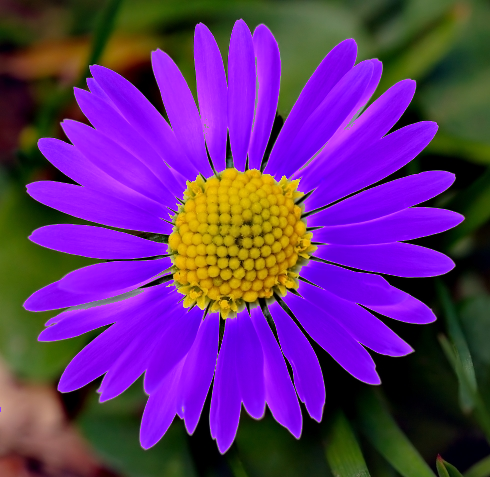
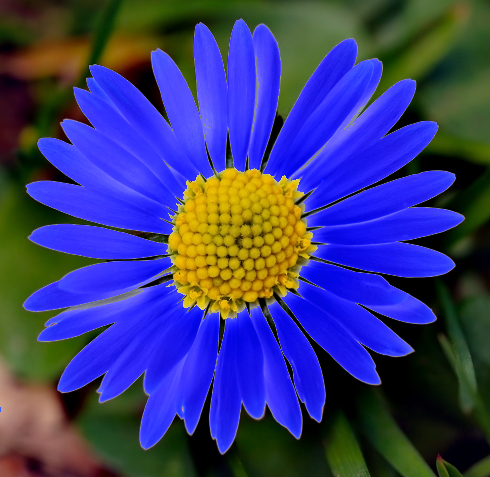
The following section illustrates a few examples of colour substitution result . The source image features Bellis perennis also known as the common European Daisy (see Wikipedia). The image file is licensed under the Creative Commons Attribution-Share Alike 2.5 Generic license. The original image can be downloaded here. The following image is a scaled down version of the original:
Bellis_perennis_white_(aka)_scaled

Light Blue Colour Substitution

Colour Component Source Colour Substitute Colour
Red   255   121
Green   223   188
Blue   224   255

Daisy_light_blue

Medium Blue Colour Substitution

Colour Component Source Colour Substitute Colour
Red   255   34
Green   223   34
Blue   224   255

Daisy_medium_blue

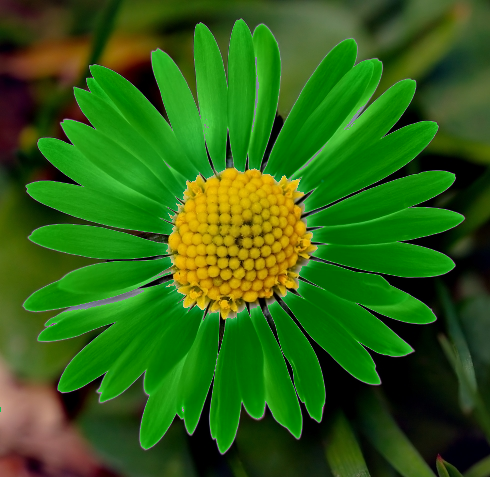
Medium Green Colour Substitution

Colour Component Source Colour Substitute Colour
Red   255   0
Green   223   128
Blue   224   0

Daisy_medium_green

Purple Colour Substitution

Colour Component Source Colour Substitute Colour
Red   255   128
Green   223   0
Blue   224   255

Daisy_purple

Related Articles and Feedback

Feedback and questions are always encouraged. If you know of an alternative implementation or have ideas on a more efficient implementation please share in the comments section.
I’ve published a number of articles related to imaging and images of which you can find URL links here:


Dewald Esterhuizen

Unknown's avatar

Blog Stats

  • 892,466 hits

Enter your email address to follow and receive notifications of new posts by email.

Join 91 other subscribers

Archives

RSS SoftwareByDefault on MSDN

  • An error has occurred; the feed is probably down. Try again later.