Article Purpose
The objective of this article is to illustrate Image Arithmetic being implemented when blending/combining two separate images into a single result image. The types of Image Arithmetic discussed are: Average, Add, SubtractLeft, SubtractRight, Difference, Multiply, Min, Max and Amplitude.
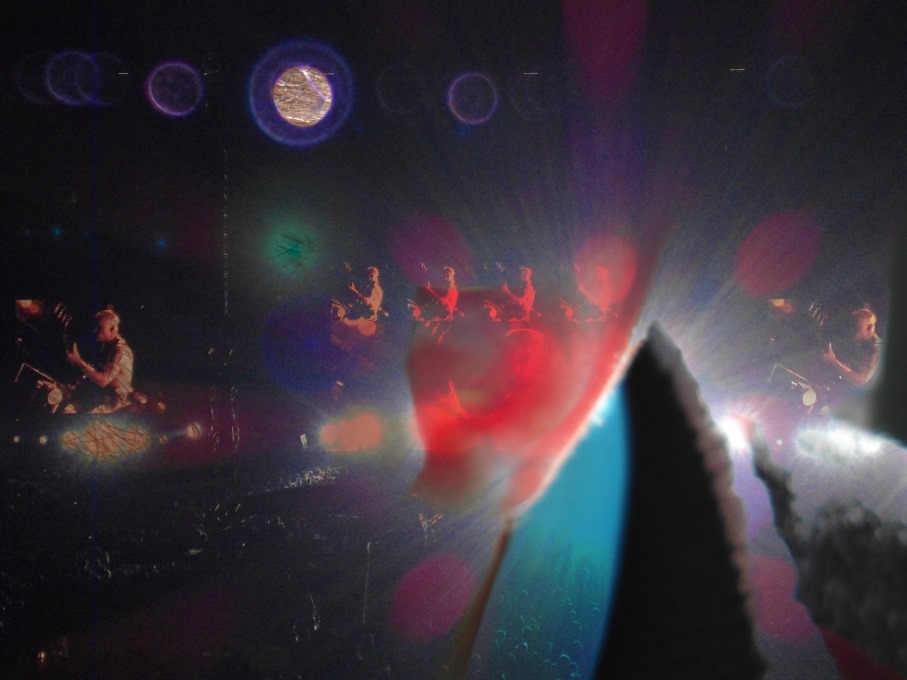
I created the following image by implementing Image Arithmetic using as input images a photo of a friend’s ear and a photograph taken at a live concert performance by The Red Hot Chili Peppers.
Sample source code
This article is accompanied by a sample source code Visual Studio project which is available for download here.

Using the Sample Application
The Sample source code accompanying this article includes a Sample Application developed on a Windows Forms platform. The Sample Application is indented to provide an implementation of the various types of Image Arithmetic explored in this article.
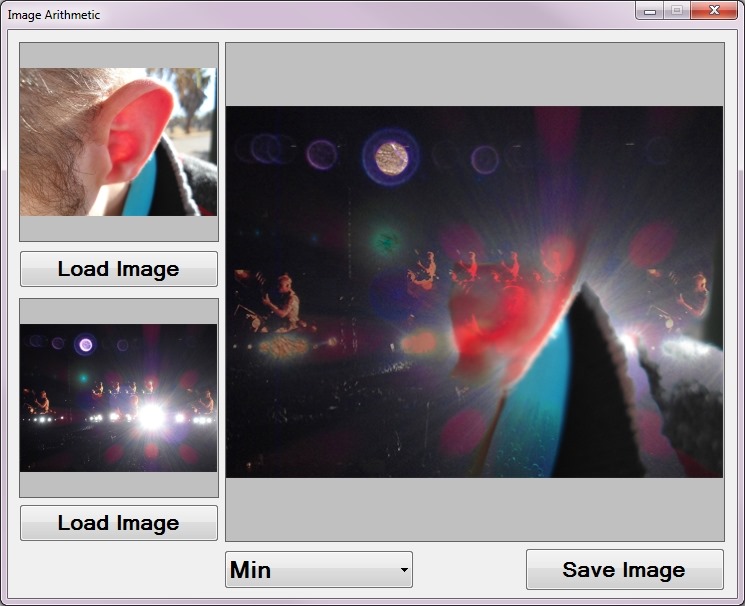
The Image Arithmetic sample application allows the user to select two source/input images from the local file system. The user interface defines a ComboBox dropdown populated with entries relating to types of Image Arithmetic.
The following image is a screenshot taken whilst creating the “Red Hot Chili Peppers Concert – Side profile Ear” blended image illustrated in the first image shown in this article. Notice the stark contrast when comparing the source/input preview images. Implementing Image Arithmetic allows us to create a smoothly blended result image:
Newly created images can be saved to the local file system by clicking the ‘Save Image’ button.
Image Arithmetic
In simple terms Image Arithmetic involves the process of performing calculations on two images’ corresponding pixel colour components. The values resulting from performing calculations represent a single image which is combination of the two original source/input images. The extent to which a source/input image will be represented in the resulting image is dependent on the type of Image Arithmetic employed.
The ArithmeticBlend Extension method
In this article Image Arithmetic has been implemented as a single extension method targeting the Bitmap class. The ArithmeticBlend extension method expects as parameters two source/input Bitmap objects and a enumeration value indicating the type of Image Arithmetic to perform.
The ColorCalculationType enum defines an enumeration value for each type of Image Arithmetic supported. The definition as follows:
public enum ColorCalculationType
{
   Average,
   Add,
   SubtractLeft,
   SubtractRight,
   Difference,
   Multiply,
   Min,
   Max,
   Amplitude
}
It is only within the ArithmeticBlend extension method that we perform Image Arithmetic. This method accesses the underlying pixel data of each sample image and creates copies stored in byte arrays. Each element within the byte array data buffer represents a single colour component, either Alpha, Red, Green or Blue.
The following code snippet details the implementation of the ArithmeticBlend extension method:
 public static Bitmap ArithmeticBlend(this Bitmap sourceBitmap, Bitmap blendBitmap,
                                 ColorCalculator.ColorCalculationType calculationType)
{
    BitmapData sourceData = sourceBitmap.LockBits(new Rectangle (0, 0,
                            sourceBitmap.Width, sourceBitmap.Height),
                            ImageLockMode.ReadOnly, PixelFormat.Format32bppArgb);


    byte[] pixelBuffer = new byte[sourceData.Stride * sourceData.Height];
    Marshal.Copy(sourceData.Scan0, pixelBuffer, 0, pixelBuffer.Length);
    sourceBitmap.UnlockBits(sourceData);


    BitmapData blendData = blendBitmap.LockBits(new Rectangle (0, 0,
                           blendBitmap.Width, blendBitmap.Height),
                           ImageLockMode.ReadOnly, PixelFormat.Format32bppArgb);


    byte[] blendBuffer = new byte [blendData.Stride * blendData.Height];
    Marshal.Copy(blendData.Scan0, blendBuffer, 0, blendBuffer.Length);
    blendBitmap.UnlockBits(blendData);


    for (int k = 0; (k + 4 < pixelBuffer.Length) &&
                    (k + 4 < blendBuffer.Length); k += 4)
    {
        pixelBuffer[k] = ColorCalculator.Calculate(pixelBuffer[k],
                            blendBuffer[k], calculationType);


        pixelBuffer[k + 1] = ColorCalculator.Calculate(pixelBuffer[k + 1],
                                blendBuffer[k + 1], calculationType);


        pixelBuffer[k + 2] = ColorCalculator.Calculate(pixelBuffer[k + 2],
                                blendBuffer[k + 2], calculationType);
    }


    Bitmap resultBitmap = new Bitmap(sourceBitmap.Width, sourceBitmap.Height);


    BitmapData resultData = resultBitmap.LockBits(new Rectangle (0, 0,
                            resultBitmap.Width, resultBitmap.Height),
                            ImageLockMode.WriteOnly, PixelFormat.Format32bppArgb);


    Marshal.Copy(pixelBuffer, 0, resultData.Scan0, pixelBuffer.Length);
    resultBitmap.UnlockBits(resultData);


    return resultBitmap;
}
We access and copy the underlying pixel data of each input bitmap by making use of the Bitmap.LockBits method and also the Marshal.Copy method.
The method iterates both byte array data buffers simultaneously, having set the for loop condition to regard the array size of both byte arrays. Scenarios where byte array data buffers will differ in size occurs when the source images specified are not equal in terms of size dimensions.
Notice how each iteration increments the loop counter by a factor of four allowing us to treat each iteration as a complete pixel value. Remember that each data buffer element represents an individual colour component. Every four elements represents a single pixel consisting of the components: Alpha, Red, Green and Blue.
Take Note: The ordering of colour components are the exact opposite of the expected order. Each pixel’s colour components are ordered: Blue, Green, Red, Alpha. Since we are iterating an entire pixel with each iteration the for loop counter value will always equate to an element index representing the Blue colour component. In order to access the Red and Green colour components we simply add the values one and two respectively to the for loop counter value, depending on whether accessing the Green or Red colour components.
The task of performing the actual arithmetic has been encapsulated within the static Calculate method, a public member of the static class ColorCalculator. The Calculate method is more detail in the following section of this article.
The final task performed by the ArithmeticBlend method involves creating a new instance of the Bitmap class which is then updated/populated using the resulting byte array data buffer previously modified.
The ColorCalculator.Calculate method
The algorithms implemented in Image Arithmetic are encapsulated within the ColorCalculator.Calculate method. When implementing this method no knowledge of the technical implementation details are required. The parameters required are two byte values each representing a single colour component, one from each source image. The only other required parameter is an enum value of type ColorCalculationType which will indicate which type of Image Arithmetic should be implemented using the byte parameters as operands.
The following code snippet details the full implementation of the ColorCalculator.Calculate method:
 public static byte Calculate(byte color1, byte color2,
                   ColorCalculationType calculationType)
{
    byte resultValue = 0;
    int intResult = 0;


    if (calculationType == ColorCalculationType.Add)
    {
        intResult = color1 + color2;
    }
    else if (calculationType == ColorCalculationType.Average)
    {
        intResult = (color1 + color2) / 2;
    }
    else if (calculationType == ColorCalculationType.SubtractLeft)
    {
        intResult = color1 - color2;
    }
    else if (calculationType == ColorCalculationType.SubtractRight)
    {
        intResult = color2 - color1;
    }
    else if (calculationType == ColorCalculationType.Difference)
    {
        intResult = Math.Abs(color1 - color2);
    }
    else if (calculationType == ColorCalculationType.Multiply)
    {
        intResult = (int)((color1 / 255.0 * color2 / 255.0) * 255.0);
    }
    else if (calculationType == ColorCalculationType.Min)
    {
        intResult = (color1 < color2 ? color1 : color2);
    }
    else if (calculationType == ColorCalculationType.Max)
    {
        intResult = (color1 > color2 ? color1 : color2);
    }
    else if (calculationType == ColorCalculationType.Amplitude)
    {
        intResult = (int)(Math.Sqrt(color1 * color1 + color2 * color2)
                                                    / Math .Sqrt(2.0));
    }


    if (intResult < 0)
    {
        resultValue = 0;
    }
    else if (intResult > 255)
    {
         resultValue = 255;
    }
    else
    {
        resultValue = (byte)intResult;
    }


    return resultValue;
}
The bulk of the ColorCalculator.Calculate method’s implementation is set around a series of if/else if statements evaluating the enum method parameter passed when the method had been invoked.
Colour component values can only range from 0 to 255 inclusive. Calculations performed might result in values which do not fall within the valid range of values. Calculated values less than zero are set to zero and values exceeding 255 are set to 255, sometimes this is referred to clamping.
The following sections of this article provides an explanation of each type of Image Arithmetic implemented.
Image Arithmetic: Add
if (calculationType == ColorCalculationType.Add)
{
    intResult = color1 + color2;
}
The Add algorithm is straightforward, simply adding together the two colour component values. In other words the resulting colour component will be set to equal the sum of both source colour component, provided the total does not exceed 255.
Sample Image
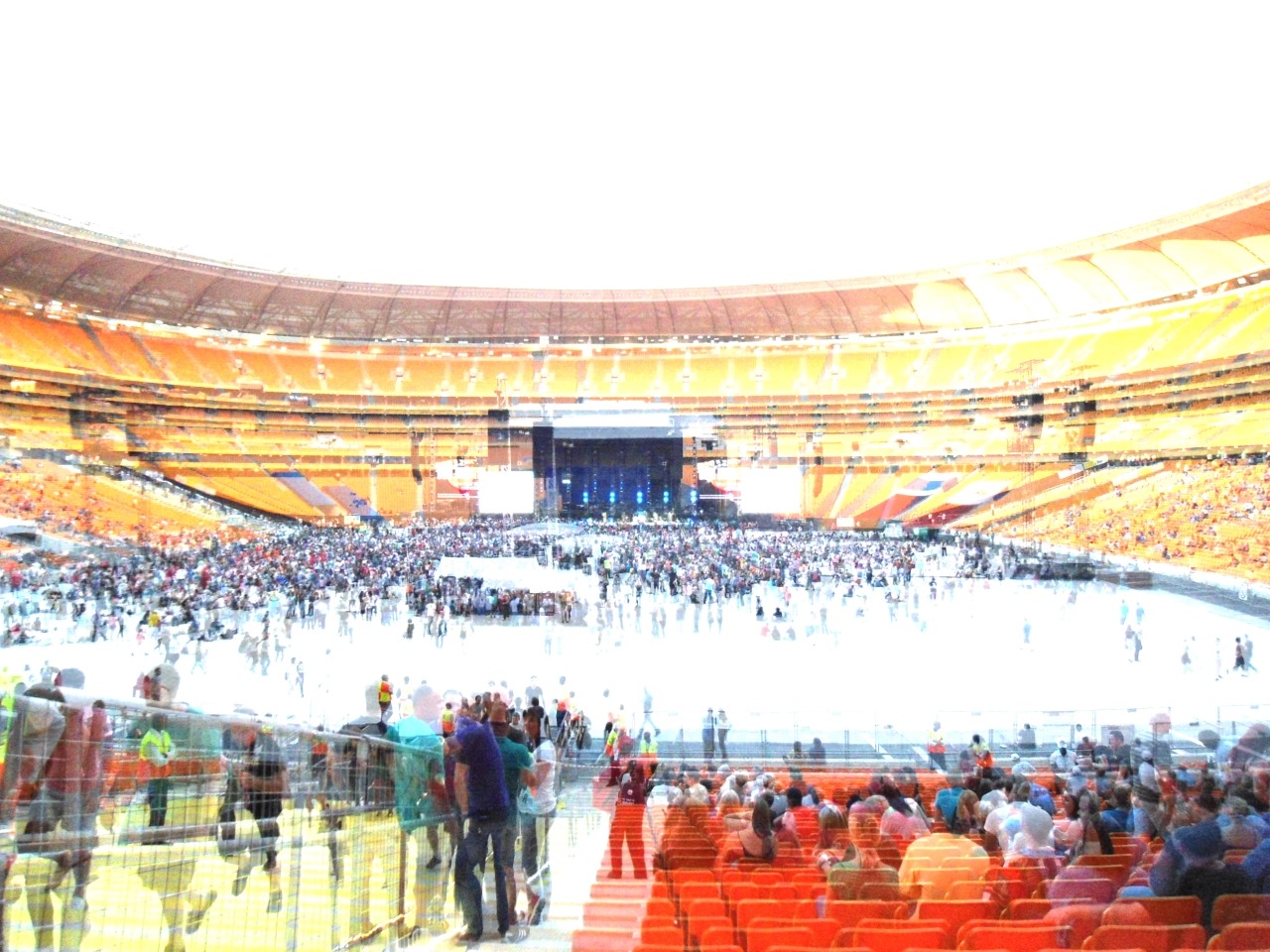
Image Arithmetic: Average
if (calculationType == ColorCalculationType.Average)
{
    intResult = (color1 + color2) / 2;
}
The Average algorithm calculates a simple average by adding together the two colour components and then dividing the result by two.
Sample Image
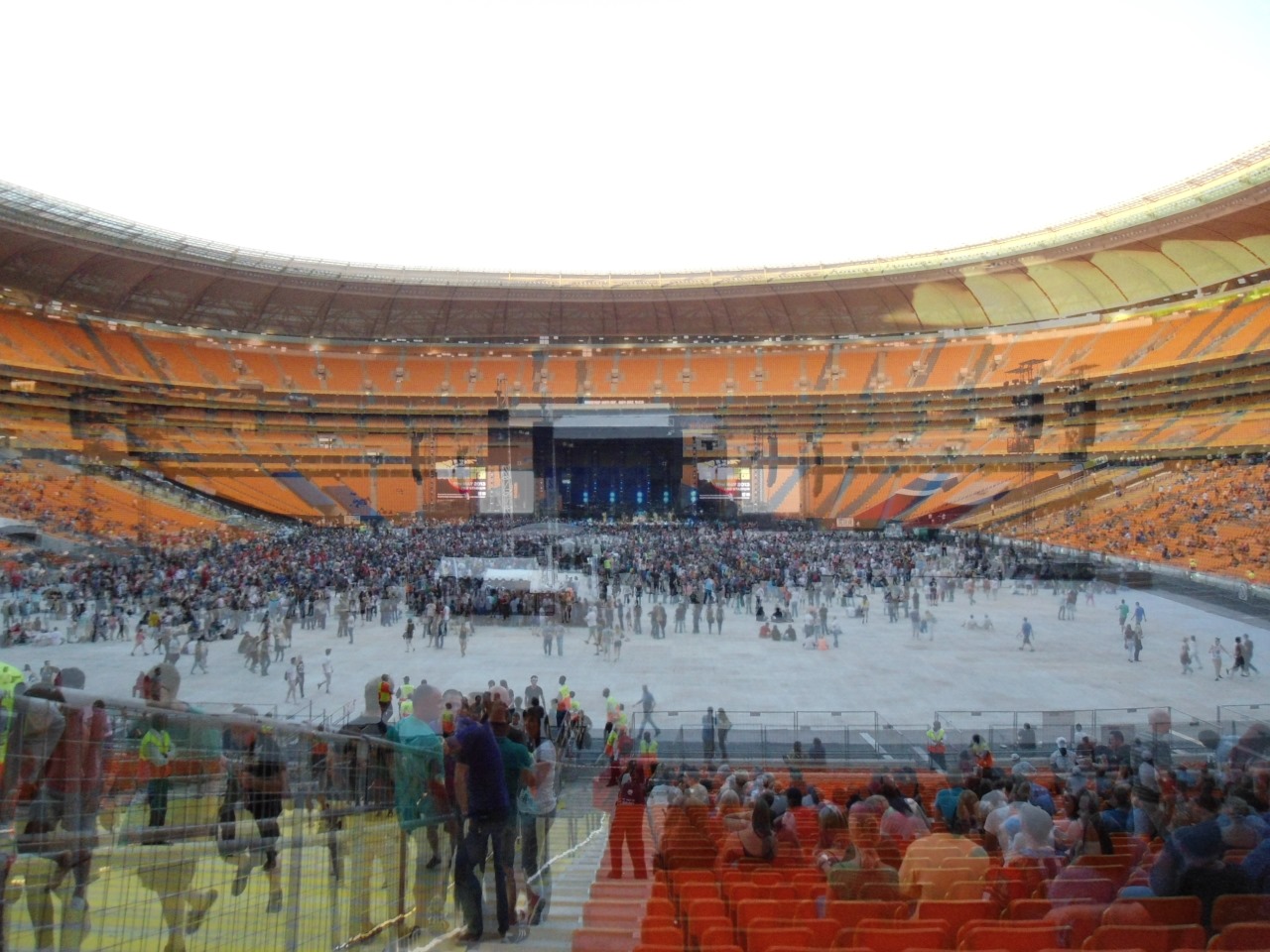
Image Arithmetic: SubtractLeft
if (calculationType == ColorCalculationType.SubtractLeft)
{
    intResult = color1 - color2;
}
The SubtractLeft algorithm subtracts the value of the second colour component parameter from the first colour component parameter.
Sample Image
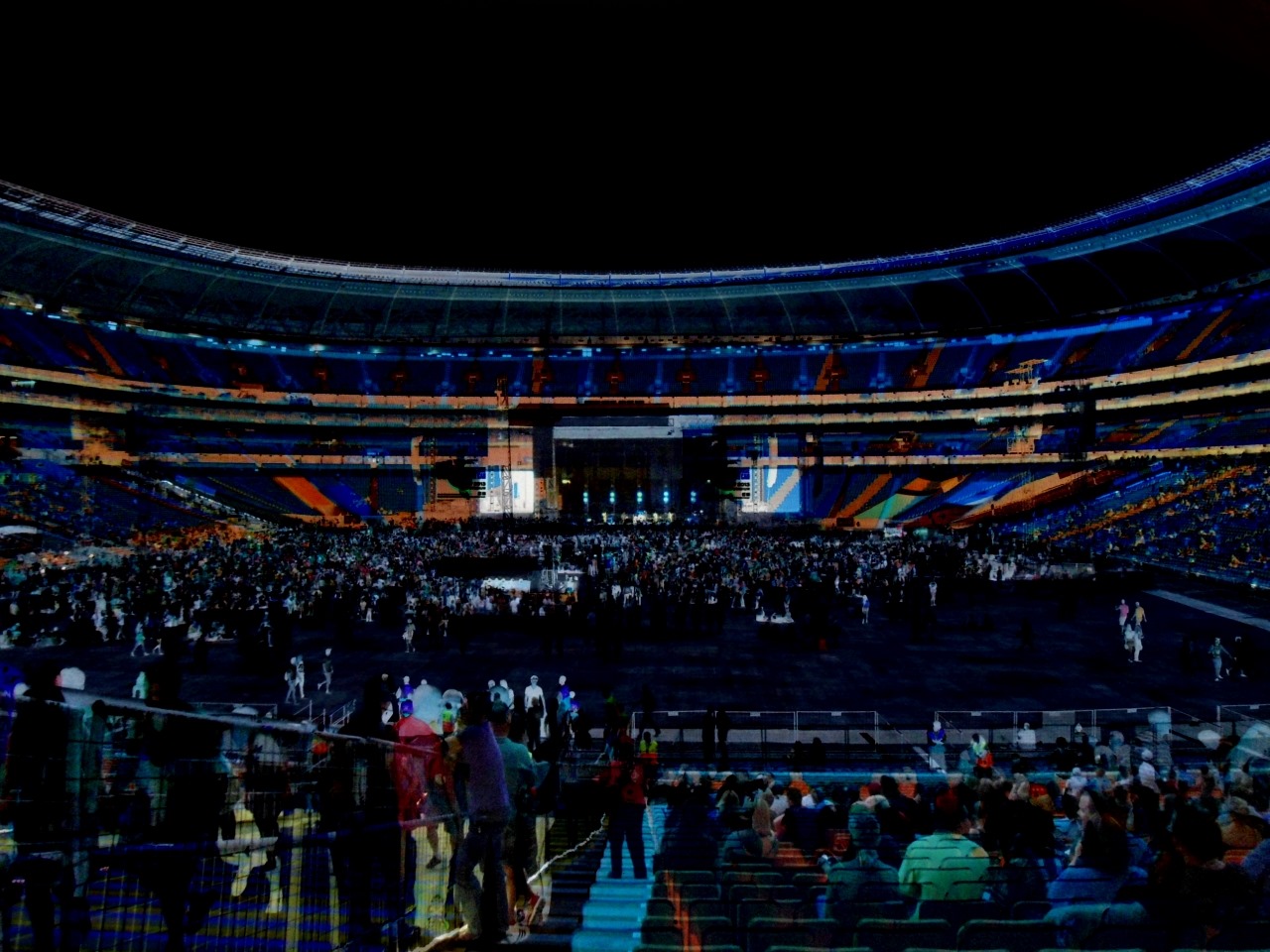
Image Arithmetic: SubtractRight
if (calculationType == ColorCalculationType.SubtractRight)
{
    intResult = color2 - color1;
}
The SubtractRight algorithm, in contrast to SubtractLeft, subtracts the value of the first colour component parameter from the second colour component parameter.
Sample Image
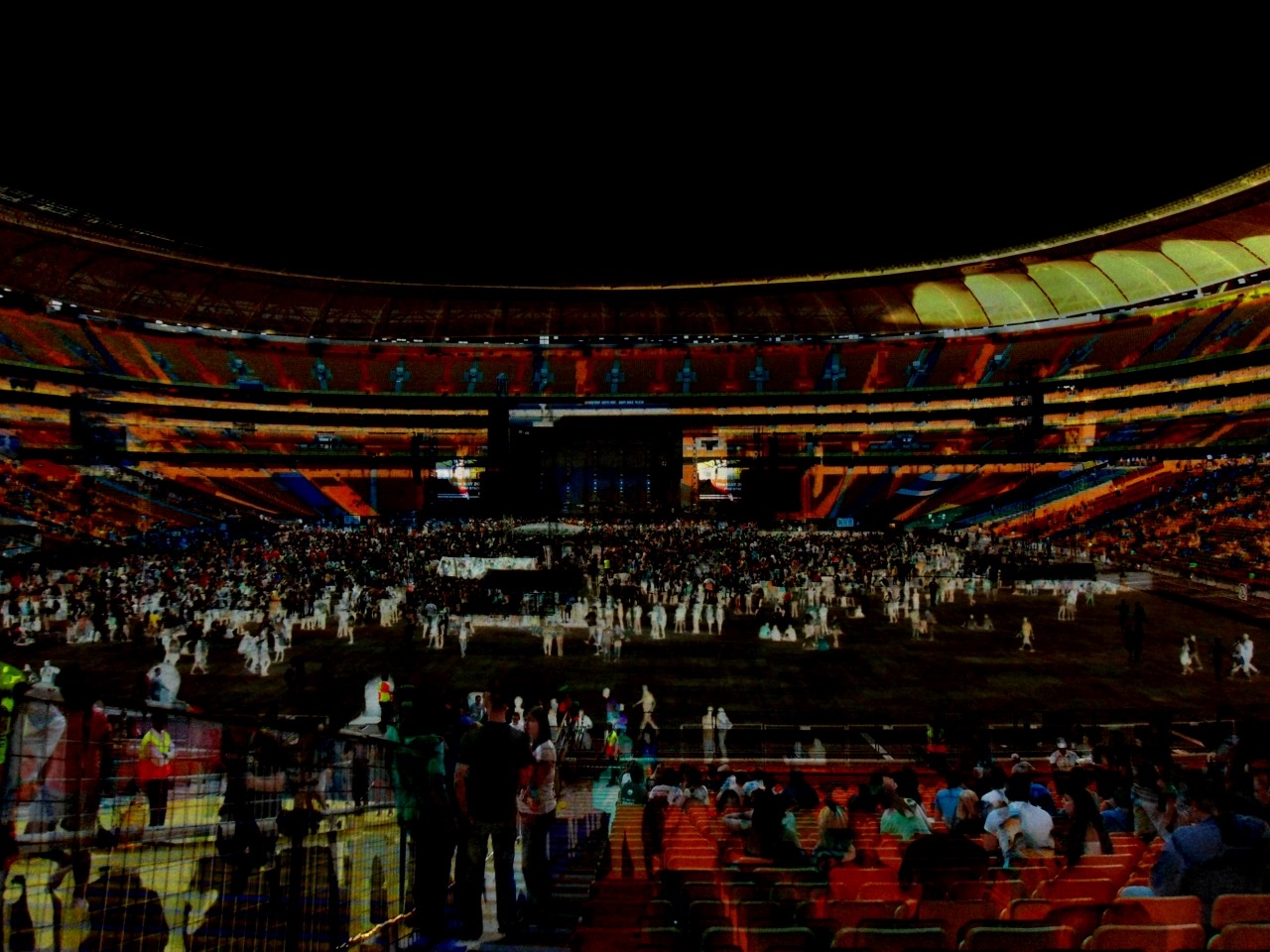
Image Arithmetic: Difference
if (calculationType == ColorCalculationType.Difference)
{
    intResult = Math.Abs(color1 - color2);
}
The Difference algorithm subtracts the value of the second colour component parameter from the first colour component parameter. By passing the result of the subtraction as a parameter to the Math.Abs method the algorithm ensures only calculating absolute/positive values. In other words calculating the difference in value between colour component parameters.
Sample Image
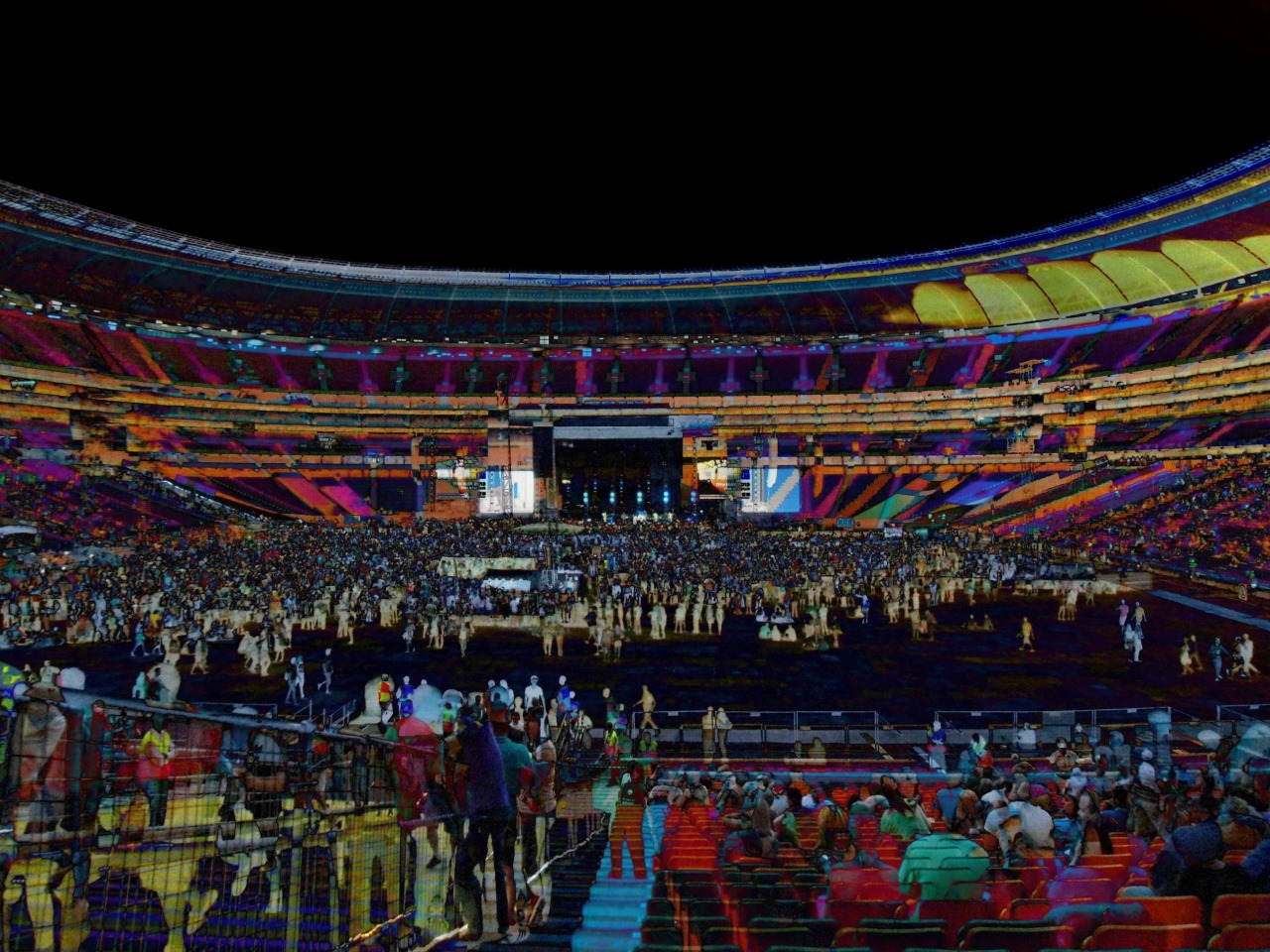
Image Arithmetic: Multiply
if (calculationType == ColorCalculationType.Multiply)
{
    intResult = (int)((color1 / 255.0 * color2 / 255.0) * 255.0);
}
The Multiply algorithm divides each colour component parameter by a value of 255 and the proceeds to multiply the results of the division, the result is then further multiplied by a value of 255.
Sample Image
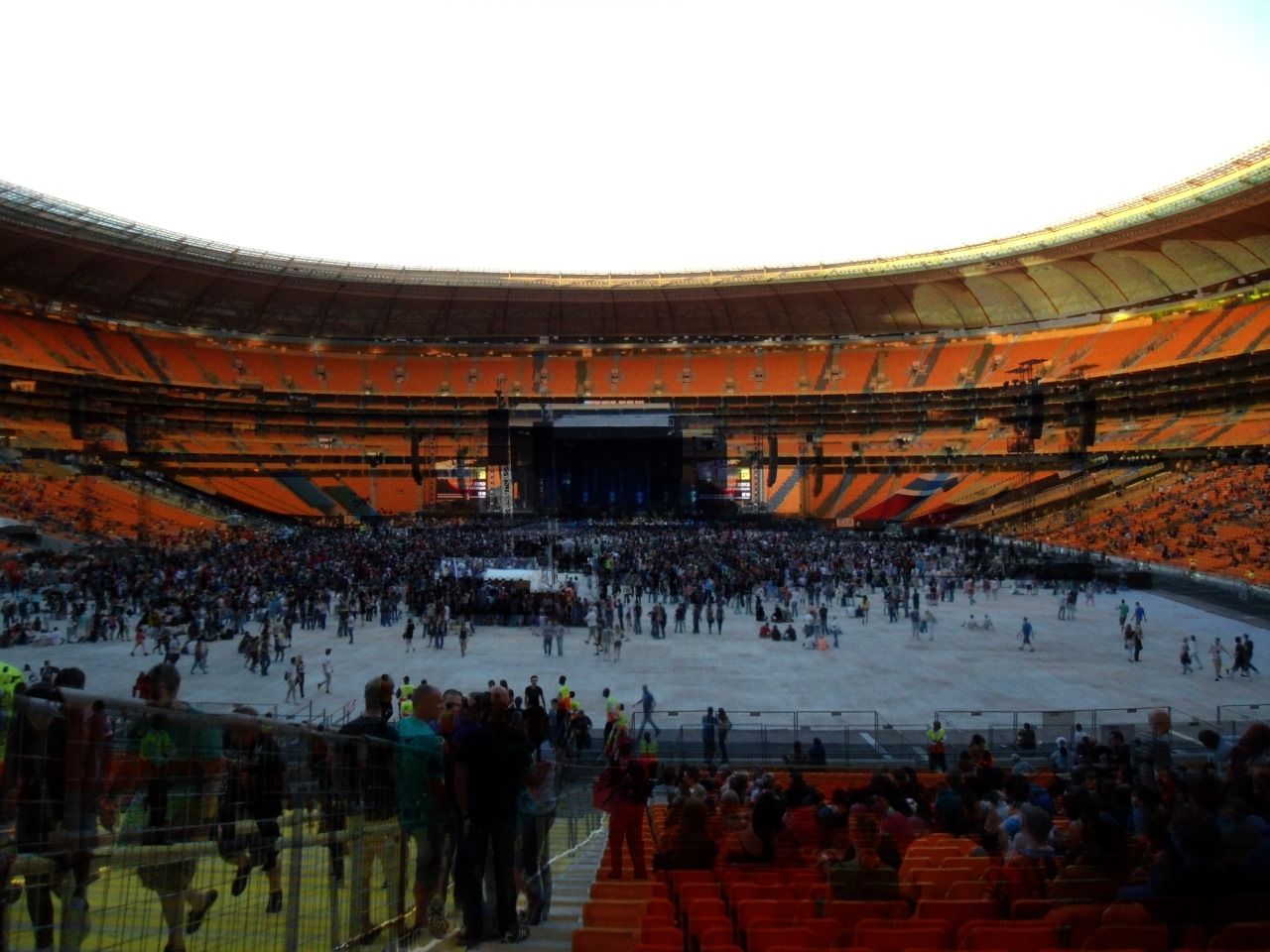
Image Arithmetic: Min
if (calculationType == ColorCalculationType.Min)
{
    intResult = (color1 < color2 ? color1 : color2);
}
The Min algorithm simply compares the two colour component parameters and returns the smallest value of the two.
Sample Image
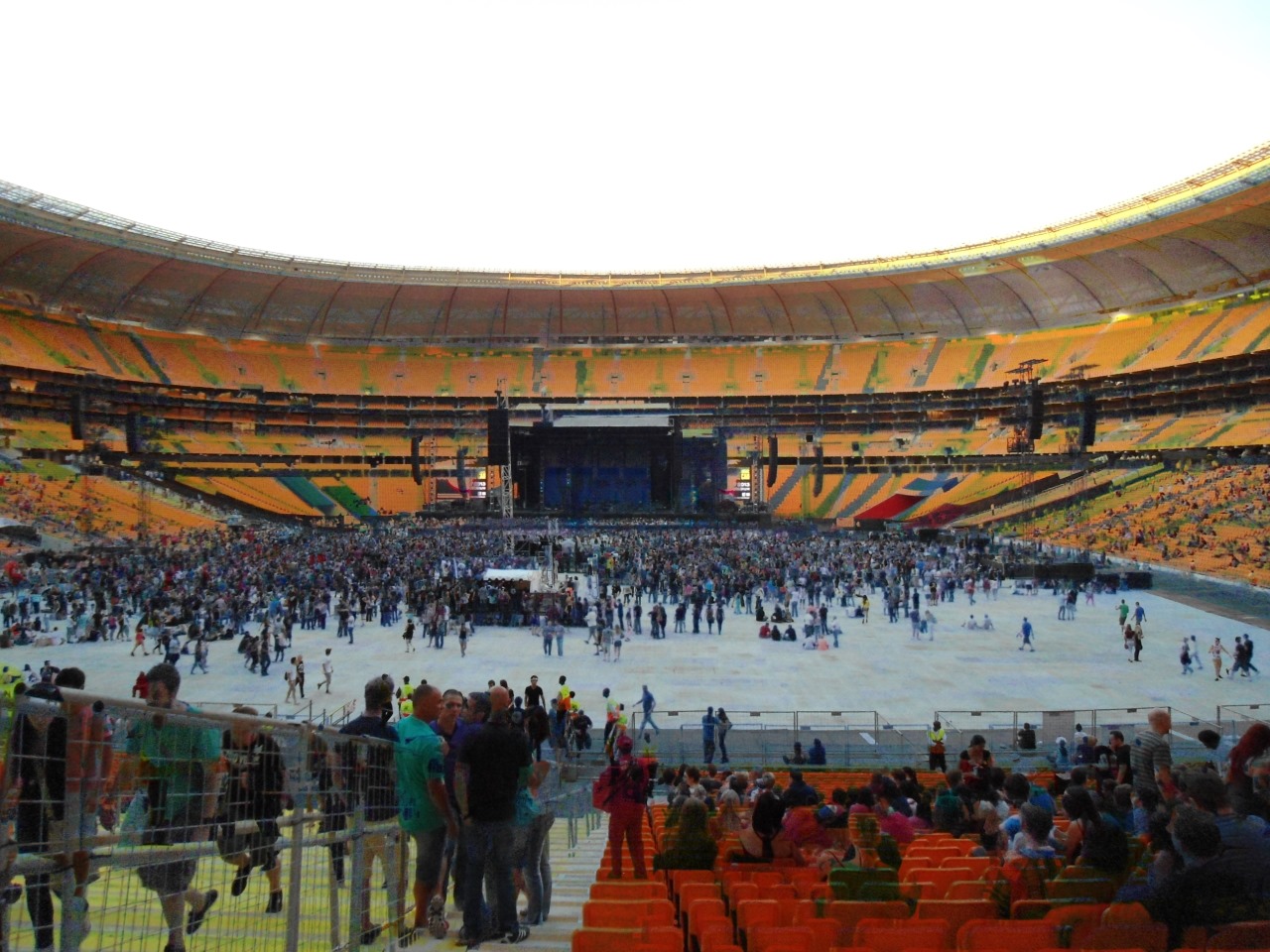
Image Arithmetic: Max
if (calculationType == ColorCalculationType.Max)
{
    intResult = (color1 > color2 ? color1 : color2);
}
The Max algorithm, as can be expected, will produce the exact opposite result when compared to the Min algorithm. This algorithm compares the two colour component parameters and returns the larger value of the two.
Sample Image
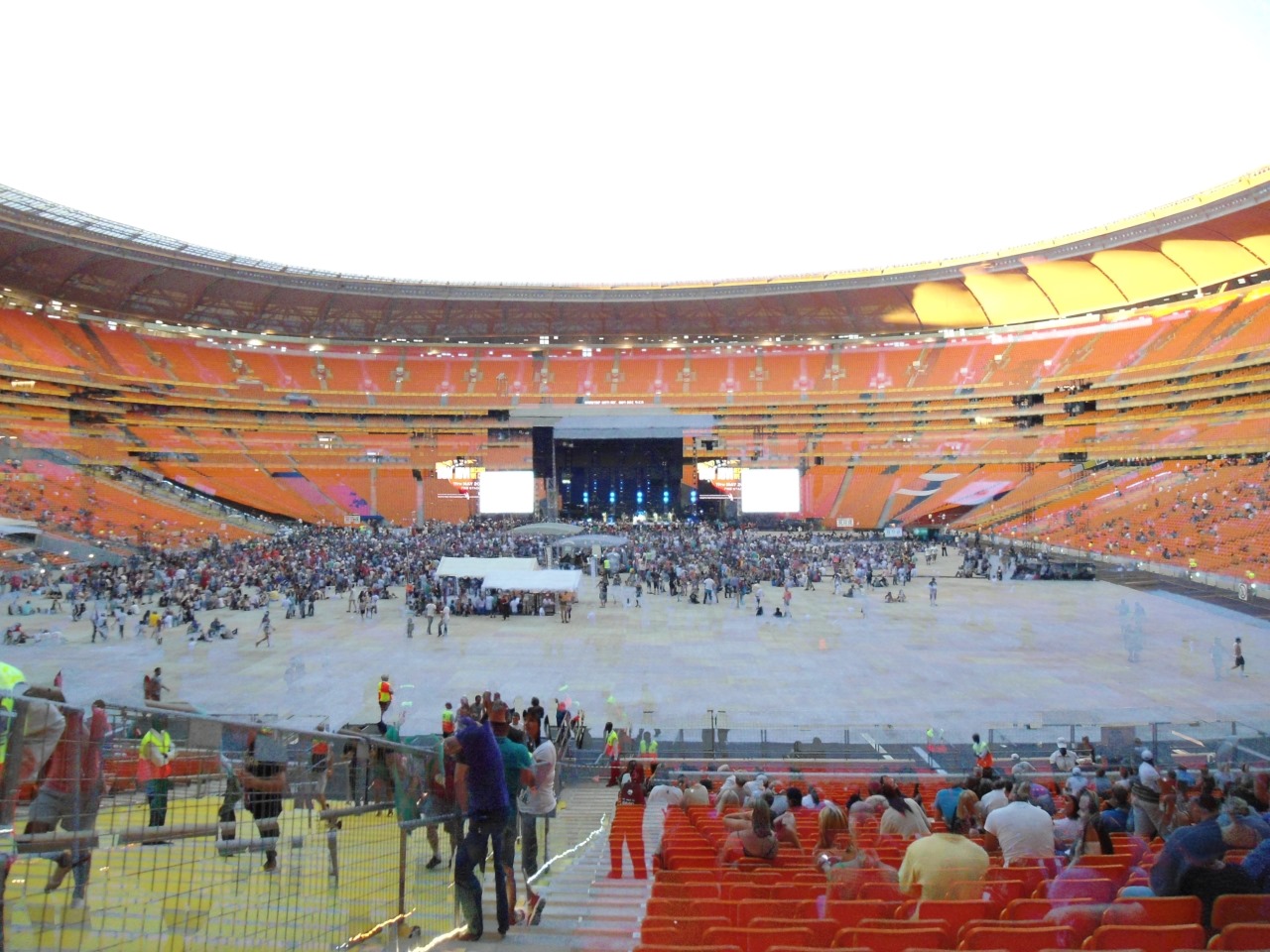
Image Arithmetic: Amplitude
 else if (calculationType == ColorCalculationType.Amplitude)
{
         intResult = (int)(Math.Sqrt(color1 * color1 +
                                     color2 * color2) /
                                     Math.Sqrt(2.0));
}
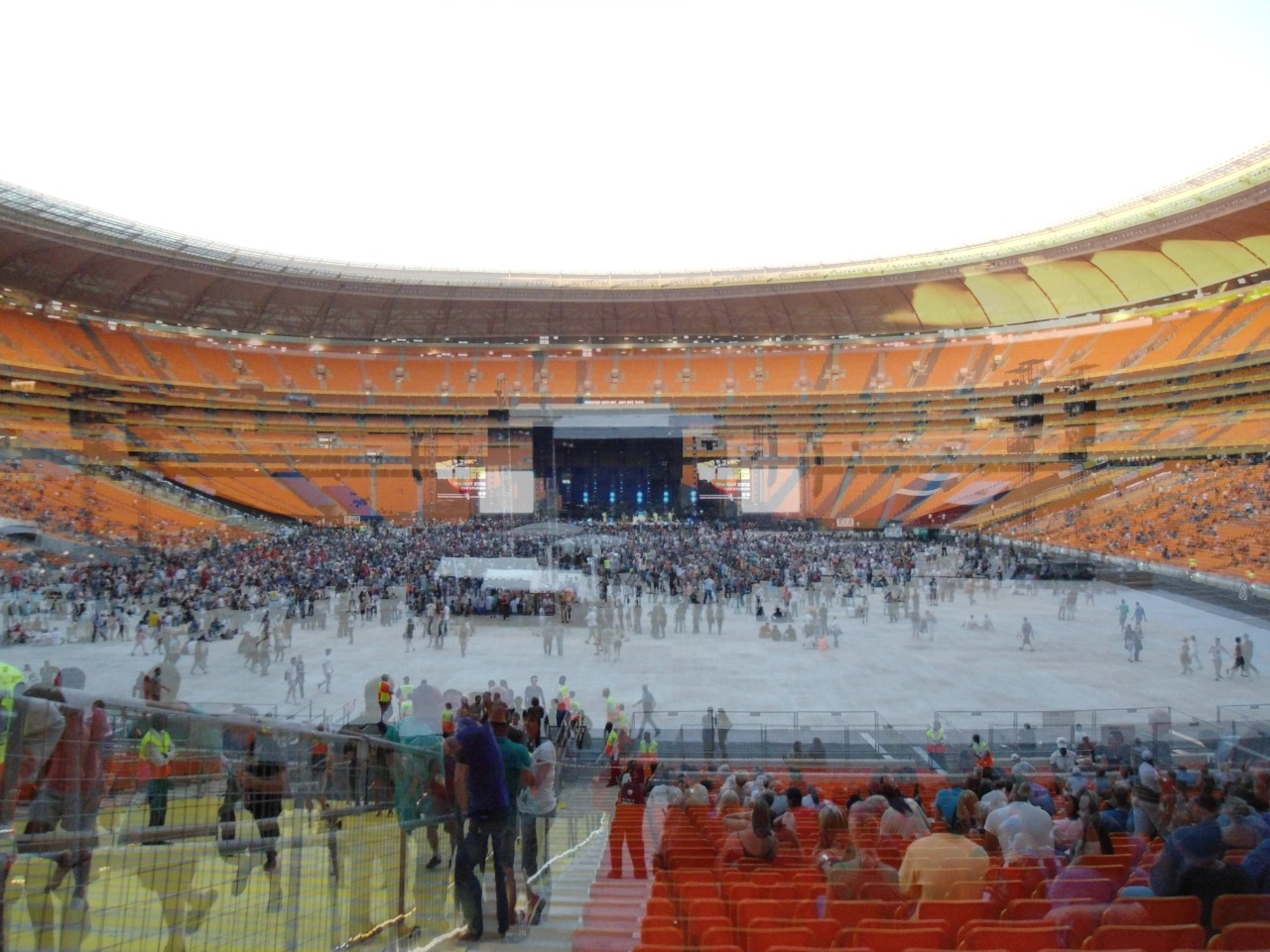
The Amplitude algorithm calculates the amplitude of the two colour component parameters by multiplying each colour component by itself and then sums the results. The last step divides the result thus far by the square root of two.
Sample Image
Related Articles
- C# How to: Image filtering by directly manipulating Pixel ARGB values
- C# How to: Image filtering implemented using a ColorMatrix
- C# How to: Blending Bitmap images using colour filters
- C# How to: Bitmap Colour Substitution implementing thresholds
- C# How to: Generating Icons from Images
- C# How to: Swapping Bitmap ARGB Colour Channels
- C# How to: Bitmap Pixel manipulation using LINQ Queries
- C# How to: Linq to Bitmaps – Partial Colour Inversion
- C# How to: Bitmap Colour Balance
- C# How to: Bi-tonal Bitmaps
- C# How to: Bitmap Colour Tint
- C# How to: Bitmap Colour Shading
- C# How to: Image Solarise
- C# How to: Image Contrast
- C# How to: Bitwise Bitmap Blending







 Software by Default