Posts Tagged 'Code Sample'


C# How to: Image Edge Detection

Article Purpose

The objective of this article is to explore various algorithms. The types of discussed are: , , , and . All instances are implemented by means of .

Sample source code

This article is accompanied by a sample source code Visual Studio project which is available for download .

Using the Sample Application

The concepts explored in this article can be easily replicated by making use of the Sample Application, which forms part of the associated sample source code accompanying this article.

When using the Image Edge Detection sample application you can specify a input/source image by clicking the Load Image button. The dropdown towards the bottom middle part of the screen relates the various methods discussed.

If desired a user can save the resulting image to the local file system by clicking the Save Image button.

The following image is screenshot of the Image Edge Detection sample application in action:

Image Edge Detection Sample Application

Edge Detection

A good description of edge detection forms part of the on :

Edge detection is the name for a set of mathematical methods which aim at identifying points in a at which the changes sharply or, more formally, has discontinuities. The points at which image brightness changes sharply are typically organized into a set of curved line segments termed edges. The same problem of finding discontinuities in 1D signals is known as and the problem of finding signal discontinuities over time is known as . Edge detection is a fundamental tool in , and , particularly in the areas of and .

Image Convolution

A good introduction article  to can be found at: http://homepages.inf.ed.ac.uk/rbf/HIPR2/convolve.htm. From the article we learn the following:

Convolution is a simple mathematical operation which is fundamental to many common image processing operators. Convolution provides a way of `multiplying together’ two arrays of numbers, generally of different sizes, but of the same dimensionality, to produce a third array of numbers of the same dimensionality. This can be used in image processing to implement operators whose output pixel values are simple linear combinations of certain input pixel values.

In an image processing context, one of the input arrays is normally just a graylevel image. The second array is usually much smaller, and is also two-dimensional (although it may be just a single pixel thick), and is known as the kernel.

Single Matrix Convolution

The sample source code implements the ConvolutionFilter method, an targeting the class. The ConvolutionFilter method is intended to apply a user defined and optionally covert an to grayscale. The implementation as follows:

private static Bitmap ConvolutionFilter(Bitmap sourceBitmap, 
                                     double[,] filterMatrix, 
                                          double factor = 1, 
                                               int bias = 0, 
                                     bool grayscale = false) 
{
    BitmapData sourceData = 
                   sourceBitmap.LockBits(new Rectangle(0, 0,
                   sourceBitmap.Width, sourceBitmap.Height),
                                     ImageLockMode.ReadOnly, 
                                PixelFormat.Format32bppArgb);

byte[] pixelBuffer = new byte[sourceData.Stride * sourceData.Height];
byte[] resultBuffer = new byte[sourceData.Stride * sourceData.Height];
Marshal.Copy(sourceData.Scan0, pixelBuffer, 0, pixelBuffer.Length);
sourceBitmap.UnlockBits(sourceData);
if(grayscale == true) { float rgb = 0;
for(int k = 0; k < pixelBuffer.Length; k += 4) { rgb = pixelBuffer[k] * 0.11f; rgb += pixelBuffer[k + 1] * 0.59f; rgb += pixelBuffer[k + 2] * 0.3f;
pixelBuffer[k] = (byte)rgb; pixelBuffer[k + 1] = pixelBuffer[k]; pixelBuffer[k + 2] = pixelBuffer[k]; pixelBuffer[k + 3] = 255; } }
double blue = 0.0; double green = 0.0; double red = 0.0;
int filterWidth = filterMatrix.GetLength(1); int filterHeight = filterMatrix.GetLength(0);
int filterOffset = (filterWidth-1) / 2; int calcOffset = 0;
int byteOffset = 0;
for(int offsetY = filterOffset; offsetY < sourceBitmap.Height - filterOffset; offsetY++) { for(int offsetX = filterOffset; offsetX < sourceBitmap.Width - filterOffset; offsetX++) { blue = 0; green = 0; red = 0;
byteOffset = offsetY * sourceData.Stride + offsetX * 4;
for(int filterY = -filterOffset; filterY <= filterOffset; filterY++) { for(int filterX = -filterOffset; filterX <= filterOffset; filterX++) {
calcOffset = byteOffset + (filterX * 4) + (filterY * sourceData.Stride);
blue += (double)(pixelBuffer[calcOffset]) * filterMatrix[filterY + filterOffset, filterX + filterOffset];
green += (double)(pixelBuffer[calcOffset+1]) * filterMatrix[filterY + filterOffset, filterX + filterOffset];
red += (double)(pixelBuffer[calcOffset+2]) * filterMatrix[filterY + filterOffset, filterX + filterOffset]; } }
blue = factor * blue + bias; green = factor * green + bias; red = factor * red + bias;
if(blue > 255) { blue = 255;} else if(blue < 0) { blue = 0;}
if(green > 255) { green = 255;} else if(green < 0) { green = 0;}
if(red > 255) { red = 255;} else if(red < 0) { red = 0;}
resultBuffer[byteOffset] = (byte)(blue); resultBuffer[byteOffset + 1] = (byte)(green); resultBuffer[byteOffset + 2] = (byte)(red); resultBuffer[byteOffset + 3] = 255; } }
Bitmap resultBitmap = new Bitmap(sourceBitmap.Width, sourceBitmap.Height);
BitmapData resultData = resultBitmap.LockBits(new Rectangle(0, 0, resultBitmap.Width, resultBitmap.Height), ImageLockMode.WriteOnly, PixelFormat.Format32bppArgb);
Marshal.Copy(resultBuffer, 0, resultData.Scan0, resultBuffer.Length); resultBitmap.UnlockBits(resultData);
return resultBitmap; }

Horizontal and Vertical Matrix Convolution

The ConvolutionFilter has been overloaded to accept two matrices, representing a vertical and a horizontal . The implementation as follows:

public static Bitmap ConvolutionFilter(this Bitmap sourceBitmap,
                                        double[,] xFilterMatrix,
                                        double[,] yFilterMatrix,
                                              double factor = 1,
                                                   int bias = 0,
                                         bool grayscale = false)
{
    BitmapData sourceData = 
                   sourceBitmap.LockBits(new Rectangle(0, 0,
                   sourceBitmap.Width, sourceBitmap.Height),
                                     ImageLockMode.ReadOnly,
                                PixelFormat.Format32bppArgb);

byte[] pixelBuffer = new byte[sourceData.Stride * sourceData.Height];
byte[] resultBuffer = new byte[sourceData.Stride * sourceData.Height];
Marshal.Copy(sourceData.Scan0, pixelBuffer, 0, pixelBuffer.Length);
sourceBitmap.UnlockBits(sourceData);
if (grayscale == true) { float rgb = 0;
for (int k = 0; k < pixelBuffer.Length; k += 4) { rgb = pixelBuffer[k] * 0.11f; rgb += pixelBuffer[k + 1] * 0.59f; rgb += pixelBuffer[k + 2] * 0.3f;
pixelBuffer[k] = (byte)rgb; pixelBuffer[k + 1] = pixelBuffer[k]; pixelBuffer[k + 2] = pixelBuffer[k]; pixelBuffer[k + 3] = 255; } }
double blueX = 0.0; double greenX = 0.0; double redX = 0.0;
double blueY = 0.0; double greenY = 0.0; double redY = 0.0;
double blueTotal = 0.0; double greenTotal = 0.0; double redTotal = 0.0;
int filterOffset = 1; int calcOffset = 0;
int byteOffset = 0;
for (int offsetY = filterOffset; offsetY < sourceBitmap.Height - filterOffset; offsetY++) { for (int offsetX = filterOffset; offsetX < sourceBitmap.Width - filterOffset; offsetX++) { blueX = greenX = redX = 0; blueY = greenY = redY = 0;
blueTotal = greenTotal = redTotal = 0.0;
byteOffset = offsetY * sourceData.Stride + offsetX * 4;
for (int filterY = -filterOffset; filterY <= filterOffset; filterY++) { for (int filterX = -filterOffset; filterX <= filterOffset; filterX++) { calcOffset = byteOffset + (filterX * 4) + (filterY * sourceData.Stride);
blueX += (double) (pixelBuffer[calcOffset]) * xFilterMatrix[filterY + filterOffset, filterX + filterOffset];
greenX += (double) (pixelBuffer[calcOffset + 1]) * xFilterMatrix[filterY + filterOffset, filterX + filterOffset];
redX += (double) (pixelBuffer[calcOffset + 2]) * xFilterMatrix[filterY + filterOffset, filterX + filterOffset];
blueY += (double) (pixelBuffer[calcOffset]) * yFilterMatrix[filterY + filterOffset, filterX + filterOffset];
greenY += (double) (pixelBuffer[calcOffset + 1]) * yFilterMatrix[filterY + filterOffset, filterX + filterOffset];
redY += (double) (pixelBuffer[calcOffset + 2]) * yFilterMatrix[filterY + filterOffset, filterX + filterOffset]; } }
blueTotal = Math.Sqrt((blueX * blueX) + (blueY * blueY));
greenTotal = Math.Sqrt((greenX * greenX) + (greenY * greenY));
redTotal = Math.Sqrt((redX * redX) + (redY * redY));
if (blueTotal > 255) { blueTotal = 255; } else if (blueTotal < 0) { blueTotal = 0; }
if (greenTotal > 255) { greenTotal = 255; } else if (greenTotal < 0) { greenTotal = 0; }
if (redTotal > 255) { redTotal = 255; } else if (redTotal < 0) { redTotal = 0; }
resultBuffer[byteOffset] = (byte)(blueTotal); resultBuffer[byteOffset + 1] = (byte)(greenTotal); resultBuffer[byteOffset + 2] = (byte)(redTotal); resultBuffer[byteOffset + 3] = 255; } }
Bitmap resultBitmap = new Bitmap(sourceBitmap.Width, sourceBitmap.Height);
BitmapData resultData = resultBitmap.LockBits(new Rectangle(0, 0, resultBitmap.Width, resultBitmap.Height), ImageLockMode.WriteOnly, PixelFormat.Format32bppArgb);
Marshal.Copy(resultBuffer, 0, resultData.Scan0, resultBuffer.Length); resultBitmap.UnlockBits(resultData);
return resultBitmap; }

Original Sample Image

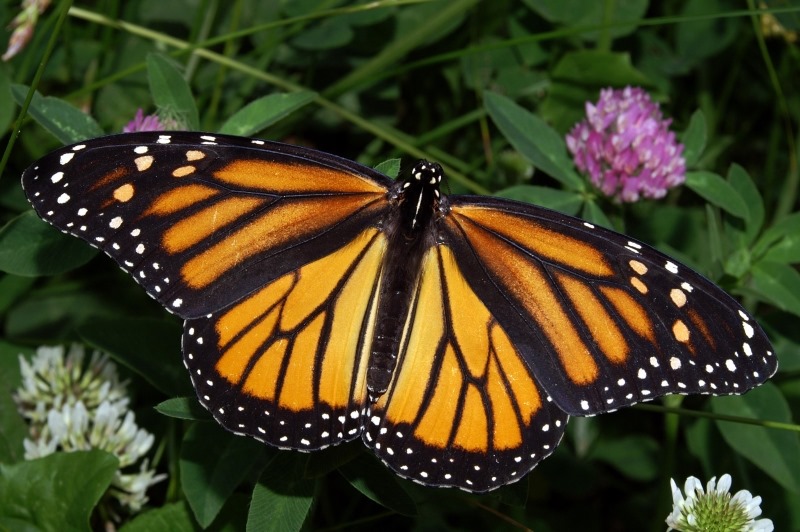
The original source image used to create all of the sample images in this article has been licensed under the Creative Commons Attribution-Share Alike 3.0 Unported, 2.5 Generic, 2.0 Generic and 1.0 Generic license. The original image is attributed to Kenneth Dwain Harrelson and can be downloaded from Wikipedia.

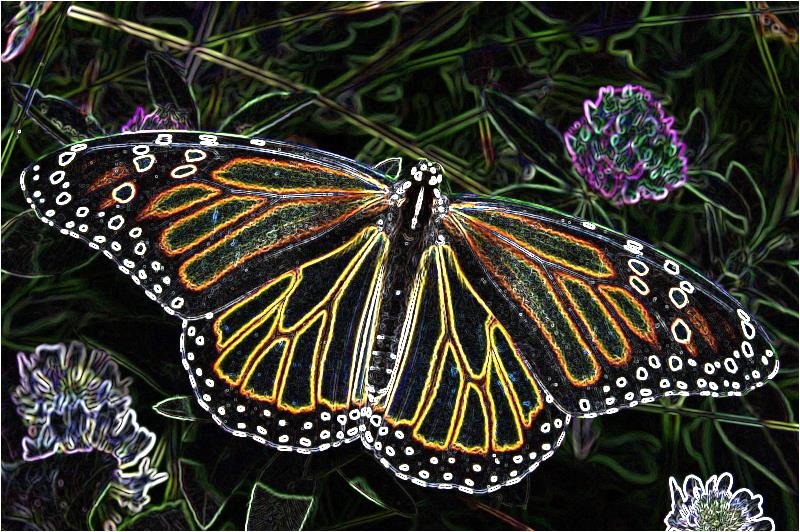
Monarch_In_May

Laplacian Edge Detection

The method of counts as one of the commonly used implementations. From we gain the following definition:

Discrete Laplace operator is often used in image processing e.g. in edge detection and motion estimation applications. The discrete Laplacian is defined as the sum of the second derivatives and calculated as sum of differences over the nearest neighbours of the central pixel.

A number of / variations may be applied with results ranging from slight to fairly pronounced. In the following sections of this article we explore two common implementations, 3×3 and 5×5.

Laplacian 3×3

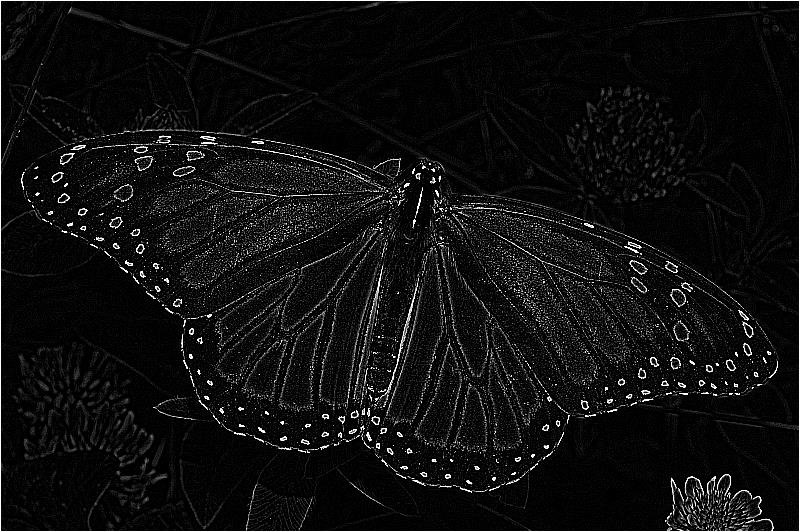
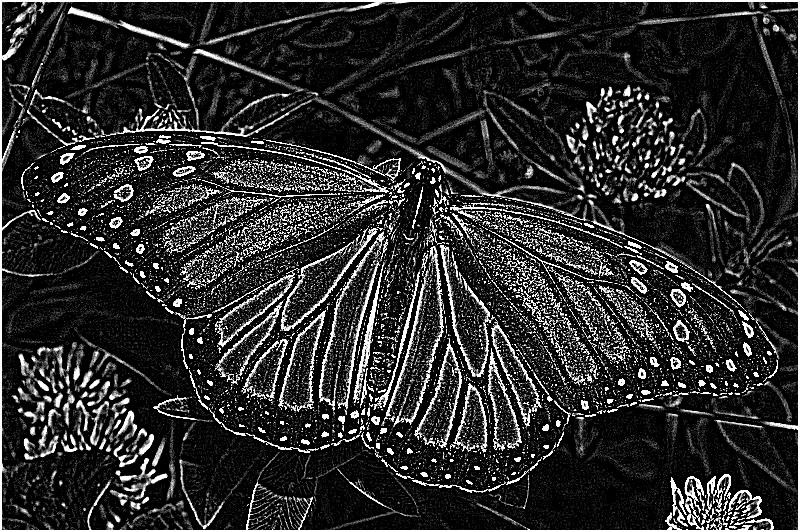
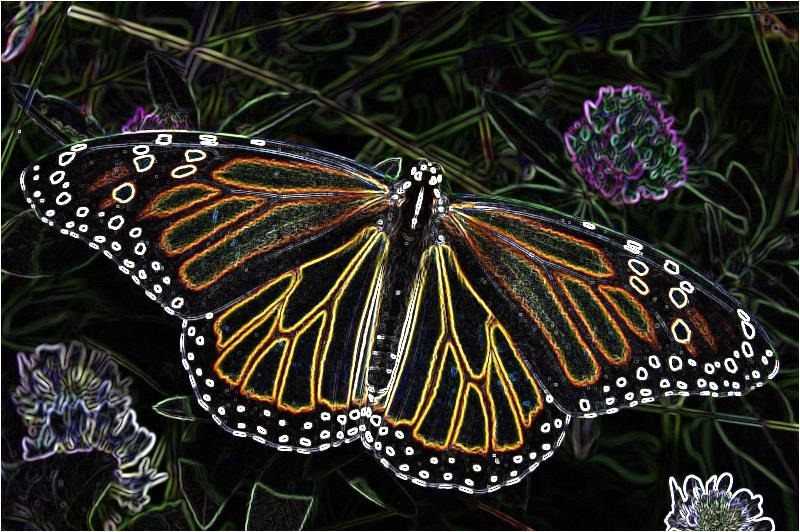
When implementing a 3×3 you will notice little difference between colour and grayscale result .

public static Bitmap 
Laplacian3x3Filter(this Bitmap sourceBitmap, 
                      bool grayscale = true)
{
    Bitmap resultBitmap = 
           ExtBitmap.ConvolutionFilter(sourceBitmap, 
                                Matrix.Laplacian3x3,
                                  1.0, 0, grayscale);

return resultBitmap; }
public static double[,] Laplacian3x3
{ 
   get   
   { 
       return new double[,]
       { { -1, -1, -1, },  
         { -1,  8, -1, },  
         { -1, -1, -1, }, }; 
   } 
} 

Laplacian 3×3

Laplacian 3x3

Laplacian 3×3 Grayscale

Laplacian 3x3 Grayscale

Laplacian 5×5

The 5×5  produces result with a noticeable difference between colour and grayscale . The detected edges are expressed in a fair amount of fine detail, although the has a tendency to be sensitive to .

public static Bitmap 
Laplacian5x5Filter(this Bitmap sourceBitmap, 
                      bool grayscale = true)
{
    Bitmap resultBitmap =
           ExtBitmap.ConvolutionFilter(sourceBitmap, 
                                Matrix.Laplacian5x5,
                                  1.0, 0, grayscale);

return resultBitmap; }
public static double[,] Laplacian5x5 
{ 
    get   
    { 
       return new double[,]
       { { -1, -1, -1, -1, -1, },  
         { -1, -1, -1, -1, -1, },  
         { -1, -1, 24, -1, -1, },  
         { -1, -1, -1, -1, -1, },  
         { -1, -1, -1, -1, -1  } }; 
    } 
}

Laplacian 5×5

Laplacian 5x5

Laplacian 5×5 Grayscale

Laplacian 5x5 Grayscale

Laplacian of Gaussian

The (LoG) is a common variation of the filter. is intended to counter the noise sensitivity of the regular filter.

attempts to remove noise by implementing smoothing by means of a . In order to optimize performance we can calculate a single representing a and .

public static Bitmap 
LaplacianOfGaussian(this Bitmap sourceBitmap)
{
    Bitmap resultBitmap =
           ExtBitmap.ConvolutionFilter(sourceBitmap, 
                         Matrix.LaplacianOfGaussian, 
                                       1.0, 0, true);

return resultBitmap; }
public static double[,] LaplacianOfGaussian
{ 
    get   
    { 
        return new double[,]
        { {  0,  0, -1,  0,  0 },  
          {  0, -1, -2, -1,  0 },  
          { -1, -2, 16, -2, -1 }, 
          {  0, -1, -2, -1,  0 }, 
          {  0,  0, -1,  0,  0 } };
    } 
} 

Laplacian of Gaussian

Laplacian Of Gaussian

Laplacian (3×3) of Gaussian (3×3)

Different variations can be combined in an attempt to produce results best suited to the input . In this case we first apply a 3×3 followed by a 3×3 filter.

public static Bitmap 
Laplacian3x3OfGaussian3x3Filter(this Bitmap sourceBitmap)
{
    Bitmap resultBitmap =
           ExtBitmap.ConvolutionFilter(sourceBitmap, 
                                 Matrix.Gaussian3x3,
                                1.0 / 16.0, 0, true);

resultBitmap = ExtBitmap.ConvolutionFilter(resultBitmap, Matrix.Laplacian3x3, 1.0, 0, false);
return resultBitmap; }
public static double[,] Laplacian3x3
{ 
   get   
   { 
       return new double[,]
       { { -1, -1, -1, },  
         { -1,  8, -1, },  
         { -1, -1, -1, }, }; 
   } 
} 
public static double[,] Gaussian3x3
{ 
   get   
   { 
       return new double[,]
       { { 1, 2, 1, },  
         { 2, 4, 2, },  
         { 1, 2, 1, } }; 
   } 
} 

Laplacian 3×3 Of Gaussian 3×3

Laplacian 3x3 Of Gaussian 3x3

Laplacian (3×3) of Gaussian (5×5 – Type 1)

In this scenario we apply a variation of a 5×5 followed by a 3×3 filter.

public static Bitmap 
Laplacian3x3OfGaussian5x5Filter1(this Bitmap sourceBitmap)
{
    Bitmap resultBitmap = 
           ExtBitmap.ConvolutionFilter(sourceBitmap, 
                            Matrix.Gaussian5x5Type1,
                               1.0 / 159.0, 0, true);

resultBitmap = ExtBitmap.ConvolutionFilter(resultBitmap, Matrix.Laplacian3x3, 1.0, 0, false);
return resultBitmap; }
public static double[,] Laplacian3x3
{ 
   get   
   { 
       return new double[,]
       { { -1, -1, -1, },  
         { -1,  8, -1, },  
         { -1, -1, -1, }, }; 
   } 
} 
public static double[,] Gaussian5x5Type1 
{ 
   get   
   { 
       return new double[,]   
       { { 2, 04, 05, 04, 2 },  
         { 4, 09, 12, 09, 4 },  
         { 5, 12, 15, 12, 5 }, 
         { 4, 09, 12, 09, 4 }, 
         { 2, 04, 05, 04, 2 }, }; 
   } 
} 

Laplacian 3×3 Of Gaussian 5×5 – Type 1

Laplacian 3x3 Of Gaussian 5x5 Type1

Laplacian (3×3) of Gaussian (5×5 – Type 2)

The following implementation is very similar to the previous implementation. Applying a variation of a 5×5 results in slight differences.

public static Bitmap 
Laplacian3x3OfGaussian5x5Filter2(this Bitmap sourceBitmap)
{
    Bitmap resultBitmap = 
           ExtBitmap.ConvolutionFilter(sourceBitmap, 
                            Matrix.Gaussian5x5Type2,
                               1.0 / 256.0, 0, true);

resultBitmap = ExtBitmap.ConvolutionFilter(resultBitmap, Matrix.Laplacian3x3, 1.0, 0, false);
return resultBitmap; }
public static double[,] Laplacian3x3
{ 
   get   
   { 
       return new double[,]
       { { -1, -1, -1, },  
         { -1,  8, -1, },  
         { -1, -1, -1, }, }; 
   } 
} 
public static double[,] Gaussian5x5Type2 
{ 
   get   
   {
       return new double[,]  
       { {  1,   4,  6,  4,  1 },  
         {  4,  16, 24, 16,  4 },  
         {  6,  24, 36, 24,  6 }, 
         {  4,  16, 24, 16,  4 }, 
         {  1,   4,  6,  4,  1 }, }; 
   }
} 

Laplacian 3×3 Of Gaussian 5×5 – Type 2

Laplacian 3x3 Of Gaussian 5x5 Type2

Laplacian (5×5) of Gaussian (3×3)

This variation of the filter implements a 3×3 , followed by a 5×5 . The resulting appears significantly brighter when compared to a 3×3 .

public static Bitmap 
Laplacian5x5OfGaussian3x3Filter(this Bitmap sourceBitmap)
{
    Bitmap resultBitmap = 
           ExtBitmap.ConvolutionFilter(sourceBitmap, 
                                 Matrix.Gaussian3x3,
                                1.0 / 16.0, 0, true);

resultBitmap = ExtBitmap.ConvolutionFilter(resultBitmap, Matrix.Laplacian5x5, 1.0, 0, false);
return resultBitmap; }
public static double[,] Laplacian5x5 
{ 
    get   
    { 
       return new double[,]
       { { -1, -1, -1, -1, -1, },  
         { -1, -1, -1, -1, -1, },  
         { -1, -1, 24, -1, -1, },  
         { -1, -1, -1, -1, -1, },  
         { -1, -1, -1, -1, -1  } }; 
    } 
}
public static double[,] Gaussian3x3
{ 
   get   
   { 
       return new double[,]
       { { 1, 2, 1, },  
         { 2, 4, 2, },  
         { 1, 2, 1, } }; 
   } 
} 

Laplacian 5×5 Of Gaussian 3×3

Laplacian 5x5 Of Gaussian 3x3

Laplacian (5×5) of Gaussian (5×5 – Type 1)

Implementing a larger results in a higher degree of smoothing, equating to less .

public static Bitmap 
Laplacian5x5OfGaussian5x5Filter1(this Bitmap sourceBitmap)
{
    Bitmap resultBitmap = 
           ExtBitmap.ConvolutionFilter(sourceBitmap, 
                            Matrix.Gaussian5x5Type1,
                               1.0 / 159.0, 0, true);

resultBitmap = ExtBitmap.ConvolutionFilter(resultBitmap, Matrix.Laplacian5x5, 1.0, 0, false);
return resultBitmap; }
public static double[,] Laplacian5x5 
{ 
    get   
    { 
       return new double[,]
       { { -1, -1, -1, -1, -1, },  
         { -1, -1, -1, -1, -1, },  
         { -1, -1, 24, -1, -1, },  
         { -1, -1, -1, -1, -1, },  
         { -1, -1, -1, -1, -1  } }; 
    } 
}
public static double[,] Gaussian5x5Type1 
{ 
   get   
   { 
       return new double[,]   
       { { 2, 04, 05, 04, 2 },  
         { 4, 09, 12, 09, 4 },  
         { 5, 12, 15, 12, 5 }, 
         { 4, 09, 12, 09, 4 }, 
         { 2, 04, 05, 04, 2 }, }; 
   } 
} 

Laplacian 5×5 Of Gaussian 5×5 – Type 1

Laplacian 5x5 Of Gaussian 5x5 Type1

Laplacian (5×5) of Gaussian (5×5 – Type 2)

The variation of most applicable when implementing a filter depends on expressed by a source . In this scenario the first variations (Type 1) appears to result in less .

public static Bitmap 
Laplacian5x5OfGaussian5x5Filter2(this Bitmap sourceBitmap)
{
    Bitmap resultBitmap = 
           ExtBitmap.ConvolutionFilter(sourceBitmap, 
                            Matrix.Gaussian5x5Type2, 
                               1.0 / 256.0, 0, true);

resultBitmap = ExtBitmap.ConvolutionFilter(resultBitmap, Matrix.Laplacian5x5, 1.0, 0, false);
return resultBitmap; }
public static double[,] Laplacian5x5 
{ 
    get   
    { 
       return new double[,]
       { { -1, -1, -1, -1, -1, },  
         { -1, -1, -1, -1, -1, },  
         { -1, -1, 24, -1, -1, },  
         { -1, -1, -1, -1, -1, },  
         { -1, -1, -1, -1, -1  } }; 
    } 
}
public static double[,] Gaussian5x5Type2 
{ 
   get   
   {
       return new double[,]  
       { {  1,   4,  6,  4,  1 },  
         {  4,  16, 24, 16,  4 },  
         {  6,  24, 36, 24,  6 }, 
         {  4,  16, 24, 16,  4 }, 
         {  1,   4,  6,  4,  1 }, }; 
   }
} 

Laplacian 5×5 Of Gaussian 5×5 – Type 2

Laplacian 5x5 Of Gaussian 5x5 Type2

Sobel Edge Detection

is another common implementation of . We gain the following from :

The Sobel operator is used in , particularly within edge detection algorithms. Technically, it is a , computing an approximation of the of the image intensity function. At each point in the image, the result of the Sobel operator is either the corresponding gradient vector or the norm of this vector. The Sobel operator is based on convolving the image with a small, separable, and integer valued filter in horizontal and vertical direction and is therefore relatively inexpensive in terms of computations. On the other hand, the gradient approximation that it produces is relatively crude, in particular for high frequency variations in the image.

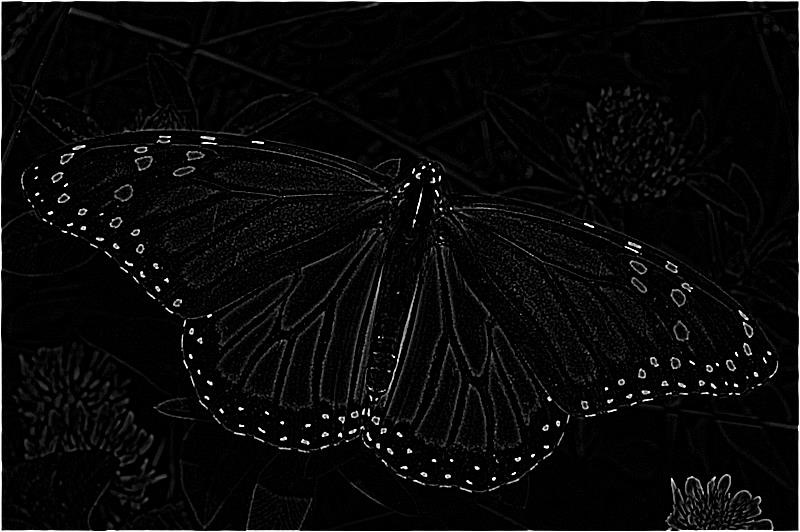
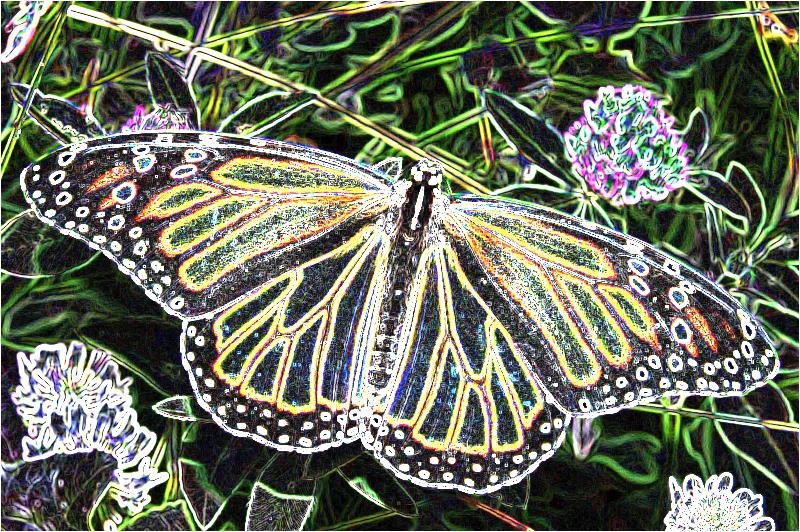
Unlike the filters discussed earlier, filter results differ significantly when comparing colour and grayscale . The filter tends to be less sensitive to compared to the filter. The detected edge lines are not as finely detailed/granular as the detected edge lines resulting from filters.

public static Bitmap 
Sobel3x3Filter(this Bitmap sourceBitmap, 
                  bool grayscale = true)
{
    Bitmap resultBitmap =
           ExtBitmap.ConvolutionFilter(sourceBitmap, 
                          Matrix.Sobel3x3Horizontal, 
                            Matrix.Sobel3x3Vertical, 
                                  1.0, 0, grayscale);

return resultBitmap; }
 
public static double[,] Sobel3x3Horizontal
{ 
   get   
   {
       return new double[,]  
       { { -1,  0,  1, },  
         { -2,  0,  2, },  
         { -1,  0,  1, }, }; 
   } 
} 
public static double[,] Sobel3x3Vertical 
{ 
   get   
   { 
       return new double[,]  
       { {  1,  2,  1, },  
         {  0,  0,  0, },  
         { -1, -2, -1, }, }; 
   } 
}

Sobel 3×3

Sobel 3x3

Sobel 3×3 Grayscale

Sobel 3x3 Grayscale

Prewitt Edge Detection

As with the other methods of discussed in this article the method is also a fairly common implementation. From we gain the following quote:

The Prewitt operator is used in , particularly within algorithms. Technically, it is a , computing an approximation of the of the image intensity function. At each point in the image, the result of the Prewitt operator is either the corresponding gradient vector or the norm of this vector. The Prewitt operator is based on convolving the image with a small, separable, and integer valued filter in horizontal and vertical direction and is therefore relatively inexpensive in terms of computations. On the other hand, the gradient approximation which it produces is relatively crude, in particular for high frequency variations in the image. The Prewitt operator was developed by Judith M. S. Prewitt.

In simple terms, the operator calculates the of the image intensity at each point, giving the direction of the largest possible increase from light to dark and the rate of change in that direction. The result therefore shows how "abruptly" or "smoothly" the image changes at that point, and therefore how likely it is that that part of the image represents an edge, as well as how that edge is likely to be oriented. In practice, the magnitude (likelihood of an edge) calculation is more reliable and easier to interpret than the direction calculation.

Similar to the filter, resulting express a significant difference when comparing colour and grayscale .

public static Bitmap 
PrewittFilter(this Bitmap sourceBitmap, 
                 bool grayscale = true)
{
    Bitmap resultBitmap =
           ExtBitmap.ConvolutionFilter(sourceBitmap, 
                        Matrix.Prewitt3x3Horizontal, 
                          Matrix.Prewitt3x3Vertical, 
                                  1.0, 0, grayscale);

return resultBitmap; }
public static double[,] Prewitt3x3Horizontal 
{ 
   get   
   { 
       return new double[,]  
       { { -1,  0,  1, },  
         { -1,  0,  1, },  
         { -1,  0,  1, }, }; 
   } 
} 
  
public static double[,] Prewitt3x3Vertical 
{ 
   get   
   { 
       return new double[,]  
       { {  1,  1,  1, },  
         {  0,  0,  0, },  
         { -1, -1, -1, }, }; 
   }
}

Prewitt

Prewitt

Prewitt Grayscale

Prewitt Grayscale

Kirsch Edge Detection

The method is often implemented in the form of Compass . In the following scenario we only implement two components: Horizontal and Vertical. Resulting tend to have a high level of brightness.

public static Bitmap 
KirschFilter(this Bitmap sourceBitmap, 
                bool grayscale = true)
{
    Bitmap resultBitmap =
           ExtBitmap.ConvolutionFilter(sourceBitmap, 
                         Matrix.Kirsch3x3Horizontal, 
                           Matrix.Kirsch3x3Vertical, 
                                  1.0, 0, grayscale);

return resultBitmap; }
public static double[,] Kirsch3x3Horizontal 
{ 
   get   
   {
       return new double[,]  
       { {  5,  5,  5, },  
         { -3,  0, -3, },  
         { -3, -3, -3, }, }; 
   } 
} 
public static double[,] Kirsch3x3Vertical
{ 
   get   
   { 
       return new double[,]  
       { {  5, -3, -3, },  
         {  5,  0, -3, },  
         {  5, -3, -3, }, }; 
   } 
}

Kirsch

Kirsch 

Kirsch Grayscale

Kirsch Grayscale

Related Articles and Feedback

Feedback and questions are always encouraged. If you know of an alternative implementation or have ideas on a more efficient implementation please share in the comments section.

I’ve published a number of articles related to imaging and images of which you can find URL links here:

C# How to: Image Convolution

Article Purpose

This article is intended to serve as an introduction to the concepts related to creating and processing filters being applied on . The filters discussed are: Blur, Gaussian Blur, Soften, Motion Blur, High Pass, Edge Detect, Sharpen and Emboss.

Sample Source code

This article is accompanied by a sample source code Visual Studio project which is available for download .

Using the Sample Application

A Sample Application has been included with this article’s sample source code. The Sample Application has been developed to target the platform. Using the Sample Application users are able to select a source/input from the local file system and from a drop down select a filter to apply. Filtered can be saved to the local file system when a user clicks the ‘Save’ button.

The following screenshot shows the Image Convolution Filter sample application in action.

ImageConvolutionFilter_Screenshot

Image Convolution

Before delving into discussions on technical implementation details it is important to have a good understanding of the concepts behind .

In relation to can be considered as algorithms being implemented resulting in translating input/source . Algorithms being applied generally take the form of accepting two input values and producing a third value considered to be a modified version of one of the input values.

can be implemented to produce filters such as: Blurring, Smoothing, Edge Detection, Sharpening and Embossing. The resulting filtered still bares a relation to the input source .

Convolution Matrix

In this article we will be implementing through means of a or representing the algorithms required to produce resulting filtered . A should be considered as a two dimensional array or grid. It is required that the number or rows and columns be of an equal size, which is furthermore required to not be a factor of two. Examples of valid dimensions could be 3×3 or 5×5. Dimensions such as 2×2 or 4×4 would not be valid. Generally the sum total of all the values expressed in a equates to one, although it is not a strict requirement.

The following table represents an example /:

2 0 0
0 -1 0
0 0 -1

An important aspect to keep in mind: When implementing a the value of a pixel will be determined by the values of the pixel’s neighbouring pixels. The values contained in a represent factor values intended to be multiplied with pixel values. In a the centre pixel represents the pixel currently being modified. Neighbouring matrix values express the factor to be applied to the corresponding neighbouring pixels in regards to the pixel currently being modified.

The ConvolutionFilterBase class

The sample code defines the class ConvolutionFilterBase. This class is intended to represent the minimum requirements of a . When defining a we will be inheriting from the ConvolutionFilterBase class. Because this class and its members have been defined as , implementing classes are required to implement all defined members.

The following code snippet details the ConvolutionFilterBase definition:

public abstract class ConvolutionFilterBase 
{ 
    public abstract string FilterName 
    {
        get; 
    }

public abstract double Factor { get; }
public abstract double Bias { get; }
public abstract double[,] FilterMatrix { get; } }

As to be expected the member property FilterMatrix is intended to represent a two dimensional array containing a . In some instances when the sum total of values do not equate to 1  a filter might implement a Factor value other than the default of 1. Additionally some filters may also require a Bias value to be added the final result value when calculating the matrix.

Calculating a Convolution Filter

Calculating filters and creating the resulting can be achieved by invoking the ConvolutionFilter method. This method is defined as an targeting the class. The definition of the ConvolutionFilter as follows:

 public static Bitmap ConvolutionFilter<T>(this Bitmap sourceBitmap, T filter)  
                                 where T : ConvolutionFilterBase 
{ 
    BitmapData sourceData = sourceBitmap.LockBits(new Rectangle (0, 0, 
                                sourceBitmap.Width, sourceBitmap.Height), 
                                ImageLockMode.ReadOnly, PixelFormat.Format32bppArgb); 

byte[] pixelBuffer = new byte[sourceData.Stride * sourceData.Height]; byte[] resultBuffer = new byte[sourceData.Stride * sourceData.Height];
Marshal.Copy(sourceData.Scan0, pixelBuffer, 0, pixelBuffer.Length);
sourceBitmap.UnlockBits(sourceData);
double blue = 0.0; double green = 0.0; double red = 0.0;
int filterWidth = filter.FilterMatrix.GetLength(1); int filterHeight = filter.FilterMatrix.GetLength(0);
int filterOffset = (filterWidth-1) / 2; int calcOffset = 0;
int byteOffset = 0;
for (int offsetY = filterOffset; offsetY < sourceBitmap.Height - filterOffset; offsetY++) { for (int offsetX = filterOffset; offsetX < sourceBitmap.Width - filterOffset; offsetX++) { blue = 0; green = 0; red = 0;
byteOffset = offsetY * sourceData.Stride + offsetX * 4;
for (int filterY = -filterOffset; filterY <= filterOffset; filterY++) { for (int filterX = -filterOffset; filterX <= filterOffset; filterX++) {
calcOffset = byteOffset + (filterX * 4) + (filterY * sourceData.Stride);
blue += (double)(pixelBuffer[calcOffset]) * filter.FilterMatrix[filterY + filterOffset, filterX + filterOffset];
green += (double)(pixelBuffer[calcOffset + 1]) * filter.FilterMatrix[filterY + filterOffset, filterX + filterOffset];
red += (double)(pixelBuffer[calcOffset + 2]) * filter.FilterMatrix[filterY + filterOffset, filterX + filterOffset]; } }
blue = filter.Factor * blue + filter.Bias; green = filter.Factor * green + filter.Bias; red = filter.Factor * red + filter.Bias;
if (blue > 255) { blue = 255; } else if (blue < 0) { blue = 0; }
if (green > 255) { green = 255; } else if (green < 0) { green = 0; }
if (red > 255) { red = 255; } else if (red < 0) { red = 0; }
resultBuffer[byteOffset] = (byte)(blue); resultBuffer[byteOffset + 1] = (byte)(green); resultBuffer[byteOffset + 2] = (byte)(red); resultBuffer[byteOffset + 3] = 255; } }
Bitmap resultBitmap = new Bitmap(sourceBitmap.Width, sourceBitmap.Height);
BitmapData resultData = resultBitmap.LockBits(new Rectangle(0, 0, resultBitmap.Width, resultBitmap.Height), ImageLockMode.WriteOnly, PixelFormat.Format32bppArgb);
Marshal.Copy(resultBuffer, 0, resultData.Scan0, resultBuffer.Length); resultBitmap.UnlockBits(resultData);
return resultBitmap; }

The following section provides a detailed discussion of the ConvolutionFilter .

ConvolutionFilter<T> – Method Signature

public static Bitmap ConvolutionFilter<T>
                     (this Bitmap sourceBitmap,
                      T filter)  
                      where T : ConvolutionFilterBase 

The ConvolutionFilter method defines a generic type T constrained by the requirement to be of type ConvolutionFilterBase. The filter parameter being of generic type T has to be of type ConvolutionFilterBase or a type which inherits from the ConvolutionFilterBase class.

Notice how the sourceBitmap parameter type definition is preceded by the indicating the method can be implemented as an . Keep in mind are required to be declared as static.

The sourceBitmap parameter represents the source/input upon which the filter is to be applied. Note that the ConvolutionFilter method is implemented as immutable. The input parameter values are not modified, instead a new instance will be created and returned.

ConvolutionFilter<T> – Creating the Data Buffer

BitmapData sourceData = sourceBitmap.LockBits
                             (new Rectangle(0, 0,
                             sourceBitmap.Width, 
                             sourceBitmap.Height),
                             ImageLockMode.ReadOnly,
                             PixelFormat.Format32bppArgb);

byte[] pixelBuffer = new byte[sourceData.Stride * sourceData.Height];
byte[] resultBuffer = new byte[sourceData.Stride * sourceData.Height];
Marshal.Copy(sourceData.Scan0, pixelBuffer, 0, pixelBuffer.Length);
sourceBitmap.UnlockBits(sourceData);

In order to access the underlying ARGB values from a object we first need to lock the into memory by invoking the method. Locking a into memory prevents the from moving a object to a new location in memory.

When invoking the method the source code instantiates a object from the return value. The property represents the number of in a single pixel row. In this scenario the property should be equal to the ’s width in pixels multiplied by four seeing as every pixel consists of four : Alpha, Red, Green and Blue.

The ConvolutionFilter method defines two buffers, of which the size is set to equal the size of the ’s underlying data. The property of type represents the memory address of the first value of a ’s underlying buffer. Using the method we specify the starting point memory address from where to start copying the ’s buffer.

Important to remember is the next operation being performed: invoking the method. If a has been locked into memory ensure releasing the lock by invoking the method.

ConvolutionFilter<T> – Iterating Rows and Columns

double blue = 0.0; 
double green = 0.0; 
double red = 0.0; 

int filterWidth = filter.FilterMatrix.GetLength(1); int filterHeight = filter.FilterMatrix.GetLength(0);
int filterOffset = (filterWidth-1) / 2; int calcOffset = 0;
int byteOffset = 0;
for (int offsetY = filterOffset; offsetY < sourceBitmap.Height - filterOffset; offsetY++) { for (int offsetX = filterOffset; offsetX < sourceBitmap.Width - filterOffset; offsetX++) { blue = 0; green = 0; red = 0;
byteOffset = offsetY * sourceData.Stride + offsetX * 4;

The ConvolutionFilter method employs two for loops in order to iterate each pixel represented in the ARGB data buffer. Defining two for loops to iterate a one dimensional array simplifies the concept of accessing the array in terms of rows and columns.

Note that the inner loop is limited to the width of the source/input parameter, in other words the number of horizontal pixels. Remember that the data buffer represents four , Alpha, Red, Green and Blue, for each pixel. The inner loop therefore iterates entire pixels.

As discussed earlier the filter has to be declared as a two dimensional array with the same odd number of rows and columns. If the current pixel being processed relates to the element at the centre of the matrix, the width of the matrix less one divided by two equates to the neighbouring pixel index values.

The index of the current pixel can be calculated by multiplying the current row index (offsetY) and the number of ARGB byte values per row of pixels (sourceData.Stride), to which is added the current column/pixel index (offsetX) multiplied by four.

ConvolutionFilter<T> – Iterating the Matrix

for (int filterY = -filterOffset;  
     filterY <= filterOffset; filterY++) 
{
    for (int filterX = -filterOffset; 
         filterX <= filterOffset; filterX++) 
    { 
        calcOffset = byteOffset +  
                     (filterX * 4) +  
                     (filterY * sourceData.Stride); 

blue += (double)(pixelBuffer[calcOffset]) * filter.FilterMatrix[filterY + filterOffset, filterX + filterOffset];
green += (double)(pixelBuffer[calcOffset + 1]) * filter.FilterMatrix[filterY + filterOffset, filterX + filterOffset];
red += (double)(pixelBuffer[calcOffset + 2]) * filter.FilterMatrix[filterY + filterOffset, filterX + filterOffset]; } }

The ConvolutionFilter method iterates the two dimensional by implementing two for loops, iterating rows and for each row iterating columns. Both loops have been declared to have a starting point equal to the negative value of half the length (filterOffset). Initiating the loops with negative values simplifies implementing the concept of neighbouring pixels.

The first statement performed within the inner loop calculates the index of the neighbouring pixel in relation to the current pixel. Next the value is applied as a factor to the corresponding neighbouring pixel’s individual colour components. The results are added to the totals variables blue, green and red.

In regards to each iteration iterating in terms of an entire pixel, to access individual colour components the source code adds the required colour component offset. Note: ARGB colour components are in fact expressed in reversed order: Blue, Green, Red and Alpha. In other words, a pixel’s first (offset 0) represents Blue, the second (offset 1) represents Green, the third (offset 2) represents Red and the last (offset 3) representing the Alpha component.

ConvolutionFilter<T> – Applying the Factor and Bias

blue = filter.Factor * blue + filter.Bias; 
green = filter.Factor * green + filter.Bias; 
red = filter.Factor * red + filter.Bias; 

if (blue > 255) { blue = 255; } else if (blue < 0) { blue = 0; }
if (green > 255) { green = 255; } else if (green < 0) { green = 0; }
if (red > 255) { red = 255; } else if (red < 0) { red = 0; }
resultBuffer[byteOffset] = (byte)(blue); resultBuffer[byteOffset + 1] = (byte)(green); resultBuffer[byteOffset + 2] = (byte)(red); resultBuffer[byteOffset + 3] = 255;

After iterating the matrix and calculating the matrix values of the current pixel’s Red, Green and Blue colour components we apply the Factor and add the Bias defined by the filter parameter.

Colour components may only contain a value ranging from 0 to 255 inclusive. Before we assign the newly calculated colour component value we ensure that the value falls within the required range. Values which exceed 255 are set to 255 and values less than 0 are set to 0. Note that assignment is implemented in terms of the result buffer, the original source buffer remains unchanged.

ConvolutionFilter<T> – Returning the Result

Bitmap resultBitmap = new Bitmap(sourceBitmap.Width, 
                                 sourceBitmap.Height); 

BitmapData resultData = resultBitmap.LockBits( new Rectangle(0, 0, resultBitmap.Width, resultBitmap.Height), ImageLockMode.WriteOnly, PixelFormat.Format32bppArgb);
Marshal.Copy(resultBuffer, 0, resultData.Scan0, resultBuffer.Length);
resultBitmap.UnlockBits(resultData);
return resultBitmap;

The final steps performed by the ConvolutionFilter method involves creating a new object instance and copying the calculated result buffer. In a similar fashion to reading underlying pixel data we copy the result buffer to the object.

Creating Filters

The main requirement when creating a filter is to inherit from the ConvolutionBaseFilter class. The following sections of this article will discuss various filter types and variations where applicable.

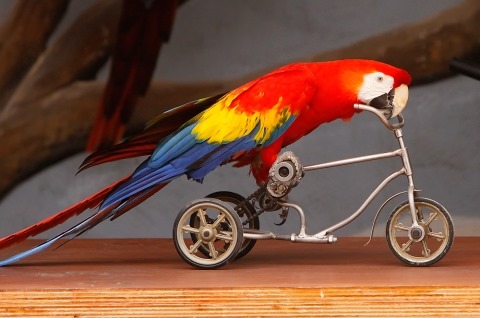
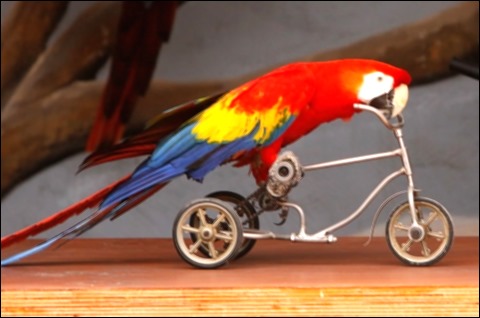
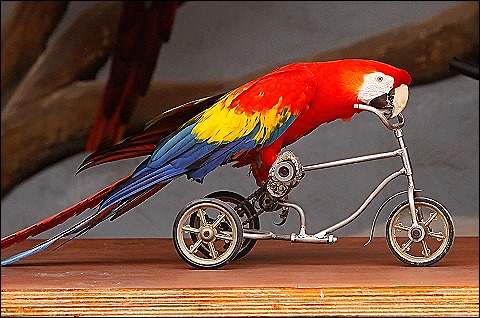
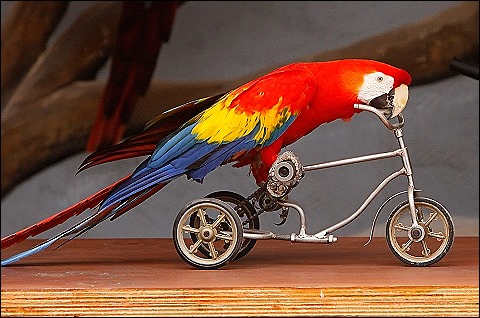
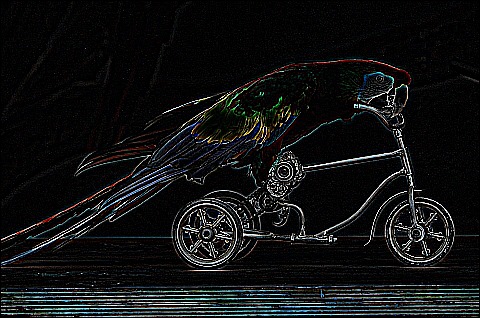
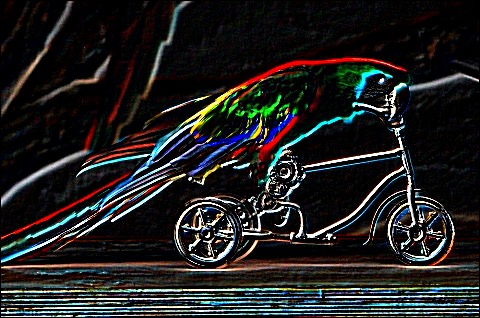
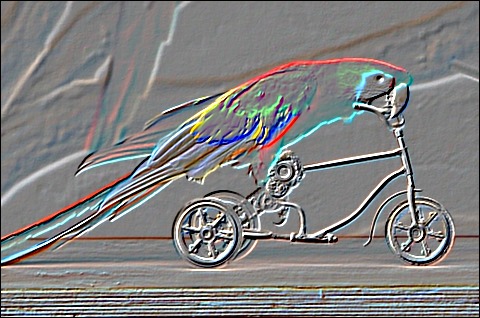
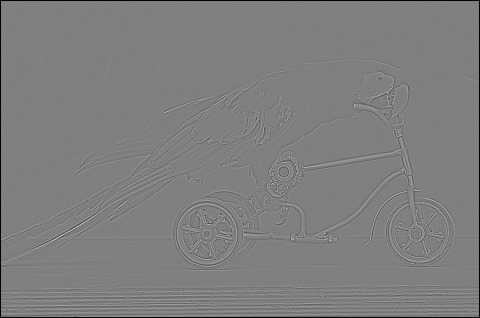
To illustrate the different effects resulting from applying filters all of the filters discussed make use of the same source . The original file is licensed under the Creative Commons Attribution 2.0 Generic license and can be downloaded from:

 http://commons.wikimedia.org/wiki/File:Ara_macao_-on_a_small_bicycle-8.jpg

Ara_macao_-on_a_small_bicycle-8

Blur Filters

is typically used to reduce and detail. The filter’s matrix size affects the level of . A larger results in higher level of , whereas a smaller results in a lesser level of .

Blur3x3Filter

The Blur3x3Filter results in a slight to medium level of . The consists of 9 elements in a 3×3 configuration.

Blur3x3Filter

public class Blur3x3Filter : ConvolutionFilterBase 
{
    public override string FilterName 
    {
        get { return "Blur3x3Filter"; } 
    }

private double factor = 1.0; public override double Factor { get { return factor; } }
private double bias = 0.0; public override double Bias { get { return bias; } }
private double[,] filterMatrix = new double[,] { { 0.0, 0.2, 0.0, }, { 0.2, 0.2, 0.2, }, { 0.0, 0.2, 0.2, }, };
public override double[,] FilterMatrix { get { return filterMatrix; } } }

Blur5x5Filter

The Blur5x5Filter results in a medium level of . The consists of 25 elements in a 5×5 configuration. Notice the factor of 1.0 / 13.0.

Blur5x5Filter

public class Blur5x5Filter : ConvolutionFilterBase 
{
    public override string FilterName 
    {
        get { return "Blur5x5Filter"; } 
    }

private double factor = 1.0 / 13.0; public override double Factor { get { return factor; } }
private double bias = 0.0; public override double Bias { get { return bias; } }
private double[,] filterMatrix = new double[,] { { 0, 0, 1, 0, 0, }, { 0, 1, 1, 1, 0, }, { 1, 1, 1, 1, 1, }, { 0, 1, 1, 1, 0, }, { 0, 0, 1, 0, 0, }, };
public override double[,] FilterMatrix { get { return filterMatrix; } } }

Gaussian3x3BlurFilter

The Gaussian3x3BlurFilter implements a through a matrix of 9 elements in a 3×3 configuration. The sum total of all elements equal 16, therefore the Factor is defined as 1.0 / 16.0. Applying this filter results in a slight to medium level of .

Gaussian3x3BlurFilter

public class Gaussian3x3BlurFilter : ConvolutionFilterBase 
{
    public override string FilterName 
    {
        get { return "Gaussian3x3BlurFilter"; } 
    }

private double factor = 1.0 / 16.0; public override double Factor { get { return factor; } }
private double bias = 0.0; public override double Bias { get { return bias; } }
private double[,] filterMatrix = new double[,] { { 1, 2, 1, }, { 2, 4, 2, }, { 1, 2, 1, }, };
public override double[,] FilterMatrix { get { return filterMatrix; } } }

Gaussian5x5BlurFilter

The Gaussian5x5BlurFilter implements a through a matrix of 25 elements in a 5×5 configuration. The sum total of all elements equal 159, therefore the Factor is defined as 1.0 / 159.0. Applying this filter results in a medium level of .

Gaussian5x5BlurFilter

public class Gaussian5x5BlurFilter : ConvolutionFilterBase 
{
    public override string FilterName 
    {
        get { return "Gaussian5x5BlurFilter"; } 
    }

private double factor = 1.0 / 159.0; public override double Factor { get { return factor; } }
private double bias = 0.0; public override double Bias { get { return bias; } }
private double[,] filterMatrix = new double[,] { { 2, 04, 05, 04, 2, }, { 4, 09, 12, 09, 4, }, { 5, 12, 15, 12, 5, }, { 4, 09, 12, 09, 4, }, { 2, 04, 05, 04, 2, }, };
public override double[,] FilterMatrix { get { return filterMatrix; } } }

MotionBlurFilter

By implementing the MotionBlurFilter resulting indicate the appearance of a high level of associated with motion/movement. This filter is a combination of left to right and right to left . The matrix consists of 81 elements in a 9×9 configuration.

MotionBlurFilter

public class MotionBlurFilter : ConvolutionFilterBase 
{
    public override string FilterName 
    {
        get { return "MotionBlurFilter"; } 
    }

private double factor = 1.0 / 18.0; public override double Factor { get { return factor; } }
private double bias = 0.0; public override double Bias { get { return bias; } }
private double[,] filterMatrix = new double[,] { { 1, 0, 0, 0, 0, 0, 0, 0, 1, }, { 0, 1, 0, 0, 0, 0, 0, 1, 0, }, { 0, 0, 1, 0, 0, 0, 1, 0, 0, }, { 0, 0, 0, 1, 0, 1, 0, 0, 0, }, { 0, 0, 0, 0, 1, 0, 0, 0, 0, }, { 0, 0, 0, 1, 0, 1, 0, 0, 0, }, { 0, 0, 1, 0, 0, 0, 1, 0, 0, }, { 0, 1, 0, 0, 0, 0, 0, 1, 0, }, { 1, 0, 0, 0, 0, 0, 0, 0, 1, }, };
public override double[,] FilterMatrix { get { return filterMatrix; } } }

MotionBlurLeftToRightFilter

The MotionBlurLeftToRightFilter creates the effect of as a result of left to right movement. The matrix consists of 81 elements in a 9×9 configuration.

MotionBlurLeftToRightFilter

public class MotionBlurLeftToRightFilter : ConvolutionFilterBase 
{
    public override string FilterName 
    {
        get { return "MotionBlurLeftToRightFilter"; } 
    }

private double factor = 1.0 / 9.0; public override double Factor { get { return factor; } }
private double bias = 0.0; public override double Bias { get { return bias; } }
private double[,] filterMatrix = new double[,] { { 1, 0, 0, 0, 0, 0, 0, 0, 0, }, { 0, 1, 0, 0, 0, 0, 0, 0, 0, }, { 0, 0, 1, 0, 0, 0, 0, 0, 0, }, { 0, 0, 0, 1, 0, 0, 0, 0, 0, }, { 0, 0, 0, 0, 1, 0, 0, 0, 0, }, { 0, 0, 0, 0, 0, 1, 0, 0, 0, }, { 0, 0, 0, 0, 0, 0, 1, 0, 0, }, { 0, 0, 0, 0, 0, 0, 0, 1, 0, }, { 0, 0, 0, 0, 0, 0, 0, 0, 1, }, };
public override double[,] FilterMatrix { get { return filterMatrix; } } }

MotionBlurRightToLeftFilter

The MotionBlurRightToLeftFilter creates the effect of as a result of right to left movement. The consists of 81 elements in a 9×9 configuration.

MotionBlurRightToLeftFilter

public class MotionBlurRightToLeftFilter : ConvolutionFilterBase 
{
    public override string FilterName 
    {
        get { return "MotionBlurRightToLeftFilter"; } 
    }

private double factor = 1.0 / 9.0; public override double Factor { get { return factor; } }
private double bias = 0.0; public override double Bias { get { return bias; } }
private double[,] filterMatrix = new double[,] { { 0, 0, 0, 0, 0, 0, 0, 0, 1, }, { 0, 0, 0, 0, 0, 0, 0, 1, 0, }, { 0, 0, 0, 0, 0, 0, 1, 0, 0, }, { 0, 0, 0, 0, 0, 1, 0, 0, 0, }, { 0, 0, 0, 0, 1, 0, 0, 0, 0, }, { 0, 0, 0, 1, 0, 0, 0, 0, 0, }, { 0, 0, 1, 0, 0, 0, 0, 0, 0, }, { 0, 1, 0, 0, 0, 0, 0, 0, 0, }, { 1, 0, 0, 0, 0, 0, 0, 0, 0, }, };
public override double[,] FilterMatrix { get { return filterMatrix; } } }

Soften Filter

The SoftenFilter can be used to smooth or soften an . The consists of 9 elements in a 3×3 configuration.

SoftenFilter

public class SoftenFilter : ConvolutionFilterBase 
{
    public override string FilterName 
    {
        get { return "SoftenFilter"; } 
    }

private double factor = 1.0 / 8.0; public override double Factor { get { return factor; } }
private double bias = 0.0; public override double Bias { get { return bias; } }
private double[,] filterMatrix = new double[,] { { 1, 1, 1, }, { 1, 1, 1, }, { 1, 1, 1, }, };
public override double[,] FilterMatrix { get { return filterMatrix; } } }

Sharpen Filters

Sharpening an does not add additional detail to an image but rather adds emphasis to existing image details. is sometimes referred to as image crispness.

SharpenFilter

This filter is intended as a general usage . In a variety of scenarios this filter should provide a reasonable level of depending on source quality.

SharpenFilter

public class SharpenFilter : ConvolutionFilterBase 
{
    public override string FilterName 
    {
        get { return "SharpenFilter"; } 
    }

private double factor = 1.0; public override double Factor { get { return factor; } }
private double bias = 0.0; public override double Bias { get { return bias; } }
private double[,] filterMatrix = new double[,] { { -1, -1, -1, }, { -1, 9, -1, }, { -1, -1, -1, }, };
public override double[,] FilterMatrix { get { return filterMatrix; } } }

Sharpen3x3Filter

The Sharpen3x3Filter results in a medium level of , less intense when compared to the SharpenFilter discussed previously.

Sharpen3x3Filter

public class Sharpen3x3Filter : ConvolutionFilterBase 
{
    public override string FilterName 
    {
        get { return "Sharpen3x3Filter"; } 
    }

private double factor = 1.0; public override double Factor { get { return factor; } }
private double bias = 0.0; public override double Bias { get { return bias; } }
private double[,] filterMatrix = new double[,] { { 0, -1, 0, }, { -1, 5, -1, }, { 0, -1, 0, }, };
public override double[,] FilterMatrix { get { return filterMatrix; } } }

Sharpen3x3FactorFilter

The Sharpen3x3FactorFilter provides a level of similar to the Sharpen3x3Filter explored previously. Both filters define a 9 element 3×3 . The filters differ in regards to Factor values. The Sharpen3x3Filter matrix values equate to a sum total of 1, the Sharpen3x3FactorFilter in contrast equate to a sum total of 3. The Sharpen3x3FactorFilter defines a Factor of 1 / 3, resulting in sum total being negated to 1.

Sharpen3x3FactorFilter

public class Sharpen3x3FactorFilter : ConvolutionFilterBase 
{
    public override string FilterName 
    {
        get { return "Sharpen3x3FactorFilter"; } 
    }

private double factor = 1.0 / 3.0; public override double Factor { get { return factor; } }
private double bias = 0.0; public override double Bias { get { return bias; } }
private double[,] filterMatrix = new double[,] { { 0, -2, 0, }, { -2, 11, -2, }, { 0, -2, 0, }, };
public override double[,] FilterMatrix { get { return filterMatrix; } } }

Sharpen5x5Filter

The Sharpen5x5Filter matrix defines 25 elements in a 5×5 configuration. The level of resulting from implementing this filter to a greater extent is depended on the source . In some scenarios result images may appear slightly softened.

Sharpen5x5Filter

public class Sharpen5x5Filter : ConvolutionFilterBase 
{
    public override string FilterName 
    {
        get { return "Sharpen5x5Filter"; } 
    }

private double factor = 1.0 / 8.0; public override double Factor { get { return factor; } }
private double bias = 0.0; public override double Bias { get { return bias; } }
private double[,] filterMatrix = new double[,] { { -1, -1, -1, -1, -1, }, { -1, 2, 2, 2, -1, }, { -1, 2, 8, 2, 1, }, { -1, 2, 2, 2, -1, }, { -1, -1, -1, -1, -1, }, };
public override double[,] FilterMatrix { get { return filterMatrix; } } }

IntenseSharpenFilter

The IntenseSharpenFilter produces result with overly emphasized edge lines.

IntenseSharpenFilter

public class IntenseSharpenFilter : ConvolutionFilterBase 
{
    public override string FilterName 
    {
        get { return "IntenseSharpenFilter"; } 
    }

private double factor = 1.0; public override double Factor { get { return factor; } }
private double bias = 0.0; public override double Bias { get { return bias; } }
private double[,] filterMatrix = new double[,] { { 1, 1, 1, }, { 1, -7, 1, }, { 1, 1, 1, }, };
public override double[,] FilterMatrix { get { return filterMatrix; } } }

Edge Detection Filters

is the first step towards feature detection and feature extraction in . Edges are generally perceived in in areas exhibiting sudden differences in brightness.

EdgeDetectionFilter

The EdgeDetectionFilter is intended to be used as a general purpose filter, considered appropriate in the majority of scenarios applied.

EdgeDetectionFilter

public class EdgeDetectionFilter : ConvolutionFilterBase 
{
    public override string FilterName 
    {
        get { return "EdgeDetectionFilter"; } 
    }

private double factor = 1.0; public override double Factor { get { return factor; } }
private double bias = 0.0; public override double Bias { get { return bias; } }
private double[,] filterMatrix = new double[,] { { -1, -1, -1, }, { -1, 8, -1, }, { -1, -1, -1, }, };
public override double[,] FilterMatrix { get { return filterMatrix; } } }

EdgeDetection45DegreeFilter

The EdgeDetection45DegreeFilter has the ability to detect edges at 45 degree angles more effectively than other filters.

EdgeDetection45DegreeFilter

public class EdgeDetection45DegreeFilter : ConvolutionFilterBase 
{
    public override string FilterName 
    {
        get { return "EdgeDetection45DegreeFilter"; } 
    }

private double factor = 1.0; public override double Factor { get { return factor; } }
private double bias = 0.0; public override double Bias { get { return bias; } }
private double[,] filterMatrix = new double[,] { { -1, 0, 0, 0, 0, }, { 0, -2, 0, 0, 0, }, { 0, 0, 6, 0, 0, }, { 0, 0, 0, -2, 0, }, { 0, 0, 0, 0, -1, }, };
public override double[,] FilterMatrix { get { return filterMatrix; } } }

HorizontalEdgeDetectionFilter

The HorizontalEdgeDetectionFilter has the ability to detect horizontal edges more effectively than other filters.

HorizontalEdgeDetectionFilter

public class HorizontalEdgeDetectionFilter : ConvolutionFilterBase 
{
    public override string FilterName 
    {
        get { return "HorizontalEdgeDetectionFilter"; } 
    }

private double factor = 1.0; public override double Factor { get { return factor; } }
private double bias = 0.0; public override double Bias { get { return bias; } }
private double[,] filterMatrix = new double[,] { { 0, 0, 0, 0, 0, }, { 0, 0, 0, 0, 0, }, { -1, -1, 2, 0, 0, }, { 0, 0, 0, 0, 0, }, { 0, 0, 0, 0, 0, }, };
public override double[,] FilterMatrix { get { return filterMatrix; } } }

VerticalEdgeDetectionFilter

The VerticalEdgeDetectionFilter has the ability to detect vertical edges more effectively than other filters.

VerticalEdgeDetectionFilter

public class VerticalEdgeDetectionFilter : ConvolutionFilterBase 
{
    public override string FilterName 
    {
        get { return "VerticalEdgeDetectionFilter"; } 
    }

private double factor = 1.0; public override double Factor { get { return factor; } }
private double bias = 0.0; public override double Bias { get { return bias; } }
private double[,] filterMatrix = new double[,] { { 0, 0, -1, 0, 0, }, { 0, 0, -1, 0, 0, }, { 0, 0, 4, 0, 0, }, { 0, 0, -1, 0, 0, }, { 0, 0, -1, 0, 0, }, };
public override double[,] FilterMatrix { get { return filterMatrix; } } }

EdgeDetectionTopLeftBottomRightFilter

This filter closely resembles an indicating object depth whilst still providing a reasonable level of detail.

EdgeDetectionTopLeftBottomRightFilter

public class EdgeDetectionTopLeftBottomRightFilter : ConvolutionFilterBase 
{
    public override string FilterName 
    {
        get { return "EdgeDetectionTopLeftBottomRightFilter"; } 
    }

private double factor = 1.0; public override double Factor { get { return factor; } }
private double bias = 0.0; public override double Bias { get { return bias; } }
private double[,] filterMatrix = new double[,] { { -5, 0, 0, }, { 0, 0, 0, }, { 0, 0, 5, }, };
public override double[,] FilterMatrix { get { return filterMatrix; } } }

Emboss Filters

filters produce result with an emphasis on depth, based on lines/edges expressed in an input/source . Result give the impression of being three dimensional to a varying extent, depended on details defined by input .

EmbossFilter

The EmbossFilter is intended as a general application filter. Take note of the Bias value of 128. Without a bias value, result would be very dark or mostly black.

EmbossFilter

public class EmbossFilter : ConvolutionFilterBase 
{
    public override string FilterName 
    {
        get { return "EmbossFilter"; } 
    }

private double factor = 1.0; public override double Factor { get { return factor; } }
private double bias = 128.0; public override double Bias { get { return bias; } }
private double[,] filterMatrix = new double[,] { { 2, 0, 0, }, { 0, -1, 0, }, { 0, 0, -1, }, };
public override double[,] FilterMatrix { get { return filterMatrix; } } }

Emboss45DegreeFilter

The Emboss45DegreeFilter has the ability to produce result with good emphasis on 45 degree edges/lines.

Emboss45DegreeFilter

public class Emboss45DegreeFilter : ConvolutionFilterBase 
{
    public override string FilterName 
    {
        get { return "Emboss45DegreeFilter"; } 
    }

private double factor = 1.0; public override double Factor { get { return factor; } }
private double bias = 128.0; public override double Bias { get { return bias; } }
private double[,] filterMatrix = new double[,] { { -1, -1, 0, }, { -1, 0, 1, }, { 0, 1, 1, }, };
public override double[,] FilterMatrix { get { return filterMatrix; } } }

EmbossTopLeftBottomRightFilter

The EmbossTopLeftBottomRightFilter provides a more subtle level of result .

EmbossTopLeftBottomRightFilter

public class EmbossTopLeftBottomRightFilter : ConvolutionFilterBase 
{
    public override string FilterName 
    {
        get { return "EmbossTopLeftBottomRightFilter"; } 
    }

private double factor = 1.0; public override double Factor { get { return factor; } }
private double bias = 128.0; public override double Bias { get { return bias; } }
private double[,] filterMatrix = new double[,] { { -1, 0, 0, }, { 0, 0, 0, }, { 0, 0, 1, }, };
public override double[,] FilterMatrix { get { return filterMatrix; } } }

IntenseEmbossFilter

When implementing the IntenseEmbossFilter result provide a good three dimensional/depth level. A drawback of this filter can sometimes be noticed in a reduction detail.

IntenseEmbossFilter

public class IntenseEmbossFilter : ConvolutionFilterBase 
{
    public override string FilterName 
    {
        get { return "IntenseEmbossFilter"; } 
    }

private double factor = 1.0; public override double Factor { get { return factor; } }
private double bias = 128.0; public override double Bias { get { return bias; } }
private double[,] filterMatrix = new double[,] { { -1, -1, -1, -1, 0, }, { -1, -1, -1, 0, 1, }, { -1, -1, 0, 1, 1, }, { -1, 0, 1, 1, 1, }, { 0, 1, 1, 1, 1, }, };
public override double[,] FilterMatrix { get { return filterMatrix; } } }

High Pass

produce result where only high frequency components are retained.

HighPass3x3Filter

public class HighPass3x3Filter : ConvolutionFilterBase 
{
    public override string FilterName 
    {
        get { return "HighPass3x3Filter"; } 
    }

private double factor = 1.0 / 16.0; public override double Factor { get { return factor; } }
private double bias = 128.0; public override double Bias { get { return bias; } }
private double[,] filterMatrix = new double[,] { { -1, -2, -1, }, { -2, 12, -2, }, { -1, -2, -1,, };
public override double[,] FilterMatrix { get { return filterMatrix; } } }

Related Articles and Feedback

Feedback and questions are always encouraged. If you know of an alternative implementation or have ideas on a more efficient implementation please share in the comments section.

I’ve published a number of articles related to imaging and images of which you can find URL links here:

C# How to: Image Arithmetic

Article Purpose

The objective of this article is to illustrate Arithmetic being implemented when blending/combining two separate into a single result . The types of Image Arithmetic discussed are: Average, Add, SubtractLeft, SubtractRight, Difference, Multiply, Min, Max and Amplitude.

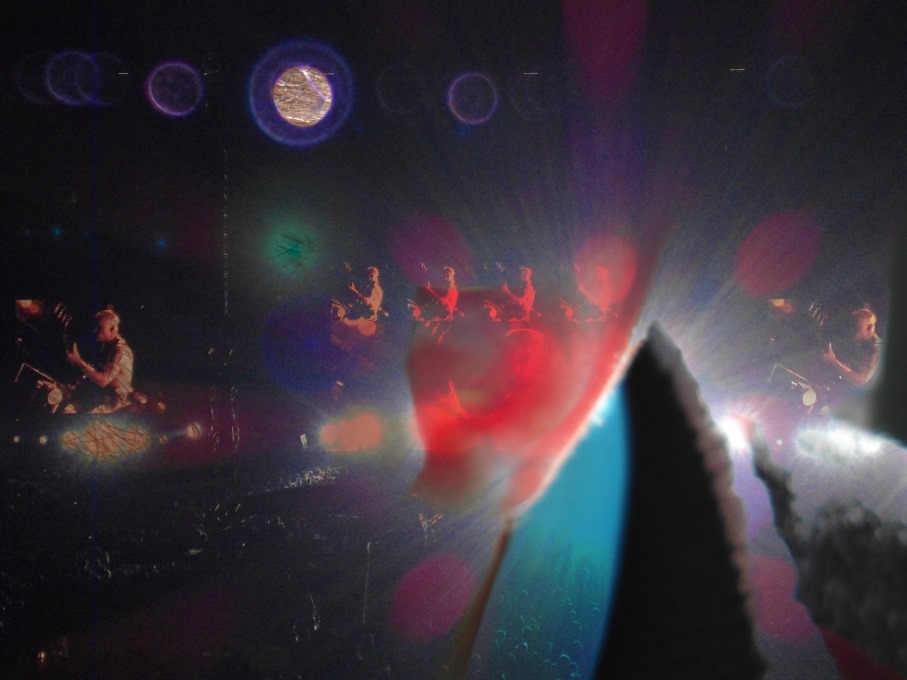
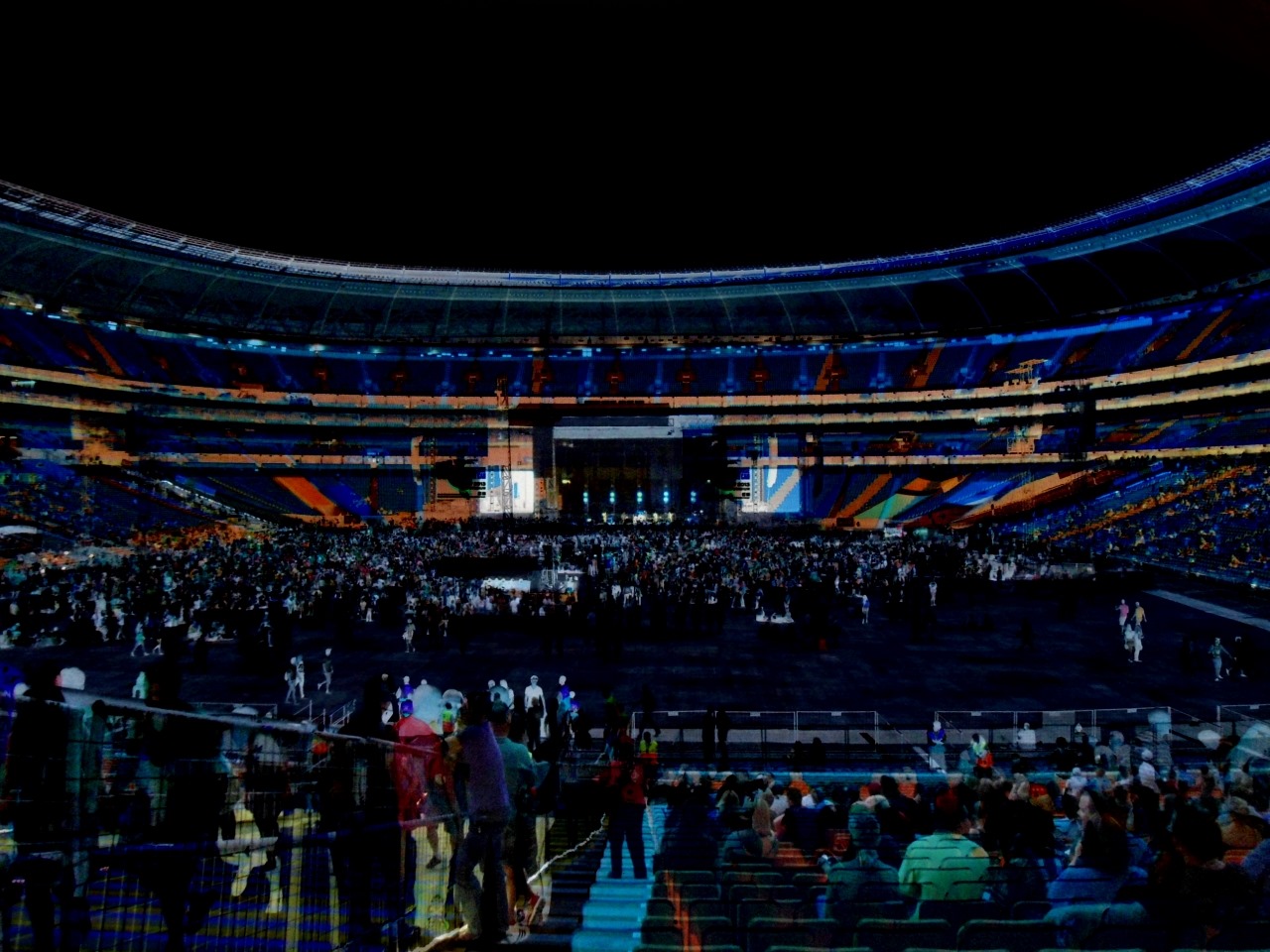
I created the following by implementing Image Arithmetic using as input a photo of a friend’s ear and a photograph taken at a live concert performance by The Red Hot Chili Peppers.

The-RHCP-Sound_Scaled

Sample source code

This article is accompanied by a sample source code Visual Studio project which is available for download here.

Download15

Using the Sample Application

The Sample source code accompanying this article includes a Sample Application developed on a platform. The Sample Application is indented to provide an implementation of the various types of Image Arithmetic explored in this article.

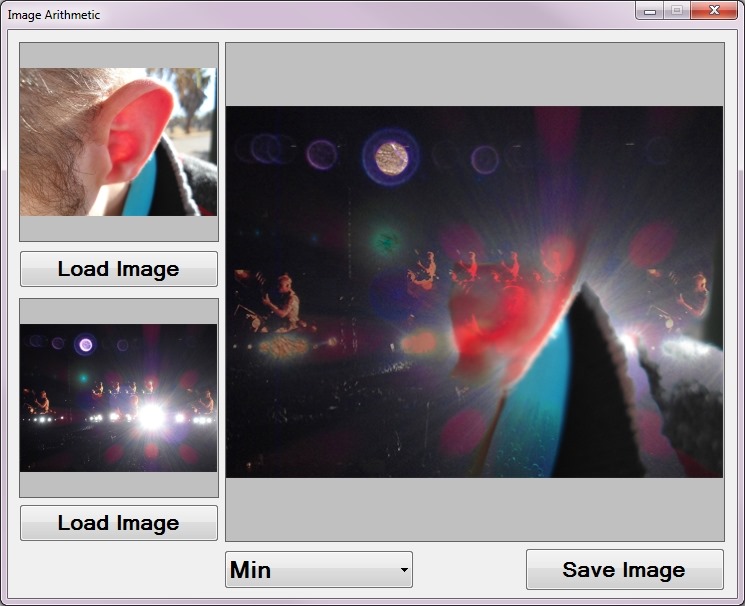
The Image Arithmetic sample application allows the user to select two source/input from the local file system. The user interface defines a ComboBox dropdown populated with entries relating to types of Image Arithmetic.

The following is a screenshot taken whilst creating the “Red Hot Chili Peppers Concert – Side profile Ear” blended illustrated in the first shown in this article. Notice the stark contrast when comparing the source/input preview . Implementing Image Arithmetic allows us to create a smoothly blended result :

ImageArithmetic_SampleApplication

Newly created can be saved to the local file system by clicking the ‘Save Image’ button.

Image Arithmetic

In simple terms Image Arithmetic involves the process of performing calculations on two ’ corresponding pixel colour components. The values resulting from performing calculations represent a single which is combination of the two original source/input . The extent to which a source/input will be represented in the resulting is dependent on the type of Image Arithmetic employed.

The ArithmeticBlend Extension method

In this article Image Arithmetic has been implemented as a single targeting the class. The ArithmeticBlend expects as parameters two source/input objects and a value indicating the type of Image Arithmetic to perform.

The ColorCalculationType defines an value for each type of Image Arithmetic supported. The definition as follows:

public enum ColorCalculationType 
{ 
   Average, 
   Add, 
   SubtractLeft, 
   SubtractRight, 
   Difference, 
   Multiply, 
   Min, 
   Max, 
   Amplitude 
}

It is only within the ArithmeticBlend that we perform Image Arithmetic. This method accesses the underlying pixel data of each sample and creates copies stored in arrays. Each element within the array data buffer represents a single colour component, either Alpha, Red, Green or Blue.

The following code snippet details the implementation of the ArithmeticBlend :

 public static Bitmap ArithmeticBlend(this Bitmap sourceBitmap, Bitmap blendBitmap,  
                                 ColorCalculator.ColorCalculationType calculationType) 
{ 
    BitmapData sourceData = sourceBitmap.LockBits(new Rectangle (0, 0, 
                            sourceBitmap.Width, sourceBitmap.Height), 
                            ImageLockMode.ReadOnly, PixelFormat.Format32bppArgb); 

byte[] pixelBuffer = new byte[sourceData.Stride * sourceData.Height]; Marshal.Copy(sourceData.Scan0, pixelBuffer, 0, pixelBuffer.Length); sourceBitmap.UnlockBits(sourceData);
BitmapData blendData = blendBitmap.LockBits(new Rectangle (0, 0, blendBitmap.Width, blendBitmap.Height), ImageLockMode.ReadOnly, PixelFormat.Format32bppArgb);
byte[] blendBuffer = new byte [blendData.Stride * blendData.Height]; Marshal.Copy(blendData.Scan0, blendBuffer, 0, blendBuffer.Length); blendBitmap.UnlockBits(blendData);
for (int k = 0; (k + 4 < pixelBuffer.Length) && (k + 4 < blendBuffer.Length); k += 4) { pixelBuffer[k] = ColorCalculator.Calculate(pixelBuffer[k], blendBuffer[k], calculationType);
pixelBuffer[k + 1] = ColorCalculator.Calculate(pixelBuffer[k + 1], blendBuffer[k + 1], calculationType);
pixelBuffer[k + 2] = ColorCalculator.Calculate(pixelBuffer[k + 2], blendBuffer[k + 2], calculationType); }
Bitmap resultBitmap = new Bitmap(sourceBitmap.Width, sourceBitmap.Height);
BitmapData resultData = resultBitmap.LockBits(new Rectangle (0, 0, resultBitmap.Width, resultBitmap.Height), ImageLockMode.WriteOnly, PixelFormat.Format32bppArgb);
Marshal.Copy(pixelBuffer, 0, resultData.Scan0, pixelBuffer.Length); resultBitmap.UnlockBits(resultData);
return resultBitmap; }

We access and copy the underlying pixel data of each input by making use of the method and also the method.

The method iterates both array data buffers simultaneously, having set the for loop condition to regard the array size of both arrays. Scenarios where array data buffers will differ in size occurs when the source specified are not equal in terms of size dimensions.

Notice how each iteration increments the loop counter by a factor of four allowing us to treat each iteration as a complete pixel value. Remember that each data buffer element represents an individual colour component. Every four elements represents a single pixel consisting of the components: Alpha, Red, Green and Blue

Take Note: The ordering of colour components are the exact opposite of the expected order. Each pixel’s colour components are ordered: Blue, Green, Red, Alpha. Since we are iterating an entire pixel with each iteration the for loop counter value will always equate to an element index representing the Blue colour component. In order to access the Red and Green colour components we simply add the values one and two respectively to the for loop counter value, depending on whether accessing the Green or Red colour components.

The task of performing the actual arithmetic has been encapsulated within the static Calculate method, a public member of the static class ColorCalculator. The Calculate method is more detail in the following section of this article.

The final task performed by the ArithmeticBlend method involves creating a new instance of the class which is then updated/populated using the resulting array data buffer previously modified.

The ColorCalculator.Calculate method

The algorithms implemented in Image Arithmetic are encapsulated within the ColorCalculator.Calculate method. When implementing this method no knowledge of the technical implementation details are required. The parameters required are two values each representing a single colour component, one from each source . The only other required parameter is an value of type ColorCalculationType which will indicate which type of Image Arithmetic should be implemented using the parameters as operands.

The following code snippet details the full implementation of the ColorCalculator.Calculate method:

 public static byte Calculate(byte color1, byte color2, 
                   ColorCalculationType calculationType) 
{ 
    byte resultValue = 0; 
    int intResult = 0; 

if (calculationType == ColorCalculationType.Add) { intResult = color1 + color2; } else if (calculationType == ColorCalculationType.Average) { intResult = (color1 + color2) / 2; } else if (calculationType == ColorCalculationType.SubtractLeft) { intResult = color1 - color2; } else if (calculationType == ColorCalculationType.SubtractRight) { intResult = color2 - color1; } else if (calculationType == ColorCalculationType.Difference) { intResult = Math.Abs(color1 - color2); } else if (calculationType == ColorCalculationType.Multiply) { intResult = (int)((color1 / 255.0 * color2 / 255.0) * 255.0); } else if (calculationType == ColorCalculationType.Min) { intResult = (color1 < color2 ? color1 : color2); } else if (calculationType == ColorCalculationType.Max) { intResult = (color1 > color2 ? color1 : color2); } else if (calculationType == ColorCalculationType.Amplitude) { intResult = (int)(Math.Sqrt(color1 * color1 + color2 * color2) / Math .Sqrt(2.0)); }
if (intResult < 0) { resultValue = 0; } else if (intResult > 255) { resultValue = 255; } else { resultValue = (byte)intResult; }
return resultValue; }

The bulk of the ColorCalculator.Calculate method’s implementation is set around a series of if/else if statements evaluating the method parameter passed when the method had been invoked.

Colour component values can only range from 0 to 255 inclusive. Calculations performed might result in values which do not fall within the valid range of values. Calculated values less than zero are set to zero and values exceeding 255 are set to 255, sometimes this is referred to clamping.

The following sections of this article provides an explanation of each type of Image Arithmetic implemented.

Image Arithmetic: Add

if (calculationType == ColorCalculationType.Add)
{
    intResult = color1 + color2;
}

The Add algorithm is straightforward, simply adding together the two colour component values. In other words the resulting colour component will be set to equal the sum of both source colour component, provided the total does not exceed 255.

Sample Image

ImageArithmetic_Add

Image Arithmetic: Average

if (calculationType == ColorCalculationType.Average)
{
    intResult = (color1 + color2) / 2;
}

The Average algorithm calculates a simple average by adding together the two colour components and then dividing the result by two.

Sample Image

ImageArithmetic_Average

Image Arithmetic: SubtractLeft

if (calculationType == ColorCalculationType.SubtractLeft)
{
    intResult = color1 - color2;
}

The SubtractLeft algorithm subtracts the value of the second colour component parameter from the first colour component parameter.

Sample Image

ImageArithmetic_SubtractLeft

Image Arithmetic: SubtractRight

if (calculationType == ColorCalculationType.SubtractRight)
{
    intResult = color2 - color1;
}

The SubtractRight algorithm, in contrast to SubtractLeft, subtracts the value of the first colour component parameter from the second colour component parameter.

Sample Image

ImageArithmetic_SubtractRight

Image Arithmetic: Difference

if (calculationType == ColorCalculationType.Difference)
{
    intResult = Math.Abs(color1 - color2);
}

The Difference algorithm subtracts the value of the second colour component parameter from the first colour component parameter. By passing the result of the subtraction as a parameter to the Math.Abs method the algorithm ensures only calculating absolute/positive values. In other words calculating the difference in value between colour component parameters.

Sample Image

ImageArithmetic_Difference

Image Arithmetic: Multiply

if (calculationType == ColorCalculationType.Multiply)
{
    intResult = (int)((color1 / 255.0 * color2 / 255.0) * 255.0);
}

The Multiply algorithm divides each colour component parameter by a value of 255 and the proceeds to multiply the results of the division, the result is then further multiplied by a value of 255.

Sample Image

ImageArithmetic_Multiply

Image Arithmetic: Min

if (calculationType == ColorCalculationType.Min)
{
    intResult = (color1 < color2 ? color1 : color2);
}

The Min algorithm simply compares the two colour component parameters and returns the smallest value of the two.

Sample Image

ImageArithmetic_Min

Image Arithmetic: Max

if (calculationType == ColorCalculationType.Max)
{
    intResult = (color1 > color2 ? color1 : color2);
}

The Max algorithm, as can be expected, will produce the exact opposite result when compared to the Min algorithm. This algorithm compares the two colour component parameters and returns the larger value of the two.

Sample Image

ImageArithmetic_Max

Image Arithmetic: Amplitude

 else if (calculationType == ColorCalculationType.Amplitude) 
{ 
         intResult = (int)(Math.Sqrt(color1 * color1 +
                                     color2 * color2) /
                                     Math.Sqrt(2.0)); 
} 
  

The Amplitude algorithm calculates the amplitude of the two colour component parameters by multiplying each colour component by itself and then sums the results. The last step divides the result thus far by the square root of two.

Sample Image

ImageArithmetic_Amplitude

Related Articles

C# How to: Generating Icons from Images

Article Purpose

This illustrates the process of generating files (*.ico) from user specified input . The accompanying Sample Source Code implements a , allowing for easily testing the generation process.

Sample source code

This is accompanied by a sample source code Visual Studio project which is available for download .

Using the sample Application

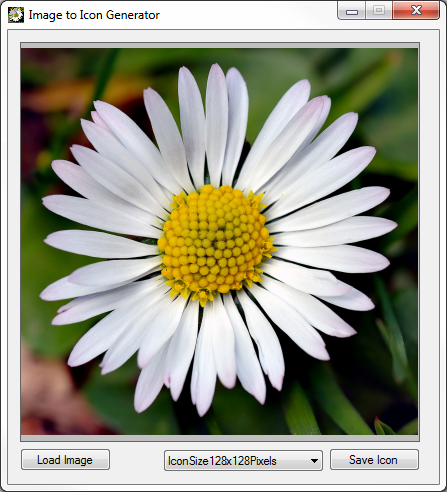
The Sample Application can be used to test/implement the concepts described in this . The user interface enables the user to browse and select an file from the file system, which loads as a scaled preview. In addition, the user can select an size from a list of standard dimensions: 16×16, 24×24, 32×32, 48×48, 64×64, 96×96 and 128×128 pixels. When a user clicks on the “Save Icon” button the sample application generates an in memory based on the specified size converting and scaling the provided input . If an was successfully generated, the in-memory representation will be saved to the file system, based on the filename and file path specified by the user.

The image below is screenshot of the Image to Icon Generator application in action:

Image To Icon Generator

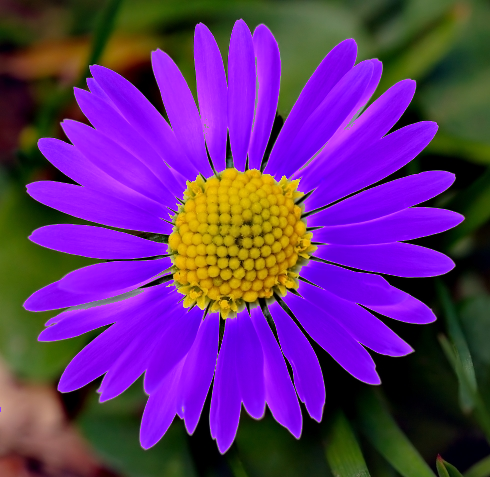
The source features Bellis perennis also known as the common European Daisy (see Wikipedia). The file is licensed under the Creative Commons Attribution-Share Alike 2.5 Generic license. The original can be downloaded from .

The resulting file generated by the sample application:

Generating Icons from Images

Scaling and Aspect Ratio

conform to a set of standard dimensions, all of which equate to a square due to the width and height values being equal. A potential issue exists in that the specified source might not have exact square dimensions. In other words, the width and height values of specified source might differ. The solution lies in creating a square based on the specified source . Consider the concept of a square canvas onto which is drawn the source whilst maintaining its aspect ratio, implementing center alignment from the horizontal and vertical aspect. Listed below is the implementation of an defined as CopyToSquareCanvas, targeting the class.

public static Bitmap CopyToSquareCanvas(this Bitmap sourceBitmap, Color canvasBackground)
{
    int maxSide = sourceBitmap.Width > sourceBitmap.Height ? sourceBitmap.Width : sourceBitmap.Height;

Bitmap bitmapResult = new Bitmap(maxSide, maxSide, PixelFormat.Format32bppArgb);
using (Graphics graphicsResult = Graphics.FromImage(bitmapResult)) { graphicsResult.Clear(canvasBackground);
int xOffset = (sourceBitmap.Width - maxSide) / 2; int yOffset = (sourceBitmap.Height - maxSide) / 2;
graphicsResult.DrawImage(sourceBitmap, new Point(xOffset, xOffset)); }
return bitmapResult; }

The size of the resulting is determined by the source ’s longest side, either width or height. To ensure middle alignment both vertically and horizontally the source is drawn at an offset, determined by the additional buffer area added by the canvas.

Generating the Icon

Once we have created an conforming to exact square dimensions the next step would be to scale said to the desired size. A convenient method of quickly scaling source to icon dimensions comes in the form of creating .

The sample source code defines the enumeration IconSizeDimensions, which serves to provide a developer friendly reference coupled with actual dimension values by means of specifying explicit enumeration values. Consider the following code snippet:

public enum IconSizeDimensions
{
    IconSize16x16Pixels = 16,
    IconSize24x24Pixels = 24,
    IconSize32x32Pixels = 32,
    IconSize48x48Pixels = 48,
    IconSize64x64Pixels = 64,
    IconSize96x96Pixels = 96,
    IconSize128x128Pixels = 128
}

The crux of this and sample source code can considered to be the definition of the CreateIcon , which targets the class. The definition is as follows:

public static Icon CreateIcon(this Bitmap sourceBitmap, IconSizeDimensions iconSize)
{
    Bitmap squareCanvas = sourceBitmap.CopyToSquareCanvas(Color.Transparent);
    squareCanvas = (Bitmap)squareCanvas.GetThumbnailImage((int)iconSize, (int)iconSize, null, new IntPtr());

Icon iconResult = Icon.FromHandle(squareCanvas.GetHicon());
return iconResult; }

As discussed the first step is to ensure that the source conforms to square dimensions, implemented here by invoking the CopyToSquareCanvas . Next the source code implements scaling by creating a of which the size is based on the specified IconSizeDimensions value. The method returns a handle to an in the form of an , which serves as a parameter to the static method, which returns an instance of the class.

The Implementation

When the user clicks the “Save” button the Sample Application will present the user with a file save dialog. After the user specifies a file name and file path the Sample Application creates a reference of the source by casting the picturebox’s property to type .

private void btnSaveIcon_Click(object sender, EventArgs e)
{
    if (picSource.Image != null)
    {
        SaveFileDialog sfd = new SaveFileDialog();
        sfd.Title = "Specify a file name and file path";
        sfd.Filter = "Icon Files(*.ico)|*.ico"; 
if (sfd.ShowDialog() == System.Windows.Forms.DialogResult.OK) { System.Drawing.Icon tempIcon = ((Bitmap)picSource.Image).CreateIcon( (IconSizeDimensions)cmbIconSize.SelectedItem);
using (StreamWriter streamWriter = new StreamWriter(sfd.FileName, false)) { tempIcon.Save(streamWriter.BaseStream);
streamWriter.Flush(); streamWriter.Close(); } } } }

When the CreateIcon is invoked, the dimensions selected through the user interface will be passed as a parameter. The last step performed involves persisting the in-memory data to the file system.

C# How to: Bitmap Colour Substitution implementing thresholds

Article Purpose

This article is aimed at detailing how to implement the process of substituting the colour values that form part of a image. Colour substitution is implemented by means of a threshold value. By implementing a threshold a range of similar colours can be substituted.

Sample source code

This article is accompanied by a sample source code Visual Studio project which is available for download here.

Using the sample Application

The provided sample source code builds a Windows Forms application which can be used to test/implement the concepts described in this article. The sample application enables the user to load an file from the file system, the user can then specify the colour to replace, the replacement colour and the threshold to apply. The following image is a screenshot of the sample application in action.

BitmapColourSubstitution_Scaled

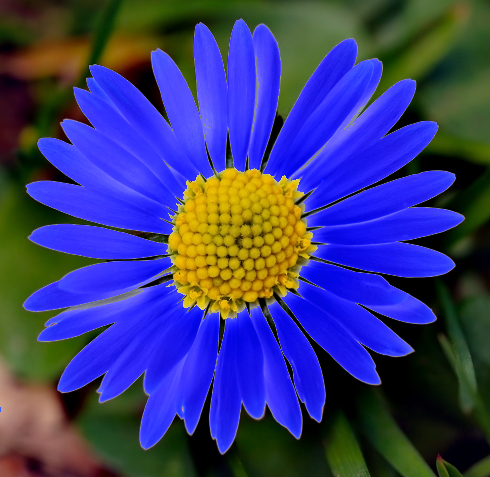
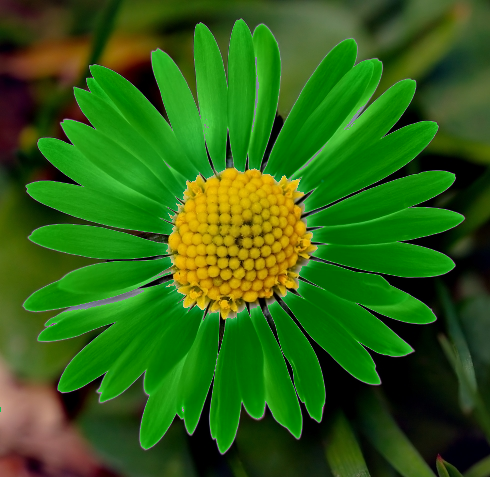
The scenario detailed in the above screenshot shows the sample application being used to create an where the sky has more of a bluish hue when compared to the original .

Notice how replacement colour does not simply appear as a solid colour applied throughout. The replacement colour gets implemented matching the intensity of the colour being substituted.

The colour filter options:

FilterOptions

The colour to replace was taken from the original , the replacement colour is specified through a colour picker dialog. When a user clicks on either displayed, the colour of the pixel clicked on sets the value of the replacement colour. By adjusting the threshold value the user can specify how wide or narrow the range of colours to replace should be. The higher the threshold value, the wider the range of colours that will be replaced.

The resulting image can be saved by clicking the “Save Result” button. In order to apply another colour substitution on the resulting image click the button labelled “Set Result as Source”.

Colour Substitution Filter Data
The sample source code provides the definition for the ColorSubstitutionFilter class. The purpose of this class is to contain data required when applying colour substitution. The ColorSubstitutionFilter class is defined as follows:
public class ColorSubstitutionFilter
{
    private int thresholdValue = 10;
    public int ThresholdValue
    {
        get { return thresholdValue; }
        set { thresholdValue = value; }
    }

private Color sourceColor = Color.White; public Color SourceColor { get { return sourceColor; } set { sourceColor = value; } }
private Color newColor = Color.White; public Color NewColor { get { return newColor; } set { newColor = value; } } }

To implement a colour substitution filter we first have to create an object instance of type ColorSubstitutionFilter. A colour substitution requires specifying a SourceColor, which is the colour to replace/substitute and a NewColour, which defines the colour that will replace the SourceColour. Also required is a ThresholdValue, which determines a range of colours based on the SourceColor.
Colour Substitution implemented as an Extension method

The sample source code defines the ColorSubstitution extension method which targets the class. Invoking the ColorSubstitution requires passing a parameter of type ColorSubstitutionFilter, which defines how colour substitution is to be implemented. The following code snippet contains the definition of the ColorSubstitution method.

public static Bitmap ColorSubstitution(this Bitmap sourceBitmap, ColorSubstitutionFilter filterData)
{
    Bitmap resultBitmap = new Bitmap(sourceBitmap.Width, sourceBitmap.Height, PixelFormat.Format32bppArgb);

BitmapData sourceData = sourceBitmap.LockBits(new Rectangle(0, 0, sourceBitmap.Width, sourceBitmap.Height), ImageLockMode.ReadOnly, PixelFormat.Format32bppArgb); BitmapData resultData = resultBitmap.LockBits(new Rectangle(0, 0, resultBitmap.Width, resultBitmap.Height), ImageLockMode.WriteOnly, PixelFormat.Format32bppArgb);
byte[] resultBuffer = new byte[resultData.Stride * resultData.Height]; Marshal.Copy(sourceData.Scan0, resultBuffer, 0, resultBuffer.Length);
sourceBitmap.UnlockBits(sourceData);
byte sourceRed = 0, sourceGreen = 0, sourceBlue = 0, sourceAlpha = 0; int resultRed = 0, resultGreen = 0, resultBlue = 0;
byte newRedValue = filterData.NewColor.R; byte newGreenValue = filterData.NewColor.G; byte newBlueValue = filterData.NewColor.B;
byte redFilter = filterData.SourceColor.R; byte greenFilter = filterData.SourceColor.G; byte blueFilter = filterData.SourceColor.B;
byte minValue = 0; byte maxValue = 255;
for (int k = 0; k < resultBuffer.Length; k += 4) { sourceAlpha = resultBuffer[k + 3];
if (sourceAlpha != 0) { sourceBlue = resultBuffer[k]; sourceGreen = resultBuffer[k + 1]; sourceRed = resultBuffer[k + 2];
if ((sourceBlue < blueFilter + filterData.ThresholdValue && sourceBlue > blueFilter - filterData.ThresholdValue) &&
(sourceGreen < greenFilter + filterData.ThresholdValue && sourceGreen > greenFilter - filterData.ThresholdValue) &&
(sourceRed < redFilter + filterData.ThresholdValue && sourceRed > redFilter - filterData.ThresholdValue)) { resultBlue = blueFilter - sourceBlue + newBlueValue;
if (resultBlue > maxValue) { resultBlue = maxValue;} else if (resultBlue < minValue) { resultBlue = minValue;}
resultGreen = greenFilter - sourceGreen + newGreenValue;
if (resultGreen > maxValue) { resultGreen = maxValue;} else if (resultGreen < minValue) { resultGreen = minValue;}
resultRed = redFilter - sourceRed + newRedValue;
if (resultRed > maxValue) { resultRed = maxValue;} else if (resultRed < minValue) { resultRed = minValue;}
resultBuffer[k] = (byte)resultBlue; resultBuffer[k + 1] = (byte)resultGreen; resultBuffer[k + 2] = (byte)resultRed; resultBuffer[k + 3] = sourceAlpha; } } }
Marshal.Copy(resultBuffer, 0, resultData.Scan0, resultBuffer.Length); resultBitmap.UnlockBits(resultData);
return resultBitmap; }

The ColorSubstitution method can be labelled as due to its implementation. Being implies that the source/input data will not be modified, instead a new instance will be created reflecting the source data as modified by the operations performed in the particular method.

The first statement defined in the ColorSubstitution method body instantiates an instance of a new , matching the size dimensions of the source object. Next the method invokes the method on the source and result instances. When invoking the underlying data representing a will be locked in memory. Being locked in memory can also be described as signalling/preventing the Garbage Collector to not move around in memory the data being locked. Invoking results in the Garbage Collector functioning as per normal, moving data in memory and updating the relevant memory references when required.

The source code continues by copying all the representing the source to an array of bytes that represents the resulting . At this stage the source and result s are exactly identical and as yet unmodified. In order to determine which pixels based on colour should be modified the source code iterates through the byte array associated with the result .

Notice how the for loop increments by 4 with each loop. The underlying data represents a 32 Bits per pixel Argb , which equates to 8 bits/1 representing an individual colour component, either Alpha, Red, Green or Blue. Defining the for loop to increment by 4 results in each loop iterating 4 or 32 bits, in essence 1 pixel.

Within the for loop we determine if the colour expressed by the current pixel adjusted by the threshold value forms part of the colour range that should be updated. It is important to remember that an individual colour component is a byte value and can only be set to a value between 0 and 255 inclusive.

The Implementation

The ColorSubstitution method is implemented by the sample source code  through a Windows Forms application. The ColorSubstitution method requires that the source specified must be  formatted as a 32 Bpp Argb . When the user loads a source image from the file system the sample application attempts to convert the selected file by invoking the Format32bppArgbCopy which targets the class. The definition is as follows:

public static Bitmap Format32bppArgbCopy(this Bitmap sourceBitmap)
{
    Bitmap copyBitmap = new Bitmap(sourceBitmap.Width, sourceBitmap.Height, PixelFormat.Format32bppArgb);

using (Graphics graphicsObject = Graphics.FromImage(copyBitmap)) { graphicsObject.CompositingQuality = System.Drawing.Drawing2D.CompositingQuality.HighQuality; graphicsObject.InterpolationMode = System.Drawing.Drawing2D.InterpolationMode.HighQualityBicubic; graphicsObject.PixelOffsetMode = System.Drawing.Drawing2D.PixelOffsetMode.HighQuality; graphicsObject.SmoothingMode = System.Drawing.Drawing2D.SmoothingMode.HighQuality;
graphicsObject.DrawImage(sourceBitmap, new Rectangle(0, 0, sourceBitmap.Width, sourceBitmap.Height), new Rectangle(0, 0, sourceBitmap.Width, sourceBitmap.Height), GraphicsUnit.Pixel); }
return copyBitmap; }

Colour Substitution Examples

The following section illustrates a few examples of colour substitution result . The source image features Bellis perennis also known as the common European Daisy (see Wikipedia). The image file is licensed under the Creative Commons Attribution-Share Alike 2.5 Generic license. The original image can be downloaded here. The following image is a scaled down version of the original:

Bellis_perennis_white_(aka)_scaled

Light Blue Colour Substitution

Colour Component Source Colour Substitute Colour
Red   255   121
Green   223   188
Blue   224   255

Daisy_light_blue

Medium Blue Colour Substitution

Colour Component Source Colour Substitute Colour
Red   255   34
Green   223   34
Blue   224   255

Daisy_medium_blue

Medium Green Colour Substitution

Colour Component Source Colour Substitute Colour
Red   255   0
Green   223   128
Blue   224   0

Daisy_medium_green

Purple Colour Substitution

Colour Component Source Colour Substitute Colour
Red   255   128
Green   223   0
Blue   224   255

Daisy_purple

Related Articles and Feedback

Feedback and questions are always encouraged. If you know of an alternative implementation or have ideas on a more efficient implementation please share in the comments section.

I’ve published a number of articles related to imaging and images of which you can find URL links here:


Dewald Esterhuizen

Unknown's avatar

Blog Stats

  • 894,104 hits

Enter your email address to follow and receive notifications of new posts by email.

Join 91 other subscribers

Archives

RSS SoftwareByDefault on MSDN

  • An error has occurred; the feed is probably down. Try again later.