Archive for the 'Tip' Category


C# How to: Decoding/Converting Base64 strings to Bitmap images

Article purpose

This details how to decode or convert encoded back into by means of the class.

Note: This article is an update that builds upon the article:

Sample source code

This is accompanied by a sample source code Visual Studio project which is available for download .

Images as Base64 strings

From :

Base64 is a group of similar encoding schemes that represent in an ASCII string format by translating it into a -64 representation. The Base64 term originates from a specific .

Base64 encoding schemes are commonly used when there is a need to encode binary data that need to be stored and transferred over media that are designed to deal with textual data. This is to ensure that the data remain intact without modification during transport. Base64 is commonly used in a number of applications including email via MIME, and storing complex data in XML.

From the definition quoted above the need for encoding becomes more clear. From :

The base-64 digits in ascending order from zero are the uppercase characters "A" to "Z", the lowercase characters "a" to "z", the numerals "0" to "9", and the symbols "+" and "/". The valueless character, "=", is used for trailing padding.

encoding allows developers to expose without potentially encountering conflicts in regards to the transfer medium. encoded serves ideally when performing data transfer operations using platforms such as html, json, rest, xml, email.

A common implementation of encoding can be found when transferring data. This details how to convert/decode a back into a Bitmap .

Base64 String to Bitmap decoding implemented as an extension method

The code snippet listed below details the Base64StringToBitmap targeting the .

public static Bitmap Base64StringToBitmap(this string
                                           base64String)
{
    Bitmap bmpReturn = null;

byte[] byteBuffer = Convert.FromBase64String(base64String); MemoryStream memoryStream = new MemoryStream(byteBuffer);
memoryStream.Position = 0;
bmpReturn = (Bitmap)Bitmap.FromStream(memoryStream);
memoryStream.Close(); memoryStream = null; byteBuffer = null;
return bmpReturn; }

The parameter is first converted to a array by invoking the method. Next we create a against the resulting array, which serves as a parameter to the class’ static method.

The implementation

The Base64StringToBitmap is implemented in a console based application. The creates a instance from the local file system, which is then converted to a .

An article detailing how to convert to encoded can be found here:

– The you are currently reading was published as a follow up .

Next the newly created is converted back to a by invoking the Base64StringToBitmap . In order to test if the was decoded successfully the is saved to the local file system and displayed in the default installed application associated with png . The implementation as follows:

static void Main(string[] args)
{
    StreamReader streamReader = new StreamReader(
                                   "NavForward.png");

Bitmap bmp = new Bitmap(streamReader.BaseStream); streamReader.Close();
string base64ImageString = bmp.ToBase64String( ImageFormat.Png);
Console.WriteLine(base64ImageString);
Bitmap bmpFromString = base64ImageString.Base64StringToBitmap();
bmpFromString.Save("FromBase64String.png", ImageFormat.Png);
Process.Start("FromBase64String.png");
Console.ReadKey(); }

Related Articles and Feedback

Feedback and questions are always encouraged. If you know of an alternative implementation or have ideas on a more efficient implementation please share in the comments section.

Dewald Esterhuizen

I’ve published a number of articles related to imaging and images of which you can find URL links here:

C# How to: Encoding Bitmaps to Base64 strings

Article purpose

This article explores encoding Bitmap images to Base64 strings. Encoding is implemented by means of an extension method targeting the Bitmap class.

Sample source code

This article is accompanied by a sample source code Visual Studio project which is available for download .

Images as Base64 strings

From :

Base64 is a group of similar encoding schemes that represent binary data in an ASCII string format by translating it into a radix-64 representation. The Base64 term originates from a specific MIME content transfer encoding.

Base64 encoding schemes are commonly used when there is a need to encode binary data that need to be stored and transferred over media that are designed to deal with textual data. This is to ensure that the data remain intact without modification during transport. Base64 is commonly used in a number of applications including email via MIME, and storing complex data in XML.

From the definition quoted above the need for base64 encoding becomes more clear. From MSDN documentation:

The base-64 digits in ascending order from zero are the uppercase characters "A" to "Z", the lowercase characters "a" to "z", the numerals "0" to "9", and the symbols "+" and "/". The valueless character, "=", is used for trailing padding.

Base64 encoding allows developers to expose binary data without potentially encountering conflicts in regards to the transfer medium. Base64 encoded binary data serves ideally when performing data transfer operations using platforms such as html, xml, email.

A common implementation of Base64 encoding can be found when transferring image data. This article details how to convert/encode a object to a Base64 string.

Base64 Bitmap encoding implemented as an extension method

The code snippet listed below details the ToBase64String extension method targeting the class.

public static string ToBase64String(this Bitmap bmp, ImageFormat imageFormat)
{
    string base64String = string.Empty;

MemoryStream memoryStream = new MemoryStream(); bmp.Save(memoryStream, imageFormat);
memoryStream.Position = 0; byte[] byteBuffer = memoryStream.ToArray();
memoryStream.Close();
base64String = Convert.ToBase64String(byteBuffer); byteBuffer = null;
return base64String; }

The ToBase64String method writes the targeted object’s pixel data to a object using the specified parameter. Next a byte array is extracted and passed to the method , which is responsible for implementing the Base64 encoding.

Creating an Image tag implementing a Base64 string

The sample source code in addition also defines an extension method to generate html image tags to display a Base64 string encoded image.

 public static string ToBase64ImageTag(this Bitmap bmp, ImageFormat imageFormat)
{
    string imgTag = string.Empty;
    string base64String = string.Empty;

base64String = bmp.ToBase64String(imageFormat);
imgTag = "<img src=\\"data:image/" + imageFormat.ToString() + ";base64,"; imgTag += base64String + "\\" "; imgTag += "width=\\"" + bmp.Width.ToString() + "\\" "; imgTag += "height=\\"" + bmp.Height.ToString() + "\\" />";
return imgTag; }

The ToBase64ImageTag extension method invokes the ToBase64String extension method in order to retrieve encoded the data. The Html image tag has only to be slightly modified from the norm in order to accommodate Base64 encoded strings.

The implementation

The two extension methods are implemented using a console based application.

 static void Main(string[] args)
{
    StreamReader streamReader = new StreamReader("NavForward.png");
    Bitmap bmp = new Bitmap(streamReader.BaseStream);
    streamReader.Close();

string base64ImageAndTag = bmp.ToBase64ImageTag(ImageFormat.Png);
Console.WriteLine(base64ImageAndTag);
Console.ReadKey(); }

C# How to: Deep copy objects using NetDataContractSerializer

Article purpose

This article will illustrate how to create deep copies of an by making use of the implemented in the form of an extension method with generic type support.

Sample source code

This article is accompanied by a sample source code Visual Studio project which is available for download .

Shallow Copy and Deep Copy

When creating a copy of an in memory, the type of copy can be described as either a shallow copy or a deep copy. The class defines the method, which performs a bit by bit copy of an ’s value type members. In the case of reference type members the method will create a copy of the reference, but not a copy of the being referenced. Creating a copy of an using the method will thus result in copies and the original still referencing the same member in memory when that is a reference type. The method performs a shallow copy when invoked.

A deep copy of an results in copies and the original not referencing the same reference type member in memory.

This article is a follow up article on: . When using being have to be decorated with any number of attributes which aid and . An object’s definition has to at the very least specify the Serializable attribute, if not attempting results in a runtime exception.

The advantage of implementing deep copy operations by making use of a can be argued around not having to specify . Although, as is the case with , only objects that define a can be without specifying any additional attributes.

Example custom data type

The code snippet listed below illustrates several user/custom defined data types. Notice the complete absence of any code attributes, as usually required for successful serialization/deserialization. Also pay attention to the private member variables, being an and user defined reference type defined towards the end of this snippet.

For the sake of convenience I overload the , returning a string representation of an object’s member values.

public class CustomDataType 
{ 
     private CustomEnum enumMember = CustomEnum.EnumVal1; 
     private ExampleReferenceType referenceType = new ExampleReferenceType(); 

public void RefreshReferenceType() { referenceType.Refresh(); }
private int intMember = 0; public int IntMember { get { return intMember; } set { intMember = value; } }
private string stringMember = String.Empty; public string StringMember { get { return stringMember; } set { stringMember = value; } }
private DateTime dateTimeMember = DateTime.MinValue; public DateTime DateTimeMember { get { return dateTimeMember; } set { dateTimeMember = value; } }
public override string ToString() { return "IntMember: " + IntMember + ", DateTimeMember: " + DateTimeMember.ToString() + ", StringMember: " + stringMember + ", EnumMember: " + enumMember.ToString() + ", ReferenceType: " + referenceType.ToString(); }
public void SetEnumValue(CustomEnum enumValue) { enumMember = enumValue; } }
public class ExampleReferenceType { private DateTime createdDate = DateTime.Now;
public void Refresh() { createdDate = DateTime.Now; }
public override string ToString() { return createdDate.ToString("HH:mm:ss.fff"); } }
public enum CustomEnum { EnumVal1 = 2, EnumVal2 = 4, EnumVal3 = 8, EnumVal4 = 16, }

The DeepCopy method – Implementation as an extension method with generic type support

Extension method architecture enables developers to create methods which, from a syntactic and implementation point of view appear to be part of an existing data type. create the perception of being updates or additions, literarily extending a data type as the name implies. do not require access to the source code of the particular types being extended, nor does the implementation thereof require recompilation of the referenced types.

This article illustrates a combined implementation of extending the functionality of . The following code snippet provides the definition.

public static class ExtObject 
{ 
    public static T DeepCopy<T>(this T objectToCopy) 
    {    
        MemoryStream memoryStream = new MemoryStream(); 

NetDataContractSerializer netFormatter = new NetDataContractSerializer();
netFormatter.Serialize(memoryStream, objectToCopy);
memoryStream.Position = 0; T returnValue = (T)netFormatter.Deserialize(memoryStream);
memoryStream.Close(); memoryStream.Dispose();
return returnValue; } }

The DeepCopy method is defined as an by virtue of being a static method of a static class and by specifying the keyword in its parameter definition.

DeepCopy additionally defines the <T> which determines the return value’s type and the type of the parameter objectToCopy.

The method body creates an instance of a object and an object instance of type . When the is invoked the Xml representation of the objectToCopy parameter is written to the specified . In a similar fashion is invoked next, reading the Xml representation from the specified . The returned is cast to the same type as the originally .

Note: :

Serializes and deserializes an instance of a type into XML stream or document using the supplied .NET Framework types.

The NetDataContractSerializer differs from the in one important way: the NetDataContractSerializer includes CLR type information in the serialized XML, whereas the does not. Therefore, the NetDataContractSerializer can be used only if both the serializing and deserializing ends share the same CLR types.

In the scenario illustrated it can be considered safe to use since objects being are only persisted to memory for a few milliseconds and then back to an instance.

The implementation

The DeepCopy method illustrated above appears as a member method to the CustomDataType class created earlier.

static void Main(string[] args) 
{ 
    CustomDataType originalObject = new CustomDataType(); 
    originalObject.DateTimeMember = DateTime.Now; 
    originalObject.IntMember = 42; 
    originalObject.StringMember = "Some random string"; 

CustomDataType deepCopyObject = originalObject.DeepCopy(); deepCopyObject.DateTimeMember = DateTime.MinValue; deepCopyObject.IntMember = 123; deepCopyObject.StringMember = "Something else..."; deepCopyObject.SetEnumValue(CustomEnum.EnumVal3); deepCopyObject.RefreshReferenceType();
Console.WriteLine("originalObject: "); Console.WriteLine(originalObject.ToString()); Console.WriteLine();
Console.WriteLine("deepCopyObject: "); Console.WriteLine(deepCopyObject.ToString()); Console.WriteLine();
Console.WriteLine("Press any key..."); Console.ReadKey(); }

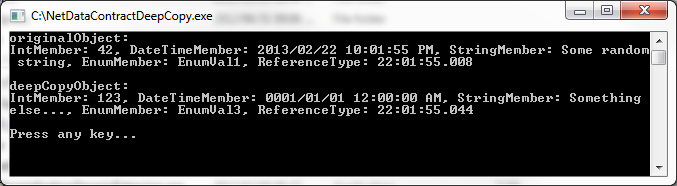
The code snippet listed above is a console application which implements the DeepCopy on objects of type CustomDataType. Modifying the member properties of the second object instance will not result in the first instance properties being modified.

NetDataContractDeepCopy

C# How to: Check if a Tcp Port is in use

Article purpose

This article features a short illustration of how to determine if a network port is already in use.

Introduction

When creating a TCP/IP server connection on a Windows based platform you can specify a port number ranging from 1000 to 65535. It would seem unlikely that two applications executing at the same time will both attempt to open the same port number, in reality it happens quite often. It is advisable to first determine if a port is already in use before attempting to start a server connection listening on that port.

Sample source code

This article is accompanied by sample source code in a Visual Studio project which is available for download here.

Active Tcp Listeners

The namespace defines an class. Using we can determine the every server connection listens on for incoming connections. Listed below is a code snippet detailing the PortInUse method.

 public static bool PortInUse(int  port)
 {
     bool inUse = false;
             
     IPGlobalProperties ipProperties = IPGlobalProperties.GetIPGlobalProperties();
     IPEndPoint [] ipEndPoints = ipProperties.GetActiveTcpListeners();

     foreach(IPEndPoint endPoint in ipEndPoints)
     {
         if  (endPoint.Port == port)
         {
             inUse = true;
             break;
         }
     }

     return  inUse;
 }
 

The PortInUse method determines all active server connections, then proceeds to iterate an Array of objects comparing port numbers to the method’s only parameter.

The Implementation

The PortInUse method is implemented in a Console based application. First the sample source starts up an instance of the class on port 8080. The definition is followed by determining if port 8080 is in fact being used.

 static  void  Main(string [] args)
 {
     HttpListener  httpListner = new  HttpListener ();
     httpListner.Prefixes.Add("http://*:8080/" );
     httpListner.Start();

     Console .WriteLine("Port: 8080 status: "  + (PortInUse(8080) ? "in use" : "not in use" ));

     Console .ReadKey();

     httpListner.Close();
 }
 

C# How to: Using Microsoft Kinect with Windows Forms

Article purpose

This article illustrates a basic introductory level explanation of the steps required to interface with the Microsoft Kinect for Windows sensor using the Kinect for Windows Sdk implemented in a Windows Forms application.

Introduction

Most of the introduction level articles and code samples I’ve come across tend to be implemented as WPF or XNA based applications. Interfacing to the Microsoft Kinect for Windows sensor from Windows Forms based applications can be achieved fairly effortlessly. I find when wanting to create test applications a implementation can be developed quickly with relatively little hassle.

This article details creating a application which displays a live Video feed from the ’s Color camera whilst providing an option in specifying the resolution/frame rate.

Sample source code

This article is accompanied by sample source code in a Visual Studio project which is available for download here.

Sample Source Overview

The sample source code provided with this article consists of a which host a PictureBox control used to display the incoming Video feed. It is possible that more than one might be connected, the user can therefore select a sensor from a ComboBox. Possible resolutions/frame rates can also be configured via an additional ComboBox.

Available Kinect Sensors

The sample application implements the KinectSensor.KinectSensors property to retrieve a list of available . The associated ComboBox will be populated with references to available sensors.

private void PopulateAvailableSensors()
{
    cmbSensors.Items.Clear();

foreach (KinectSensor sensor in KinectSensor.KinectSensors) { cmbSensors.Items.Add(sensor.UniqueKinectId); cmbSensors.SelectedItem = sensor.UniqueKinectId; } }

Initial setup: Form Constructor

In the Form constructor we define the available display modes by adding the relevant enumeration values to the associated ComboBox.

public  MainForm() 
{ 
   InitializeComponent(); 

cmbDisplayMode.Items.Add(ColorImageFormat.RgbResolution640x480Fps30); cmbDisplayMode.Items.Add(ColorImageFormat.RgbResolution1280x960Fps12); cmbDisplayMode.SelectedIndex = 0;
PopulateAvailableSensors(); }

In this scenario we specify:

In the constructor the method PopulateAvailableSensors(), as described earlier, will be invoked after having specified available display modes.

Refreshing Available Sensors

Clicking the refresh button results in calling PopulateAvailableSensors(), which will re-determine available sensors and populate the associated ComboBox. Listed below is the click event handler subscribed to the Refresh button’s click event.

private void btnRefresh_Click(object sender, EventArgs e) 
{ 
    PopulateAvailableSensors(); 
} 

Activating the Sensor

When clicking on the “Activate Sensor” button the sample code first attempts to deactivate the sensor currently in use. After ensuring that resources related to the current sensor have been released the application attempts to assign an instance of the KinectSensor member object based on user selection.

private  void  btnActivateSensor_Click(object  sender, EventArgs  e) 
{ 
    if (cmbSensors.SelectedIndex != -1) 
    { 
        DeActivateSensor(); 

string sensorID = cmbSensors.SelectedItem.ToString();
foreach (KinectSensor sensor in KinectSensor.KinectSensors) { if (sensor.UniqueKinectId == sensorID) { kinectSensor = sensor; SetupSensorVideoInput(); } } } }

Sensor Video setup

In the sample application we implement the Kinect sensor’s ColorStream camera. The exposes an event which informs subscribed event handlers when a video frame is available for processing. The following code snippet shows the code implemented in setting up the video format.

private void SetupSensorVideoInput() 
{ 
    if (kinectSensor != null) 
    { 
         imageFormat = (ColorImageFormat)cmbDisplayMode.SelectedItem; 
         kinectSensor.ColorStream.Enable(imageFormat);     

kinectSensor.ColorFrameReady += new EventHandler<ColorImageFrameReadyEventArgs>(kinectSensor_ColorFrameReady);
kinectSensor.Start(); } }

Processing Video Frames

The ColorFrameReady event informs subscribed event handlers whenever a Color frame becomes available for processing.

private void kinectSensor_ColorFrameReady(object  sender, ColorImageFrameReadyEventArgs  e) 
{ 
    ColorImageFrame colorFrame = e.OpenColorImageFrame();   

if (colorFrame == null) { return; }
Bitmap bitmapFrame = ColorImageFrameToBitmap(colorFrame); picVideoDisplay.Image = bitmapFrame; }
private static Bitmap ColorImageFrameToBitmap(ColorImageFrame colorFrame) { byte[] pixelBuffer = new byte[colorFrame.PixelDataLength]; colorFrame.CopyPixelDataTo(pixelBuffer);
Bitmap bitmapFrame = new Bitmap(colorFrame.Width, colorFrame.Height, PixelFormat.Format32bppRgb);
BitmapData bitmapData = bitmapFrame.LockBits(new Rectangle(0, 0, colorFrame.Width, colorFrame.Height), ImageLockMode.WriteOnly, bitmapFrame.PixelFormat);
IntPtr intPointer = bitmapData.Scan0; Marshal.Copy(pixelBuffer, 0, intPointer, colorFrame.PixelDataLength);
bitmapFrame.UnlockBits(bitmapData);
return bitmapFrame; }

The event handler parameters provides access to a ColorImageFrame object. Before the video frame can be displayed the ColorImageFrame object first needs to be converted to a memory Bitmap, which can then be displayed by the Form’s PictureBox. Notice the ColorImageFrameToBitmap method, it functions by extracting data from the ColorImageFrame as a array, then creates a new memory Bitmap and copies the array of data.

Deactivating a sensor

Earlier when we activated the sensor we deactivated the active sensor. Listed below is the relevant code snippet.

private void DeActivateSensor() 
{ 
    if (kinectSensor != null) 
    { 
        kinectSensor.Stop(); 

kinectSensor.ColorFrameReady -= new EventHandler<ColorImageFrameReadyEventArgs> (kinectSensor_ColorFrameReady);
kinectSensor.Dispose(); } }

Dewald Esterhuizen

Unknown's avatar

Blog Stats

  • 893,575 hits

Enter your email address to follow and receive notifications of new posts by email.

Join 91 other subscribers

Archives

RSS SoftwareByDefault on MSDN

  • An error has occurred; the feed is probably down. Try again later.