Archive for the 'Learn Everyday' Category


C# How to: Deep copy objects using Binary Serialization

Article purpose

This will illustrate how to create deep copies of an object by making use of binary serialization implemented in the form of an extension method with generic type support.

Sample source code

This is accompanied by a sample source code Visual Studio project which is available for download .

Shallow Copy and Deep Copy

When creating a copy of an object in memory, the type of copy can be described as either a shallow copy or a deep copy. The Object class defines the MemberwiseClone method, which performs a bit by bit copy of an object’s value type members. In the case of reference type members the MemberwiseClone method will create a copy of the reference, but not a copy of the object being referenced. Creating a copy of an object using the MemberwiseClone method will thus result in copies and the original object still referencing the same member object in memory when that object is a reference type. The MemberwiseClone method performs a shallow copy when invoked.

A deep copy of an object results in copies and the original object not referencing the same reference type member object in memory.

Example custom data type

The sample source code provided with this provides a user defined data type, the CustomDataType class of which the code snippet is listed below.

 [Serializable] 
public class CustomDataType  
{ 
   private int intMember = 0; 
   public int IntMember 
   { 
       get { return  intMember; } 
       set { intMember = value; } 
   } 

private string stringMember = String.Empty; public string StringMember { get { return stringMember; } set { stringMember = value; } }
private DateTime dateTimeMember = DateTime.MinValue; public DateTime DateTimeMember { get { return dateTimeMember; } set { dateTimeMember = value; } }
public override string ToString() { return "IntMember: " + IntMember + ", DateTimeMember: " + DateTimeMember.ToString() + ", StringMember: " + stringMember; } }

Notice that the CustomDataType class definition is marked with the . Objects of which the type definition is not marked with the cannot be serialized. Trying to perform serialization on objects not marked as will result in an exception being thrown.

The DeepCopy method – Implementation as an extension method with generic type support

Extension method architecture enables developers to create methods which, from a syntactic and implementation point of view appear to be part of an existing data type. create the perception of being updates or additions, literarily extending a data type as the name implies. do not require access to the source code of the particular types being extended, nor does the implementation thereof require recompilation of the referenced types.

This illustrates a combined implementation of extending the functionality of generic types. The following code snippet provides the definition.

public staticclassExtObject  
{ 
    public static T DeepCopy<T>(this T objectToCopy) 
    { 
         MemoryStream memoryStream = new MemoryStream(); 
         BinaryFormatter binaryFormatter = new BinaryFormatter(); 
         binaryFormatter.Serialize(memoryStream, objectToCopy); 

memoryStream.Position = 0; T returnValue = (T)binaryFormatter.Deserialize(memoryStream);
memoryStream.Close(); memoryStream.Dispose();
return returnValue; } }

The DeepCopy method is defined as an by virtue of being a static method of a static class and by specifying the keyword in its parameter definition.

DeepCopy additionally defines the generic type <T> which determines the return value’s type and the type of the parameter objectToCopy.

The method body creates an instance of a  object and an object instance of type . When is invoked the representation of the objectToCopy parameter is written to the specified . In a similar fashion is invoked next, reading the representation from the specified . The object returned is cast to the same type as the object originally serialized.

The implementation

The DeepCopy method illustrated above appears as a member method to the CustomDataType class created earlier.

 static void Main(string[] args) 
{ 
   CustomDataType originalObject = new CustomDataType(); 
   originalObject.DateTimeMember = DateTime.Now; 
   originalObject.IntMember = 42; 
   originalObject.StringMember = "Some random string"; 

CustomDataType deepCopyObject = originalObject.DeepCopy(); deepCopyObject.DateTimeMember = DateTime.MinValue; deepCopyObject.IntMember = 123; deepCopyObject.StringMember = "Something else...";
Console.WriteLine("originalObject: " ); Console.WriteLine(originalObject.ToString()); Console.WriteLine();
Console.WriteLine("deepCopyObject: " ); Console.WriteLine(deepCopyObject.ToString()); Console.WriteLine();
Console.WriteLine("Press any key..." ); Console.ReadKey(); }

The code snippet listed above is a console application which implements the DeepCopy extension method on objects of type CustomDataType. Modifying the member properties of the second object instance will not result in the first object instance properties being modified.

Deep copy objects using Binary Serialization

C# How to: Implementing Generic Xml Deserialization by extending the string class

Article purpose

The purpose of this article is to illustrate Deserializing Xml data to object data that resides in application memory. Additionally this article details implementing generics, resulting in a single method being able to deserialize multiple object types.

This article relates to the article “C# How to: Implementing Xml Serialization through a generic extension method

Sample source code

This article is accompanied by a sample source code Visual Studio project which is available for download here.

Example custom data type

The sample source code provided with this article provides a user defined data type, the CustomDataType class of which the code snippet is listed below.

 public class  CustomDataType
 {
     private  int intMember = 0;
     public  int IntMember
     {
         get  { return intMember; }
         set  { intMember = value ; }
     }
 
     private  string  stringMember = String.Empty;
     public  string  StringMember
     {
         get { return stringMember; }
         set { stringMember = value ; }
     }
 
     private  DateTime dateTimeMember = DateTime.MinValue;
     public  DateTime  DateTimeMember
     {
         get { return  dateTimeMember; }
         set { dateTimeMember = value ; }
     }
 }

Also included is sample Xml markup which will be used in deserialization. The included Xml was generated by the serialization code sample “C# How to: Implementing Xml Serialization through a generic extension method

 <?xml version= "1.0" encoding="utf-16"?>
 <CustomDataType xmlns:xsi="http://www.w3.org/2001/XMLSchema-instance" xmlns:xsd= "http://www.w3.org/2001/XMLSchema">
   <IntMember>42</IntMember>
   <StringMember>Some random string</StringMember>
   <DateTimeMember>2013-02-09T19:20:24.4654399+02:00</DateTimeMember>
 </CustomDataType>

The deserialization method – Implemented as a String type extension method with generic type support

Extension method architecture enables developers to create methods which, from a syntactic and implementation point of view appear to be part of an existing data type. Extension methods create the perception of being updates or additions, literarily extending a data type as the name implies. Extension methods do not require access to the source code of the particular types being extended, nor does the implementation thereof require recompilation of the referenced types.

This article illustrates a combined implementation of extending the string type whilst specifying the generic type to deserialize to. The following code snippet provides the extension method definition.

 public static class ExtString 
 {
     public static T DeserializeXML<T>(this string xmlString)
     {
         T returnValue = default (T);
 
         XmlSerializer serial = new XmlSerializer(typeof (T));
         StringReader reader = new StringReader(xmlString);
         object result = serial.Deserialize(reader);
 
         if (result != null && result is T)
         {
             returnValue = ((T)result);
         }
 
         reader.Close();
 
         return returnValue;
     }
 }

The DeserializeXML method satisfies the requirements of the extension method architecture by being defined as a static method, implemented as a member method of a statically defined class. In addition the method signature features the this keyword preceding all other method parameters. The seemingly contradicting statement of specifying the this keyword in a static context usually serves as a quick indication that a method is implemented as an extension method. Remember that the this keyword provides a reference to the current instance, whereas in the case of static methods and classes there is no current instance, being static results in limiting a type to only one instance accessed as a shared reference.

The DeserializeXML method specifies as a parameter xmlString of type string. When defining an extension method the first parameter specified indicates the type being extended. This method’s definition therefore indicates that the extension method extends the string type.

DeserializeXML’s method definition implements a generic type <T>. The calling code will specify the required type substitute for <T>, which in turn will determine the method’s return type.

The implementation

The DeserializeXML method discussed above will appear as a non-static member method to all objects of type string.

 static  void  Main(string [] args)
 {
     if  (File.Exists("CustomDataType.xml") == true)
     {
         string  xmlString = File .ReadAllText("CustomDataType.xml");
         CustomDataType  objectData = xmlString.DeserializeXML<CustomDataType>();
 
         Console.WriteLine("CustomDataType.DateTimeMember: "  + objectData.DateTimeMember);
         Console.WriteLine("CustomDataType.IntMember: "  + objectData.IntMember.ToString());
         Console.WriteLine("CustomDataType.StringMember: "  + objectData.StringMember);
 
         Console.WriteLine();
         Console.WriteLine("Press any key to exit...");
         Console.ReadKey();
     }
 }

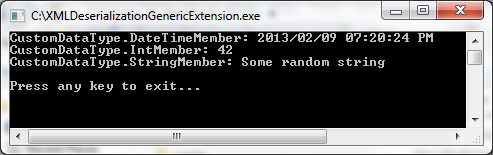
DeserializationGenericExtension

The code snippet listed above illustrates how the DeserializeXML extension discussed earlier now appears as a member method of the string type. Xml data read from the file system is “passed” to the DeserializeXML extension method, specifying <CustomDataType> is to be used as the generic type parameter implemented when performing deserialization.

C# How to: Determine free space on a drive

DriveInfo Class

Being able to determine the amount of space not in use on a particular drive from C# code is very easy and straight forward. Various properties relating to a logical Windows drive can be determined by implementing the System.IO.DriveInfo class.

The DriveInfo class exposes two public properties relating to drive space not in use:

The difference between these two properties is that AvailableFreeSpace takes into account user configured disk quotas in Windows. AvailableFreeSpace therefore represents the total amount of free space available to the currently logged in user. In contrast TotalFreeSpace represents the total amount of space free on the specified drive, regardless of restrictions/quotas on the currently logged in user’s account.

To be safe use AvailableFreeSpace when doing file IO operations such as copying, downloading or creating new files.

I have written an example application that implements two extension methods which allows the calling code to specify the measurement unit (Bytes, Kilobytes, Megabytes, Gigabytes and Terabytes) in which to return TotalFreeSpace or AvailableFreeSpace.

Code Sample

Download the source code here

This code sample implements the DriveInfo Class’ AvailableFreeSpace  and TotalFreeSpace properties and creates two extension methods allowing the calling code to specify the measurement unit (Bytes, Kilobytes, Megabytes, Gigabytes and Terabytes)

DiskSizeUnit enum

Both extension methods expects as a parameter an enum value of type DiskSizeUnit. The value will determine the unit in which AvailableFreeSpace or TotalFreeSpace gets returned.

1: public  enum  DiskSizeUnit
2: {
3:     Bytes = 0,
4:     KiloBytes = 1,
5:     MegaBytes = 2,
6:     GigaBytes = 3,
7:     TeraBytes = 4
8: }
9:

Total Free Space

The TotalFreeSpaceFormatted extension method accepts as its first parameter an object of type DriveInfo, indicating that this method acts as an extension method to the DriveInfo Class. The second parameter is an enum instance of type DiskSizeUnit, which is used to determine the measurement unit in which to return the DriveInfo class’ TotalFreeSpace property.

1: public  static  double  TotalFreeSpaceFormatted(this DriveInfo  driveInfo, DiskSizeUnit  sizeUnit)
2: {
3:     double  freeSpace = -1;
4:     double  formatDivideBy = 1;
5:
6:     if  (driveInfo != null )
7:     {
8:         long  freeSpaceNative = driveInfo.TotalFreeSpace;
9:         formatDivideBy = Math.Pow(1024, (int )sizeUnit);
10:
11:         freeSpace = freeSpaceNative / formatDivideBy;
12:     }
13:
14:     return  freeSpace;
15: }

The method first checks if the DriveInfo object has been instantiated (line 6). In order to convert TotalFreeSpace, which is expressed in bytes, the value is divided based on the value of the DiskSizeUnit enum parameter passed to this method. As an example if DiskSizeUnit.MegaBytes is specified, the Math.Pow() method will return 1048576 (1024 * 1024), as shown on line 9. Dividing a value expressed in bytes by 1024 and again by 1024 will return a value representing the original byte value expressed in megabytes.

Note: DriveInfo.TotalFreeSpace will return the number of bytes not in use on a particular drive. This property does not take into account limitations/restrictions on the currently logged in user such as Disk Quotas defined by Windows User Accounts.

Available Free Space

The AvailableFreeSpaceFormatted extension method accepts as its first parameter an object of type DriveInfo, indicating that this method acts as an extension method to the DriveInfo Class. The second parameter is an enum instance of type DiskSizeUnit, which is used to determine the measurement unit in which to return the DriveInfo class’ AvailableFreeSpace property.

1: public  static  double  AvailableFreeSpaceFormatted(this  DriveInfo  driveInfo, DiskSizeUnit  sizeUnit)
2: {
3:     double  freeSpace = -1;
4:     double  formatDivideBy = 1;
5:
6:     if  (driveInfo != null )
7:     {
8:         long  freeSpaceNative = driveInfo.AvailableFreeSpace;
9:         formatDivideBy = Math .Pow(1024, (int )sizeUnit);
10:
11:         freeSpace = freeSpaceNative / formatDivideBy;
12:     }
13:
14:     return  freeSpace;
15: }

Internally this method works almost exactly the same as the TotalFreeSpaceFormatted extension method. The only difference being checking and formatting through division the DriveInfo.AvailableFreeSpace property.

Note: DriveInfo.AvailableFreeSpace takes into account limitations/restrictions on the currently logged in user’s account such as Disk Quotas defined by Windows User Accounts.

Test Application

As part of this code sample a Console based test application is provided.

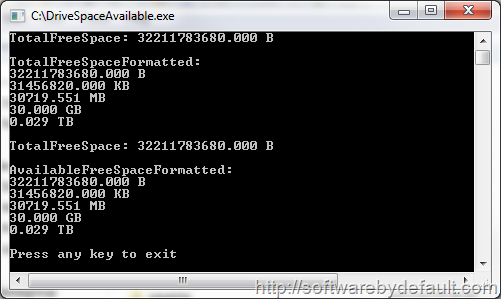
DriveSpaceAvailable

The test application determines the drive letter of the current directory using Environment.CurrentDirectory and Path.GetPathRoot.

1: if (Environment .CurrentDirectory != String .Empty)
2: {
3:     string  driveLetter = Path .GetPathRoot(Environment .CurrentDirectory);
4:
5:     DriveInfo  drive = new  DriveInfo (driveLetter);
6:
7:     Console .WriteLine("TotalFreeSpace: {0,0:F3} B" ,
8:     drive.TotalFreeSpace);
9:
10:     Console .WriteLine();
11:     Console .WriteLine("TotalFreeSpaceFormatted:" );
12:
13:     Console .WriteLine("{0,0:F3} B" ,
14:     drive.TotalFreeSpaceFormatted(DiskSizeUnit .Bytes));
15:
16:     Console .WriteLine("{0,0:F3} KB" ,
17:     drive.TotalFreeSpaceFormatted(DiskSizeUnit .KiloBytes));
18:
19:     Console .WriteLine("{0,0:F3} MB" ,
20:     drive.TotalFreeSpaceFormatted(DiskSizeUnit .MegaBytes));
21:
22:     Console .WriteLine("{0,0:F3} GB" ,
23:     drive.TotalFreeSpaceFormatted(DiskSizeUnit .GigaBytes));
24:
25:     Console .WriteLine("{0,0:F3} TB" ,
26:     drive.TotalFreeSpaceFormatted(DiskSizeUnit .TeraBytes));
27:
28:     Console .WriteLine();
29:
30:     Console .WriteLine("TotalFreeSpace: {0,0:F3} B" ,
31:    drive.AvailableFreeSpace);
32:
33:     Console .WriteLine();
34:     Console .WriteLine("AvailableFreeSpaceFormatted:" );
35:
36:     Console .WriteLine("{0,0:F3} B" ,
37:     drive.AvailableFreeSpaceFormatted(DiskSizeUnit .Bytes));
38:
39:     Console .WriteLine("{0,0:F3} KB" ,
40:     drive.AvailableFreeSpaceFormatted(DiskSizeUnit .KiloBytes));
41:
42:     Console .WriteLine("{0,0:F3} MB" ,
43:     drive.AvailableFreeSpaceFormatted(DiskSizeUnit .MegaBytes));
44:
45:     Console .WriteLine("{0,0:F3} GB" ,
46:     drive.AvailableFreeSpaceFormatted(DiskSizeUnit .GigaBytes));
47:
48:     Console .WriteLine("{0,0:F3} TB" ,
49:     drive.AvailableFreeSpaceFormatted(DiskSizeUnit .TeraBytes));
50: }
51:
52: Console .WriteLine();
53: Console .WriteLine("Press any key to exit" );
54: Console .ReadKey();
55:

*I want to give credit and say a big thank you to Vitaly Zayko. All the code snippets Html markup in this article was generated using his Visual Studio Extension Code4Blog.

[tweetmeme source=”DefaultSoftware” only_single=”false”]

My First post using Windows Live Writer!

I’ve installed and configured Windows Live Writer. The initial to My WordPress Blog was really effortless and without incident. I created this post using the Live Writer Desktop application, so far so good. Browser based WYSIWYG () have certainly improved vastly, but I still prefer the ease and control of a desktop based word editor.

Open a Website from C#

It is often a requirement to open the default web browser and browse to a specific Url from a Windows Forms, WPF or even Console application. The easiest method I’ve discovered is to make use of the System.Diagnostics.Process class:

 using  System;
 using  System.Collections.Generic;
 using  System.Text;
 using  System.Diagnostics;
 
 namespace  OpenDefaultBrowser
 {
     class  Program 
     {
         static  void  Main(string [] args)
         {
             Process .Start("http://softwarebydefault.com" );
         }
     }
 }
 

In most scenarios the code snippet listed above works without a problem. The only issue I foresee being in an environment where the user account used to execute your application not having sufficient permissions to execute the default browser application.

For more information see MSDN Process Class


Dewald Esterhuizen

Unknown's avatar

Blog Stats

  • 892,466 hits

Enter your email address to follow and receive notifications of new posts by email.

Join 91 other subscribers

Archives

RSS SoftwareByDefault on MSDN

  • An error has occurred; the feed is probably down. Try again later.