Archive for the 'How to' Category


C# How to: Linq to Bitmaps – Partial Colour Inversion

Article Purpose

In this follow up article we further explore manipulating a  ’s underlying pixel data. This article is part 2 of the Linq to Bitmaps series, we’ll be focussing on partial colour inversion using queries.

Part 1: .

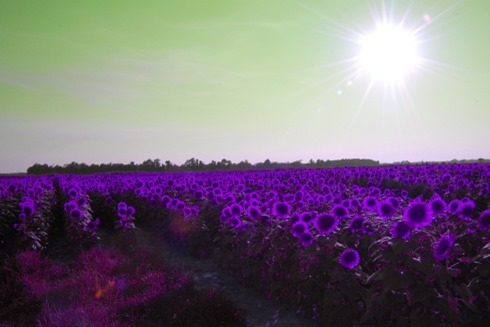
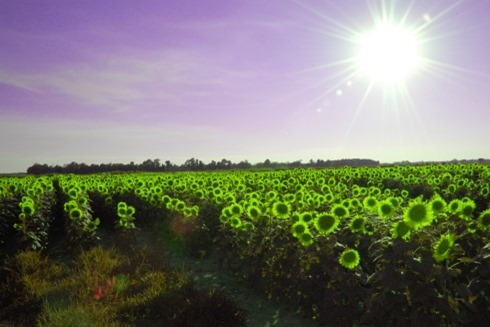
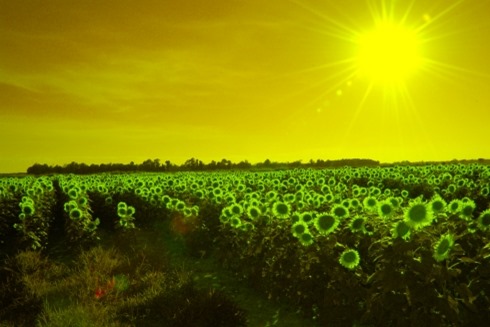
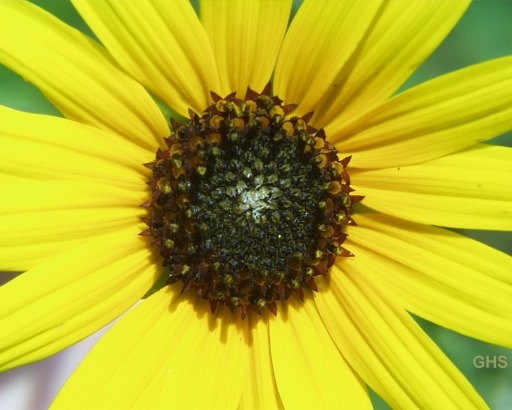
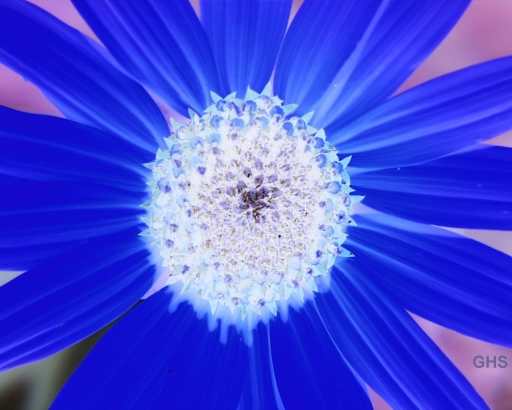
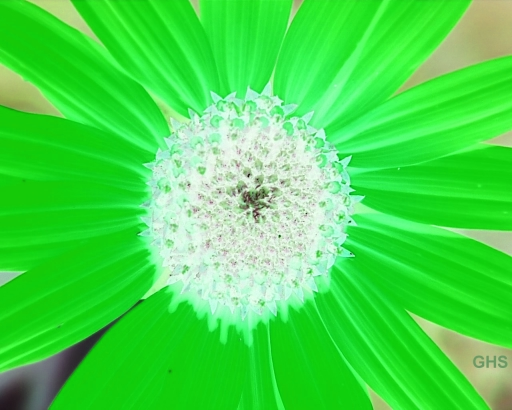
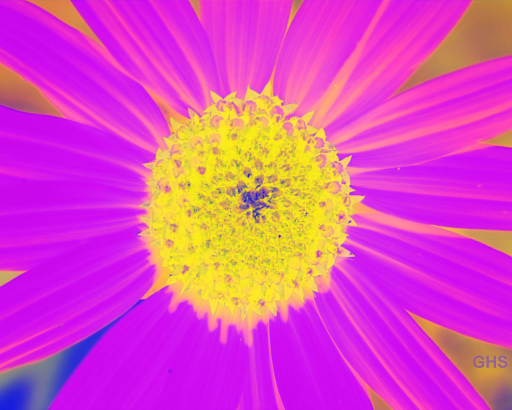
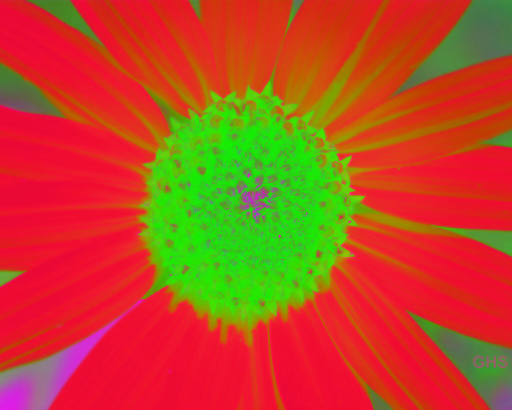
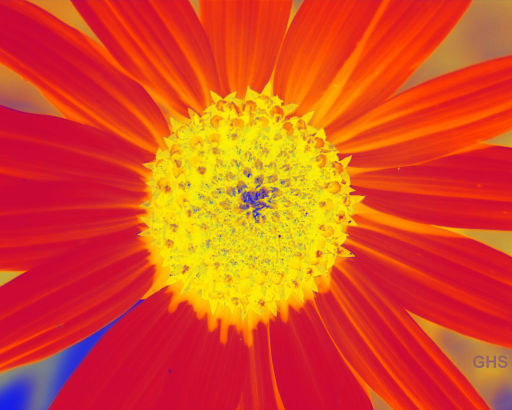
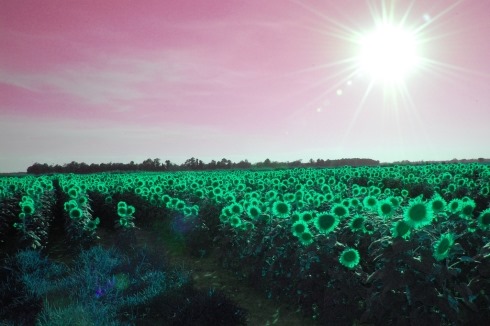
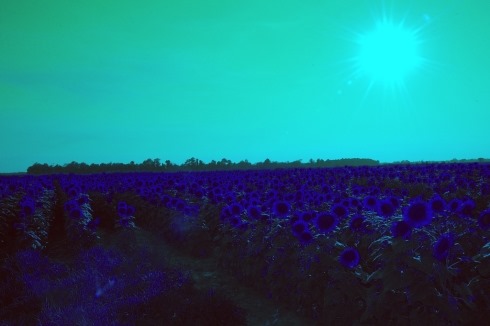
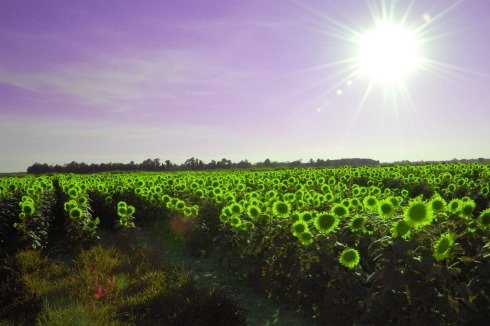
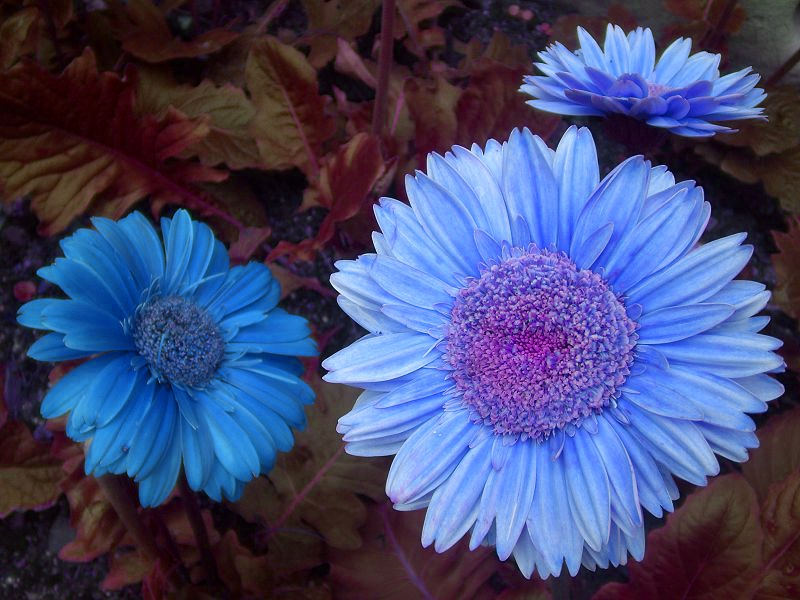
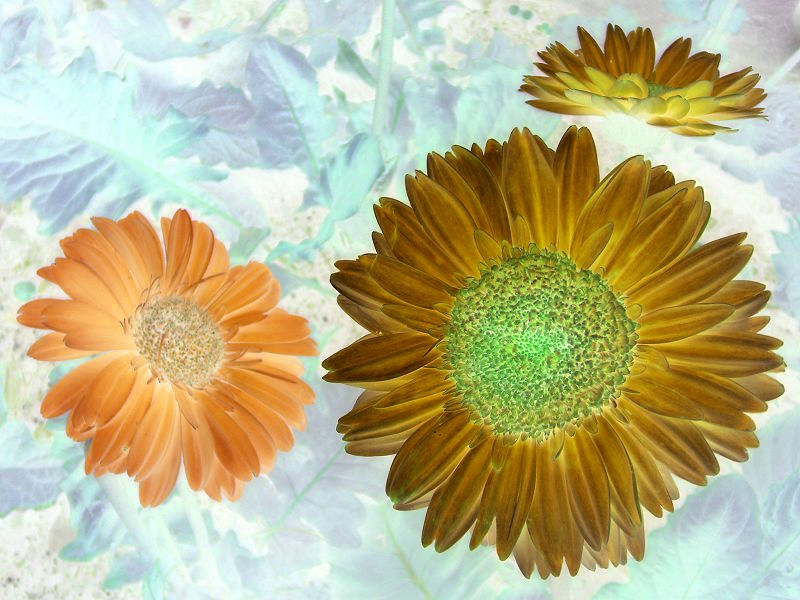
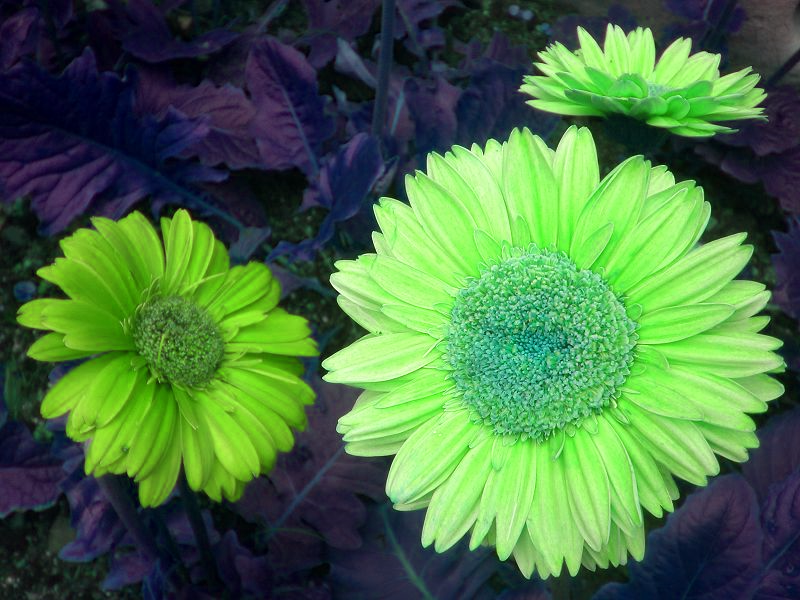
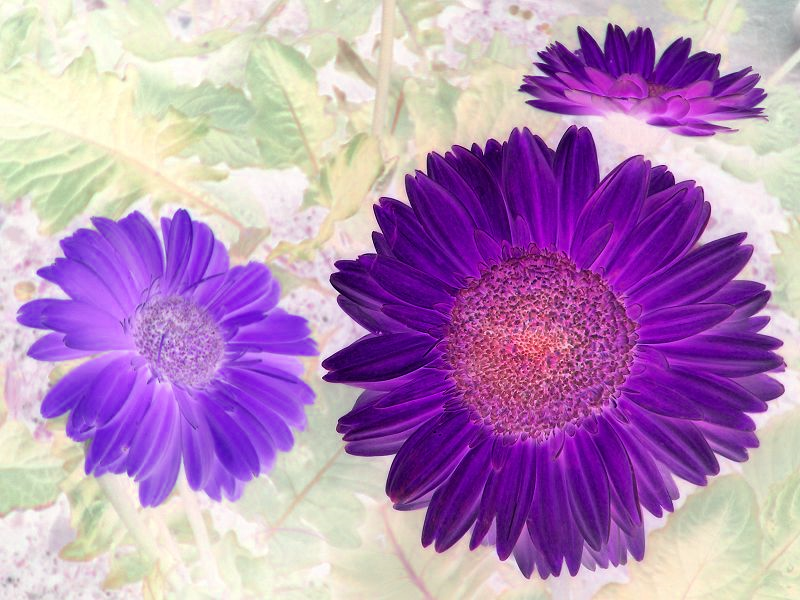
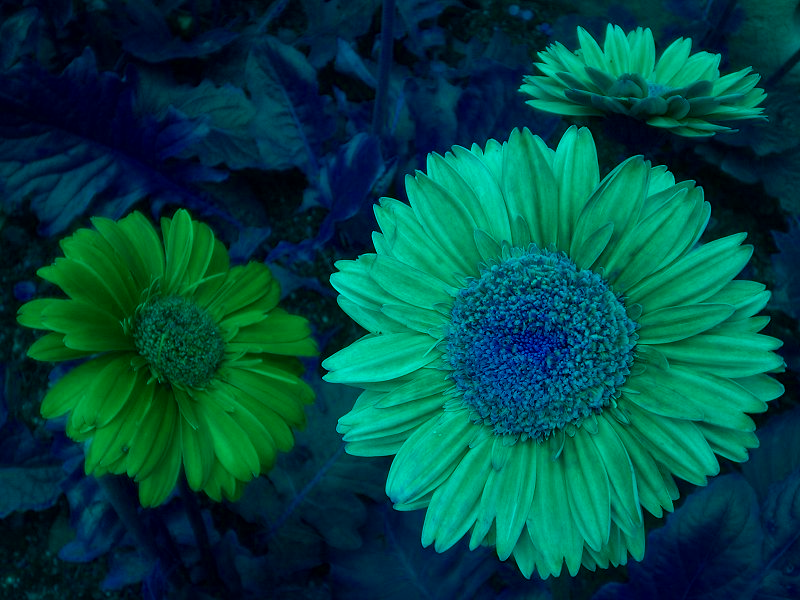
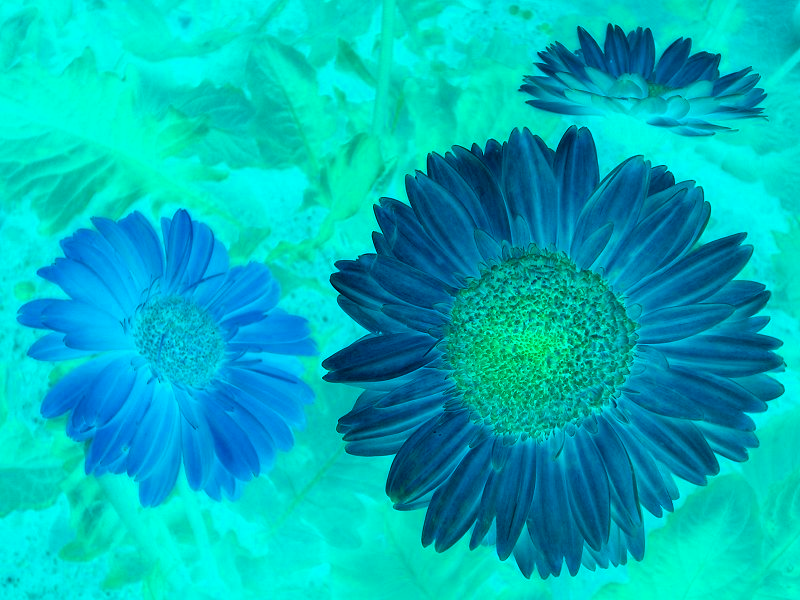
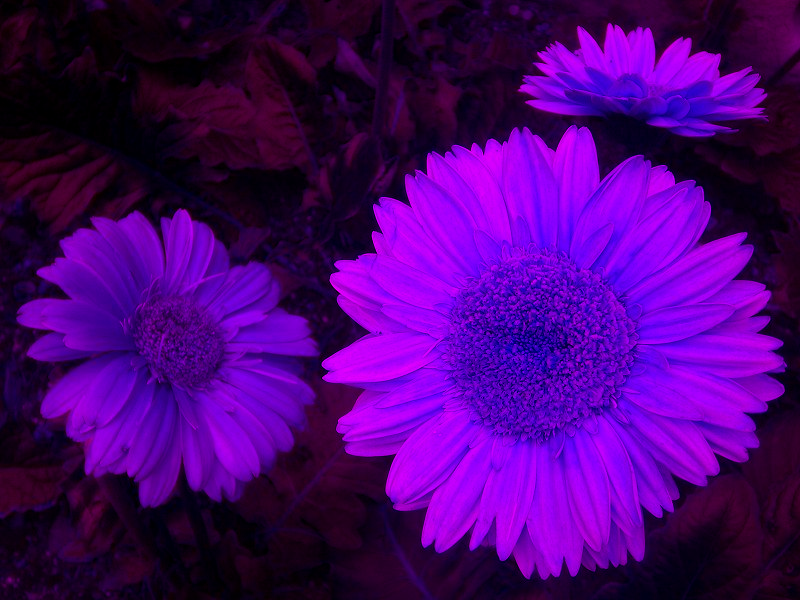
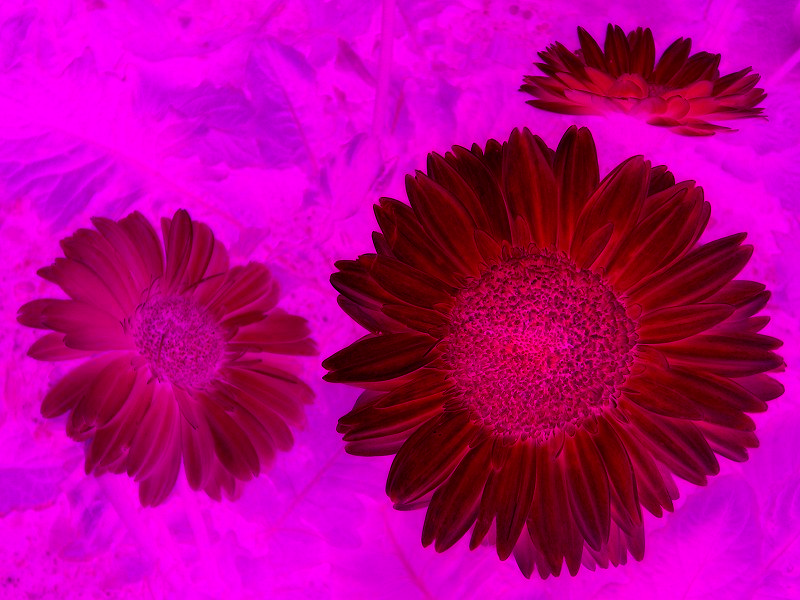
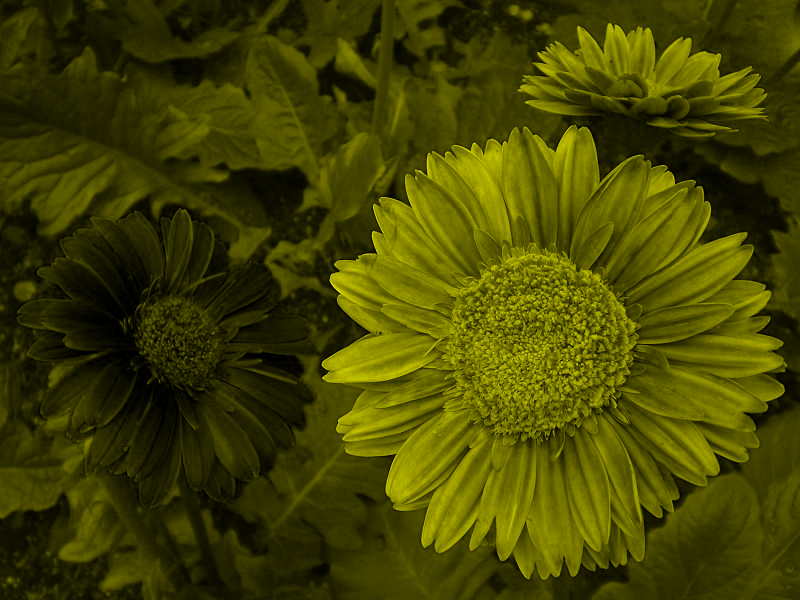
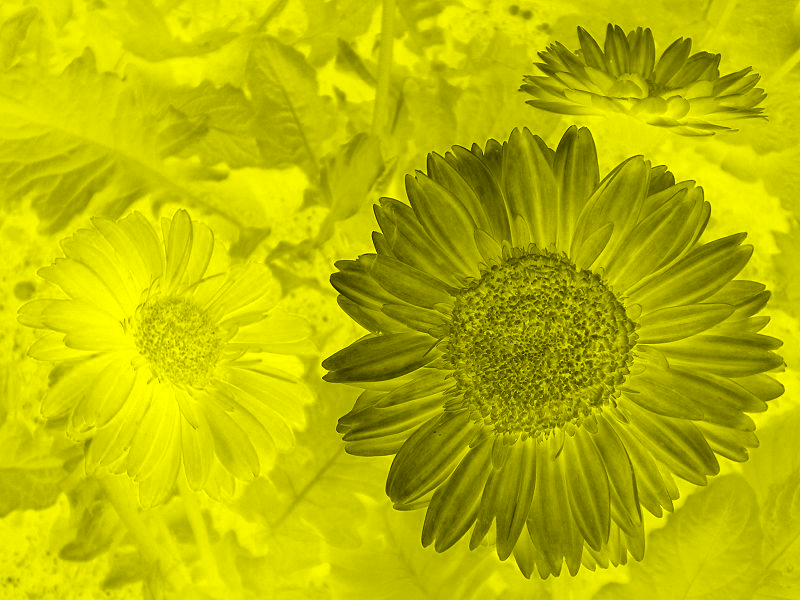
In my experience with previous articles I’ve written it seems that articles are better received by readers when accompanied by graphics/images. You will notice throughout this article I’ve added thumbnail images. All of the images originate from the same source image file and were created by the  accompanying sample application.

Sunflower-BlueSunflower-GreenSunflower-Invert-All-ShiftLeftSunflower-Invert-All-SwapBlueGreenFixRed200 Sunflower-Invert-All-SwapBlueRedFixGreen75

Sample source code

This article is accompanied by a sample source code Visual Studio project which is available for download here.

Sunflower-Invert-All-SwapRedGreenSunflower-Invert-All-SwapRedGreenFixBlue150Sunflower-Invert-BlueSunflower-Invert-Blue-GreenSunflower-Invert-BlueGreen-ShiftLeft

Using the sample Application

This article’s associated sample source code defines a sample application, detailing the concepts explored by this article. The sample application implements three types of image filters: Inverting Colours, Swapping each pixel’s colour components and Shifting pixels to different locations within the image data buffer. This article explores the Colour Inversion filter.

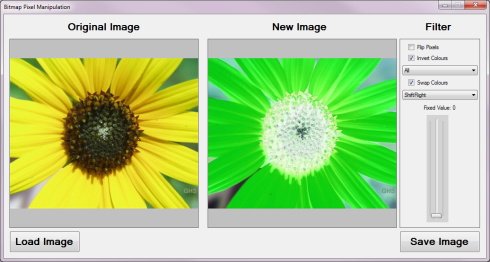
The image shown below is a screenshot of the Bitmap Pixel Manipulation application in action:

LinqToBitmaps_Screenshot

The sample application allows the user to specify an input source image which can then be modified by implementing an image filter. If desired the user has the option to save the new/result image to the file system.

Sunflower-Invert-BlueGreen-ShiftRightSunflower-Invert-BlueGreen-SwapBlueGreenSunflower-Invert-BlueGreen-SwapBlueGreenFixRed0Sunflower-Invert-BlueGreen-SwapBlueGreenFixRed125Sunflower-Invert-BlueGreen-SwapBlueRed

The Colour Inversion Filter

The Colour Inversion Filter can be implemented in various forms. The type of inversion is determined by the ColourInversionType , the definition as follows:

public  enum  ColourInversionType  
{
    All, 
    Blue, 
    Green, 
    Red, 
    BlueRed, 
    BlueGreen, 
    RedGreen, 
}

The following section provides an explanation of each Inversion Type:

  • All – Each Red, Green and Blue value will be subtracted from 255.
  • Blue – The value of Blue will be subtracted from 255, Green and Red values remain unchanged.
  • Green – The value of Green will be subtracted from 255, Blue and Red values remain unchanged.
  • Red – The value of Red will be subtracted from 255, Blue and Green values remain unchanged.
  • BlueRed – The value of Blue and Red will be subtracted from 255, Green  value remain unchanged.
  • BlueGreen – The value of Blue and Green will be subtracted from 255, Red value remain unchanged.
  • RedGreen – The value of Red and Green will be subtracted from 255, Blue value remain unchanged.

Sunflower-Invert-Blue-RedSunflower-Invert-BlueRed-SwapBlueGreenFixRed225Sunflower-Invert-BlueRed-SwapBlueRedFixGreen35Sunflower-Invert-BlueRed-SwapRedGreenFixBlue55Sunflower-Invert-Blue-ShiftLeft 

Applying Linq queries to Pixel Data

This article’s sample source code implements queries through the InvertColors extension method which targets the class. The definition is detailed by the following code snippet:

 public  static  Bitmap  InvertColors(this  Bitmap  sourceImage, 
                                 ColourInversionType  inversionType) 
{ 
    List <ArgbPixel > pixelListSource = GetPixelListFromBitmap(sourceImage); 

List <ArgbPixel > pixelListResult = null;
byte byte255 = 255;
switch (inversionType) { case ColourInversionType.All: { pixelListResult = (from t in pixelListSource select new ArgbPixel { blue = (byte )(byte255 - t.blue), red = (byte )(byte255 - t.red), green = (byte )(byte255 - t.green), alpha = t.alpha, }).ToList();
break; } case ColourInversionType.Blue: { pixelListResult = (from t in pixelListSource select new ArgbPixel { blue = (byte )(byte255 - t.blue), red = t.red, green = t.green, alpha = t.alpha, }).ToList();
break; } case ColourInversionType.Green: { pixelListResult = (from t in pixelListSource select new ArgbPixel {> blue = t.blue, red = t.red, green = (byte )(byte255 - t.green), alpha = t.alpha, }).ToList();
break; } case ColourInversionType.Red: { pixelListResult = (from t in pixelListSource select new ArgbPixel { blue = t.blue, red = (byte )(byte255 - t.green), green = t.green, alpha = t.alpha, }).ToList();
break; } case ColourInversionType.BlueRed: { pixelListResult = (from t in pixelListSource select new ArgbPixel { blue = (byte )(byte255 - t.blue), red = (byte )(byte255 - t.red), green = t.green, alpha = t.alpha, }).ToList();
break; } case ColourInversionType.BlueGreen: { pixelListResult = (from t in pixelListSource select new ArgbPixel { blue = (byte )(byte255 - t.blue), red = t.red, green = (byte )(byte255 - t.green), alpha = t.alpha, }).ToList();
break; } case ColourInversionType.RedGreen: { pixelListResult = (from t in pixelListSource select new ArgbPixel { blue = t.blue, red = (byte )(byte255 - t.blue), green = (byte )(byte255 - t.green), alpha = t.alpha, }).ToList();
break; } }
Bitmap resultBitmap = GetBitmapFromPixelList(pixelListResult, sourceImage.Width, sourceImage.Height);
return resultBitmap; }

The InvertColors extension method performs a simple select query returning a new instance of the ArgbPixel class adjusted according to the value of the ColourInversionType parameter passed.

Sunflower-Invert-Green-ShiftLeftSunflower-Invert-Green-SwapBlueGreenSunflower-Invert-Red-GreenSunflower-Invert-RedGreen-SwapBlueRedSunflower-Invert-RedGreen-SwapRedGreenFixBlue110

Filter implementation examples

This section contains the eye candy of this article. The following set of images were created from a single input source image. The source image has been released into the public domain and can be downloaded from Wikipedia.

The Original Image

Sunflower_USFWS

Filtered Images

Sunflower-BlueSunflower-GreenSunflower-Invert-All-ShiftLeftSunflower-Invert-All-SwapRedGreenFixBlue150Sunflower-Invert-BlueGreen-SwapBlueRedSunflower-Invert-Blue-RedSunflower-Invert-GreenSunflower-Invert-Red-GreenSunflower-Invert-RedGreen-SwapBlueRedSunflower-Invert-RedGreen-SwapRedGreenFixBlue110

C# How to: Bitmap Pixel manipulation using LINQ Queries

Article Purpose

In this article we explore manipulating a  ’s underlying pixel data. The process of Pixel data manipulation at its core feature the implementation of Queries targeting raw pixel data.

Update: I’ve published a follow-up article – Part 2: The banner images in this article were generated using the concepts explored in the follow-up article. The source image has been licenced under the Creative Commons Attribution-Share Alike 3.0 Unported license and can be downloaded from .

Led_Banner1

Sample source code

This article is accompanied by a sample source code Visual Studio project which is available for download here.

Led_Banner2

Using the sample Application

This article’s associated sample source code defines a sample application, detailing the concepts explored by this article. The sample application implements two types of image filters: Swapping each pixel’s colour components and shifting pixels to different locations within the image data buffer.

The image shown below is a screenshot of the Bitmap Pixel Manipulation application in action:

BitmapPixelManipulation

The sample application allows the user to specify an input source image which can then be modified by implementing an image filter. If desired the user has the option to save the new/result image to the file system.

Led_Banner3

Extracting Pixel values from a Bitmap image

The sample source code defines the ArgbPixel class which is implemented to represent an individual pixel. The definition as follows:

public class ArgbPixel
{
    public byte blue = 0;
    public byte green = 0;
    public byte red = 0;
    public byte alpha = 0;

public ArgbPixel() { }
public ArgbPixel(byte[] colorComponents) { blue = colorComponents[0]; green = colorComponents[1]; red = colorComponents[2]; alpha = colorComponents[3]; }
public byte[] GetColorBytes() { return new byte[]{blue, green, red, alpha}; } }

Each pixel is defined by four member variables of type byte: blue, red, green and alpha. The ArgbPixel class defines an overloaded constructor which allows for creating an instance by specifying the four colour components as byte values. By invoking the GetColorBytes method the calling code can access the underlying colour component byte values in the form of a byte array.

Led_Banner1

The Colour Swap filter

The Colour swap filter acts as an image filter by implementing various combinations of swapping each individual pixel’s Alpha, Red, Green and Blue colour channels. The sample source code defines the ColorSwapType , intended to provide a collection of possible pixel colour channel swap operations. The code snippet listed below provides the definition of the ColorSwapType type:

public enum ColourSwapType
{
    ShiftRight,
    ShiftLeft,
    SwapBlueAndRed,
    SwapBlueAndRedFixGreen,
    SwapBlueAndGreen,
    SwapBlueAndGreenFixRed,
    SwapRedAndGreen,
    SwapRedAndGreenFixBlue
}

The following section provides an explanation of each Colour Swap method:

  • ShiftRight – Starting with Blue each colour channel’s value will be copied to the colour channel to the right.
  • ShiftLeft – Starting with Blue each colour channel’s value will be copied to the colour channel to the left.
  • SwapBlueAndRed – Blue and Red values are swapped, Green remains unchanged.
  • SwapBlueAndRedFixGreen – Blue and Red values are swapped, each pixel’s Green value is set to the same value as specified by the calling code.
  • SwapBlueAndGreen – Blue and Green values are swapped, Red remains unchanged.
  • SwapBlueAndGreenFixRed – Blue and Green values are swapped, each pixel’s Red value is set to the same value as specified by the calling code.
  • SwapRedAndGreen – Red and Green values are swapped, Blue remains unchanged.
  • SwapRedAndGreenFixBlue – Red and Green values are swapped, each pixel’s Blue value is set to the same value as specified by the calling code.

Led_Banner2

From a Bitmap buffer to a Pixel List

The sample source provides the definition for the GetPixelListFromBitmap method. The purpose behind this method is to read a ’s underlying colour component byte buffer data and create a generic collection of type ArgbPixel. By representing the data as a generic collection we are able implement query operations. The code snippet below details the GetPixelListFromBitmap method definition.

private static List<ArgbPixel> GetPixelListFromBitmap(Bitmap sourceImage)
{
     BitmapData sourceData = sourceImage.LockBits(new Rectangle(0, 0, 
                 sourceImage.Width, sourceImage.Height), 
                 ImageLockMode.ReadOnly, PixelFormat.Format32bppArgb);

byte[] sourceBuffer = new byte[sourceData.Stride * sourceData.Height]; Marshal.Copy(sourceData.Scan0, sourceBuffer, 0, sourceBuffer.Length); sourceImage.UnlockBits(sourceData);
List<ArgbPixel> pixelList = new List<ArgbPixel>(sourceBuffer.Length / 4);
using (MemoryStream memoryStream = new MemoryStream(sourceBuffer)) { memoryStream.Position = 0; BinaryReader binaryReader = new BinaryReader(memoryStream);
while (memoryStream.Position + 4 <= memoryStream.Length) { ArgbPixel pixel = new ArgbPixel(binaryReader.ReadBytes(4)); pixelList.Add(pixel); }
binaryReader.Close(); }
return pixelList; }

The GetPixelListFromBitmap accepts a parameter and returns a generic collection of type ArgbPixel. Within the method body the first operation performed involves locking the pixel data in memory by invoking the method. By locking data in memory we are in effect signalling the to not shift around in memory the underlying data whilst we are busy accessing the data.

Next, the sample source code implements the method in order to copy the ’s colour component data in the form of a byte array. Once we’ve copied the pixel data we can unlock the by invoking .

The final operation performed by the GetPixelListFromBitmap involves iterating through the byte array of colour components. With each loop we make use of a , reading four bytes at a time and passing the result to the overloaded constructor exposed by the ArgbPixel class.

Led_Banner3

Applying Linq queries to Pixel Data

This article’s sample source code implements queries through the SwapColors extension method which targets the Bitmap class. The definition is detailed by the following code snippet:

 public static Bitmap SwapColors(this Bitmap sourceImage, 
                                 ColourSwapType swapType, 
                                 byte fixedValue = 0)
{
     List<ArgbPixel> pixelListSource = GetPixelListFromBitmap(sourceImage);

List<ArgbPixel> pixelListResult = null;
switch (swapType) { case ColourSwapType.ShiftRight: { pixelListResult = (from t in pixelListSource select new ArgbPixel { blue = t.red, red = t.green, green = t.blue, alpha = t.alpha}).ToList(); break; } case ColourSwapType.ShiftLeft: { pixelListResult = (from t in pixelListSource select new ArgbPixel { blue = t.green, red = t.blue, green = t.red, alpha = t.alpha}).ToList(); break; } case ColourSwapType.SwapBlueAndRed: { pixelListResult = (from t in pixelListSource select new ArgbPixel { blue = t.red, red = t.blue, green = t.green, alpha = t.alpha}).ToList(); break; case ColourSwapType.SwapBlueAndRedFixGreen: { pixelListResult = (from t in pixelListSource select new ArgbPixel { blue = t.red, red = t.blue, green = fixedValue, alpha = t.alpha}).ToList(); break; } case ColourSwapType.SwapBlueAndGreen: { pixelListResult = (from t in pixelListSource select new ArgbPixel { blue = t.green, red = t.red, green = t.blue, alpha = t.alpha}).ToList(); break; } case ColourSwapType.SwapBlueAndGreenFixRed: { pixelListResult = (from t in pixelListSource select new ArgbPixel { blue = t.green, red = fixedValue, green = t.blue, alpha = t.alpha}).ToList(); break; } case ColourSwapType.SwapRedAndGreen: { pixelListResult = (from t in pixelListSource select new ArgbPixel { blue = t.blue, red = t.green, green = t.red, alpha = t.alpha}).ToList(); break; } case ColourSwapType.SwapRedAndGreenFixBlue: { pixelListResult = (from t in pixelListSource select new ArgbPixel { blue = fixedValue, red = t.green, green = t.red, alpha = t.alpha}).ToList(); break; } }
Bitmap resultBitmap = GetBitmapFromPixelList(pixelListResult, sourceImage.Width, sourceImage.Height);
return resultBitmap; }

The SwapColors extension method accepts as parameters an value of type ColourSwapType and a byte parameter fixedValue defined with a default value of 0.

The GetPixelListFromBitmap method discussed earlier is implemented in order to create a generic of type ArgbPixel. The bulk of the method’s implementation is performed next by applying a switch statement on the ColourSwapType parameter. The original List<ArgbPixel> collection is used to populate a resulting List<ArgbPixel> collection. Assignment from source to result collection occurs through a query implementing the relevant ColourSwapType.

The last operation performed by the SwapColors extension method involves converting the resulting List<ArgbPixel> collection back to a object through invoking the GetBitmapFromPixelList method. The following section provides a description of the GetBitmapFromPixelList method.

Led_Banner1

From a Pixel List to a Bitmap

In the sample source code the GetPixelListFromBitmap method discussed earlier, is complimented by its inverse, the GetBitmapFromPixelList method. As the name implied the GetBitmapFromPixelList method’s purpose is to convert a generic of type ArgbPixel to a object. The definition as follows:

private static Bitmap GetBitmapFromPixelList(List<ArgbPixel> pixelList, int width, int height)
{
     Bitmap resultBitmap = new Bitmap(width, height, PixelFormat.Format32bppArgb);

BitmapData resultData = resultBitmap.LockBits(new Rectangle(0, 0, resultBitmap.Width, resultBitmap.Height), ImageLockMode.ReadOnly, PixelFormat.Format32bppArgb);
byte[] resultBuffer = new byte[resultData.Stride * resultData.Height];
using (MemoryStream memoryStream = new MemoryStream(resultBuffer)) { memoryStream.Position = 0; BinaryWriter binaryWriter = new BinaryWriter(memoryStream);
foreach (ArgbPixel pixel in pixelList) { binaryWriter.Write(pixel.GetColorBytes()); }
binaryWriter.Close(); }
Marshal.Copy(resultBuffer, 0, resultData.Scan0, resultBuffer.Length); resultBitmap.UnlockBits(resultData);
return resultBitmap; }

The GetBitmapFromPixelList method accepts as parameters a generic of type ArgbPixel, width and height of type int. The width and height parameters indicates the size of the original , which will be used when creating a new resulting .

The first step performed by the GetBitmapFromPixelList method is to create a resulting object and locking into memory the underlying data by invoking the method.

The bulk of the work performed by the GetBitmapFromPixelList method occurs in the form of iterating the List of ArgbPixel parameter and writing the Pixel’s underlying colour components to a byte buffer related to the resulting .

In the last step being performed byte array of colour component data is copied to the resulting by invoking .

Led_Banner2

Reversing a List of Pixels

As an additional example the sample source code also defines the FlipPixels extension method. This method provides a quick implementation of turning a image upside down. The implementation as follows:

public static Bitmap FlipPixels(this Bitmap sourceImage)
{
     List<ArgbPixel> pixelList = GetPixelListFromBitmap(sourceImage);

pixelList.Reverse();
Bitmap resultBitmap = GetBitmapFromPixelList(pixelList, sourceImage.Width, sourceImage.Height);
return resultBitmap; }

The FlipPixels extension method targets the class and returns a object. As discussed earlier the method invokes the GetPixelListFromBitmap and GetBitmapFromPixelList methods. Reversing the order of the ArgbPixel objects is achieved through invoking the method.

Led_Banner3

Filter implementation examples

This section contains the eye candy of this article. The following set of images were created from a single input source image. The original image is licensed under the Creative Commons Attribution 2.0 Generic license and can be downloaded from Wikipedia.

The Original Image

SunflowerSunset2

Shift Left

ShiftLeft

Shift Right

ShiftRight

Swap Blue and Red

SwapBlueAndRed

Swap Blue and Red, fix Green at 0

SwapBlueAndRedFixGreen0

Swap Blue and Green

SwapBlueAndGreen

Swap Blue and Green, fix Red at 25

SwapBlueAndGreenFixRed25

Swap Red and Green

SwapRedAndGreen

Swap Red and Green, fix Blue at 0

SwapRedAndGreenFixBlue0

Swap Red and Green, fix Blue at 115

SwapRedAndGreenFixBlue115

Swap Red and Green, fix Blue at 200

SwapRedAndGreenFixBlue200

C# How to: Swapping Bitmap ARGB Colour Channels

Article Purpose

The intention of is to explain and illustrate the various possible combinations that can be implemented when swapping the underlying colour channels related to a  image. The concepts explained can easily be replicated by making use of the included sample application.

Sample source code

is accompanied by a sample source code Visual Studio project which is available for download here.

Using the sample Application

The sample application associated with allows the user to select a source image, apply a colour shifting option. The user is provided  with the option to save to disk the resulting new . The below is a screenshot of the Bitmap ARGB Swapping application in action:

SampleAppScreenshot

The scenario illustrated above shows an of flowers being transformed by swapping the underlying colour channels. In this case the ShiftLeft algorithm had been applied. The original is licenced under the , the original image can be downloaded from Wikipedia.

Types of Colour Swapping

The sample source code defines the type ColorSwapType, which represents the possible combinations of colour channel swapping that can be applied to a . The source code extract below provides the definition of the ColorSwapType :

public enum ColorSwapType
{
    ShiftRight,
    ShiftLeft,
    SwapBlueAndRed,
    SwapBlueAndGreen,
    SwapRedAndGreen,
}

When directly manipulating a object’s pixel values an important detail should be noted: Bitmap colour channels in memory are represented in the order Blue, Green, Red and Alpha despite being commonly referred to by abbreviation ARGB!

The following list describes each colour swapping type’s outcome:

  • ShiftRight: Starting at Blue, each colour’s value is set to the colour channel to the right. The value of Blue is applied to Red, Red’s original value applied to Green, Green’s original value applied to Blue.
  • ShiftLeft: Starting at Blue, each colour’s value is set to the colour channel to the left. The value of Blue is applied to Green, Green’s original value applied to Red, Red’s original value applied to Blue.
  • SwapBlueAndRed: The value of the Blue channel is applied to the Red channel and the original value of the Red channel is then applied to the Blue channel. The value of the Green channel remains unchanged.
  • SwapBlueAndGreen: The value of the Blue channel is applied to the Green channel and the original value of the Green channel is then applied to the Blue channel. The value of the Red  channel remains unchanged.
  • SwapRedAndGreen: The value of the Red channel is applied to the Green channel and the original value of the Green channel is then applied to the Red channel. The value of the Blue channel remains unchanged.

The Colour Swap Filter

The sample source code defines the ColorSwapFilter class. This class provides several member properties, which in combination represent the options involved in applying a colour swap filter. The source code snippet below provides the definition of the ColorSwapFilter type:

public class ColorSwapFilter
{
   private ColorSwapType swapType = ColorSwapType.ShiftRight;
   public ColorSwapType SwapType
   {
        get{ return swapType;}
        set{ swapType = value;}
   }

private bool swapHalfColorValues = false; public bool SwapHalfColorValues { get{ return swapHalfColorValues;} set{ swapHalfColorValues = value;} }
private bool invertColorsWhenSwapping = false; public bool InvertColorsWhenSwapping { get{ return invertColorsWhenSwapping;} set{ invertColorsWhenSwapping = value;} }
public enum ColorSwapType { ShiftRight, ShiftLeft, SwapBlueAndRed, SwapBlueAndGreen, SwapRedAndGreen, } }

The member properties defined by the ColorSwapFilter class:

  • Implementing the ColorSwapType discussed earlier, the SwapType member property defines the type of colour channel swapping to apply.
  • Before swapping colour channel values, colour values can be inverted depending on whether InvertColorsWhenSwapping equates to true.
  • In order to reduce the intensity of the resulting image, the SwapHalfColorValues property should be set to true. The end result being destination colour channels are set to 50% of relevant source colour channel values.

Applying the Colour Swap Filter

The sample source code accompanying defines the SwapColorsCopy method, an targeting class. When invoking the SwapColorsCopy extension method, the calling code is required to specify an input and an instance of the ColorSwapFilter class. By virtue of being an the input/source will be specified by the object instance invoking the SwapColorsCopy method.

The source code listing below provides the definition of the SwapColorsCopy .

public static Bitmap SwapColorsCopy(this Bitmap originalImage, ColorSwapFilter swapFilterData)
{
    BitmapData sourceData = originalImage.LockBits
                            (new Rectangle(0, 0, originalImage.Width, originalImage.Height),
                            ImageLockMode.ReadOnly, PixelFormat.Format32bppArgb);

byte[] resultBuffer = new byte[sourceData.Stride * sourceData.Height]; Marshal.Copy(sourceData.Scan0, resultBuffer, 0, resultBuffer.Length); originalImage.UnlockBits(sourceData);
byte sourceBlue = 0, resultBlue = 0, sourceGreen = 0, resultGreen = 0, sourceRed = 0, resultRed = 0; byte byte2 = 2, maxValue = 255;
for (int k = 0; k < resultBuffer.Length; k += 4) { sourceBlue = resultBuffer[k]; sourceGreen = resultBuffer[k + 1]; sourceRed = resultBuffer[k + 2];
if (swapFilterData.InvertColorsWhenSwapping == true) { sourceBlue = (byte)(maxValue - sourceBlue); sourceGreen = (byte)(maxValue - sourceGreen); sourceRed = (byte)(maxValue - sourceRed); }
if (swapFilterData.SwapHalfColorValues == true) { sourceBlue = (byte)(sourceBlue / byte2); sourceGreen = (byte)(sourceGreen / byte2); sourceRed = (byte)(sourceRed / byte2); }
switch (swapFilterData.SwapType) { case ColorSwapFilter.ColorSwapType.ShiftRight: { resultBlue = sourceGreen; resultRed = sourceBlue; resultGreen = sourceRed; break; } case ColorSwapFilter.ColorSwapType.ShiftLeft: { resultBlue = sourceRed; resultRed = sourceGreen; resultGreen = sourceBlue; break; } case ColorSwapFilter.ColorSwapType.SwapBlueAndRed: { resultBlue = sourceRed; resultRed = sourceBlue; break; } case ColorSwapFilter.ColorSwapType.SwapBlueAndGreen: { resultBlue = sourceGreen; resultGreen = sourceBlue; break; } case ColorSwapFilter.ColorSwapType.SwapRedAndGreen: { resultRed = sourceGreen; resultGreen = sourceGreen; break; } }
resultBuffer[k] = resultBlue; resultBuffer[k + 1] = resultGreen; resultBuffer[k + 2] = resultRed; }
Bitmap resultBitmap = new Bitmap(originalImage.Width, originalImage.Height, PixelFormat.Format32bppArgb); BitmapData resultData = resultBitmap.LockBits (new Rectangle(0, 0, resultBitmap.Width, resultBitmap.Height), ImageLockMode.WriteOnly, PixelFormat.Format32bppArgb);
Marshal.Copy(resultBuffer, 0, resultData.Scan0, resultBuffer.Length); resultBitmap.UnlockBits(resultData);
return resultBitmap; }

Due to the architecture and implementation of the .net when manipulating a object’s underlying colour values we need to ensure locking the relevant data buffer in memory. When invoking the class’ method the calling code prevents the from shifting and updating memory references. Once a ’s underlying pixel buffer has been locked in memory the source code creates a data buffer of type byte array and then copies the ’s underlying pixel buffer data.

BitmapData sourceData = originalImage.LockBits
                        (new Rectangle(0, 0, originalImage.Width, originalImage.Height),
                        ImageLockMode.ReadOnly, PixelFormat.Format32bppArgb);

byte[] resultBuffer = new byte[sourceData.Stride * sourceData.Height]; Marshal.Copy(sourceData.Scan0, resultBuffer, 0, resultBuffer.Length); originalImage.UnlockBits(sourceData);

The sample source code next iterates the pixel buffer array. Notice how the for loop increments by 4 with each loop. Every four elements of the data buffer in combination represents one pixel, each colour channel expressed as a value ranging from 0 to 255 inclusive.

for (int k = 0; k < resultBuffer.Length; k += 4)

If required each colour channel will first be assigned to a value equating to its inverse value by subtracting from 255.

if (swapFilterData.InvertColorsWhenSwapping == true)
{
     sourceBlue = (byte)(maxValue - sourceBlue);
     sourceGreen = (byte)(maxValue - sourceGreen);
     sourceRed = (byte)(maxValue - sourceRed);
}

When the supplied ColorSwapFilter object method parameter defines SwapHalfColorValues as true the source colour value will be divided by 2.

if (swapFilterData.SwapHalfColorValues == true)
{
     sourceBlue = (byte)(sourceBlue / byte2);
     sourceGreen = (byte)(sourceGreen / byte2);
     sourceRed = (byte)(sourceRed / byte2);
}
 

The next section implements a case statement, each option implementing the required colour channel swap algorithm. The last step expressed as part of the for loop results in assigning newly manipulated values to the data buffer.

The SwapColorsCopy extension method can be described as being immutable in the sense that the input value remains unchanged, instead manipulating and returning a copy of the input data. Following the data buffer iteration the sample source creates a new instance of the class and locks it into memory by invoking the method. By implementing the method the source code copies the data buffer to the underlying buffer associated with the newly created object.

 Bitmap resultBitmap = new Bitmap(originalImage.Width, originalImage.Height, 
                                     PixelFormat.Format32bppArgb);
 
BitmapData resultData = resultBitmap.LockBits (new Rectangle(0, 0, resultBitmap.Width, resultBitmap.Height), ImageLockMode.WriteOnly, PixelFormat.Format32bppArgb);
Marshal.Copy(resultBuffer, 0, resultData.Scan0, resultBuffer.Length); resultBitmap.UnlockBits(resultData);
return resultBitmap;

The implementation: a

The sample source code accompanying defines a , the intention of which being to illustrate a test implementation. The following series of images were created using the sample application:

The source/input image is licenced under the , the original image can be downloaded from Wikipedia.

The Original Image

800px-HK_Sheung_Wan_Hollywood_Road_Park_Flowers_in_Purple

The ShiftLeft Colour Swapping algorithm:

ShiftLeft

Inverted:

ShiftLeft_inverted

The ShiftRight Colour Swapping algorithm:

ShiftRight

Inverted:

ShiftRight_inverted

The SwapBlueAndGreen Colour Swapping algorithm:

SwapBlueAndGreen

Inverted:

SwapBlueAndGreen_inverted

The SwapBlueAndRed Colour Swapping algorithm:

SwapBlueAndRed

Inverted:

SwapBlueAndRed_inverted

The SwapRedAndGreen Colour Swapping algorithm:

SwapRedAndGreen

Inverted:

SwapRedAndGreen_inverted

Related Articles and Feedback

Feedback and questions are always encouraged. If you know of an alternative implementation or have ideas on a more efficient implementation please share in the comments section.

I’ve published a number of articles related to imaging and images of which you can find URL links here:

C# How to: Generating Icons from Images

Article Purpose

This illustrates the process of generating files (*.ico) from user specified input . The accompanying Sample Source Code implements a , allowing for easily testing the generation process.

Sample source code

This is accompanied by a sample source code Visual Studio project which is available for download .

Using the sample Application

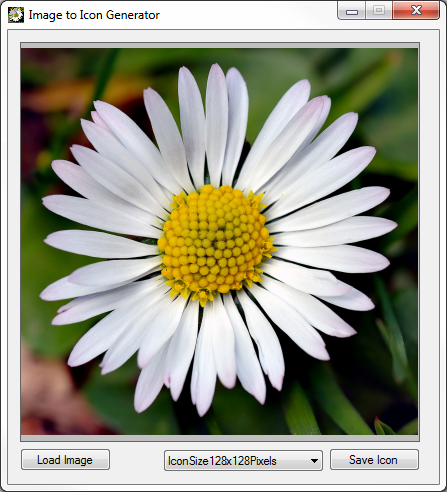
The Sample Application can be used to test/implement the concepts described in this . The user interface enables the user to browse and select an file from the file system, which loads as a scaled preview. In addition, the user can select an size from a list of standard dimensions: 16×16, 24×24, 32×32, 48×48, 64×64, 96×96 and 128×128 pixels. When a user clicks on the “Save Icon” button the sample application generates an in memory based on the specified size converting and scaling the provided input . If an was successfully generated, the in-memory representation will be saved to the file system, based on the filename and file path specified by the user.

The image below is screenshot of the Image to Icon Generator application in action:

Image To Icon Generator

The source features Bellis perennis also known as the common European Daisy (see Wikipedia). The file is licensed under the Creative Commons Attribution-Share Alike 2.5 Generic license. The original can be downloaded from .

The resulting file generated by the sample application:

Generating Icons from Images

Scaling and Aspect Ratio

conform to a set of standard dimensions, all of which equate to a square due to the width and height values being equal. A potential issue exists in that the specified source might not have exact square dimensions. In other words, the width and height values of specified source might differ. The solution lies in creating a square based on the specified source . Consider the concept of a square canvas onto which is drawn the source whilst maintaining its aspect ratio, implementing center alignment from the horizontal and vertical aspect. Listed below is the implementation of an defined as CopyToSquareCanvas, targeting the class.

public static Bitmap CopyToSquareCanvas(this Bitmap sourceBitmap, Color canvasBackground)
{
    int maxSide = sourceBitmap.Width > sourceBitmap.Height ? sourceBitmap.Width : sourceBitmap.Height;

Bitmap bitmapResult = new Bitmap(maxSide, maxSide, PixelFormat.Format32bppArgb);
using (Graphics graphicsResult = Graphics.FromImage(bitmapResult)) { graphicsResult.Clear(canvasBackground);
int xOffset = (sourceBitmap.Width - maxSide) / 2; int yOffset = (sourceBitmap.Height - maxSide) / 2;
graphicsResult.DrawImage(sourceBitmap, new Point(xOffset, xOffset)); }
return bitmapResult; }

The size of the resulting is determined by the source ’s longest side, either width or height. To ensure middle alignment both vertically and horizontally the source is drawn at an offset, determined by the additional buffer area added by the canvas.

Generating the Icon

Once we have created an conforming to exact square dimensions the next step would be to scale said to the desired size. A convenient method of quickly scaling source to icon dimensions comes in the form of creating .

The sample source code defines the enumeration IconSizeDimensions, which serves to provide a developer friendly reference coupled with actual dimension values by means of specifying explicit enumeration values. Consider the following code snippet:

public enum IconSizeDimensions
{
    IconSize16x16Pixels = 16,
    IconSize24x24Pixels = 24,
    IconSize32x32Pixels = 32,
    IconSize48x48Pixels = 48,
    IconSize64x64Pixels = 64,
    IconSize96x96Pixels = 96,
    IconSize128x128Pixels = 128
}

The crux of this and sample source code can considered to be the definition of the CreateIcon , which targets the class. The definition is as follows:

public static Icon CreateIcon(this Bitmap sourceBitmap, IconSizeDimensions iconSize)
{
    Bitmap squareCanvas = sourceBitmap.CopyToSquareCanvas(Color.Transparent);
    squareCanvas = (Bitmap)squareCanvas.GetThumbnailImage((int)iconSize, (int)iconSize, null, new IntPtr());

Icon iconResult = Icon.FromHandle(squareCanvas.GetHicon());
return iconResult; }

As discussed the first step is to ensure that the source conforms to square dimensions, implemented here by invoking the CopyToSquareCanvas . Next the source code implements scaling by creating a of which the size is based on the specified IconSizeDimensions value. The method returns a handle to an in the form of an , which serves as a parameter to the static method, which returns an instance of the class.

The Implementation

When the user clicks the “Save” button the Sample Application will present the user with a file save dialog. After the user specifies a file name and file path the Sample Application creates a reference of the source by casting the picturebox’s property to type .

private void btnSaveIcon_Click(object sender, EventArgs e)
{
    if (picSource.Image != null)
    {
        SaveFileDialog sfd = new SaveFileDialog();
        sfd.Title = "Specify a file name and file path";
        sfd.Filter = "Icon Files(*.ico)|*.ico"; 
if (sfd.ShowDialog() == System.Windows.Forms.DialogResult.OK) { System.Drawing.Icon tempIcon = ((Bitmap)picSource.Image).CreateIcon( (IconSizeDimensions)cmbIconSize.SelectedItem);
using (StreamWriter streamWriter = new StreamWriter(sfd.FileName, false)) { tempIcon.Save(streamWriter.BaseStream);
streamWriter.Flush(); streamWriter.Close(); } } } }

When the CreateIcon is invoked, the dimensions selected through the user interface will be passed as a parameter. The last step performed involves persisting the in-memory data to the file system.

C# How to: Bitmap Colour Substitution implementing thresholds

Article Purpose

This article is aimed at detailing how to implement the process of substituting the colour values that form part of a image. Colour substitution is implemented by means of a threshold value. By implementing a threshold a range of similar colours can be substituted.

Sample source code

This article is accompanied by a sample source code Visual Studio project which is available for download here.

Using the sample Application

The provided sample source code builds a Windows Forms application which can be used to test/implement the concepts described in this article. The sample application enables the user to load an file from the file system, the user can then specify the colour to replace, the replacement colour and the threshold to apply. The following image is a screenshot of the sample application in action.

BitmapColourSubstitution_Scaled

The scenario detailed in the above screenshot shows the sample application being used to create an where the sky has more of a bluish hue when compared to the original .

Notice how replacement colour does not simply appear as a solid colour applied throughout. The replacement colour gets implemented matching the intensity of the colour being substituted.

The colour filter options:

FilterOptions

The colour to replace was taken from the original , the replacement colour is specified through a colour picker dialog. When a user clicks on either displayed, the colour of the pixel clicked on sets the value of the replacement colour. By adjusting the threshold value the user can specify how wide or narrow the range of colours to replace should be. The higher the threshold value, the wider the range of colours that will be replaced.

The resulting image can be saved by clicking the “Save Result” button. In order to apply another colour substitution on the resulting image click the button labelled “Set Result as Source”.

Colour Substitution Filter Data

The sample source code provides the definition for the ColorSubstitutionFilter class. The purpose of this class is to contain data required when applying colour substitution. The ColorSubstitutionFilter class is defined as follows:

public class ColorSubstitutionFilter
{
    private int thresholdValue = 10;
    public int ThresholdValue
    {
        get { return thresholdValue; }
        set { thresholdValue = value; }
    }

private Color sourceColor = Color.White; public Color SourceColor { get { return sourceColor; } set { sourceColor = value; } }
private Color newColor = Color.White; public Color NewColor { get { return newColor; } set { newColor = value; } } }

To implement a colour substitution filter we first have to create an object instance of type ColorSubstitutionFilter. A colour substitution requires specifying a SourceColor, which is the colour to replace/substitute and a NewColour, which defines the colour that will replace the SourceColour. Also required is a ThresholdValue, which determines a range of colours based on the SourceColor.

Colour Substitution implemented as an Extension method

The sample source code defines the ColorSubstitution extension method which targets the class. Invoking the ColorSubstitution requires passing a parameter of type ColorSubstitutionFilter, which defines how colour substitution is to be implemented. The following code snippet contains the definition of the ColorSubstitution method.

public static Bitmap ColorSubstitution(this Bitmap sourceBitmap, ColorSubstitutionFilter filterData)
{
    Bitmap resultBitmap = new Bitmap(sourceBitmap.Width, sourceBitmap.Height, PixelFormat.Format32bppArgb);

BitmapData sourceData = sourceBitmap.LockBits(new Rectangle(0, 0, sourceBitmap.Width, sourceBitmap.Height), ImageLockMode.ReadOnly, PixelFormat.Format32bppArgb); BitmapData resultData = resultBitmap.LockBits(new Rectangle(0, 0, resultBitmap.Width, resultBitmap.Height), ImageLockMode.WriteOnly, PixelFormat.Format32bppArgb);
byte[] resultBuffer = new byte[resultData.Stride * resultData.Height]; Marshal.Copy(sourceData.Scan0, resultBuffer, 0, resultBuffer.Length);
sourceBitmap.UnlockBits(sourceData);
byte sourceRed = 0, sourceGreen = 0, sourceBlue = 0, sourceAlpha = 0; int resultRed = 0, resultGreen = 0, resultBlue = 0;
byte newRedValue = filterData.NewColor.R; byte newGreenValue = filterData.NewColor.G; byte newBlueValue = filterData.NewColor.B;
byte redFilter = filterData.SourceColor.R; byte greenFilter = filterData.SourceColor.G; byte blueFilter = filterData.SourceColor.B;
byte minValue = 0; byte maxValue = 255;
for (int k = 0; k < resultBuffer.Length; k += 4) { sourceAlpha = resultBuffer[k + 3];
if (sourceAlpha != 0) { sourceBlue = resultBuffer[k]; sourceGreen = resultBuffer[k + 1]; sourceRed = resultBuffer[k + 2];
if ((sourceBlue < blueFilter + filterData.ThresholdValue && sourceBlue > blueFilter - filterData.ThresholdValue) &&
(sourceGreen < greenFilter + filterData.ThresholdValue && sourceGreen > greenFilter - filterData.ThresholdValue) &&
(sourceRed < redFilter + filterData.ThresholdValue && sourceRed > redFilter - filterData.ThresholdValue)) { resultBlue = blueFilter - sourceBlue + newBlueValue;
if (resultBlue > maxValue) { resultBlue = maxValue;} else if (resultBlue < minValue) { resultBlue = minValue;}
resultGreen = greenFilter - sourceGreen + newGreenValue;
if (resultGreen > maxValue) { resultGreen = maxValue;} else if (resultGreen < minValue) { resultGreen = minValue;}
resultRed = redFilter - sourceRed + newRedValue;
if (resultRed > maxValue) { resultRed = maxValue;} else if (resultRed < minValue) { resultRed = minValue;}
resultBuffer[k] = (byte)resultBlue; resultBuffer[k + 1] = (byte)resultGreen; resultBuffer[k + 2] = (byte)resultRed; resultBuffer[k + 3] = sourceAlpha; } } }
Marshal.Copy(resultBuffer, 0, resultData.Scan0, resultBuffer.Length); resultBitmap.UnlockBits(resultData);
return resultBitmap; }

The ColorSubstitution method can be labelled as due to its implementation. Being implies that the source/input data will not be modified, instead a new instance will be created reflecting the source data as modified by the operations performed in the particular method.

The first statement defined in the ColorSubstitution method body instantiates an instance of a new , matching the size dimensions of the source object. Next the method invokes the method on the source and result instances. When invoking the underlying data representing a will be locked in memory. Being locked in memory can also be described as signalling/preventing the Garbage Collector to not move around in memory the data being locked. Invoking results in the Garbage Collector functioning as per normal, moving data in memory and updating the relevant memory references when required.

The source code continues by copying all the representing the source to an array of bytes that represents the resulting . At this stage the source and result s are exactly identical and as yet unmodified. In order to determine which pixels based on colour should be modified the source code iterates through the byte array associated with the result .

Notice how the for loop increments by 4 with each loop. The underlying data represents a 32 Bits per pixel Argb , which equates to 8 bits/1 representing an individual colour component, either Alpha, Red, Green or Blue. Defining the for loop to increment by 4 results in each loop iterating 4 or 32 bits, in essence 1 pixel.

Within the for loop we determine if the colour expressed by the current pixel adjusted by the threshold value forms part of the colour range that should be updated. It is important to remember that an individual colour component is a byte value and can only be set to a value between 0 and 255 inclusive.

The Implementation

The ColorSubstitution method is implemented by the sample source code  through a Windows Forms application. The ColorSubstitution method requires that the source specified must be  formatted as a 32 Bpp Argb . When the user loads a source image from the file system the sample application attempts to convert the selected file by invoking the Format32bppArgbCopy which targets the class. The definition is as follows:

public static Bitmap Format32bppArgbCopy(this Bitmap sourceBitmap)
{
    Bitmap copyBitmap = new Bitmap(sourceBitmap.Width, sourceBitmap.Height, PixelFormat.Format32bppArgb);

using (Graphics graphicsObject = Graphics.FromImage(copyBitmap)) { graphicsObject.CompositingQuality = System.Drawing.Drawing2D.CompositingQuality.HighQuality; graphicsObject.InterpolationMode = System.Drawing.Drawing2D.InterpolationMode.HighQualityBicubic; graphicsObject.PixelOffsetMode = System.Drawing.Drawing2D.PixelOffsetMode.HighQuality; graphicsObject.SmoothingMode = System.Drawing.Drawing2D.SmoothingMode.HighQuality;
graphicsObject.DrawImage(sourceBitmap, new Rectangle(0, 0, sourceBitmap.Width, sourceBitmap.Height), new Rectangle(0, 0, sourceBitmap.Width, sourceBitmap.Height), GraphicsUnit.Pixel); }
return copyBitmap; }

Colour Substitution Examples

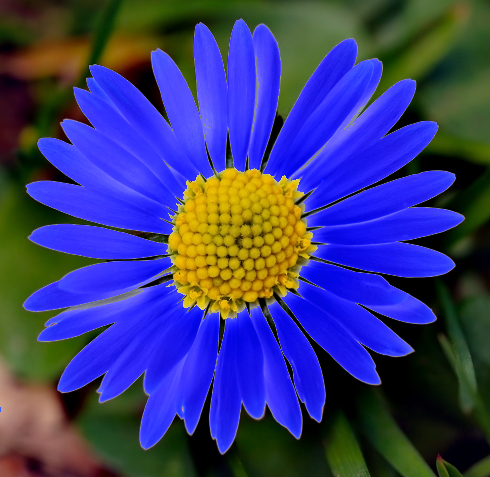
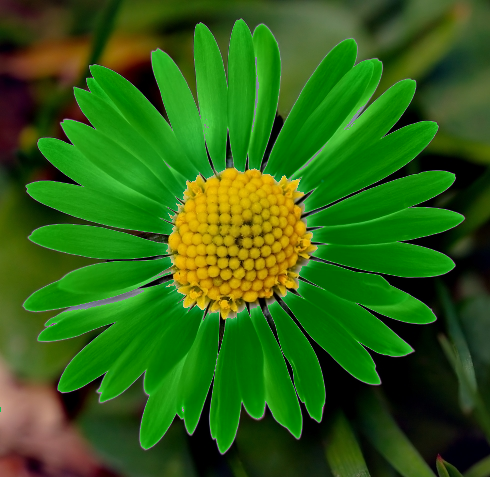
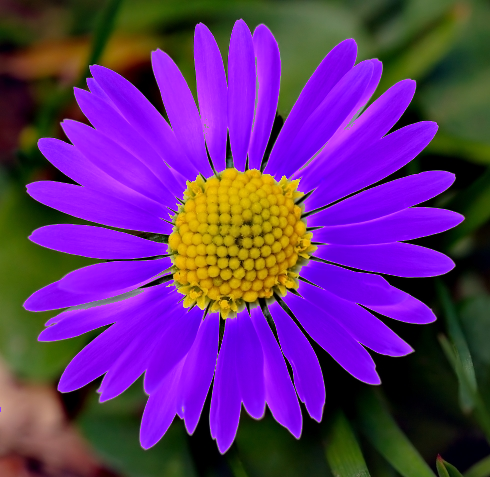
The following section illustrates a few examples of colour substitution result . The source image features Bellis perennis also known as the common European Daisy (see Wikipedia). The image file is licensed under the Creative Commons Attribution-Share Alike 2.5 Generic license. The original image can be downloaded here. The following image is a scaled down version of the original:

Bellis_perennis_white_(aka)_scaled

Light Blue Colour Substitution

Colour Component Source Colour Substitute Colour
Red   255   121
Green   223   188
Blue   224   255

Daisy_light_blue

Medium Blue Colour Substitution

Colour Component Source Colour Substitute Colour
Red   255   34
Green   223   34
Blue   224   255

Daisy_medium_blue

Medium Green Colour Substitution

Colour Component Source Colour Substitute Colour
Red   255   0
Green   223   128
Blue   224   0

Daisy_medium_green

Purple Colour Substitution

Colour Component Source Colour Substitute Colour
Red   255   128
Green   223   0
Blue   224   255

Daisy_purple

Related Articles and Feedback

Feedback and questions are always encouraged. If you know of an alternative implementation or have ideas on a more efficient implementation please share in the comments section.

I’ve published a number of articles related to imaging and images of which you can find URL links here:


Dewald Esterhuizen

Unknown's avatar

Blog Stats

  • 893,576 hits

Enter your email address to follow and receive notifications of new posts by email.

Join 91 other subscribers

Archives

RSS SoftwareByDefault on MSDN

  • An error has occurred; the feed is probably down. Try again later.