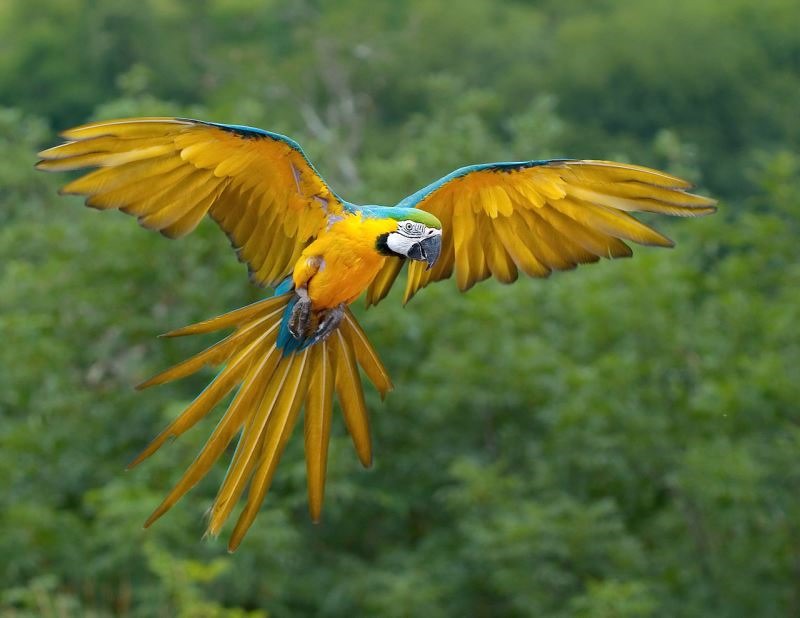
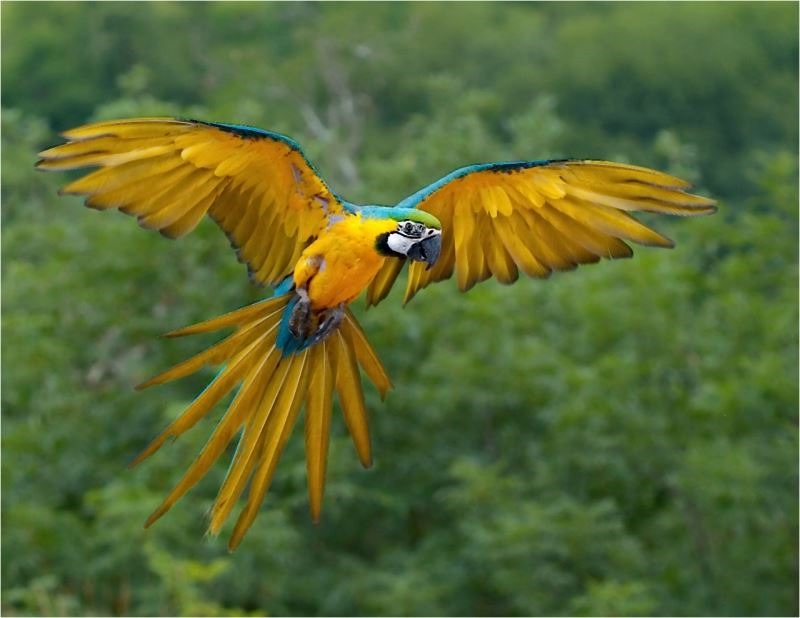
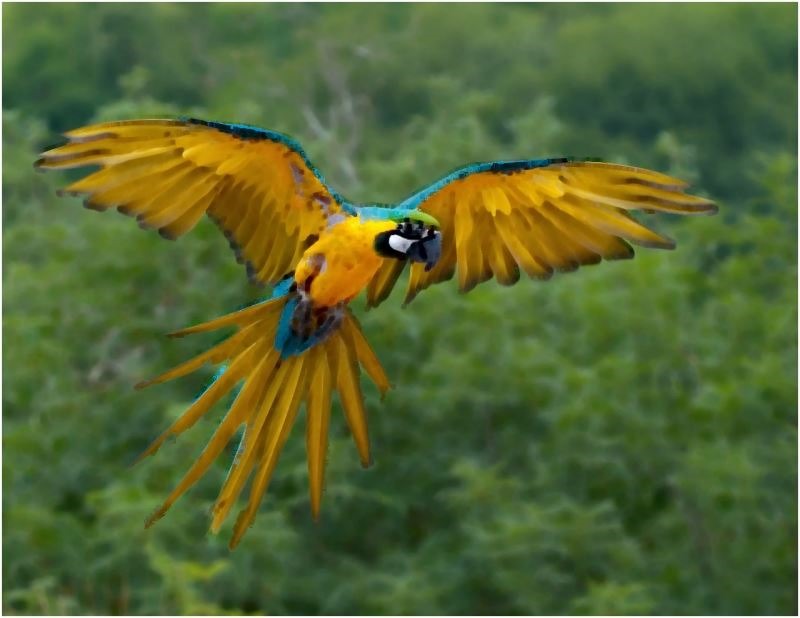
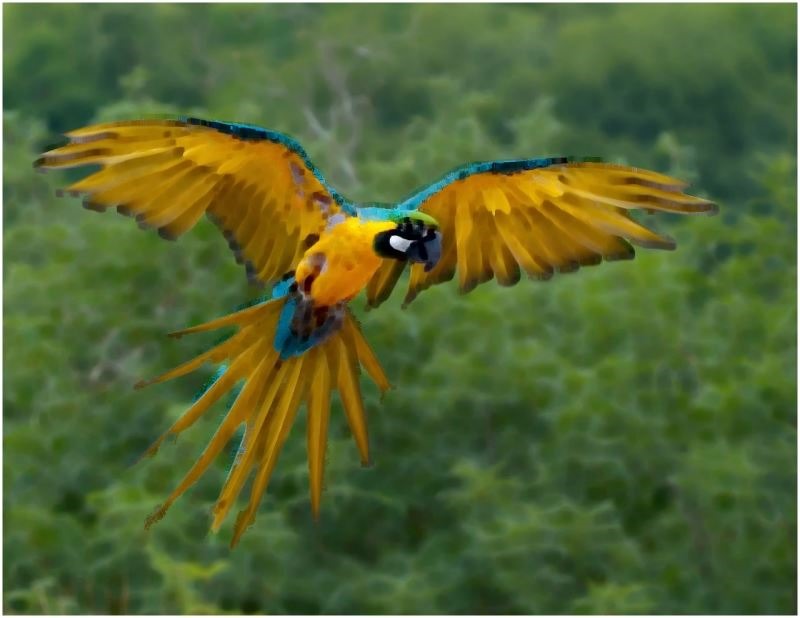
Posts Tagged 'Image'


C# How to: Image Erosion and Dilation

Article purpose

The purpose of this article is aimed at exploring the concepts of , , and . In addition this article extends conventional and implementations through partial colour variations of and .

Sample source code

This article is accompanied by a sample source code Visual Studio project which is available for download .

Using the sample application

Included in this article’s sample source code you’ll find a based sample application. The sample application can be used to test and replicate the concepts we explore in this article.

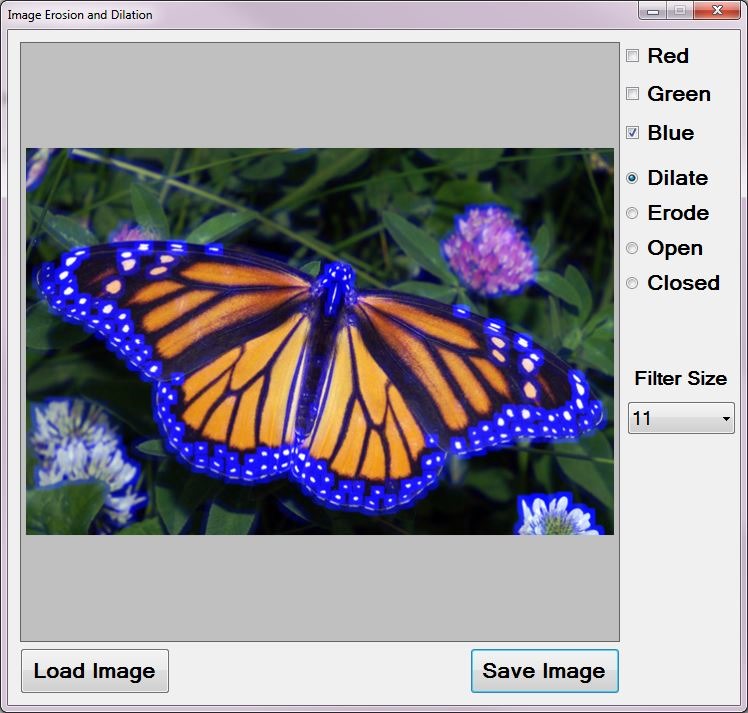
When executing the sample application source/input can selected from the local system by clicking the Load Image button. On the right-hand side of the sample application’s user interface users can adjust the provided controls in order to modify the method of filtering being implemented.

The three labelled Red, Green and Blue relate to whether the relevant colour component will be regarded or not when implementing the configured filter.

Users are required to select an filter: , or . The interface selection is expressed by means of four respectively labelled Dilate, Erode, Open and Closed.

The only other input required from a user comes in the form of selecting the filter intensity/filter size. The dropdown indicated as Filter Size provides the user with several intensity levels ranging from 3×3 to 17×17. Note: Larger filter sizes result in additional processing required when implementing the filter. Large set to implement large sized filters may require more processor cycles.

Resulting filtered can be saved to the local file system by clicking the Save Image button. The screenshot below illustrates the Image Erosion and Dilation sample application in action:

Image_Erosion_Dilation_Sample_Application

Mathematical Morphology

A description of as expressed on :

Mathematical morphology (MM) is a theory and technique for the analysis and processing of geometrical structures, based on , , , and . MM is most commonly applied to , but it can be employed as well on , , , and many other spatial structures.

and -space concepts such as size, , , , and , were introduced by MM on both continuous and . MM is also the foundation of morphological image processing, which consists of a set of operators that transform images according to the above characterizations.

MM was originally developed for , and was later extended to and images. The subsequent generalization to is widely accepted today as MM’s theoretical foundation.

In this article we explore , , as well as and . The implementation of these filters are significantly easier to grasp when compared to most definitions of .

Image Erosion and Dilation

and are implementations of , a subset of . In simpler terms can be defined by this :

Dilation is one of the two basic operators in the area of , the other being . It is typically applied to , but there are versions that work on . The basic effect of the operator on a binary image is to gradually enlarge the boundaries of regions of foreground (i.e. white pixels, typically). Thus areas of foreground pixels grow in size while holes within those regions become smaller.

being a related concept is defined by this :

Erosion is one of the two basic operators in the area of mathematical morphology, the other being . It is typically applied to binary images, but there are versions that work on . The basic effect of the operator on a binary image is to erode away the boundaries of regions of foreground (i.e. white pixels, typically). Thus areas of foreground pixels shrink in size, and holes within those areas become larger.

From the definitions listed above we gather that increases the size of edges contained in an image. In contrast decreases or shrinks the size of an Image’s edges.

Open and Closed Morphology

Building upon the concepts of and this section explores and . A good definition of can be expressed as :

The basic effect of an opening is somewhat like erosion in that it tends to remove some of the foreground (bright) pixels from the edges of regions of foreground pixels. However it is less destructive than erosion in general. As with other morphological operators, the exact operation is determined by a . The effect of the operator is to preserve foreground regions that have a similar shape to this structuring element, or that can completely contain the structuring element, while eliminating all other regions of foreground pixels.

In turn can be defined as :

Closing is similar in some ways to dilation in that it tends to enlarge the boundaries of foreground (bright) regions in an image (and shrink background color holes in such regions), but it is less destructive of the original boundary shape. As with other , the exact operation is determined by a . The effect of the operator is to preserve background regions that have a similar shape to this structuring element, or that can completely contain the structuring element, while eliminating all other regions of background pixels.

Implementing Image Erosion and Dilation

In this article we implement and by iterating each pixel contained within an image. The colour of each pixel is determined by taking into regard a pixel’s neighbouring pixels.

When implementing a pixel’s value is determined by comparing neighbouring pixels’ colour values, determining the highest colour value expressed amongst neighbouring pixels.

In contrast to we implement by also inspecting neighbouring pixels’ colour values, determining the lowest colour value expressed amongst neighbouring pixels.

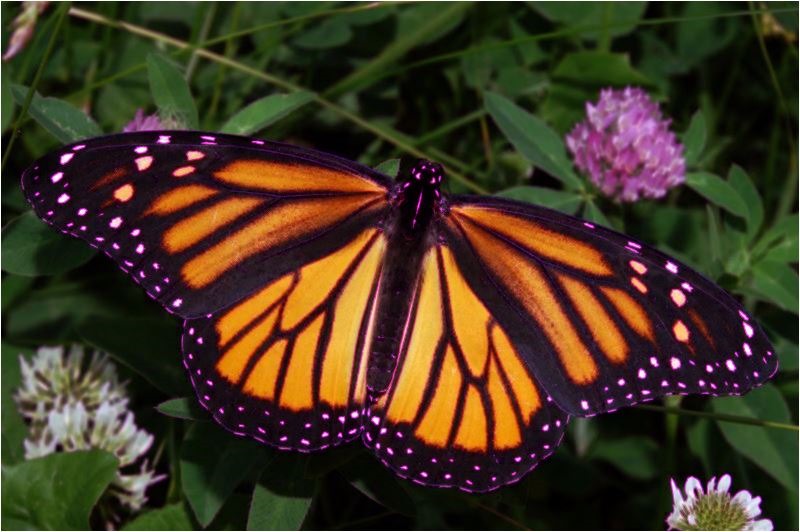
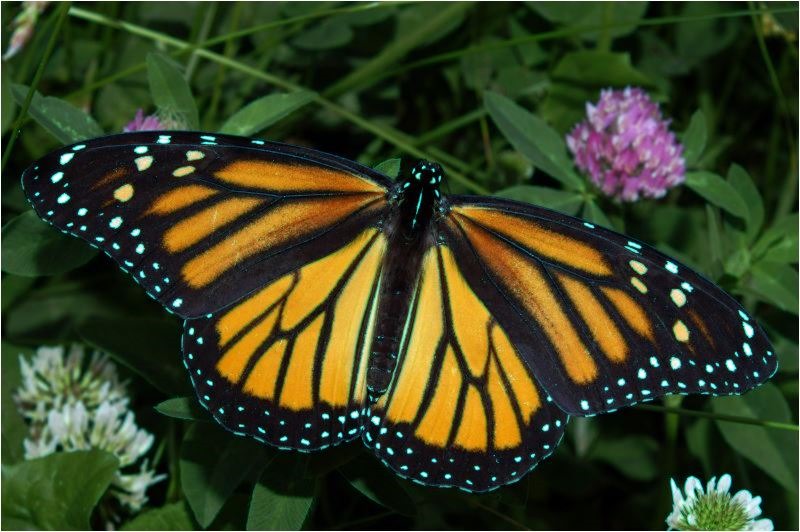
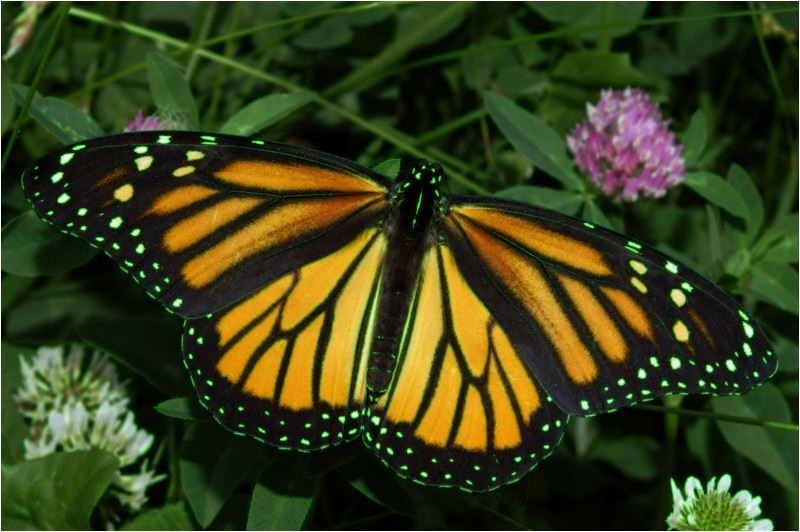
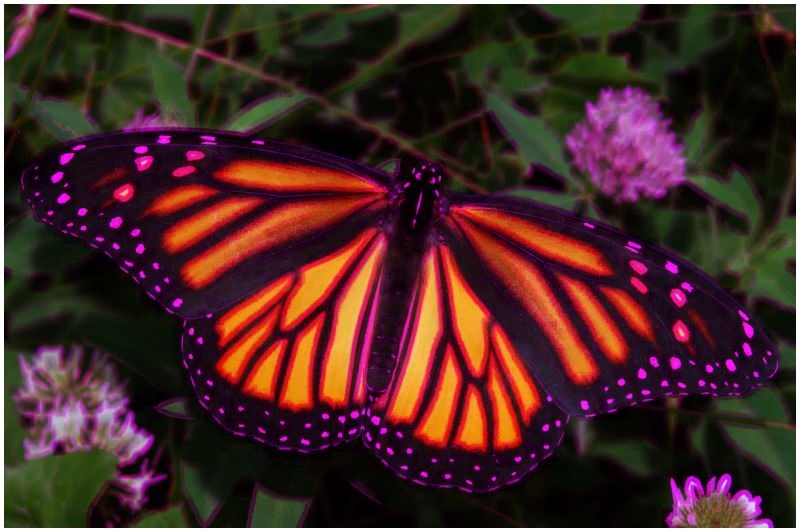
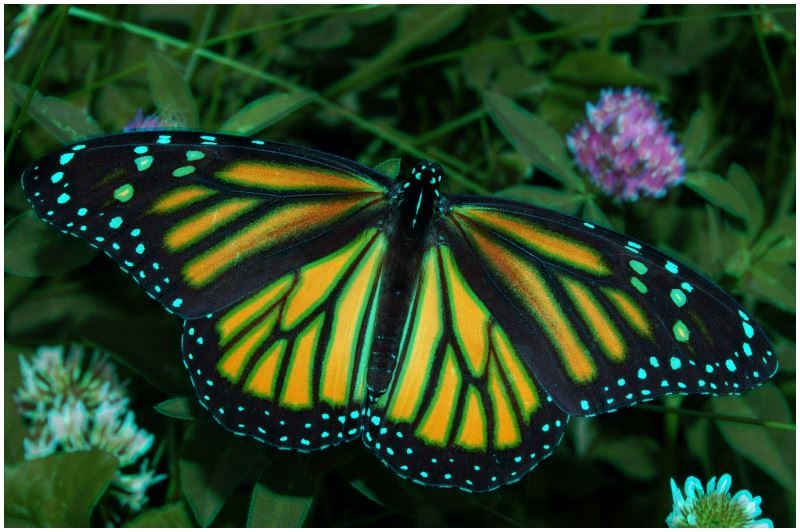
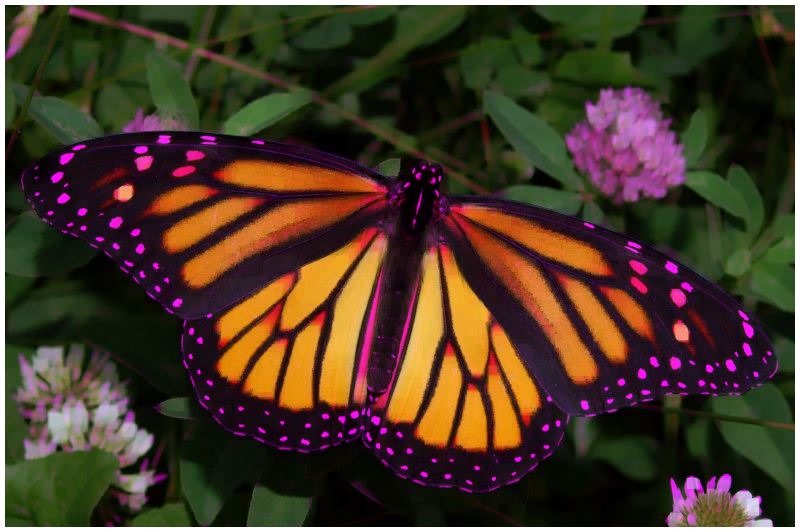
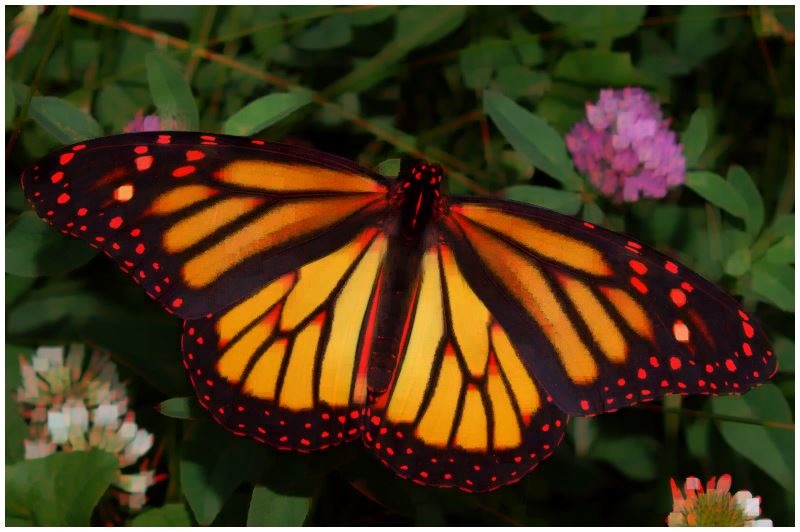
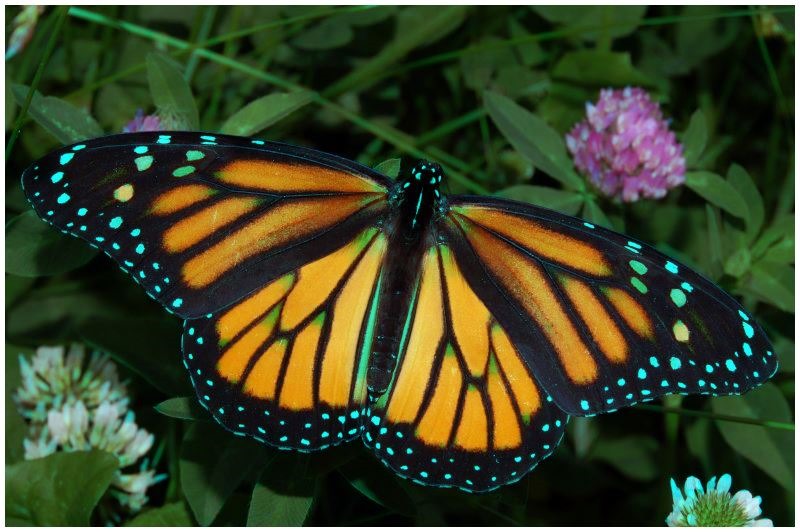
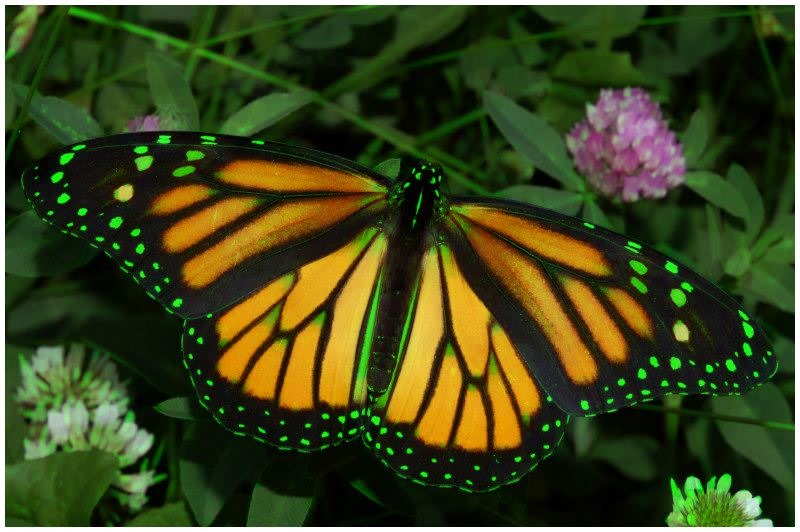
In addition to conventional and the sample source code provides the ability to perform  and targeting only specific colour components. The result of specific colour and produces images which express the effects of and only in certain colours. Depending on filter parameters specified edges appear to have a coloured glow or shadow.

The sample source code provides the definition for the DilateAndErodeFilter , targeting the class. The following code snippet details the implementation of the DilateAndErodeFilter :

public static Bitmap DilateAndErodeFilter(
                           this Bitmap sourceBitmap,  
                           int matrixSize, 
                           MorphologyType morphType, 
                           bool applyBlue = true, 
                           bool applyGreen = true, 
                           bool applyRed = true )  
{
    BitmapData sourceData =  
               sourceBitmap.LockBits(new Rectangle (0, 0, 
               sourceBitmap.Width, sourceBitmap.Height), 
               ImageLockMode.ReadOnly,  
               PixelFormat.Format32bppArgb); 

byte[] pixelBuffer = new byte[sourceData.Stride * sourceData.Height];
byte[] resultBuffer = new byte[sourceData.Stride * sourceData.Height];
Marshal.Copy(sourceData.Scan0, pixelBuffer, 0, pixelBuffer.Length);
sourceBitmap.UnlockBits(sourceData);
int filterOffset = (matrixSize - 1) / 2; int calcOffset = 0;
int byteOffset = 0;
byte blue = 0; byte green = 0; byte red = 0;
byte morphResetValue = 0;
if (morphType == MorphologyType.Erosion) { morphResetValue = 255; }
for (int offsetY = filterOffset; offsetY < sourceBitmap.Height - filterOffset; offsetY++) { for (int offsetX = filterOffset; offsetX < sourceBitmap.Width - filterOffset; offsetX++) { byteOffset = offsetY * sourceData.Stride + offsetX * 4;
blue = morphResetValue; green = morphResetValue; red = morphResetValue;
if (morphType == MorphologyType.Dilation) { for (int filterY = -filterOffset; filterY <= filterOffset; filterY++) { for (int filterX = -filterOffset; filterX <= filterOffset; filterX++) { calcOffset = byteOffset + (filterX * 4) + (filterY * sourceData.Stride);
if (pixelBuffer[calcOffset] > blue) { blue = pixelBuffer[calcOffset]; }
if (pixelBuffer[calcOffset + 1] > green) { green = pixelBuffer[calcOffset + 1]; }
if (pixelBuffer[calcOffset + 2] > red) { red = pixelBuffer[calcOffset + 2]; } } } } else if (morphType == MorphologyType .Erosion) { for (int filterY = -filterOffset; filterY <= filterOffset; filterY++) { for (int filterX = -filterOffset; filterX <= filterOffset; filterX++) { calcOffset = byteOffset + (filterX * 4) + (filterY * sourceData.Stride);
if (pixelBuffer[calcOffset] < blue) { blue = pixelBuffer[calcOffset]; }
if (pixelBuffer[calcOffset + 1] < green) { green = pixelBuffer[calcOffset + 1]; }
if (pixelBuffer[calcOffset + 2] < red) { red = pixelBuffer[calcOffset + 2]; } } } }
if (applyBlue == false ) { blue = pixelBuffer[byteOffset]; }
if (applyGreen == false ) { green = pixelBuffer[byteOffset + 1]; }
if (applyRed == false ) { red = pixelBuffer[byteOffset + 2]; }
resultBuffer[byteOffset] = blue; resultBuffer[byteOffset + 1] = green; resultBuffer[byteOffset + 2] = red; resultBuffer[byteOffset + 3] = 255; } }
Bitmap resultBitmap = new Bitmap (sourceBitmap.Width, sourceBitmap.Height);
BitmapData resultData = resultBitmap.LockBits(new Rectangle (0, 0, resultBitmap.Width, resultBitmap.Height), ImageLockMode.WriteOnly, PixelFormat.Format32bppArgb);
Marshal.Copy(resultBuffer, 0, resultData.Scan0, resultBuffer.Length);
resultBitmap.UnlockBits(resultData);
return resultBitmap; }

Implementing Open and Closed Morphology

The sample source code implements by first implementing on a source image, the resulting image is then filtered by implementing .

In a reverse fashion is achieved by first implementing on a source image, which is then further filtered by implementing .

The sample source code defines the OpenMorphologyFilter and CloseMorphologyFilter , both targeting the class. The implementation as follows:

public static Bitmap OpenMorphologyFilter(
                            this Bitmap sourceBitmap, 
                            int matrixSize,
                            bool applyBlue = true, 
                            bool applyGreen = true, 
                            bool applyRed = true ) 
{ 
    Bitmap resultBitmap = 
           sourceBitmap.DilateAndErodeFilter(
                        matrixSize, MorphologyType.Erosion, 
                        applyBlue, applyGreen, applyRed); 

resultBitmap = resultBitmap.DilateAndErodeFilter( matrixSize, MorphologyType.Dilation, applyBlue, applyGreen, applyRed);
return resultBitmap; }
public static Bitmap CloseMorphologyFilter( this Bitmap sourceBitmap, int matrixSize, bool applyBlue = true, bool applyGreen = true, bool applyRed = true ) { Bitmap resultBitmap = sourceBitmap.DilateAndErodeFilter( matrixSize, MorphologyType.Dilation, applyBlue, applyGreen, applyRed);
resultBitmap = resultBitmap.DilateAndErodeFilter( matrixSize, MorphologyType.Erosion, applyBlue, applyGreen, applyRed);
return resultBitmap; }

Sample Images

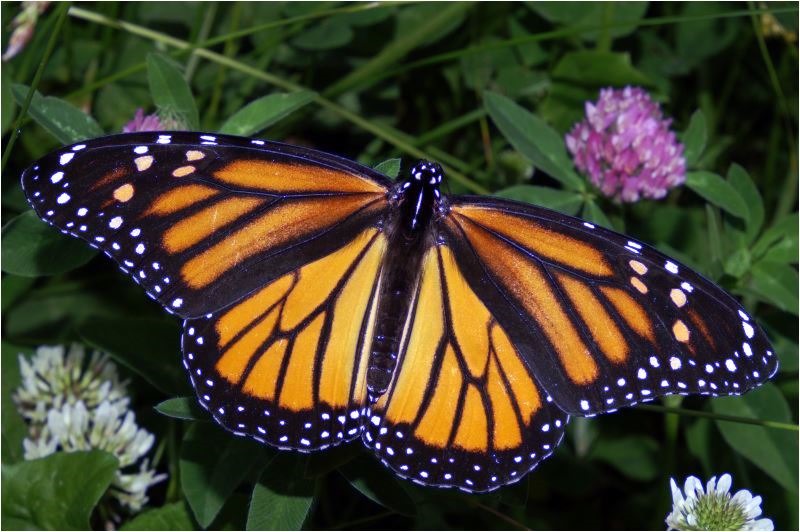
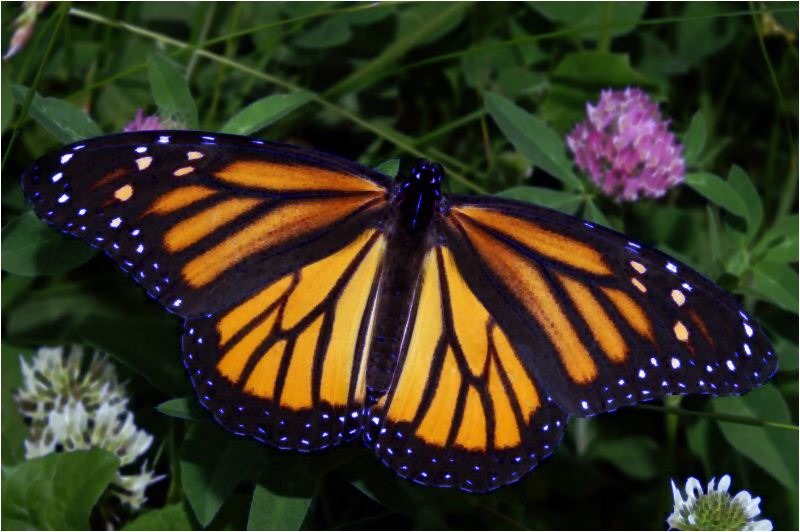
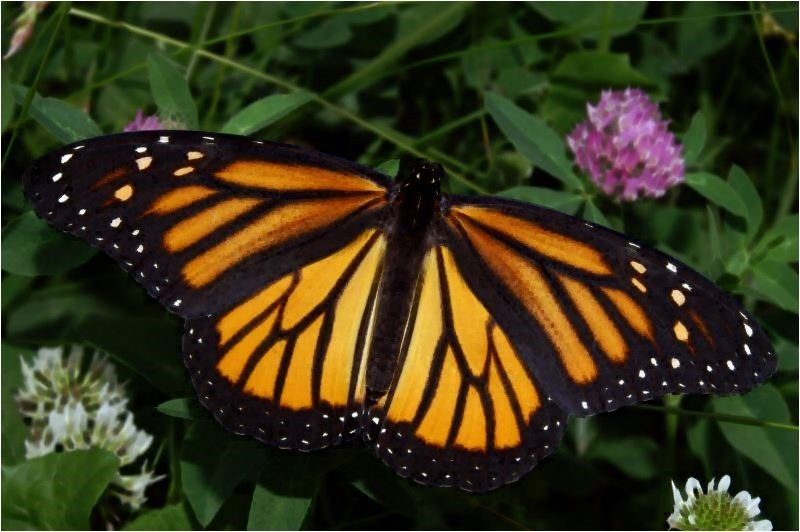
The original source image used to create all of the sample images in this article has been licensed under the Creative Commons Attribution-Share Alike 3.0 Unported, 2.5 Generic, 2.0 Generic and 1.0 Generic license. The original image is attributed to Kenneth Dwain Harrelson and can be downloaded from .

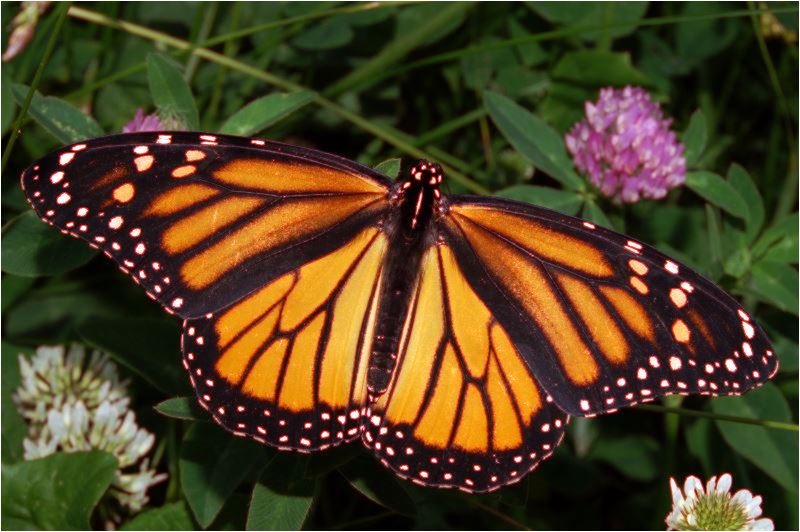
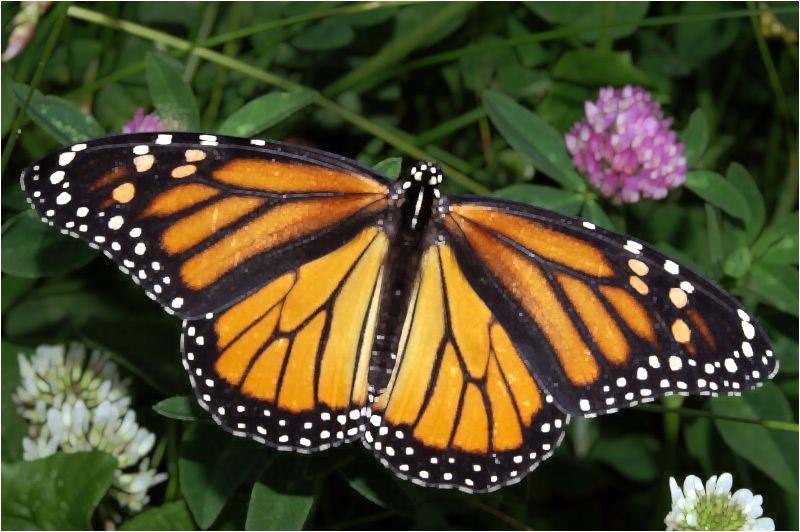
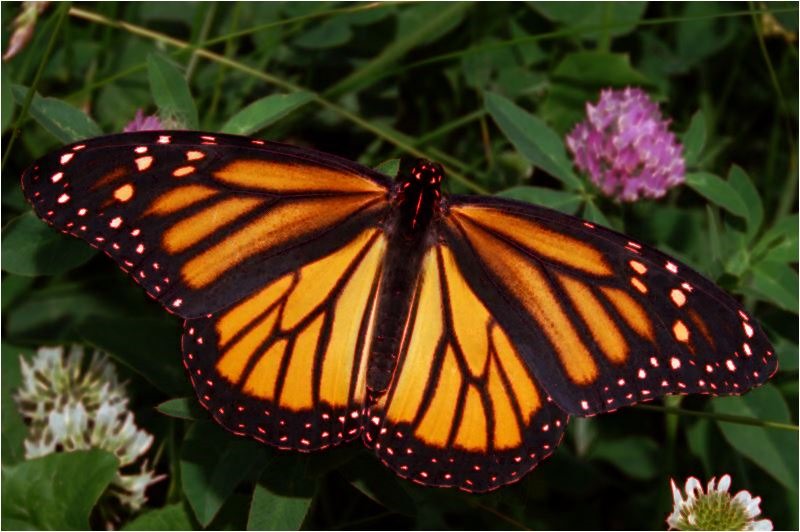
The Original Image

Monarch_In_May

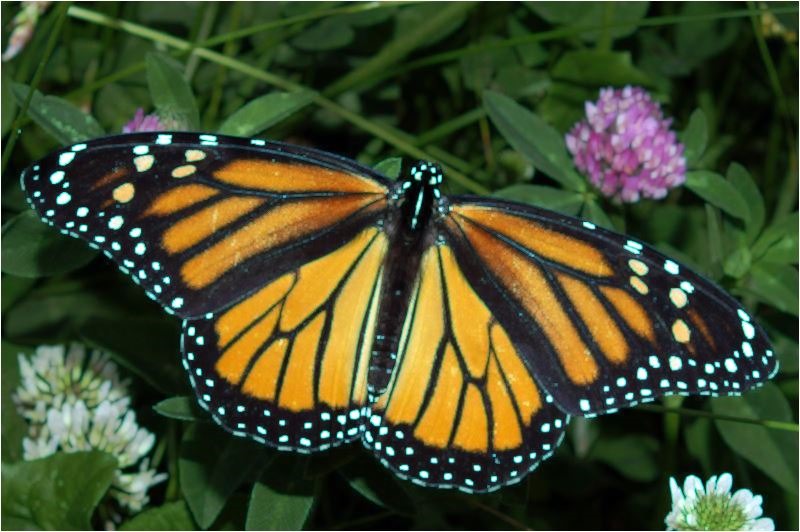
Image Dilation 3×3 Blue

Image Dilation 3x3 Blue

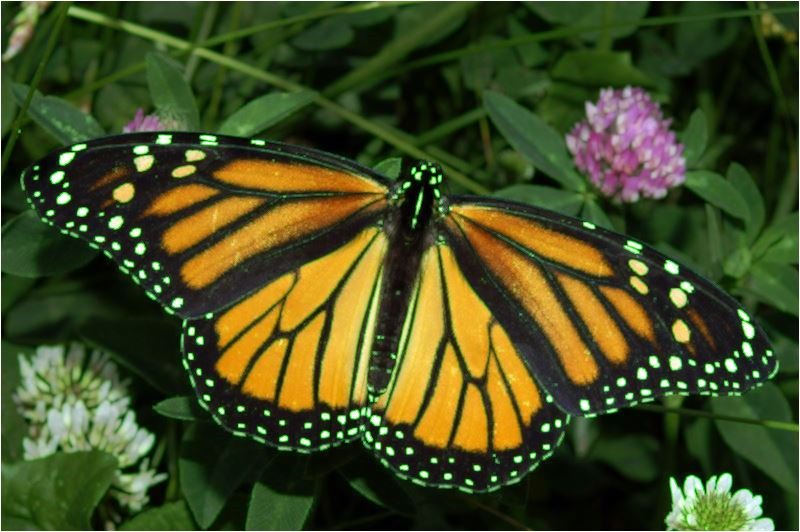
Image Dilation 3×3 Blue, Green

Image Dilation 3x3 Blue, Green

Image Dilation 3×3 Green

Image Dilation 3x3 Green

Image Dilation 3×3 Red

Image Dilation 3x3 Red

Image Dilation 3×3 Red, Blue

Image Dilation 3x3 Red, Blue

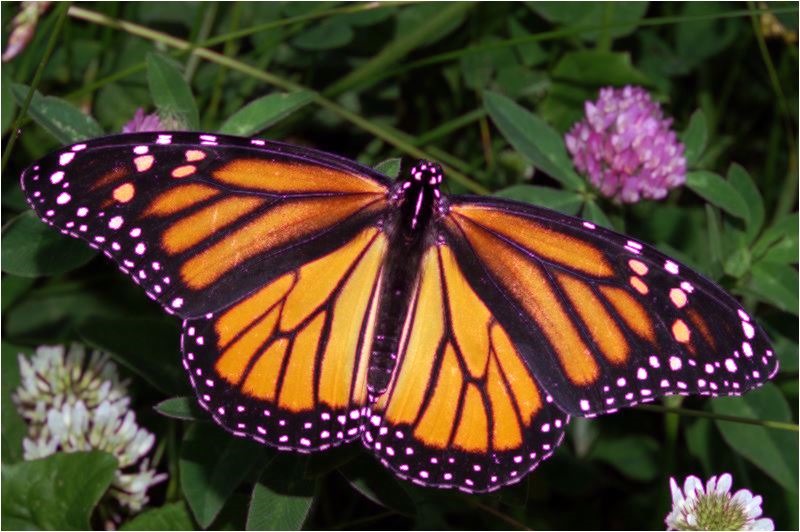
Image Dilation 3×3 Red, Green, Blue

Image Dilation 3x3 Red, Green, Blue

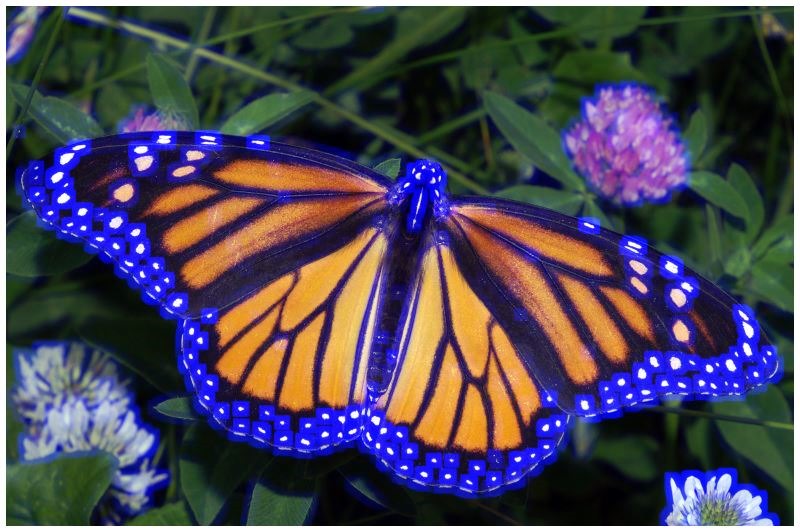
Image Dilation 13×13 Blue

Image Dilation 13x13 Blue

Image Erosion 3×3 Green, Blue

Image Erosion 3x3 Green, Blue

Image Erosion 3×3 Green

Image Erosion 3x3 Green

Image Erosion 3×3 Red

Image Erosion 3x3 Red

Image Erosion 3×3 Red, Blue

Image Erosion 3x3 Red, Blue

Image Erosion 3×3 Red, Green

Image Erosion 3x3 Red, Green

Image Erosion 3×3 Red, Green, Blue

Image Erosion 3x3 Red, Green, Blue

Image Erosion 9×9 Green

Image Erosion 9x9 Green

Image Erosion 9×9 Red

Image Erosion 9x9 Red

Image Open Morphology 11×11 Green

Image Open Morphology 11x11 Green

Image Open Morphology 11×11 Green Blue

Image Open Morphology 11x11 Green Blue

Image Open Morphology 11×11 Red

Image Open Morphology 11x11 Red

Image Open Morphology 11×11 Red, Blue

Image Open Morphology 11x11 Red, Blue

Related Articles and Feedback

Feedback and questions are always encouraged. If you know of an alternative implementation or have ideas on a more efficient implementation please share in the comments section.

I’ve published a number of articles related to imaging and images of which you can find URL links here:

C# How to: Image Colour Average

Article purpose

This article’s intension is focussed on providing a discussion on the tasks involved in implementing Image Colour Averaging. Pixel colour averages are calculated from neighbouring pixels.

Sample source code

This article is accompanied by a sample source code Visual Studio project which is available for download .

Using the Sample Application

The sample source code associated with this article includes a based sample application. The sample application is provided with the intention of illustrating the concepts explored in this article. In addition the sample application serves as a means of testing and replicating results.

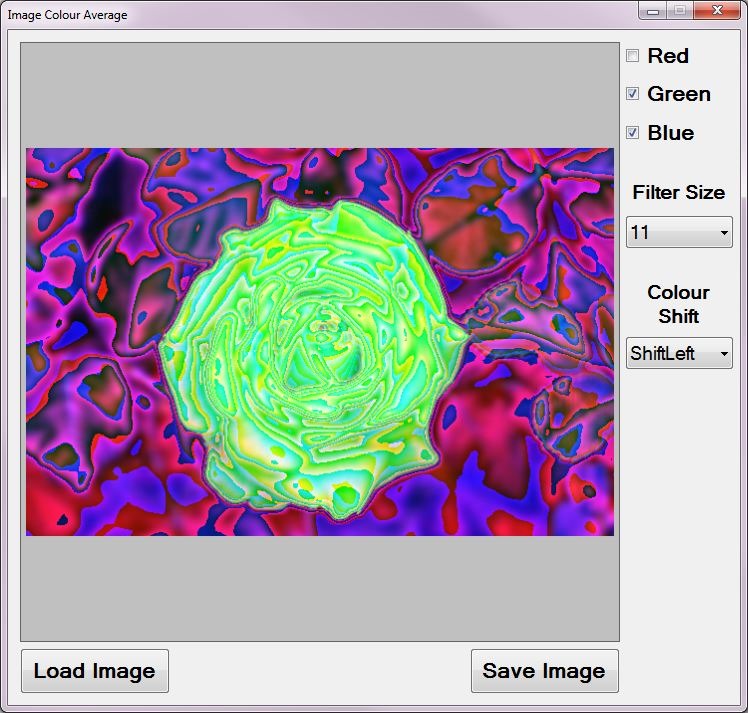
By clicking the Load Image button users are able to select input/source from the local system. On the right hand side of the screen various controls enable the user to control the implementation of colour averaging. The three labelled Red, Green and Blue relates to whether an individual colour component is to be included in calculating colour averages.

The filter intensity can be specified through selecting a filter size from the dropdown , specifying higher values will result in output images expressing more colour averaging intensity.

Additional image filter effects can be achieved through implementing colour component shifting/swapping. When colour components are shifted left the result will be:

  • Blue is set to the original value of the Red component.
  • Red is set to the original value of the Green component.
  • Green is set to the original value of the Blue component.

When colour components are shifted right the result will be:

  • Red is set to the original value of the Blue component
  • Blue is set to the original value of the Green component
  • Green is set to the original value of the Red Component

Resulting can be saved by the user to the local file system by clicking the Save Image button. The following image is a screenshot of the Image Colour Average sample application in action:

Image Colour Average Sample Application

Averaging Colours

In this article and the accompanying sample source code colour averaging is implemented on a per pixel basis. An average colour value is calculated based on a pixel’s neighbouring pixels’ colour. Determining neighbouring pixels in the sample source code has been implemented in much the same method as . The major difference to is the absence of a fixed /.

Additional resulting visual effects can be achieved through various options/settings implemented whilst calculating colour averages. Additional options include being able to specify which colour component averages to implement. Furthermore colour components can be swapped/shifted around.

The sample source code implements the AverageColoursFilter , targeting the class. The extent or degree to which colour averaging will be evident in resulting can be controlled through specifying different values set to the matrixSize parameter. The matrixSize parameter in essence determines the number of neighbouring pixels involved in calculating an average colour.

The individual pixel colour components Red, Green and Blue can either be included or excluded in calculating averages. The three method boolean parameters applyBlue, applyGreen and applyRed will determine an individual colour components inclusion in averaging calculations. If a colour component is to be excluded from averaging the resulting will instead express the original source/input image’s colour component.

The intensity of a specific colour component average can be applied to another colour component by means of swapping/shifting colour components, which is indicated through the shiftType method parameter.

The following code snippet provides the implementation of the AverageColoursFilter :

public static Bitmap AverageColoursFilter(
                            this Bitmap sourceBitmap,  
                            int matrixSize,   
                            bool applyBlue = true, 
                            bool applyGreen = true, 
                            bool applyRed = true, 
                            ColorShiftType shiftType = 
                            ColorShiftType.None)  
{ 
    BitmapData sourceData =  
               sourceBitmap.LockBits(new Rectangle(0, 0, 
               sourceBitmap.Width, sourceBitmap.Height), 
               ImageLockMode.ReadOnly,  
               PixelFormat.Format32bppArgb); 

byte[] pixelBuffer = new byte[sourceData.Stride * sourceData.Height];
byte[] resultBuffer = new byte[sourceData.Stride * sourceData.Height];
Marshal.Copy(sourceData.Scan0, pixelBuffer, 0, pixelBuffer.Length);
sourceBitmap.UnlockBits(sourceData);
int filterOffset = (matrixSize - 1) / 2; int calcOffset = 0;
int byteOffset = 0;
int blue = 0; int green = 0; int red = 0;
for (int offsetY = filterOffset; offsetY < sourceBitmap.Height - filterOffset; offsetY++) { for (int offsetX = filterOffset; offsetX < sourceBitmap.Width - filterOffset; offsetX++) { byteOffset = offsetY * sourceData.Stride + offsetX * 4;
blue = 0; green = 0; red = 0;
for (int filterY = -filterOffset; filterY <= filterOffset; filterY++) { for (int filterX = -filterOffset; filterX <= filterOffset; filterX++) { calcOffset = byteOffset + (filterX * 4) + (filterY * sourceData.Stride);
blue += pixelBuffer[calcOffset]; green += pixelBuffer[calcOffset + 1]; red += pixelBuffer[calcOffset + 2]; } }
blue = blue / matrixSize; green = green / matrixSize; red = red / matrixSize;
if (applyBlue == false) { blue = pixelBuffer[byteOffset]; }
if (applyGreen == false) { green = pixelBuffer[byteOffset + 1]; }
if (applyRed == false) { red = pixelBuffer[byteOffset + 2]; }
if (shiftType == ColorShiftType.None) { resultBuffer[byteOffset] = (byte)blue; resultBuffer[byteOffset + 1] = (byte)green; resultBuffer[byteOffset + 2] = (byte)red; resultBuffer[byteOffset + 3] = 255; } else if (shiftType == ColorShiftType.ShiftLeft) { resultBuffer[byteOffset] = (byte)green; resultBuffer[byteOffset + 1] = (byte)red; resultBuffer[byteOffset + 2] = (byte)blue; resultBuffer[byteOffset + 3] = 255; } else if (shiftType == ColorShiftType.ShiftRight) { resultBuffer[byteOffset] = (byte)red; resultBuffer[byteOffset + 1] = (byte)blue; resultBuffer[byteOffset + 2] = (byte)green; resultBuffer[byteOffset + 3] = 255; } } }
Bitmap resultBitmap = new Bitmap(sourceBitmap.Width, sourceBitmap.Height);
BitmapData resultData = resultBitmap.LockBits(new Rectangle(0, 0, resultBitmap.Width, resultBitmap.Height), ImageLockMode.WriteOnly, PixelFormat.Format32bppArgb);
Marshal.Copy(resultBuffer, 0, resultData.Scan0, resultBuffer.Length);
resultBitmap.UnlockBits(resultData);
return resultBitmap; }

The definition of the ColorShiftType :

public enum ColorShiftType  
{
    None, 
    ShiftLeft, 
    ShiftRight 
}

Sample

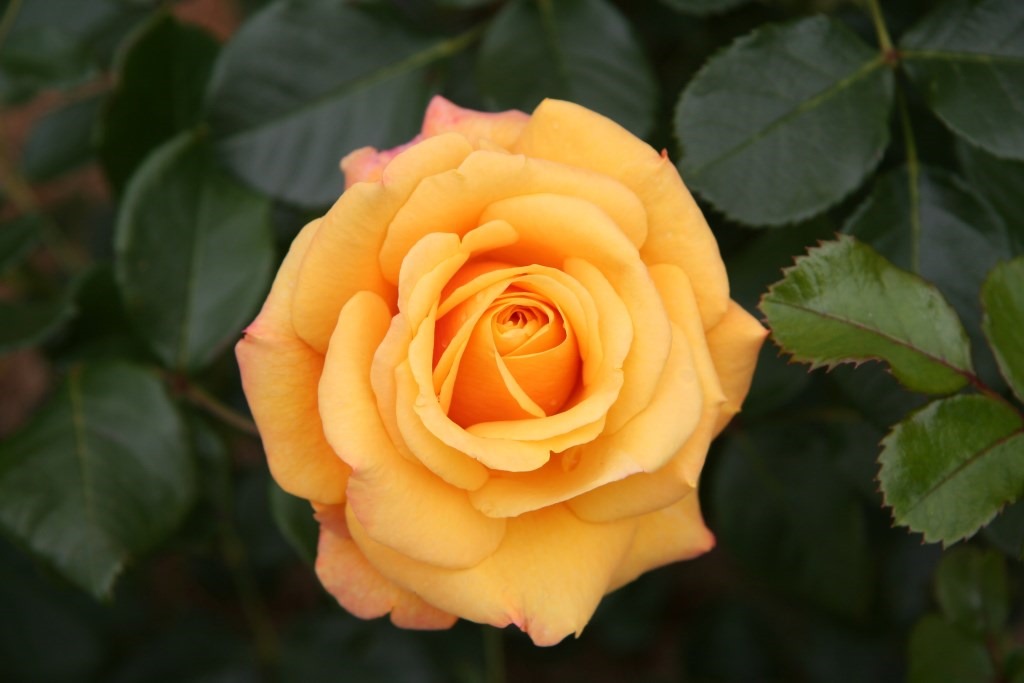
The original image used in generating the sample images that form part of this article, has been licensed under the Attribution-Share Alike , , and license. The can be from .

Original Image

Rose_Amber_Flush_20070601

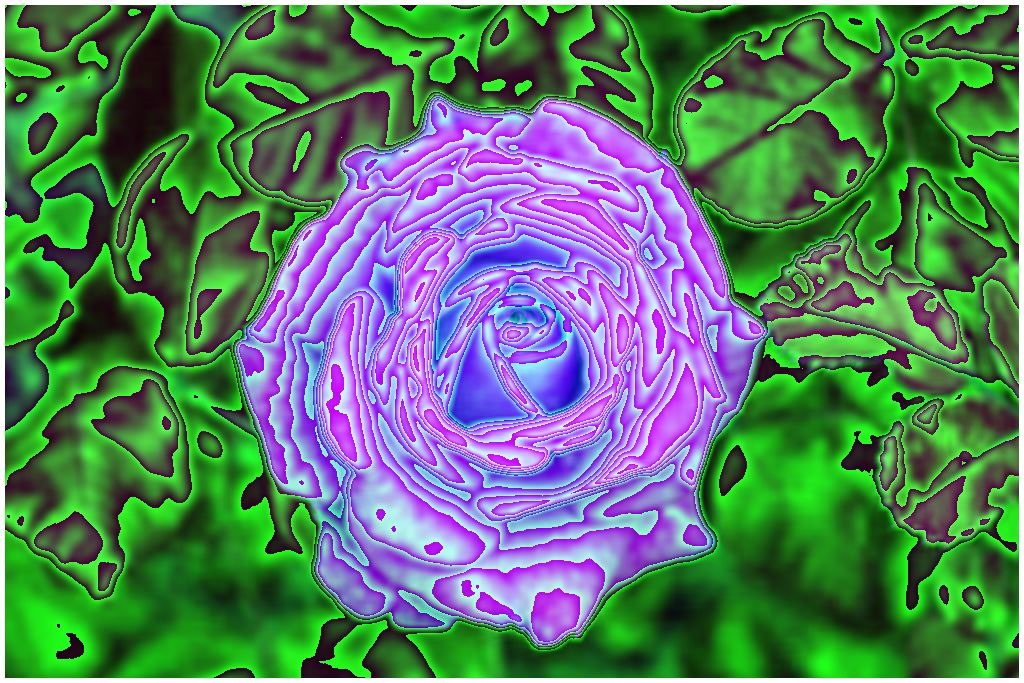
Colour Average Blue Size 11

Colour Average Blue Size 11

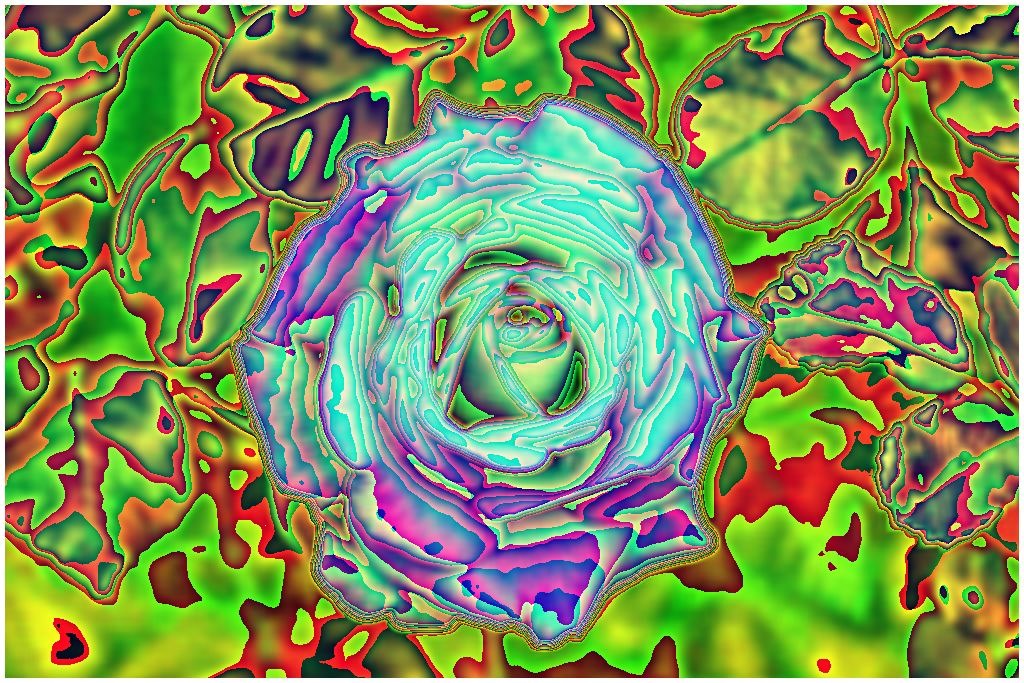
Colour Average Blue Size 11 Shift Left

Colour Average Blue Size 11 Shift Left

Colour Average Blue Size 11 Shift Right

Colour Average Blue Size 11 Shift Right

Colour Average Green Size 11 Shift Right

Colour Average Green Size 11 Shift Right

Colour Average Green, Blue Size 11

Colour Average Green, Blue Size 11

Colour Average Green, Blue Size 11 Shift Left

Colour Average Green, Blue Size 11 Shift Left

Colour Average Green, Blue Size 11 Shift Right

Colour Average Green, Blue Size 11 Shift Right

Colour Average Red Size 11

Colour Average Red Size 11

Colour Average Red Size 11 Shift Left

Colour Average Red Size 11 Shift Left

Colour Average Red, Blue Size 11

Colour Average Red, Blue Size 11

Colour Average Red, Blue Size 11 Shift Left

Colour Average Red, Blue Size 11 Shift Left

Colour Average Red, Green Size 11

Colour Average Red, Green Size 11

Colour Average Red, Green Size 11 Shift Left

Colour Average Red, Green Size 11 Shift Left

Colour Average Red, Green Size 11 Shift Right

Colour Average Red, Green Size 11 Shift Right

Colour Average Red, Green, Blue Size 11

Colour Average Red, Green, Blue Size 11

Colour Average Red, Green, Blue Size 11 Shift Left

Colour Average Red, Green, Blue Size 11 Shift Left

Colour Average Red, Green, Blue Size 11 Shift Right

Colour Average Red, Green, Blue Size 11 Shift Right

Related Articles and Feedback

Feedback and questions are always encouraged. If you know of an alternative implementation or have ideas on a more efficient implementation please share in the comments section.

I’ve published a number of articles related to imaging and images of which you can find URL links here:

C# How to: Image Median Filter

Article purpose

The objective of this article is focussed on providing a discussion on implementing a on an . This article illustrates varying levels of filter intensity: 3×3, 5×5, 7×7, 9×9, 11×11 and 13×13.

Sample source code

This article is accompanied by a sample source code Visual Studio project which is available for download .

Using the Sample Application

The concepts explored in this article can be easily replicated by making use of the Sample Application, which forms part of the associated sample source code accompanying this article.

When using the Image Median Filter sample application you can specify a input/source image by clicking the Load Image button. The dropdown combobox towards the bottom middle part of the screen relates the various levels of filter intensity.

If desired a user can save the resulting filtered image to the local file system by clicking the Save Image button.

The following image is screenshot of the Image Median Filter sample application in action:

Image Median Filter Sample Application

What is a Median Filter

From we gain the following :

In , it is often desirable to be able to perform some kind of noise reduction on an image or signal. The median filter is a nonlinear technique, often used to remove noise. Such noise reduction is a typical pre-processing step to improve the results of later processing (for example, on an image). Median filtering is very widely used in digital because, under certain conditions, it preserves edges while removing noise (but see discussion below).

The main idea of the median filter is to run through the signal entry by entry, replacing each entry with the of neighboring entries. The pattern of neighbors is called the "window", which slides, entry by entry, over the entire signal. For 1D signals, the most obvious window is just the first few preceding and following entries, whereas for 2D (or higher-dimensional) signals such as images, more complex window patterns are possible (such as "box" or "cross" patterns). Note that if the window has an odd number of entries, then the is simple to define: it is just the middle value after all the entries in the window are sorted numerically. For an even number of entries, there is more than one possible median, see for more details.

In simple terms, a can be applied to in order to achieve smoothing or reduction. The in contrast to most smoothing methods, to a degree exhibits edge preservation properties.

Applying a Median Filter

The sample source code defines the MedianFilter targeting the class. The matrixSize parameter determines the intensity of the being applied.

The MedianFilter iterates each pixel of the source . When iterating pixels we determine the neighbouring pixels of the pixel currently being iterated. After having built up a list of neighbouring pixels, the List is then sorted and from there we determine the middle pixel value. The final step involves assigning the determined middle pixel to the current pixel in the resulting , represented as an array of pixel colour component .

public static Bitmap MedianFilter(this Bitmap sourceBitmap,  
                                            int matrixSize,   
                                              int bias = 0,  
                                    bool grayscale = false)  
{
    BitmapData sourceData =  
               sourceBitmap.LockBits(new Rectangle (0, 0, 
               sourceBitmap.Width, sourceBitmap.Height), 
               ImageLockMode.ReadOnly,  
               PixelFormat.Format32bppArgb); 

byte[] pixelBuffer = new byte[sourceData.Stride * sourceData.Height];
byte[] resultBuffer = new byte[sourceData.Stride * sourceData.Height];
Marshal.Copy(sourceData.Scan0, pixelBuffer, 0, pixelBuffer.Length);
sourceBitmap.UnlockBits(sourceData);
if (grayscale == true) { float rgb = 0;
for (int k = 0; k < pixelBuffer.Length; k += 4) { rgb = pixelBuffer[k] * 0.11f; rgb += pixelBuffer[k + 1] * 0.59f; rgb += pixelBuffer[k + 2] * 0.3f;
pixelBuffer[k] = (byte )rgb; pixelBuffer[k + 1] = pixelBuffer[k]; pixelBuffer[k + 2] = pixelBuffer[k]; pixelBuffer[k + 3] = 255; } }
int filterOffset = (matrixSize - 1) / 2; int calcOffset = 0;
int byteOffset = 0; List<int> neighbourPixels = new List<int>(); byte[] middlePixel;
for (int offsetY = filterOffset; offsetY < sourceBitmap.Height - filterOffset; offsetY++) { for (int offsetX = filterOffset; offsetX < sourceBitmap.Width - filterOffset; offsetX++) { byteOffset = offsetY * sourceData.Stride + offsetX * 4;
neighbourPixels.Clear();
for (int filterY = -filterOffset; filterY <= filterOffset; filterY++) { for (int filterX = -filterOffset; filterX <= filterOffset; filterX++) {
calcOffset = byteOffset + (filterX * 4) + (filterY * sourceData.Stride);
neighbourPixels.Add(BitConverter.ToInt32( pixelBuffer, calcOffset)); } }
neighbourPixels.Sort(); middlePixel = BitConverter.GetBytes( neighbourPixels[filterOffset]);
resultBuffer[byteOffset] = middlePixel[0]; resultBuffer[byteOffset + 1] = middlePixel[1]; resultBuffer[byteOffset + 2] = middlePixel[2]; resultBuffer[byteOffset + 3] = middlePixel[3]; } }
Bitmap resultBitmap = new Bitmap(sourceBitmap.Width, sourceBitmap.Height);
BitmapData resultData = resultBitmap.LockBits(new Rectangle (0, 0, resultBitmap.Width, resultBitmap.Height), ImageLockMode.WriteOnly, PixelFormat.Format32bppArgb);
Marshal.Copy(resultBuffer, 0, resultData.Scan0, resultBuffer.Length);
resultBitmap.UnlockBits(resultData);
return resultBitmap; }

Sample Images

The sample images illustrated in this article were rendered from the same source image which is licensed under the Creative Commons Attribution-Share Alike 3.0 Unported, 2.5 Generic, 2.0 Generic and 1.0 Generic license. The original image is attributed to Luc Viatourwww.Lucnix.be and can be downloaded from Wikipedia.

The Original Source Image

Ara_ararauna_Luc_Viatour

Median 3×3 Filter

Median Filter 3x3

Median 5×5 Filter

Median Filter 5x5

Median 7×7 Filter

Median Filter 7x7

Median 9×9 Filter

Median Filter 9x9

Median 11×11 Filter

Median Filter 11x11

Median 13×13 Filter

Median Filter 13x13

Related Articles and Feedback

Feedback and questions are always encouraged. If you know of an alternative implementation or have ideas on a more efficient implementation please share in the comments section.

I’ve published a number of articles related to imaging and images of which you can find URL links here:

C# How to: Swapping Bitmap ARGB Colour Channels

Article Purpose

The intention of is to explain and illustrate the various possible combinations that can be implemented when swapping the underlying colour channels related to a  image. The concepts explained can easily be replicated by making use of the included sample application.

Sample source code

is accompanied by a sample source code Visual Studio project which is available for download here.

Using the sample Application

The sample application associated with allows the user to select a source image, apply a colour shifting option. The user is provided  with the option to save to disk the resulting new . The below is a screenshot of the Bitmap ARGB Swapping application in action:

SampleAppScreenshot

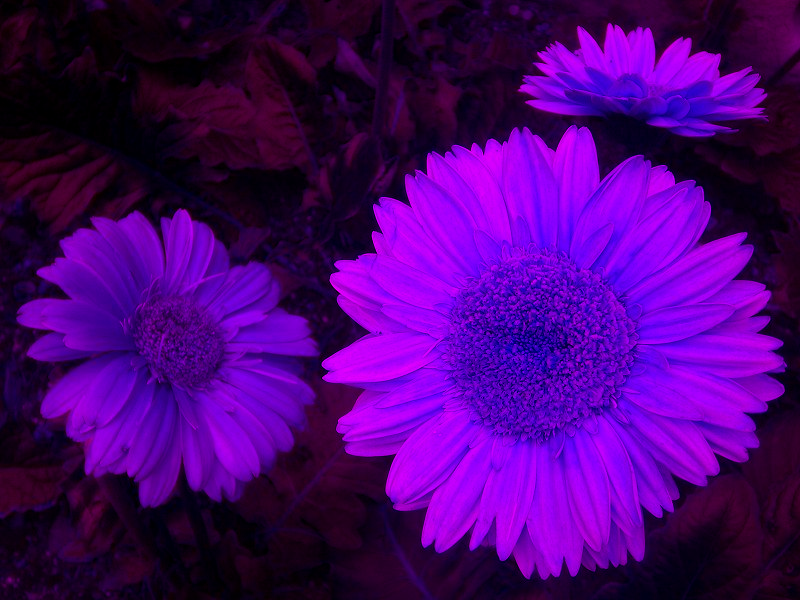
The scenario illustrated above shows an of flowers being transformed by swapping the underlying colour channels. In this case the ShiftLeft algorithm had been applied. The original is licenced under the , the original image can be downloaded from Wikipedia.

Types of Colour Swapping

The sample source code defines the type ColorSwapType, which represents the possible combinations of colour channel swapping that can be applied to a . The source code extract below provides the definition of the ColorSwapType :

public enum ColorSwapType
{
    ShiftRight,
    ShiftLeft,
    SwapBlueAndRed,
    SwapBlueAndGreen,
    SwapRedAndGreen,
}

When directly manipulating a object’s pixel values an important detail should be noted: Bitmap colour channels in memory are represented in the order Blue, Green, Red and Alpha despite being commonly referred to by abbreviation ARGB!

The following list describes each colour swapping type’s outcome:

  • ShiftRight: Starting at Blue, each colour’s value is set to the colour channel to the right. The value of Blue is applied to Red, Red’s original value applied to Green, Green’s original value applied to Blue.
  • ShiftLeft: Starting at Blue, each colour’s value is set to the colour channel to the left. The value of Blue is applied to Green, Green’s original value applied to Red, Red’s original value applied to Blue.
  • SwapBlueAndRed: The value of the Blue channel is applied to the Red channel and the original value of the Red channel is then applied to the Blue channel. The value of the Green channel remains unchanged.
  • SwapBlueAndGreen: The value of the Blue channel is applied to the Green channel and the original value of the Green channel is then applied to the Blue channel. The value of the Red  channel remains unchanged.
  • SwapRedAndGreen: The value of the Red channel is applied to the Green channel and the original value of the Green channel is then applied to the Red channel. The value of the Blue channel remains unchanged.

The Colour Swap Filter

The sample source code defines the ColorSwapFilter class. This class provides several member properties, which in combination represent the options involved in applying a colour swap filter. The source code snippet below provides the definition of the ColorSwapFilter type:

public class ColorSwapFilter
{
   private ColorSwapType swapType = ColorSwapType.ShiftRight;
   public ColorSwapType SwapType
   {
        get{ return swapType;}
        set{ swapType = value;}
   }

private bool swapHalfColorValues = false; public bool SwapHalfColorValues { get{ return swapHalfColorValues;} set{ swapHalfColorValues = value;} }
private bool invertColorsWhenSwapping = false; public bool InvertColorsWhenSwapping { get{ return invertColorsWhenSwapping;} set{ invertColorsWhenSwapping = value;} }
public enum ColorSwapType { ShiftRight, ShiftLeft, SwapBlueAndRed, SwapBlueAndGreen, SwapRedAndGreen, } }

The member properties defined by the ColorSwapFilter class:

  • Implementing the ColorSwapType discussed earlier, the SwapType member property defines the type of colour channel swapping to apply.
  • Before swapping colour channel values, colour values can be inverted depending on whether InvertColorsWhenSwapping equates to true.
  • In order to reduce the intensity of the resulting image, the SwapHalfColorValues property should be set to true. The end result being destination colour channels are set to 50% of relevant source colour channel values.

Applying the Colour Swap Filter

The sample source code accompanying defines the SwapColorsCopy method, an targeting class. When invoking the SwapColorsCopy extension method, the calling code is required to specify an input and an instance of the ColorSwapFilter class. By virtue of being an the input/source will be specified by the object instance invoking the SwapColorsCopy method.

The source code listing below provides the definition of the SwapColorsCopy .

public static Bitmap SwapColorsCopy(this Bitmap originalImage, ColorSwapFilter swapFilterData)
{
    BitmapData sourceData = originalImage.LockBits
                            (new Rectangle(0, 0, originalImage.Width, originalImage.Height),
                            ImageLockMode.ReadOnly, PixelFormat.Format32bppArgb);

byte[] resultBuffer = new byte[sourceData.Stride * sourceData.Height]; Marshal.Copy(sourceData.Scan0, resultBuffer, 0, resultBuffer.Length); originalImage.UnlockBits(sourceData);
byte sourceBlue = 0, resultBlue = 0, sourceGreen = 0, resultGreen = 0, sourceRed = 0, resultRed = 0; byte byte2 = 2, maxValue = 255;
for (int k = 0; k < resultBuffer.Length; k += 4) { sourceBlue = resultBuffer[k]; sourceGreen = resultBuffer[k + 1]; sourceRed = resultBuffer[k + 2];
if (swapFilterData.InvertColorsWhenSwapping == true) { sourceBlue = (byte)(maxValue - sourceBlue); sourceGreen = (byte)(maxValue - sourceGreen); sourceRed = (byte)(maxValue - sourceRed); }
if (swapFilterData.SwapHalfColorValues == true) { sourceBlue = (byte)(sourceBlue / byte2); sourceGreen = (byte)(sourceGreen / byte2); sourceRed = (byte)(sourceRed / byte2); }
switch (swapFilterData.SwapType) { case ColorSwapFilter.ColorSwapType.ShiftRight: { resultBlue = sourceGreen; resultRed = sourceBlue; resultGreen = sourceRed; break; } case ColorSwapFilter.ColorSwapType.ShiftLeft: { resultBlue = sourceRed; resultRed = sourceGreen; resultGreen = sourceBlue; break; } case ColorSwapFilter.ColorSwapType.SwapBlueAndRed: { resultBlue = sourceRed; resultRed = sourceBlue; break; } case ColorSwapFilter.ColorSwapType.SwapBlueAndGreen: { resultBlue = sourceGreen; resultGreen = sourceBlue; break; } case ColorSwapFilter.ColorSwapType.SwapRedAndGreen: { resultRed = sourceGreen; resultGreen = sourceGreen; break; } }
resultBuffer[k] = resultBlue; resultBuffer[k + 1] = resultGreen; resultBuffer[k + 2] = resultRed; }
Bitmap resultBitmap = new Bitmap(originalImage.Width, originalImage.Height, PixelFormat.Format32bppArgb); BitmapData resultData = resultBitmap.LockBits (new Rectangle(0, 0, resultBitmap.Width, resultBitmap.Height), ImageLockMode.WriteOnly, PixelFormat.Format32bppArgb);
Marshal.Copy(resultBuffer, 0, resultData.Scan0, resultBuffer.Length); resultBitmap.UnlockBits(resultData);
return resultBitmap; }

Due to the architecture and implementation of the .net when manipulating a object’s underlying colour values we need to ensure locking the relevant data buffer in memory. When invoking the class’ method the calling code prevents the from shifting and updating memory references. Once a ’s underlying pixel buffer has been locked in memory the source code creates a data buffer of type byte array and then copies the ’s underlying pixel buffer data.

BitmapData sourceData = originalImage.LockBits
                        (new Rectangle(0, 0, originalImage.Width, originalImage.Height),
                        ImageLockMode.ReadOnly, PixelFormat.Format32bppArgb);

byte[] resultBuffer = new byte[sourceData.Stride * sourceData.Height]; Marshal.Copy(sourceData.Scan0, resultBuffer, 0, resultBuffer.Length); originalImage.UnlockBits(sourceData);

The sample source code next iterates the pixel buffer array. Notice how the for loop increments by 4 with each loop. Every four elements of the data buffer in combination represents one pixel, each colour channel expressed as a value ranging from 0 to 255 inclusive.

for (int k = 0; k < resultBuffer.Length; k += 4)

If required each colour channel will first be assigned to a value equating to its inverse value by subtracting from 255.

if (swapFilterData.InvertColorsWhenSwapping == true)
{
     sourceBlue = (byte)(maxValue - sourceBlue);
     sourceGreen = (byte)(maxValue - sourceGreen);
     sourceRed = (byte)(maxValue - sourceRed);
}

When the supplied ColorSwapFilter object method parameter defines SwapHalfColorValues as true the source colour value will be divided by 2.

if (swapFilterData.SwapHalfColorValues == true)
{
     sourceBlue = (byte)(sourceBlue / byte2);
     sourceGreen = (byte)(sourceGreen / byte2);
     sourceRed = (byte)(sourceRed / byte2);
}
 

The next section implements a case statement, each option implementing the required colour channel swap algorithm. The last step expressed as part of the for loop results in assigning newly manipulated values to the data buffer.

The SwapColorsCopy extension method can be described as being immutable in the sense that the input value remains unchanged, instead manipulating and returning a copy of the input data. Following the data buffer iteration the sample source creates a new instance of the class and locks it into memory by invoking the method. By implementing the method the source code copies the data buffer to the underlying buffer associated with the newly created object.

 Bitmap resultBitmap = new Bitmap(originalImage.Width, originalImage.Height, 
                                     PixelFormat.Format32bppArgb);
 
BitmapData resultData = resultBitmap.LockBits (new Rectangle(0, 0, resultBitmap.Width, resultBitmap.Height), ImageLockMode.WriteOnly, PixelFormat.Format32bppArgb);
Marshal.Copy(resultBuffer, 0, resultData.Scan0, resultBuffer.Length); resultBitmap.UnlockBits(resultData);
return resultBitmap;

The implementation: a

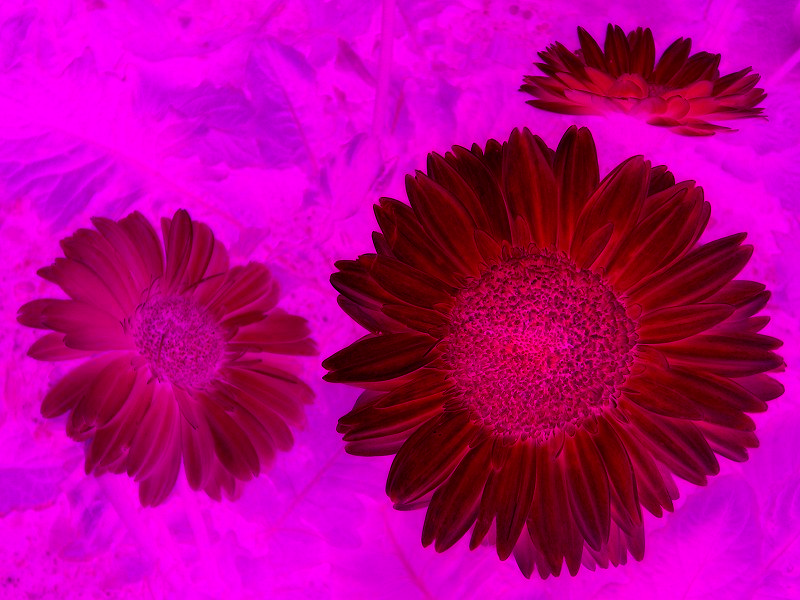
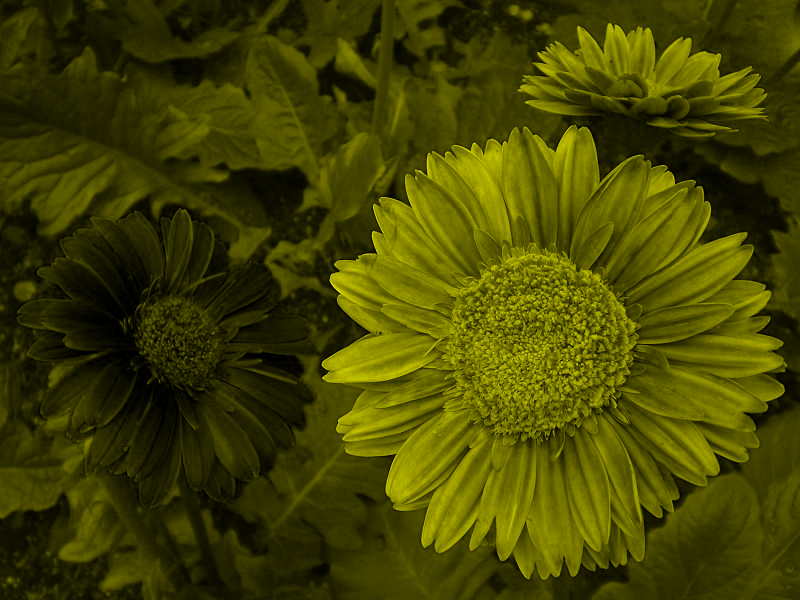
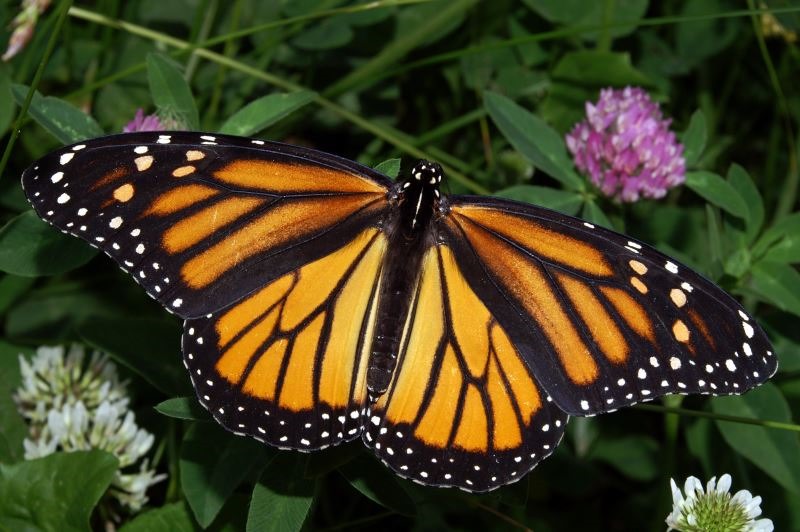
The sample source code accompanying defines a , the intention of which being to illustrate a test implementation. The following series of images were created using the sample application:

The source/input image is licenced under the , the original image can be downloaded from Wikipedia.

The Original Image
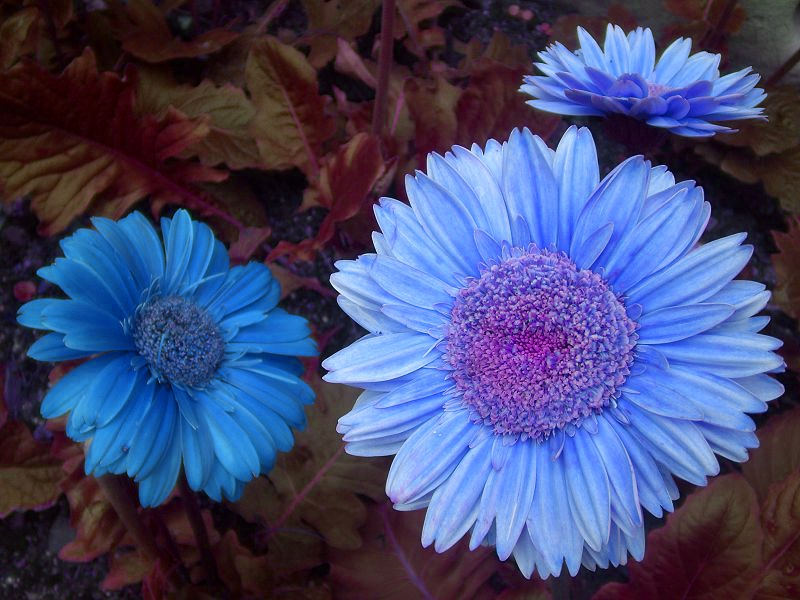
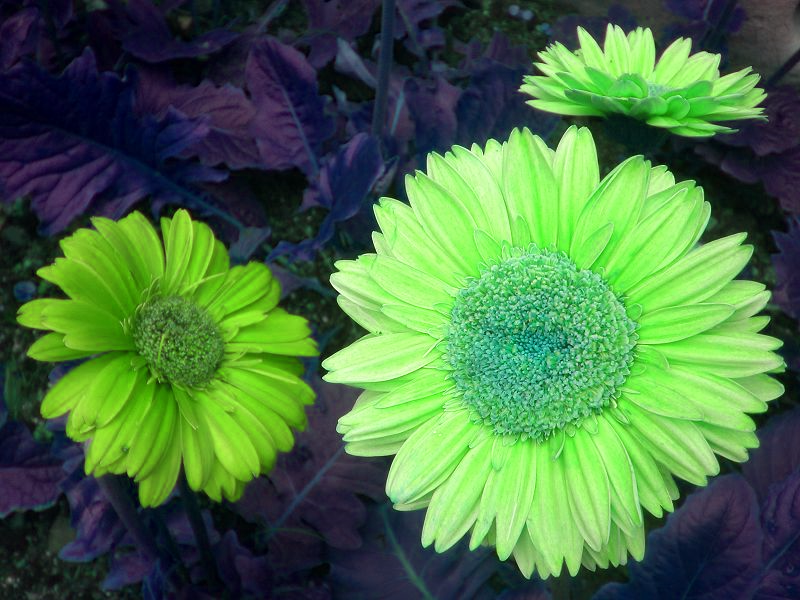
800px-HK_Sheung_Wan_Hollywood_Road_Park_Flowers_in_Purple

The ShiftLeft Colour Swapping algorithm:

ShiftLeft

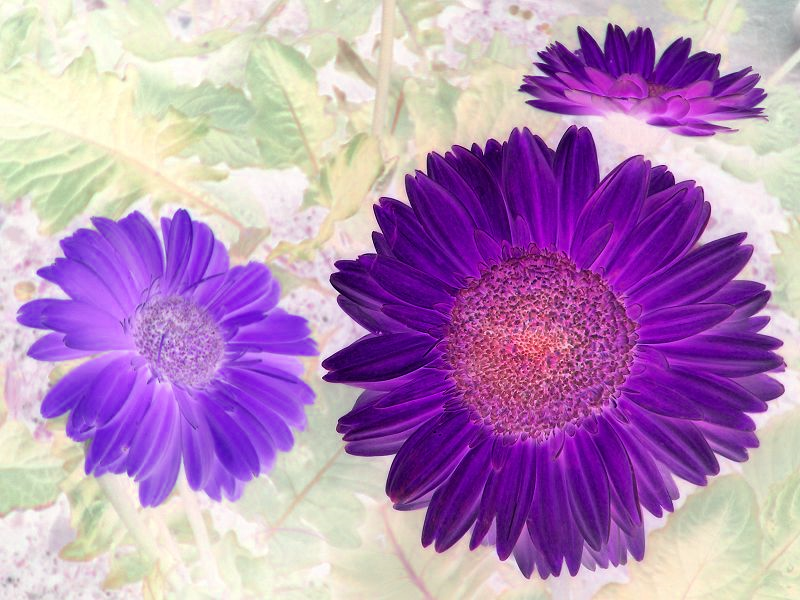
Inverted:

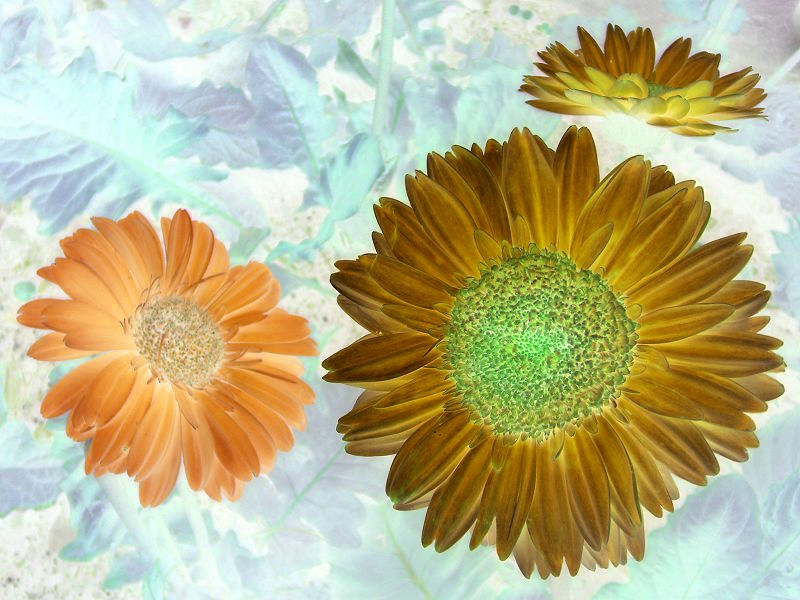
ShiftLeft_inverted

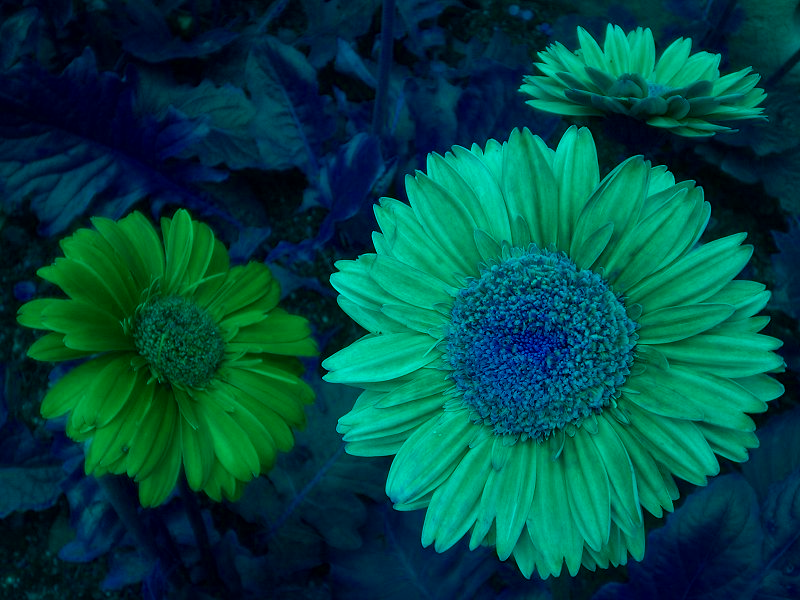
The ShiftRight Colour Swapping algorithm:

ShiftRight

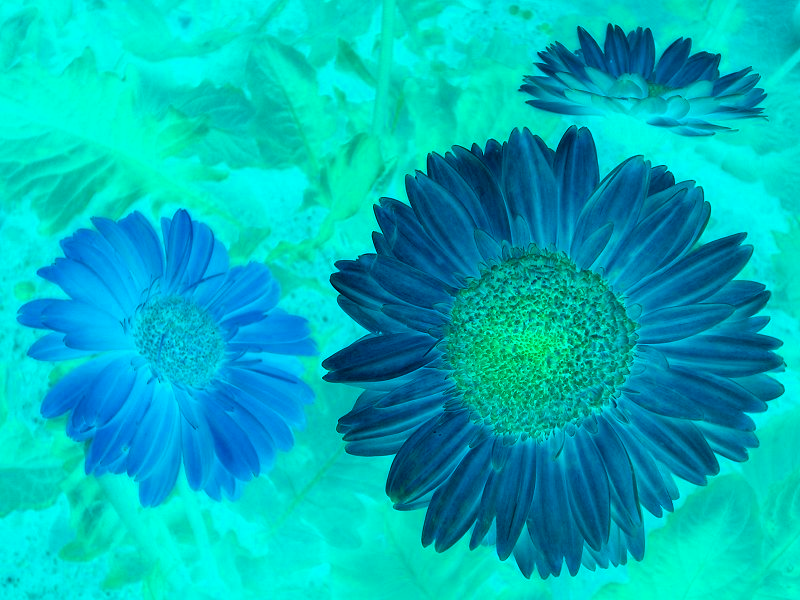
Inverted:

ShiftRight_inverted

The SwapBlueAndGreen Colour Swapping algorithm:

SwapBlueAndGreen

Inverted:

SwapBlueAndGreen_inverted

The SwapBlueAndRed Colour Swapping algorithm:

SwapBlueAndRed

Inverted:

SwapBlueAndRed_inverted

The SwapRedAndGreen Colour Swapping algorithm:

SwapRedAndGreen

Inverted:

SwapRedAndGreen_inverted

Related Articles and Feedback

Feedback and questions are always encouraged. If you know of an alternative implementation or have ideas on a more efficient implementation please share in the comments section.

I’ve published a number of articles related to imaging and images of which you can find URL links here:

C# How to: Drawing in GDI with Opacity/Alpha components

Article Purpose

In this article we explore GDI+ drawing operations implementing opacity, also known as alpha blending.

Sample source code

This article is accompanied by a sample source code Visual Studio project which is available for download here
C# How to: Drawing in GDI with Opacity/Alpha components

Using the Sample Application

The following is a screenshot of the included sample application:

GDIOpacityDrawing

The screenshot illustrates drawing text and a rectangle onto a Windows Form in Color.SteelBlue with an alpha component of 100.

GDI+ Drawing

In C# it is possible and relatively easy to draw text and two dimensional shapes in GDI+ that support a level of opacity or transparency. The well known abbreviation RGB abbreviates the term Red, Green and Blue. C# supports RGB colours but also what is known as ARGB colours. In the case of ARGB the A abbreviates the word Alpha, in other words an RGB colour with a specified alpha component.

An alpha component specifies a colour’s opacity or transparency. Possible values range from 0 to 255 inclusive, where 0 would represent full transparency and 255 no level of transparency. If a consists of 8 bits and an ARGB colour is composed of 4 components ranging from 0 to 255 each representing a or 8 bits, then an ARGB colour is therefore a 32 bit colour.

The Color structure

The System.Drawing namespace defines the Color structure, which exposes several functions aimed at creating an ARGB Color object instance:

The Paint Event Handler

The bulk of this example’s functionality occurs within the main Form’s handler, as detailed by the following code snippet:

private void MainFormPaintEventHandler(object sender, PaintEventArgs e) 
{ 
    Color alphaForeColor = Color.FromArgb(this.foreColorAlphaValue, this.ForeColor); 
    Pen rectanglePen = new Pen(alphaForeColor, 2.0f); 
    SolidBrush textBrush = new SolidBrush(alphaForeColor); 

float x = this.ClientRectangle.Width / 2.0f; x -= e.Graphics.MeasureString(textToDisplay, this .Font).Width / 2.0f;
float y = this.ClientRectangle.Height / 2.0f; y -= e.Graphics.MeasureString(textToDisplay, this.Font).Height / 2.0f;
e.Graphics.DrawString(textToDisplay, this.Font, textBrush, new PointF(x, y));
e.Graphics.DrawRectangle(rectanglePen, 25, 25, this.ClientRectangle.Width - 50, this.ClientRectangle.Height - 50); }

The main Form defines two member variables used in the handler:

 private byte foreColorAlphaValue = 100;
 textToDisplay = "http://softwarebydefault.com";

In the handler an instance of the structure is created implementing an alpha component defined by the ’s member variable. The object declaration is followed by an ARGB   Pen and SolidBrush declaration.

Next the code determines the X and Y coordinates that would result in drawing the ’s string member variable in the middle of the , after which the actual drawing occurs.

Using the Pen object declared earlier a rectangle is drawn 25 pixels inside the ’s ClientRectangle.


Dewald Esterhuizen

Unknown's avatar

Blog Stats

  • 892,466 hits

Enter your email address to follow and receive notifications of new posts by email.

Join 91 other subscribers

Archives

RSS SoftwareByDefault on MSDN

  • An error has occurred; the feed is probably down. Try again later.