Posts Tagged 'Extension Methods'


C# How to: Encoding Base64 Thumbnails

Article purpose

This details how to read files from the file system, create and then encoding to strings.

Sample source code

This is accompanied by a sample source code Visual Studio project which is available for download .

Images as Base64 strings

From :

Base64 is a group of similar encoding schemes that represent in an ASCII string format by translating it into a -64 representation. The Base64 term originates from a specific .

Base64 encoding schemes are commonly used when there is a need to encode binary data that need to be stored and transferred over media that are designed to deal with textual data. This is to ensure that the data remain intact without modification during transport. Base64 is commonly used in a number of applications including via , and storing complex data in .

From the definition quoted above the need for base64 encoding becomes more clear. From :

The base-64 digits in ascending order from zero are the uppercase characters "A" to "Z", the lowercase characters "a" to "z", the numerals "0" to "9", and the symbols "+" and "/". The valueless character, "=", is used for trailing padding.

encoding allows developers to expose binary data without potentially encountering conflicts in regards to the transfer medium. encoded binary data serves ideally when performing data transfer operations using platforms such as html, xml, email.

A common implementation of encoding can be found when transferring data. This article details how to convert/encode object to strings.

Base64 Image encoding implemented as an extension method

The code snippet listed below details the ToBase64String targeting the class.

public static string ToBase64String(this Image bmp)
{
    string base64String = string.Empty;
    MemoryStream memoryStream = null;

try { memoryStream = new MemoryStream(); bmp.Save(memoryStream, ImageFormat.Png); } catch (Exception exc) { return String.Empty; }
memoryStream.Position = 0; byte[] byteBuffer = memoryStream.ToArray();
memoryStream.Close();
base64String = Convert.ToBase64String(byteBuffer, Base64FormattingOptions.InsertLineBreaks); byteBuffer = null;
return base64String; }

The ToBase64String method writes the targeted object’s pixel data to a object using the Png . Next a array is extracted and passed to the method , which is responsible for implementing the encoding.

Creating an Image tag implementing a Base64 string

The sample source code in addition also defines an to generate html image tags to display a string encoded .

public static string ToBase64ImageTag(this Image bmp)
{
    string imgTag = string.Empty;
    string base64String = string.Empty;

base64String = bmp.ToBase64String();
imgTag = "<img src=\\"data:image/" + "png" + ";base64,"; imgTag += base64String + "\\" "; imgTag += "width=\\"" + bmp.Width.ToString() + "\\" "; imgTag += "height=\\"" + bmp.Height.ToString() + "\\" />";
return imgTag; }

The ToBase64ImageTag invokes the ToBase64String in order to retrieve encoded the data. The Html image tag has only to be slightly modified from the norm in order to accommodate encoded strings.

Creating Image thumbnails

The class conveniently provides the method , which we’ll be using to create from existing objects. The sample source code defines the method ToBase64Thumbnail, as listed below:

public static string ToBase64Thumbnail(this Image bmp, int width, int height, bool wrapImageTag)
{
    Image.GetThumbnailImageAbort callback = new Image.GetThumbnailImageAbort(ThumbnailCallback);

Image thumbnailImage = bmp.GetThumbnailImage(width, height, callback, new IntPtr());
string base64String = String.Empty;
if (wrapImageTag == true) { base64String = thumbnailImage.ToBase64ImageTag(); } else { base64String = thumbnailImage.ToBase64String(); }
thumbnailImage.Dispose();
return base64String; }
private static bool ThumbnailCallback() { return true; }

The ToBase64Thumbnail is defined as an targeting the class. The calling code is required to specify the width and height of the output and in addition whether to wrap the encoded string in an Html <img> tag.

Note the definition of ThumnailCallback, the method requires calling code to specify a callback delegate.

Based on the value of the parameter wrapImageTag, we next invoke either ToBase64ImageTag or ToBase64String, as defined/discussed earlier.

Reading Image files from the file system

The starting point in creating encoded would be to read the local file system, searching for files. The ToBase64Thumbnails method is defined as an targeting the string class. When invoking the ToBase64Thumbnails method users are expected to provide a directory path, width and height of output , whether to add Html <img> tags and which file types to process. The code snippet below details the implementation of the ToBase64Thumbnails method.

public static List<string> ToBase64Thumbnails(this string path, int width, int height, bool wrapImageTag, params string[] fileTypes)
{
    List<string> base64Thumbnails = new List<string>();

string searchFilter = String.Empty;
if (fileTypes != null) { for (int k = 0; k < fileTypes.Length; k++) { searchFilter += "*." + fileTypes[k];
if (k < fileTypes.Length - 1) { searchFilter += "|"; } } } else { searchFilter = "*.*"; }
string[] files = Directory.GetFiles(path, searchFilter);
for (int k = 0; k < files.Length; k++) { StreamReader streamReader = new StreamReader(files[k]); Image img = Image.FromStream(streamReader.BaseStream); streamReader.Close();
base64Thumbnails.Add(img.ToBase64Thumbnail(width, height, wrapImageTag));
img.Dispose(); }
return base64Thumbnails; }

The ToBase64Thumbnails method implements the static method in order to search a specified directory path. When invoking the ToBase64Thumbnails method the calling code can optionally specify a number of file extensions, which results in only files having file extensions conforming to the specified extensions being encoded.

Once an array of file paths have been determined the sample code iterates the array creating an object of each file specified. The final step required is to invoke the ToBase64Thumbnail.

The implementation

The sample source code defines a console based application, used to test/illustrate creating encoded based on a specified directory path.  Included in the sample code is a template html file. The Main method generates a list of encoded by invoking ToBase64Thumbnails, defined as an targeting the String class. The resulting encoded are defined as Html <img> tags, added to a copy of the html template file. The Console application’s definition:

static void Main(string[] args)
{
    string path = "Images";

List<string> thumbnailTags = path.ToBase64Thumbnails(100, 100, true, null);
StreamReader streamreader = new StreamReader("HtmlTemplate.htm"); StringBuilder htmlPage = new StringBuilder(streamreader.ReadToEnd()); streamreader.Close();
StringBuilder imageTags = new StringBuilder();
for (int k = 0; k < thumbnailTags.Count; k++) { imageTags.AppendLine("<p>"); imageTags.AppendLine(thumbnailTags[k]); imageTags.AppendLine("</p>"); }
htmlPage.Replace("<!--Tags_Placeholder-->", imageTags.ToString());
StreamWriter streamwriter = new StreamWriter("TempPage.htm", false, Encoding.UTF8); streamwriter.Write(htmlPage.ToString()); streamwriter.Close();
Process.Start("TempPage.htm");
Console.ReadKey(); }

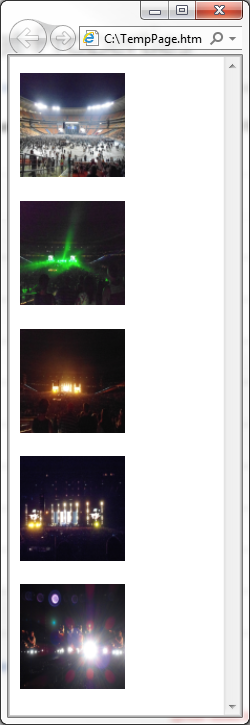
The resulting encoded image viewed as html <img> tags forming part of an html file, as viewed in Microsoft Internet Explorer 9:

Base64Thumbnails

C# How to: Image filtering implemented using a ColorMatrix

Article purpose

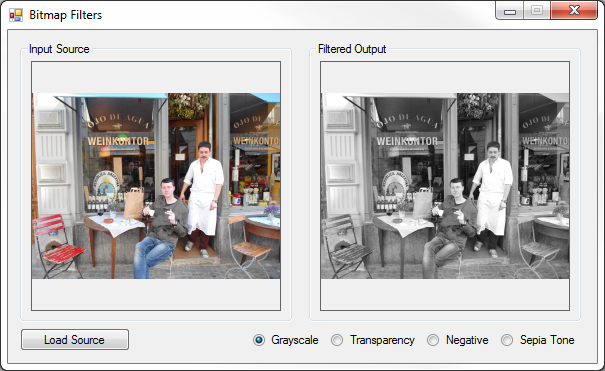
This is based around creating basic filters. The different types of filters discussed are: Grayscale, Transparency, Image Negative and Sepia tone. All filters are implemented as targeting the Image class, as well as the Bitmap class as the result of inheritance and upcasting.

Note: This is a follow up to . The previously published related article implements filtering by performing calculations and updating pixel colour component values namely Alpha, Red, Green and Blue. This achieves the same filtering through implementing various transformations, in essence providing an alternative solution. For the sake of convenience I have included the pixel manipulation in addition to the detailed by this article.

Sample source code

This is accompanied by a sample source code Visual Studio project which is available for download .

Implementing a ColorMatrix

From :

Defines a 5 x 5 matrix that contains the coordinates for the RGBAW space. Several methods of the ImageAttributes class adjust image colors by using a color matrix.

The matrix coefficients constitute a 5 x 5 linear transformation that is used for transforming ARGB homogeneous values. For example, an ARGB vector is represented as red, green, blue, alpha and w, where w is always 1.

When implementing a translation using the class values specified are added to one or more of the four colour components. A value that is to be added may only range from 0 to 1 inclusive. Note that adding a negative value results in subtracting values. A good article that illustrates implementing a can be found on MSDN: How to: Translate Image Colors.

The following code snippet provides the implementation of the ApplyColorMatrix method.

private static Bitmap ApplyColorMatrix(Image sourceImage, ColorMatrix colorMatrix)
{
    Bitmap bmp32BppSource = GetArgbCopy(sourceImage);
    Bitmap bmp32BppDest = new Bitmap(bmp32BppSource.Width, bmp32BppSource.Height, PixelFormat.Format32bppArgb);

using (Graphics graphics = Graphics.FromImage(bmp32BppDest)) { ImageAttributes bmpAttributes = new ImageAttributes(); bmpAttributes.SetColorMatrix(colorMatrix); graphics.DrawImage(bmp32BppSource, new Rectangle(0, 0, bmp32BppSource.Width, bmp32BppSource.Height), 0, 0, bmp32BppSource.Width, bmp32BppSource.Height, GraphicsUnit.Pixel, bmpAttributes);
}
bmp32BppSource.Dispose();
return bmp32BppDest; }

The ApplyColorMatrix method signature defines a parameter of type and a second parameter of type . This method is intended to apply the specified upon the parameter specified.

The source is firstly copied in order to ensure that the that is to be transformed is defined with a pixel format of 32 bits per pixel, consisting of the colour components Alpha, Red, Green and Blue. Next we create a blank memory defined to reflect the same size dimensions as the original source . A can be implemented by means of applying an when invoking the defined by the class.

Creating an ARGB copy

The source code snippet listed below converts source images into 32Bit ARGB formatted :

private static Bitmap GetArgbCopy(Image sourceImage)
{
    Bitmap bmpNew = new Bitmap(sourceImage.Width, sourceImage.Height, PixelFormat.Format32bppArgb);

using(Graphics graphics = Graphics.FromImage(bmpNew)) { graphics.DrawImage(sourceImage, new Rectangle (0, 0, bmpNew.Width, bmpNew.Height), new Rectangle (0, 0, bmpNew.Width, bmpNew.Height), GraphicsUnit.Pixel); graphics.Flush(); }
return bmpNew; }

The GetArgbCopy method creates a blank memory Bitmap having the same size dimensions as the source image. The newly created Bitmap is explicitly specified to conform to a 32Bit ARGB format. By making use of a Graphics object of which the context is bound to the new Bitmap instance the source code draws the original image to the new Bitmap.

The Transparency Filter

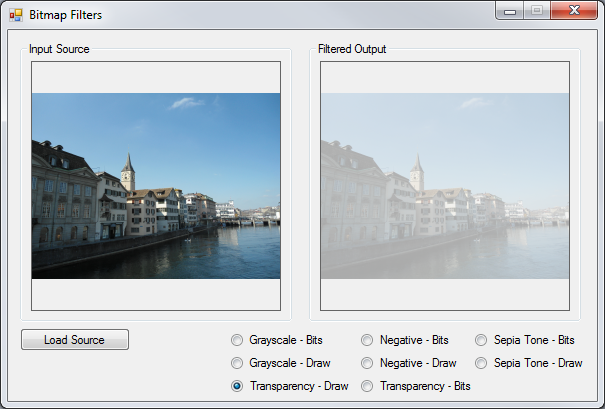
The transparency filter is intended to create a copy of an , increase the copy’s level of transparency and return the modified copy to the calling code. Listed below is source code which defines the DrawWithTransparency extension method.

public static Bitmap DrawWithTransparency(this Image sourceImage)
{
    ColorMatrix colorMatrix = new ColorMatrix(new float[][]
                        {
                            new float[]{1, 0, 0, 0, 0},
                            new float[]{0, 1, 0, 0, 0},
                            new float[]{0, 0, 1, 0, 0},
                            new float[]{0, 0, 0, 0.3f, 0},
                            new float[]{0, 0, 0, 0, 1}
                        });

return ApplyColorMatrix(sourceImage, colorMatrix); }

Due to the ApplyColorMatrix method defined earlier implementing an filter simply consists of defining the filter algorithm in the form of a and then invoking ApplyColorMatrix.

The is defined to apply no change to the Red, Green and Blue components whilst reducing the Alpha component by 70%.

Image Filters Transparency ColorMatrix

The Grayscale Filter

All of the filter illustrated in this are implemented in a fashion similar to the DrawWithTransparency method. The DrawAsGrayscale is implemented as follows:

public static Bitmap DrawAsGrayscale(this Image sourceImage)
{
    ColorMatrix colorMatrix = new ColorMatrix(new float[][]
                        {
                            new float[]{.3f, .3f, .3f, 0, 0},
                            new float[]{.59f, .59f, .59f, 0, 0},
                            new float[]{.11f, .11f, .11f, 0, 0},
                            new float[]{0, 0, 0, 1, 0},
                            new float[]{0, 0, 0, 0, 1}
                        });

return ApplyColorMatrix(sourceImage, colorMatrix); }

The grayscale filter is achieved by adding together 11% blue, 59% green and 30% red, then assigning the total value to each colour component.

Image Filters Grayscale ColorMatrix

The Sepia Tone Filter

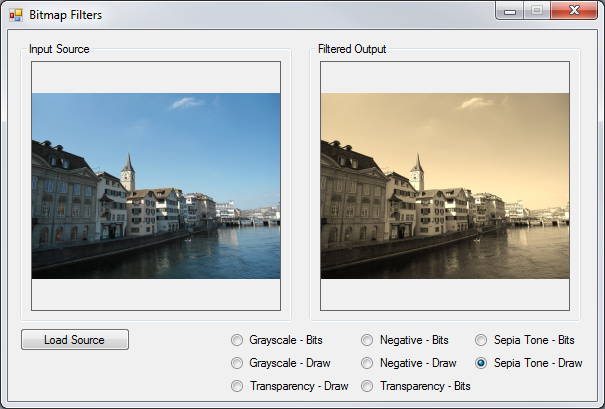
The sepia tone filter is implemented in the DrawAsSepiaTone. Notice how this method follows the same convention as the previously discussed filters. The source code listing is detailed below.

 public static Bitmap DrawAsSepiaTone(this Image sourceImage)
{
     ColorMatrix colorMatrix = new ColorMatrix(new float[][] 
                {
                        new float[]{.393f, .349f, .272f, 0, 0},
                        new float[]{.769f, .686f, .534f, 0, 0},
                        new float[]{.189f, .168f, .131f, 0, 0},
                        new float[]{0, 0, 0, 1, 0},
                        new float[]{0, 0, 0, 0, 1}
                });

return ApplyColorMatrix(sourceImage, colorMatrix); }

The formula used to calculate a sepia tone differs significantly from the grayscale filter discussed previously. The formula can be simplified as follows:

  • Red Component: Sum total of: 39.3% red, 34.9% green , 27.2% blue
  • Green Component: Sum total of: 76.9% red, 68.6% green , 53.4% blue
  • Blue Component: Sum total of: 18.9% red, 16.8% green , 13.1% blue

Image Filters Sepia ColorMatrix

The Negative Image Filter

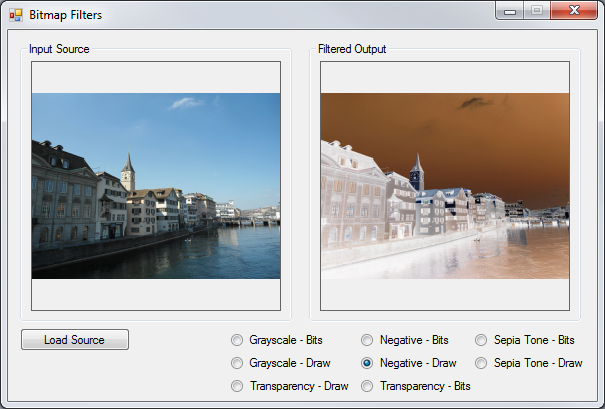
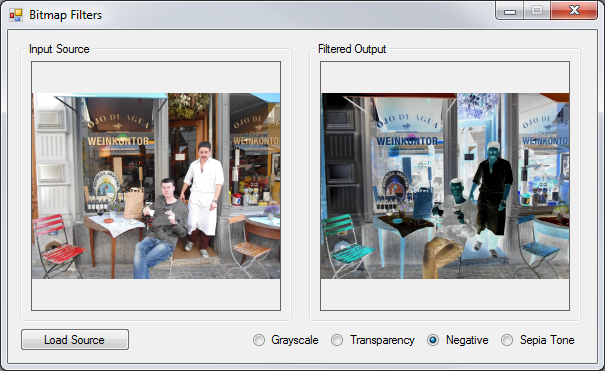
We can implement an filter that resembles film negatives by literally inverting every pixel’s colour components. Listed below is the source code implementation of the DrawAsNegative .

 public static Bitmap DrawAsNegative(this Image sourceImage)
{
     ColorMatrix colorMatrix = new ColorMatrix(new float[][] 
                    {
                            new float[]{-1, 0, 0, 0, 0},
                            new float[]{0, -1, 0, 0, 0},
                            new float[]{0, 0, -1, 0, 0},
                            new float[]{0, 0, 0, 1, 0},
                            new float[]{1, 1, 1, 1, 1}
                    });

return ApplyColorMatrix(sourceImage, colorMatrix); }

Notice how the negative filter subtracts 1 from each colour component, remember the valid range being 0 to 1 inclusive. This in reality inverts each pixel’s colour component bits. The transform being applied can also be expressed as implementing the bitwise compliment operator on each pixel.

Image Filters Negative Color Matrix

The implementation

The filters described in this are all implemented by means of a . filtering is applied by selecting the corresponding radio button. The source loaded from the file system serves as input to the various filter methods, the filtered copy returned will be displayed next to the original source .

The following code snippet details the radio button checked changed event handler:

private void OnCheckChangedEventHandler(object sender, EventArgs e)
{
    if (picSource.BackgroundImage != null)
    {
        if (rdGrayscaleBits.Checked == true)
        {
             picOutput.BackgroundImage = picSource.BackgroundImage.CopyAsGrayscale();
        }
        else if (rdGrayscaleDraw.Checked == true)
        {
             picOutput.BackgroundImage = picSource.BackgroundImage.DrawAsGrayscale();
        }
        else if (rdTransparencyBits.Checked == true)
        {
             picOutput.BackgroundImage = picSource.BackgroundImage.CopyWithTransparency();
        }
        else if (rdTransparencyDraw.Checked == true)
        {
             picOutput.BackgroundImage = picSource.BackgroundImage.DrawWithTransparency();
        }
        else if (rdNegativeBits.Checked == true)
        {
             picOutput.BackgroundImage = picSource.BackgroundImage.CopyAsNegative();
        }
        else if (rdNegativeDraw.Checked == true)
        {
             picOutput.BackgroundImage = picSource.BackgroundImage.DrawAsNegative();
        }
        else if (rdSepiaBits.Checked == true)
        {
             picOutput.BackgroundImage = picSource.BackgroundImage.CopyAsSepiaTone();
        }
        else if (rdSepiaDraw.Checked == true)
        {
             picOutput.BackgroundImage = picSource.BackgroundImage.DrawAsSepiaTone();
        }
    }
}

Related Articles

C# How to: Image filtering by directly manipulating Pixel ARGB values

Article purpose

In this article we discover creating basic filters implemented by directly manipulating the ARGB colour values associated with an ’s pixels. The different types of filters discussed are: Grayscale, Transparency, Image Negative and Sepia tone. All filters are implemented as targeting the class, as well as the class as the result of inheritance and upcasting.

Sample source code

This article is accompanied by a sample source code Visual Studio project which is available for download .

ARGB Overview

ARGB is an abbreviation for the term: “Alpha, Red, Green and Blue”. ARGB refers to four colour components represented by each pixel that forms part of an . In C# 32 bit ARGB are a fairly common occurrence,  each pixel being of a fixed size, namely 32 bits or 4 , which also equates to a standard integer. Each colour component consists of 8 bits or 1 , equating to a range of possible values starting at 0 inclusive and a maximum value of 255 inclusive. It can thus be logically deduced that each of the four ARGB components can be expressed as a value ranging from 0 to 255 inclusive.

A pixel’s alpha component represents a level of transparency, 255 being no transparency and 0 being completely transparent. The combination of Red, Green and Blue values together represent a single colour, the colour associated with an individual pixel.

We can apply filtering on an by manipulating the individual Alpha, Red, Green and Blue components of each pixel.

Extracting the ARGB components of each pixel in an image

In C# an ’s ARGB components are actually stored in the format Blue, Green, Red, Alpha. Before attempting to extract each pixel’s individual components we need to ensure that our source is in fact formatted as a 32Bit ARGB . The source code snippet listed below converts source images into 32Bit ARGB formatted :

private static Bitmap GetArgbCopy(Image sourceImage)
{
    Bitmap bmpNew = new Bitmap(sourceImage.Width, sourceImage.Height, PixelFormat.Format32bppArgb);

using(Graphics graphics = Graphics.FromImage(bmpNew)) { graphics.DrawImage(sourceImage, new Rectangle (0, 0, bmpNew.Width, bmpNew.Height), new Rectangle (0, 0, bmpNew.Width, bmpNew.Height), GraphicsUnit.Pixel); graphics.Flush(); }
return bmpNew; }

The GetArgbCopy method creates a blank memory having the same size dimensions as the source . The newly created is explicitly specified to conform to a 32Bit ARGB format. By making use of a object of which the context is bound to the new instance the source code draws the original image to the new .

The Transparency Filter

The transparency filter is intended to create a copy of an , increase the copy’s level of transparency and return the modified copy to the calling code. Listed below is source code which defines the CopyWithTransparency .

public static Bitmap CopyWithTransparency(this Image sourceImage, byte alphaComponent = 100)
{
    Bitmap bmpNew = GetArgbCopy(sourceImage);
    BitmapData bmpData = bmpNew.LockBits(new Rectangle(0, 0, sourceImage.Width, sourceImage.Height), ImageLockMode.ReadOnly, PixelFormat.Format32bppArgb);

IntPtr ptr = bmpData.Scan0;
byte[] byteBuffer = new byte[bmpData.Stride * bmpNew.Height];
Marshal.Copy(ptr, byteBuffer, 0, byteBuffer.Length);
for (int k = 3; k < byteBuffer.Length; k += 4) { byteBuffer[k] = alphaComponent; }
Marshal.Copy(byteBuffer, 0, ptr, byteBuffer.Length);
bmpNew.UnlockBits(bmpData);
bmpData = null; byteBuffer = null;
return bmpNew; }

As discussed earlier, the CopyWithTransparency method creates a 32Bit ARGB formatted copy of the specified source by invoking the method GetArgbCopy. In order to extract the pixel data we implement the class and the method defined by the class. Next we create an which references the very first pixel. points to the memory address of the first pixel. Next the source code instantiates a array which will used to represent pixel components.

The method copies from memory, starting at the address of the first pixel continuing up until the last pixel. The alpha component can be specified by the calling code, or if not specified defaults to a value of 100 due to being a .

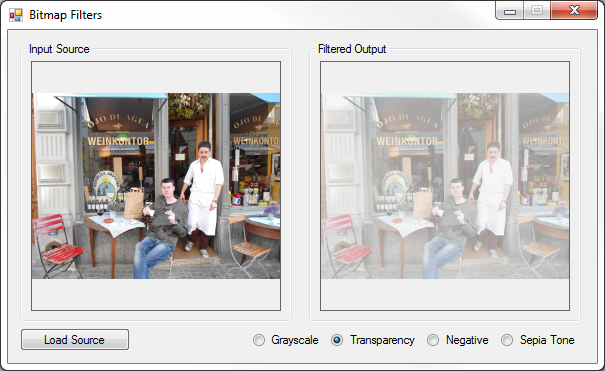
How much transparency results from an alpha component of 100? If the maximum value is set at 255 representing no transparency 100 expressed as a percentage of 255 equates to roughly 39.2%. Defining an alpha value of 100 will thus result in an image being roughly 60% transparent.

Notice how the for loop only affects every fourth array element, beginning at index 3. Each element in the array represents a pixel colour component, either Alpha, Red, Green or Blue. Remember as mentioned earlier, the components are in fact stored in the format Blue, Green, Red, Alpha. Every four array elements together represents one pixel. We only want to change the value of Alpha components, thus we start at the first pixel’s Alpha component at index 3 and then continue to iterate through the array, incrementing the index by four with each loop.

After having updated every pixel’s Alpha component the modified array is copied back into the actual object and returned to the calling code.

Transparency Filter

Image Filters Transparency

The Grayscale Filter

The filter operates in a fashion similar to the transparency filter discussed in the previous section. The following details the source code implementation of the CopyAsGrayScale .

public static Bitmap CopyAsGrayscale(this Image sourceImage)
{
    Bitmap bmpNew = GetArgbCopy(sourceImage);
    BitmapData bmpData = bmpNew.LockBits(new Rectangle(0, 0, sourceImage.Width, sourceImage.Height), ImageLockMode.ReadOnly, PixelFormat.Format32bppArgb);

IntPtr ptr = bmpData.Scan0;
byte[] byteBuffer = new byte[bmpData.Stride * bmpNew.Height];
Marshal.Copy(ptr, byteBuffer, 0, byteBuffer.Length);
float rgb = 0;
for (int k = 0; k < byteBuffer.Length; k += 4) { rgb = byteBuffer[k] * 0.11f; rgb += byteBuffer[k+1] * 0.59f; rgb += byteBuffer[k+2] * 0.3f;
byteBuffer[k] = (byte)rgb; byteBuffer[k + 1] = byteBuffer[k]; byteBuffer[k + 2] = byteBuffer[k];
byteBuffer[k + 3] = 255; }
Marshal.Copy(byteBuffer, 0, ptr, byteBuffer.Length);
bmpNew.UnlockBits(bmpData);
bmpData = null; byteBuffer = null;
return bmpNew; }

Notice how this filter starts iterating the pixel components at index 0. The source code assigns a weight to each colour component. The filter is achieved by adding together 11% Blue, 59% Green and 30% Red, then assigning the total value to each colour component. Transparency is set to 255, effectively disabling any level of transparency.

Grayscale Filter

ImageFilters_Grayscale

The Sepia Tone Filter

The sepia tone filter is implemented in the CopyAsSepiaTone. Notice how this method follows the same convention as the previously discussed filters. The source code listing is detailed below.

public static Bitmap CopyAsSepiaTone(this Image sourceImage)
{
    Bitmap bmpNew = GetArgbCopy(sourceImage);
    BitmapData bmpData = bmpNew.LockBits(new Rectangle(0, 0, sourceImage.Width, sourceImage.Height), ImageLockMode.ReadOnly, PixelFormat.Format32bppArgb);

IntPtr ptr = bmpData.Scan0;
byte[] byteBuffer = new byte[bmpData.Stride * bmpNew.Height];
Marshal.Copy(ptr, byteBuffer, 0, byteBuffer.Length);
byte maxValue = 255; float r = 0; float g = 0; float b = 0;
for (int k = 0; k < byteBuffer.Length; k += 4) { r = byteBuffer[k] * 0.189f + byteBuffer[k + 1] * 0.769f + byteBuffer[k + 2] * 0.393f; g = byteBuffer[k] * 0.168f + byteBuffer[k + 1] * 0.686f + byteBuffer[k + 2] * 0.349f; b = byteBuffer[k] * 0.131f + byteBuffer[k + 1] * 0.534f + byteBuffer[k + 2] * 0.272f;
byteBuffer[k+2] = (r > maxValue ? maxValue : (byte)r); byteBuffer[k + 1] = (g > maxValue ? maxValue : (byte)g); byteBuffer[k] = (b > maxValue ? maxValue : (byte)b); }
Marshal.Copy(byteBuffer, 0, ptr, byteBuffer.Length);
bmpNew.UnlockBits(bmpData);
bmpData = null; byteBuffer = null;
return bmpNew; }

The formula used to calculate a sepia tone differs significantly from the filter discussed previously. The formula can be simplified as follows:

  • Red Component: Sum total of: 18.9% blue, 76.9% green, 39.3% red
  • Green Component: Sum total of: 16.8% blue, 68.6% green, 34.9% red
  • Blue Component: Sum total of: 13.1% blue, 53.4% green, 27.2% red

If any of the totalled values exceeds the value of 255 that value is then defined as 255.

Sepia Tone Filter

ImageFilters_Sepia

The Negative Image Filter

Non digital film based cameras produce what is referred to as negatives, which have to be developed into printed photographs using various chemical processes. (I shudder at the thought of labelling 35mm film cameras as “old school” or vintage. I’m old enough to remember a time when film cameras were the norm yet young enough to never have used a rotary phone.)

We can implement an filter that resembles film negatives by literally inverting every pixel’s colour components. It is fairly simple to invert colour data by implementing the bitwise compliment operator ~, the result being each bit will be reversed. Note: Only colour components are inverted, the Alpha component remains unchanged. Listed below is the source code implementation of the CopyAsNegative extension method.

public static Bitmap CopyAsNegative(this Image sourceImage)
{
    Bitmap bmpNew = GetArgbCopy(sourceImage);
    BitmapData bmpData = bmpNew.LockBits(new Rectangle(0, 0, sourceImage.Width, sourceImage.Height), ImageLockMode.ReadOnly, PixelFormat.Format32bppArgb);

IntPtr ptr = bmpData.Scan0;
byte[] byteBuffer = new byte[bmpData.Stride * bmpNew.Height];
Marshal.Copy(ptr, byteBuffer, 0, byteBuffer.Length); byte[] pixelBuffer = null;
int pixel = 0;
for (int k = 0; k < byteBuffer.Length; k += 4) { pixel = ~BitConverter.ToInt32(byteBuffer, k); pixelBuffer = BitConverter.GetBytes(pixel);
byteBuffer[k] = pixelBuffer[0]; byteBuffer[k + 1] = pixelBuffer[1]; byteBuffer[k + 2] = pixelBuffer[2]; }
Marshal.Copy(byteBuffer, 0, ptr, byteBuffer.Length);
bmpNew.UnlockBits(bmpData);
bmpData = null; byteBuffer = null;
return bmpNew; }

The negative filter formula extracts the four ARGB components storing the result as an integer value which represents a pixel. All of the pixel’s bits are reversed using the bitwise compliment operator. The resulting integer value is converted back into the four pixel components and assigned to replace the pixel’s original values, all except the alpha component.

Negative Filter

ImageFilters_Negative

The implementation

The filters described in this article are all implemented by means of a . filtering is applied by selecting the corresponding radio button. The source loaded from the file system serves as input to the various filter methods, the filtered image copy returned will be displayed next to the original source .

private void OnCheckChangedEventHandler(object sender, EventArgs e)
{
    if (picSource.BackgroundImage != null)
    {
        if (rdGrayscale.Checked == true)
        {
            picOutput.BackgroundImage = picSource.BackgroundImage.CopyAsGrayscale();
        }
        else if (rdTransparency.Checked == true)
        {
            picOutput.BackgroundImage = picSource.BackgroundImage.CopyWithTransparency();
        }
        else if (rdNegative.Checked == true)
        {
            picOutput.BackgroundImage = picSource.BackgroundImage.CopyAsNegative();
        }
        else if (rdSepia.Checked == true)
        {
            picOutput.BackgroundImage = picSource.BackgroundImage.CopyAsSepiaTone();
        }
    }
}
 

Related Articles and Feedback

Feedback and questions are always encouraged. If you know of an alternative implementation or have ideas on a more efficient implementation please share in the comments section.

I’ve published a number of articles related to imaging and images of which you can find URL links here:

C# How to: Decoding/Converting Base64 strings to Bitmap images

Article purpose

This details how to decode or convert encoded back into by means of the class.

Note: This article is an update that builds upon the article:

Sample source code

This is accompanied by a sample source code Visual Studio project which is available for download .

Images as Base64 strings

From :

Base64 is a group of similar encoding schemes that represent in an ASCII string format by translating it into a -64 representation. The Base64 term originates from a specific .

Base64 encoding schemes are commonly used when there is a need to encode binary data that need to be stored and transferred over media that are designed to deal with textual data. This is to ensure that the data remain intact without modification during transport. Base64 is commonly used in a number of applications including email via MIME, and storing complex data in XML.

From the definition quoted above the need for encoding becomes more clear. From :

The base-64 digits in ascending order from zero are the uppercase characters "A" to "Z", the lowercase characters "a" to "z", the numerals "0" to "9", and the symbols "+" and "/". The valueless character, "=", is used for trailing padding.

encoding allows developers to expose without potentially encountering conflicts in regards to the transfer medium. encoded serves ideally when performing data transfer operations using platforms such as html, json, rest, xml, email.

A common implementation of encoding can be found when transferring data. This details how to convert/decode a back into a Bitmap .

Base64 String to Bitmap decoding implemented as an extension method

The code snippet listed below details the Base64StringToBitmap targeting the .

public static Bitmap Base64StringToBitmap(this string
                                           base64String)
{
    Bitmap bmpReturn = null;

byte[] byteBuffer = Convert.FromBase64String(base64String); MemoryStream memoryStream = new MemoryStream(byteBuffer);
memoryStream.Position = 0;
bmpReturn = (Bitmap)Bitmap.FromStream(memoryStream);
memoryStream.Close(); memoryStream = null; byteBuffer = null;
return bmpReturn; }

The parameter is first converted to a array by invoking the method. Next we create a against the resulting array, which serves as a parameter to the class’ static method.

The implementation

The Base64StringToBitmap is implemented in a console based application. The creates a instance from the local file system, which is then converted to a .

An article detailing how to convert to encoded can be found here:

– The you are currently reading was published as a follow up .

Next the newly created is converted back to a by invoking the Base64StringToBitmap . In order to test if the was decoded successfully the is saved to the local file system and displayed in the default installed application associated with png . The implementation as follows:

static void Main(string[] args)
{
    StreamReader streamReader = new StreamReader(
                                   "NavForward.png");

Bitmap bmp = new Bitmap(streamReader.BaseStream); streamReader.Close();
string base64ImageString = bmp.ToBase64String( ImageFormat.Png);
Console.WriteLine(base64ImageString);
Bitmap bmpFromString = base64ImageString.Base64StringToBitmap();
bmpFromString.Save("FromBase64String.png", ImageFormat.Png);
Process.Start("FromBase64String.png");
Console.ReadKey(); }

Related Articles and Feedback

Feedback and questions are always encouraged. If you know of an alternative implementation or have ideas on a more efficient implementation please share in the comments section.

Dewald Esterhuizen

I’ve published a number of articles related to imaging and images of which you can find URL links here:

C# How to: Encoding Bitmaps to Base64 strings

Article purpose

This article explores encoding Bitmap images to Base64 strings. Encoding is implemented by means of an extension method targeting the Bitmap class.

Sample source code

This article is accompanied by a sample source code Visual Studio project which is available for download .

Images as Base64 strings

From :

Base64 is a group of similar encoding schemes that represent binary data in an ASCII string format by translating it into a radix-64 representation. The Base64 term originates from a specific MIME content transfer encoding.

Base64 encoding schemes are commonly used when there is a need to encode binary data that need to be stored and transferred over media that are designed to deal with textual data. This is to ensure that the data remain intact without modification during transport. Base64 is commonly used in a number of applications including email via MIME, and storing complex data in XML.

From the definition quoted above the need for base64 encoding becomes more clear. From MSDN documentation:

The base-64 digits in ascending order from zero are the uppercase characters "A" to "Z", the lowercase characters "a" to "z", the numerals "0" to "9", and the symbols "+" and "/". The valueless character, "=", is used for trailing padding.

Base64 encoding allows developers to expose binary data without potentially encountering conflicts in regards to the transfer medium. Base64 encoded binary data serves ideally when performing data transfer operations using platforms such as html, xml, email.

A common implementation of Base64 encoding can be found when transferring image data. This article details how to convert/encode a object to a Base64 string.

Base64 Bitmap encoding implemented as an extension method

The code snippet listed below details the ToBase64String extension method targeting the class.

public static string ToBase64String(this Bitmap bmp, ImageFormat imageFormat)
{
    string base64String = string.Empty;

MemoryStream memoryStream = new MemoryStream(); bmp.Save(memoryStream, imageFormat);
memoryStream.Position = 0; byte[] byteBuffer = memoryStream.ToArray();
memoryStream.Close();
base64String = Convert.ToBase64String(byteBuffer); byteBuffer = null;
return base64String; }

The ToBase64String method writes the targeted object’s pixel data to a object using the specified parameter. Next a byte array is extracted and passed to the method , which is responsible for implementing the Base64 encoding.

Creating an Image tag implementing a Base64 string

The sample source code in addition also defines an extension method to generate html image tags to display a Base64 string encoded image.

 public static string ToBase64ImageTag(this Bitmap bmp, ImageFormat imageFormat)
{
    string imgTag = string.Empty;
    string base64String = string.Empty;

base64String = bmp.ToBase64String(imageFormat);
imgTag = "<img src=\\"data:image/" + imageFormat.ToString() + ";base64,"; imgTag += base64String + "\\" "; imgTag += "width=\\"" + bmp.Width.ToString() + "\\" "; imgTag += "height=\\"" + bmp.Height.ToString() + "\\" />";
return imgTag; }

The ToBase64ImageTag extension method invokes the ToBase64String extension method in order to retrieve encoded the data. The Html image tag has only to be slightly modified from the norm in order to accommodate Base64 encoded strings.

The implementation

The two extension methods are implemented using a console based application.

 static void Main(string[] args)
{
    StreamReader streamReader = new StreamReader("NavForward.png");
    Bitmap bmp = new Bitmap(streamReader.BaseStream);
    streamReader.Close();

string base64ImageAndTag = bmp.ToBase64ImageTag(ImageFormat.Png);
Console.WriteLine(base64ImageAndTag);
Console.ReadKey(); }

Dewald Esterhuizen

Unknown's avatar

Blog Stats

  • 893,078 hits

Enter your email address to follow and receive notifications of new posts by email.

Join 91 other subscribers

Archives

RSS SoftwareByDefault on MSDN

  • An error has occurred; the feed is probably down. Try again later.