Archive for the 'Update' Category


C# How to: Using Microsoft Kinect with Windows Forms

Article purpose

This article illustrates a basic introductory level explanation of the steps required to interface with the Microsoft Kinect for Windows sensor using the Kinect for Windows Sdk implemented in a Windows Forms application.

Introduction

Most of the introduction level articles and code samples I’ve come across tend to be implemented as WPF or XNA based applications. Interfacing to the Microsoft Kinect for Windows sensor from Windows Forms based applications can be achieved fairly effortlessly. I find when wanting to create test applications a implementation can be developed quickly with relatively little hassle.

This article details creating a application which displays a live Video feed from the ’s Color camera whilst providing an option in specifying the resolution/frame rate.

Sample source code

This article is accompanied by sample source code in a Visual Studio project which is available for download here.

Sample Source Overview

The sample source code provided with this article consists of a which host a PictureBox control used to display the incoming Video feed. It is possible that more than one might be connected, the user can therefore select a sensor from a ComboBox. Possible resolutions/frame rates can also be configured via an additional ComboBox.

Available Kinect Sensors

The sample application implements the KinectSensor.KinectSensors property to retrieve a list of available . The associated ComboBox will be populated with references to available sensors.

private void PopulateAvailableSensors()
{
    cmbSensors.Items.Clear();

foreach (KinectSensor sensor in KinectSensor.KinectSensors) { cmbSensors.Items.Add(sensor.UniqueKinectId); cmbSensors.SelectedItem = sensor.UniqueKinectId; } }

Initial setup: Form Constructor

In the Form constructor we define the available display modes by adding the relevant enumeration values to the associated ComboBox.

public  MainForm() 
{ 
   InitializeComponent(); 

cmbDisplayMode.Items.Add(ColorImageFormat.RgbResolution640x480Fps30); cmbDisplayMode.Items.Add(ColorImageFormat.RgbResolution1280x960Fps12); cmbDisplayMode.SelectedIndex = 0;
PopulateAvailableSensors(); }

In this scenario we specify:

In the constructor the method PopulateAvailableSensors(), as described earlier, will be invoked after having specified available display modes.

Refreshing Available Sensors

Clicking the refresh button results in calling PopulateAvailableSensors(), which will re-determine available sensors and populate the associated ComboBox. Listed below is the click event handler subscribed to the Refresh button’s click event.

private void btnRefresh_Click(object sender, EventArgs e) 
{ 
    PopulateAvailableSensors(); 
} 

Activating the Sensor

When clicking on the “Activate Sensor” button the sample code first attempts to deactivate the sensor currently in use. After ensuring that resources related to the current sensor have been released the application attempts to assign an instance of the KinectSensor member object based on user selection.

private  void  btnActivateSensor_Click(object  sender, EventArgs  e) 
{ 
    if (cmbSensors.SelectedIndex != -1) 
    { 
        DeActivateSensor(); 

string sensorID = cmbSensors.SelectedItem.ToString();
foreach (KinectSensor sensor in KinectSensor.KinectSensors) { if (sensor.UniqueKinectId == sensorID) { kinectSensor = sensor; SetupSensorVideoInput(); } } } }

Sensor Video setup

In the sample application we implement the Kinect sensor’s ColorStream camera. The exposes an event which informs subscribed event handlers when a video frame is available for processing. The following code snippet shows the code implemented in setting up the video format.

private void SetupSensorVideoInput() 
{ 
    if (kinectSensor != null) 
    { 
         imageFormat = (ColorImageFormat)cmbDisplayMode.SelectedItem; 
         kinectSensor.ColorStream.Enable(imageFormat);     

kinectSensor.ColorFrameReady += new EventHandler<ColorImageFrameReadyEventArgs>(kinectSensor_ColorFrameReady);
kinectSensor.Start(); } }

Processing Video Frames

The ColorFrameReady event informs subscribed event handlers whenever a Color frame becomes available for processing.

private void kinectSensor_ColorFrameReady(object  sender, ColorImageFrameReadyEventArgs  e) 
{ 
    ColorImageFrame colorFrame = e.OpenColorImageFrame();   

if (colorFrame == null) { return; }
Bitmap bitmapFrame = ColorImageFrameToBitmap(colorFrame); picVideoDisplay.Image = bitmapFrame; }
private static Bitmap ColorImageFrameToBitmap(ColorImageFrame colorFrame) { byte[] pixelBuffer = new byte[colorFrame.PixelDataLength]; colorFrame.CopyPixelDataTo(pixelBuffer);
Bitmap bitmapFrame = new Bitmap(colorFrame.Width, colorFrame.Height, PixelFormat.Format32bppRgb);
BitmapData bitmapData = bitmapFrame.LockBits(new Rectangle(0, 0, colorFrame.Width, colorFrame.Height), ImageLockMode.WriteOnly, bitmapFrame.PixelFormat);
IntPtr intPointer = bitmapData.Scan0; Marshal.Copy(pixelBuffer, 0, intPointer, colorFrame.PixelDataLength);
bitmapFrame.UnlockBits(bitmapData);
return bitmapFrame; }

The event handler parameters provides access to a ColorImageFrame object. Before the video frame can be displayed the ColorImageFrame object first needs to be converted to a memory Bitmap, which can then be displayed by the Form’s PictureBox. Notice the ColorImageFrameToBitmap method, it functions by extracting data from the ColorImageFrame as a array, then creates a new memory Bitmap and copies the array of data.

Deactivating a sensor

Earlier when we activated the sensor we deactivated the active sensor. Listed below is the relevant code snippet.

private void DeActivateSensor() 
{ 
    if (kinectSensor != null) 
    { 
        kinectSensor.Stop(); 

kinectSensor.ColorFrameReady -= new EventHandler<ColorImageFrameReadyEventArgs> (kinectSensor_ColorFrameReady);
kinectSensor.Dispose(); } }

C# How to: Deep copy objects using Binary Serialization

Article purpose

This will illustrate how to create deep copies of an object by making use of binary serialization implemented in the form of an extension method with generic type support.

Sample source code

This is accompanied by a sample source code Visual Studio project which is available for download .

Shallow Copy and Deep Copy

When creating a copy of an object in memory, the type of copy can be described as either a shallow copy or a deep copy. The Object class defines the MemberwiseClone method, which performs a bit by bit copy of an object’s value type members. In the case of reference type members the MemberwiseClone method will create a copy of the reference, but not a copy of the object being referenced. Creating a copy of an object using the MemberwiseClone method will thus result in copies and the original object still referencing the same member object in memory when that object is a reference type. The MemberwiseClone method performs a shallow copy when invoked.

A deep copy of an object results in copies and the original object not referencing the same reference type member object in memory.

Example custom data type

The sample source code provided with this provides a user defined data type, the CustomDataType class of which the code snippet is listed below.

 [Serializable] 
public class CustomDataType  
{ 
   private int intMember = 0; 
   public int IntMember 
   { 
       get { return  intMember; } 
       set { intMember = value; } 
   } 

private string stringMember = String.Empty; public string StringMember { get { return stringMember; } set { stringMember = value; } }
private DateTime dateTimeMember = DateTime.MinValue; public DateTime DateTimeMember { get { return dateTimeMember; } set { dateTimeMember = value; } }
public override string ToString() { return "IntMember: " + IntMember + ", DateTimeMember: " + DateTimeMember.ToString() + ", StringMember: " + stringMember; } }

Notice that the CustomDataType class definition is marked with the . Objects of which the type definition is not marked with the cannot be serialized. Trying to perform serialization on objects not marked as will result in an exception being thrown.

The DeepCopy method – Implementation as an extension method with generic type support

Extension method architecture enables developers to create methods which, from a syntactic and implementation point of view appear to be part of an existing data type. create the perception of being updates or additions, literarily extending a data type as the name implies. do not require access to the source code of the particular types being extended, nor does the implementation thereof require recompilation of the referenced types.

This illustrates a combined implementation of extending the functionality of generic types. The following code snippet provides the definition.

public staticclassExtObject  
{ 
    public static T DeepCopy<T>(this T objectToCopy) 
    { 
         MemoryStream memoryStream = new MemoryStream(); 
         BinaryFormatter binaryFormatter = new BinaryFormatter(); 
         binaryFormatter.Serialize(memoryStream, objectToCopy); 

memoryStream.Position = 0; T returnValue = (T)binaryFormatter.Deserialize(memoryStream);
memoryStream.Close(); memoryStream.Dispose();
return returnValue; } }

The DeepCopy method is defined as an by virtue of being a static method of a static class and by specifying the keyword in its parameter definition.

DeepCopy additionally defines the generic type <T> which determines the return value’s type and the type of the parameter objectToCopy.

The method body creates an instance of a  object and an object instance of type . When is invoked the representation of the objectToCopy parameter is written to the specified . In a similar fashion is invoked next, reading the representation from the specified . The object returned is cast to the same type as the object originally serialized.

The implementation

The DeepCopy method illustrated above appears as a member method to the CustomDataType class created earlier.

 static void Main(string[] args) 
{ 
   CustomDataType originalObject = new CustomDataType(); 
   originalObject.DateTimeMember = DateTime.Now; 
   originalObject.IntMember = 42; 
   originalObject.StringMember = "Some random string"; 

CustomDataType deepCopyObject = originalObject.DeepCopy(); deepCopyObject.DateTimeMember = DateTime.MinValue; deepCopyObject.IntMember = 123; deepCopyObject.StringMember = "Something else...";
Console.WriteLine("originalObject: " ); Console.WriteLine(originalObject.ToString()); Console.WriteLine();
Console.WriteLine("deepCopyObject: " ); Console.WriteLine(deepCopyObject.ToString()); Console.WriteLine();
Console.WriteLine("Press any key..." ); Console.ReadKey(); }

The code snippet listed above is a console application which implements the DeepCopy extension method on objects of type CustomDataType. Modifying the member properties of the second object instance will not result in the first object instance properties being modified.

Deep copy objects using Binary Serialization

C# How to: Drawing in GDI with Opacity/Alpha components

Article Purpose

In this article we explore GDI+ drawing operations implementing opacity, also known as alpha blending.

Sample source code

This article is accompanied by a sample source code Visual Studio project which is available for download here

C# How to: Drawing in GDI with Opacity/Alpha components

Using the Sample Application

The following is a screenshot of the included sample application:

GDIOpacityDrawing

The screenshot illustrates drawing text and a rectangle onto a Windows Form in Color.SteelBlue with an alpha component of 100.

GDI+ Drawing

In C# it is possible and relatively easy to draw text and two dimensional shapes in GDI+ that support a level of opacity or transparency. The well known abbreviation RGB abbreviates the term Red, Green and Blue. C# supports RGB colours but also what is known as ARGB colours. In the case of ARGB the A abbreviates the word Alpha, in other words an RGB colour with a specified alpha component.

An alpha component specifies a colour’s opacity or transparency. Possible values range from 0 to 255 inclusive, where 0 would represent full transparency and 255 no level of transparency. If a consists of 8 bits and an ARGB colour is composed of 4 components ranging from 0 to 255 each representing a or 8 bits, then an ARGB colour is therefore a 32 bit colour.

The Color structure

The System.Drawing namespace defines the Color structure, which exposes several functions aimed at creating an ARGB Color object instance:

The Paint Event Handler

The bulk of this example’s functionality occurs within the main Form’s handler, as detailed by the following code snippet:

private void MainFormPaintEventHandler(object sender, PaintEventArgs e) 
{ 
    Color alphaForeColor = Color.FromArgb(this.foreColorAlphaValue, this.ForeColor); 
    Pen rectanglePen = new Pen(alphaForeColor, 2.0f); 
    SolidBrush textBrush = new SolidBrush(alphaForeColor); 

float x = this.ClientRectangle.Width / 2.0f; x -= e.Graphics.MeasureString(textToDisplay, this .Font).Width / 2.0f;
float y = this.ClientRectangle.Height / 2.0f; y -= e.Graphics.MeasureString(textToDisplay, this.Font).Height / 2.0f;
e.Graphics.DrawString(textToDisplay, this.Font, textBrush, new PointF(x, y));
e.Graphics.DrawRectangle(rectanglePen, 25, 25, this.ClientRectangle.Width - 50, this.ClientRectangle.Height - 50); }

The main Form defines two member variables used in the handler:

 private byte foreColorAlphaValue = 100;
 textToDisplay = "http://softwarebydefault.com";

In the handler an instance of the structure is created implementing an alpha component defined by the ’s member variable. The object declaration is followed by an ARGB   Pen and SolidBrush declaration.

Next the code determines the X and Y coordinates that would result in drawing the ’s string member variable in the middle of the , after which the actual drawing occurs.

Using the Pen object declared earlier a rectangle is drawn 25 pixels inside the ’s ClientRectangle.

Shutdown Windows without installing updates

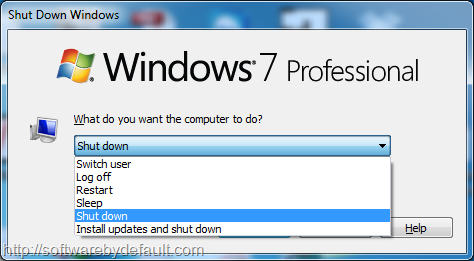
Yesterday I shutdown my notebook  as I was about to leave work. Surprise! There was a couple of hundred Windows updates waiting to be installed. Yes, I’m talking about the dreaded “Install updates and shutdown”, which can take anywhere from a couple of seconds to hours.

I have no problem with installing Windows updates, I think keeping up to date with security updates and bug fixes are important. The problem I do have is in having to wait, especially after a day at the office, having the expectation of freedom shattered by painfully watching updates installing one by one.

If you don’t have time to wait for updates to install and you simply want to shut down, there is a way out. Close your desktop. When viewing your desktop enter alt+F4, which is the general close program command. In the case of the desktop you will be presented with an options menu. One of the options being “Shut Down”, allowing you to bypass “Install updates and shut down”.

Updates

Testing Windows Live Writer Plugins

I recently installed Microsoft Windows Live Writer in order to enable offline/desktop content creation for my blog hosted at WordPress.com So far Live Writer has exceeded my expectations by far, simply put, it is awesome. The user interface is very similar to the familiar Microsoft Office product suite user interface.

Windows Live Writer Screenshot

From Wikipedia: “It features WYSIWYG authoring, photo-publishing and map-publishing functionality, and is currently compatible with Windows Live Spaces, SharePoint blogs, Blogger, LiveJournal, TypePad, WordPress, Telligent Community, PBlogs.gr, JournalHome, the MetaWeblog API, the Movable Type API, Blogengine, Squarespace, and all blogs that support RSD (Really Simple Discoverability). “

I have started playing around with Windows Live Writer plugins, as I discover plugins I’ll write a blog entry if I find a plugin to be impressive. In addition I have also started looking at the Live Writer API. If inspiration strikes I will attempt creating my own Live Writer Plugin.

[tweetmeme source=”DefaultSoftware” only_single=”false”]

Dewald Esterhuizen

Unknown's avatar

Blog Stats

  • 892,466 hits

Enter your email address to follow and receive notifications of new posts by email.

Join 91 other subscribers

Archives

RSS SoftwareByDefault on MSDN

  • An error has occurred; the feed is probably down. Try again later.