DriveInfo Class
Being able to determine the amount of space not in use on a particular drive from C# code is very easy and straight forward. Various properties relating to a logical Windows drive can be determined by implementing the System.IO.DriveInfo class.
The DriveInfo class exposes two public properties relating to drive space not in use:
The difference between these two properties is that AvailableFreeSpace takes into account user configured disk quotas in Windows. AvailableFreeSpace therefore represents the total amount of free space available to the currently logged in user. In contrast TotalFreeSpace represents the total amount of space free on the specified drive, regardless of restrictions/quotas on the currently logged in user’s account.
To be safe use AvailableFreeSpace when doing file IO operations such as copying, downloading or creating new files.
I have written an example application that implements two extension methods which allows the calling code to specify the measurement unit (Bytes, Kilobytes, Megabytes, Gigabytes and Terabytes) in which to return TotalFreeSpace or AvailableFreeSpace.
Code Sample
Download the source code here
This code sample implements the DriveInfo Class’ AvailableFreeSpace and TotalFreeSpace properties and creates two extension methods allowing the calling code to specify the measurement unit (Bytes, Kilobytes, Megabytes, Gigabytes and Terabytes)
DiskSizeUnit enum
Both extension methods expects as a parameter an enum value of type DiskSizeUnit. The value will determine the unit in which AvailableFreeSpace or TotalFreeSpace gets returned.
1: public enum DiskSizeUnit
2: {
3: Bytes = 0,
4: KiloBytes = 1,
5: MegaBytes = 2,
6: GigaBytes = 3,
7: TeraBytes = 4
8: }
9:
Total Free Space
The TotalFreeSpaceFormatted extension method accepts as its first parameter an object of type DriveInfo, indicating that this method acts as an extension method to the DriveInfo Class. The second parameter is an enum instance of type DiskSizeUnit, which is used to determine the measurement unit in which to return the DriveInfo class’ TotalFreeSpace property.
1: public static double TotalFreeSpaceFormatted(this DriveInfo driveInfo, DiskSizeUnit sizeUnit)
2: {
3: double freeSpace = -1;
4: double formatDivideBy = 1;
5:
6: if (driveInfo != null )
7: {
8: long freeSpaceNative = driveInfo.TotalFreeSpace;
9: formatDivideBy = Math.Pow(1024, (int )sizeUnit);
10:
11: freeSpace = freeSpaceNative / formatDivideBy;
12: }
13:
14: return freeSpace;
15: }
The method first checks if the DriveInfo object has been instantiated (line 6). In order to convert TotalFreeSpace, which is expressed in bytes, the value is divided based on the value of the DiskSizeUnit enum parameter passed to this method. As an example if DiskSizeUnit.MegaBytes is specified, the Math.Pow() method will return 1048576 (1024 * 1024), as shown on line 9. Dividing a value expressed in bytes by 1024 and again by 1024 will return a value representing the original byte value expressed in megabytes.
Note: DriveInfo.TotalFreeSpace will return the number of bytes not in use on a particular drive. This property does not take into account limitations/restrictions on the currently logged in user such as Disk Quotas defined by Windows User Accounts.
Available Free Space
The AvailableFreeSpaceFormatted extension method accepts as its first parameter an object of type DriveInfo, indicating that this method acts as an extension method to the DriveInfo Class. The second parameter is an enum instance of type DiskSizeUnit, which is used to determine the measurement unit in which to return the DriveInfo class’ AvailableFreeSpace property.
1: public static double AvailableFreeSpaceFormatted(this DriveInfo driveInfo, DiskSizeUnit sizeUnit)
2: {
3: double freeSpace = -1;
4: double formatDivideBy = 1;
5:
6: if (driveInfo != null )
7: {
8: long freeSpaceNative = driveInfo.AvailableFreeSpace;
9: formatDivideBy = Math .Pow(1024, (int )sizeUnit);
10:
11: freeSpace = freeSpaceNative / formatDivideBy;
12: }
13:
14: return freeSpace;
15: }
Internally this method works almost exactly the same as the TotalFreeSpaceFormatted extension method. The only difference being checking and formatting through division the DriveInfo.AvailableFreeSpace property.
Note: DriveInfo.AvailableFreeSpace takes into account limitations/restrictions on the currently logged in user’s account such as Disk Quotas defined by Windows User Accounts.
Test Application
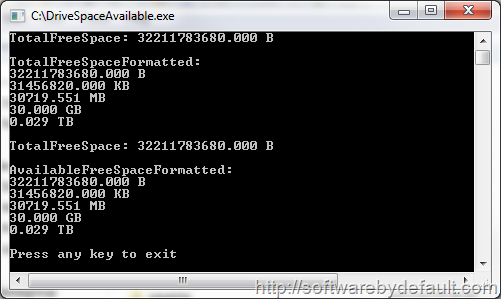
As part of this code sample a Console based test application is provided.

The test application determines the drive letter of the current directory using Environment.CurrentDirectory and Path.GetPathRoot.
1: if (Environment .CurrentDirectory != String .Empty)
2: {
3: string driveLetter = Path .GetPathRoot(Environment .CurrentDirectory);
4:
5: DriveInfo drive = new DriveInfo (driveLetter);
6:
7: Console .WriteLine("TotalFreeSpace: {0,0:F3} B" ,
8: drive.TotalFreeSpace);
9:
10: Console .WriteLine();
11: Console .WriteLine("TotalFreeSpaceFormatted:" );
12:
13: Console .WriteLine("{0,0:F3} B" ,
14: drive.TotalFreeSpaceFormatted(DiskSizeUnit .Bytes));
15:
16: Console .WriteLine("{0,0:F3} KB" ,
17: drive.TotalFreeSpaceFormatted(DiskSizeUnit .KiloBytes));
18:
19: Console .WriteLine("{0,0:F3} MB" ,
20: drive.TotalFreeSpaceFormatted(DiskSizeUnit .MegaBytes));
21:
22: Console .WriteLine("{0,0:F3} GB" ,
23: drive.TotalFreeSpaceFormatted(DiskSizeUnit .GigaBytes));
24:
25: Console .WriteLine("{0,0:F3} TB" ,
26: drive.TotalFreeSpaceFormatted(DiskSizeUnit .TeraBytes));
27:
28: Console .WriteLine();
29:
30: Console .WriteLine("TotalFreeSpace: {0,0:F3} B" ,
31: drive.AvailableFreeSpace);
32:
33: Console .WriteLine();
34: Console .WriteLine("AvailableFreeSpaceFormatted:" );
35:
36: Console .WriteLine("{0,0:F3} B" ,
37: drive.AvailableFreeSpaceFormatted(DiskSizeUnit .Bytes));
38:
39: Console .WriteLine("{0,0:F3} KB" ,
40: drive.AvailableFreeSpaceFormatted(DiskSizeUnit .KiloBytes));
41:
42: Console .WriteLine("{0,0:F3} MB" ,
43: drive.AvailableFreeSpaceFormatted(DiskSizeUnit .MegaBytes));
44:
45: Console .WriteLine("{0,0:F3} GB" ,
46: drive.AvailableFreeSpaceFormatted(DiskSizeUnit .GigaBytes));
47:
48: Console .WriteLine("{0,0:F3} TB" ,
49: drive.AvailableFreeSpaceFormatted(DiskSizeUnit .TeraBytes));
50: }
51:
52: Console .WriteLine();
53: Console .WriteLine("Press any key to exit" );
54: Console .ReadKey();
55:
*I want to give credit and say a big thank you to Vitaly Zayko. All the code snippets Html markup in this article was generated using his Visual Studio Extension Code4Blog.







 Software by Default