Archive for the 'Tip' Category


C# How to: Generate a Web Service from WSDL

Article purpose

Image FiltersWeb Service Definition Language (WSDL) is an Xml based schema that exactly details the custom data types and web service methods exposed by a web service. Developers usually generate web service client proxy code in order to call into web services. Since WSDL is an exact description of a web service it is also possible to generate code that represents the service in the form of web method stubs. This article illustrates how to generate a web service from WSDL.

Introduction

Image FiltersI’ve often found myself in a scenario where I have to interface with third parties via web services. It is often the case that third party service are proprietary, usually I find that I have very little control over the web services I’m required to interface to. Countless hours are wasted because of out dated test environments, missing/incorrect security certificates or even just trying to get hold of log files.

Image FiltersTime spent on development and testing can be significantly reduced in most cases if I had a local copy of a web service available to me. Having access to source code would be even more beneficial, being able to manipulate the data returned, testing timeouts etc. After surprisingly little effort I manage to develop a utility application capable of generating web method stubs and custom defined types in C# source code. The only required input in generating a web service is the WSDL of an existing web service.

Sample source code

Image FiltersThis article is accompanied by sample source code in a Visual Studio project which is available for download .


Input Web service WSDL

Image FiltersThe sample source accompanying this article defines a very simplistic web service, consisting of one web method HelloWorld(). The source code is listed below:

 [WebService (Namespace = "http://softwarebydefault.com" )]
 [WebServiceBinding (ConformsTo = WsiProfiles.BasicProfile1_1)]
 [System.ComponentModel.ToolboxItem (false )]
 public class TestWebService : System.Web.Services.WebService 
 {
     [WebMethod ]
     public string  HelloWorld()
     {
         return "Hello World";
     }
 }
 

The resulting WSDL is generated as illustrated by the following snippet:

<?xml version="1.0" encoding="utf-8"?>

<wsdl:definitions xmlns:soap="http://schemas.xmlsoap.org/wsdl/soap/" xmlns:tm="http://microsoft.com/wsdl/mime/textMatching/" xmlns:soapenc="http://schemas.xmlsoap.org/soap/encoding/" xmlns:mime="http://schemas.xmlsoap.org/wsdl/mime/" xmlns:tns="http://softwarebydefault.com" xmlns:s="http://www.w3.org/2001/XMLSchema" xmlns:soap12="http://schemas.xmlsoap.org/wsdl/soap12/" xmlns:http="http://schemas.xmlsoap.org/wsdl/http/" targetNamespace="http://softwarebydefault.com" xmlns:wsdl="http://schemas.xmlsoap.org/wsdl/">

  <wsdl:types>

    <s:schema elementFormDefault="qualified" targetNamespace="http://softwarebydefault.com">

      <s:element name="HelloWorld">

        <s:complexType />

      </s:element>

      <s:element name="HelloWorldResponse">

        <s:complexType>

          <s:sequence>

            <s:element minOccurs="0" maxOccurs="1" name="HelloWorldResult" type="s:string" />

          </s:sequence>

        </s:complexType>

      </s:element>

    </s:schema>

  </wsdl:types>

  <wsdl:message name="HelloWorldSoapIn">

    <wsdl:part name="parameters" element="tns:HelloWorld" />

  </wsdl:message>

  <wsdl:message name="HelloWorldSoapOut">

    <wsdl:part name="parameters" element="tns:HelloWorldResponse" />

  </wsdl:message>

  <wsdl:portType name="TestWebServiceSoap">

    <wsdl:operation name="HelloWorld">

      <wsdl:input message="tns:HelloWorldSoapIn" />

      <wsdl:output message="tns:HelloWorldSoapOut" />

    </wsdl:operation>

  </wsdl:portType>

  <wsdl:binding name="TestWebServiceSoap" type="tns:TestWebServiceSoap">

    <soap:binding transport="http://schemas.xmlsoap.org/soap/http" />

    <wsdl:operation name="HelloWorld">

      <soap:operation soapAction="https://softwarebydefault.com/HelloWorld" style="document" />

      <wsdl:input>

        <soap:body use="literal" />

      </wsdl:input>

      <wsdl:output>

        <soap:body use="literal" />

      </wsdl:output>

    </wsdl:operation>

  </wsdl:binding>

  <wsdl:binding name="TestWebServiceSoap12" type="tns:TestWebServiceSoap">

    <soap12:binding transport="http://schemas.xmlsoap.org/soap/http" />

    <wsdl:operation name="HelloWorld">

      <soap12:operation soapAction="https://softwarebydefault.com/HelloWorld" style="document" />

      <wsdl:input>

        <soap12:body use="literal" />

      </wsdl:input>

      <wsdl:output>

        <soap12:body use="literal" />

      </wsdl:output>

    </wsdl:operation>

  </wsdl:binding>

  <wsdl:service name="TestWebService">

    <wsdl:port name="TestWebServiceSoap" binding="tns:TestWebServiceSoap">

      <soap:address location="http://localhost:6078/TestWS.asmx" />

    </wsdl:port>

    <wsdl:port name="TestWebServiceSoap12" binding="tns:TestWebServiceSoap12">

      <soap12:address location="http://localhost:6078/TestWS.asmx" />

    </wsdl:port>

  </wsdl:service>

</wsdl:definitions>

Generating the Web service from input WSDL

Image FiltersThe crux of this article revolves around the Generate method defined in the associated sample source code. The method makes use of the ServiceDescription and ServiceDescriptionImporter classes to reference the WSDL generated earlier. The code defined by the Generate method is very similar to the code that would generate web service client proxy code. Make note of the Style property of the ServiceDescriptionImporter object being set to ServiceDescriptionImportStyle.Server. By setting the style to server we indicate that any code generated should reflect the server interface. Had the property being set to ServiceDescriptionImportStyle.Client web service client proxy code would be generated.

Image FiltersAfter importing the service descriptions as defined by the specified WSDL and if no errors occurred we generate C# source code based on the service descriptions imported. The resulting source code generated is then saved to the file system based on the file path passed as method parameter.

 public  static  void  Generate(string  wsdlPath, string  outputFilePath)
 {
     if  (File.Exists(wsdlPath) == false )
     {
         return;
     }

     ServiceDescription  wsdlDescription = ServiceDescription .Read(wsdlPath);
     ServiceDescriptionImporter  wsdlImporter = new  ServiceDescriptionImporter ();

     wsdlImporter.ProtocolName = "Soap12";
     wsdlImporter.AddServiceDescription(wsdlDescription, null , null );
     wsdlImporter.Style = ServiceDescriptionImportStyle .Server;

     wsdlImporter.CodeGenerationOptions = System.Xml.Serialization.CodeGenerationOptions .GenerateProperties;

     CodeNamespace codeNamespace = new  CodeNamespace();
     CodeCompileUnit codeUnit = new  CodeCompileUnit();
     codeUnit.Namespaces.Add(codeNamespace);

     ServiceDescriptionImportWarnings importWarning = wsdlImporter.Import(codeNamespace, codeUnit);

     if  (importWarning == 0)
     {
         StringBuilder stringBuilder = new StringBuilder();
         StringWriter stringWriter = new StringWriter(stringBuilder);

         CodeDomProvider codeProvider = CodeDomProvider.CreateProvider("CSharp");
         codeProvider.GenerateCodeFromCompileUnit(codeUnit, stringWriter, new CodeGeneratorOptions());

         stringWriter.Close();

         File.WriteAllText(outputFilePath, stringBuilder.ToString(), Encoding.UTF8);
     }
     else 
     {
         Console.WriteLine(importWarning);
     }
 }
 

Image FiltersNotice the use of the CodeDomProvider class, creating an instance of this class allows us to generate source code. This class can also be used to compile source code to assemblies, in essence it allows developers access to a set of compilers accessible from code. As described by MSDN documentation:

A CodeDomProvider implementation typically provides code generation and/or code compilation interfaces for generating code and managing compilation for a single programming language. Several languages are supported by CodeDomProvider implementations that ship with the Windows Software Development Kit (SDK). These languages include C#, Visual Basic, C++, and JScript. Developers or compiler vendors can implement the ICodeGenerator and ICodeCompiler interfaces and provide a CodeDomProvider that extends CodeDOM support to other programming languages.

The Generated Code

Image FiltersThe code generated comes in the form of abstract classes and methods. The snippet below illustrates the raw generated code:

 [System.CodeDom.Compiler.GeneratedCodeAttribute("WSDLToWebService" , "1.0.0.0" )]
 [System.Web.Services.WebServiceAttribute(Namespace="http://softwarebydefault.com" )]
 [System.Web.Services.WebServiceBindingAttribute(Name="TestWebServiceSoap12" , Namespace="http://softwarebydefault.com" )]
 public  abstract  partial  class  TestWebService  : System.Web.Services.WebService {
     
     [System.Web.Services.WebMethodAttribute()]
     [System.Web.Services.Protocols.SoapDocumentMethodAttribute("https://softwarebydefault.com/HelloWorld" ,
         RequestNamespace="http://softwarebydefault.com" , ResponseNamespace="http://softwarebydefault.com" ,
         Use=System.Web.Services.Description.SoapBindingUse.Literal, 
         ParameterStyle=System.Web.Services.Protocols.SoapParameterStyle.Wrapped)]
     public  abstract  string  HelloWorld();
 }
 

Image FiltersThe code generated compiles without issue, but being declared abstract prevents the code from functioning as a web service implementation. I find the easiest method is to refactor the code instead of implementing inheritance. The snippet listed below represents the generated code refactored to reflect a web service implementation.

[System.CodeDom.Compiler.GeneratedCodeAttribute ("WSDLToWebService" , "1.0.0.0" )]
[System.Web.Services.WebServiceAttribute (Namespace = "http://softwarebydefault.com" )]
[System.Web.Services.WebServiceBindingAttribute (Name = "TestWebService" , Namespace = "http://softwarebydefault.com" )]
public  class  TestWebService  : System.Web.Services.WebService 
{
     [System.Web.Services.WebMethodAttribute()]
     [System.Web.Services.Protocols.SoapDocumentMethodAttribute("https://softwarebydefault.com/HelloWorld" ,
     RequestNamespace = "http://softwarebydefault.com" , ResponseNamespace = "http://softwarebydefault.com" ,
     Use = System.Web.Services.Description.SoapBindingUse.Literal, 
     ParameterStyle = System.Web.Services.Protocols.SoapParameterStyle.Wrapped)]
     public  string  HelloWorld()
     {
         return  "Hello Generated World" ;
     }
 }
 

Image FiltersThe TestWebService class and HelloWorld method is now no longer defined as abstract. In addition HelloWorld now defines a method body as required by not being an abstract method anymore.


About the Icons

I’ve written a number of articles exploring the topic of Colour filters. All of the Light bulb icon images featured in this article were generated from same source image, each having been manipulated by various colour filters. I made use of sample applications accompanying some of the articles I’ve published.

Image Filters Image Filters Image Filters Image Filters Image Filters Image Filters Image Filters Image Filters

If you are interested in Image filters or would like to download the sample applications and source code please have a look at the following links to articles published on this site:


Image Filters Image Filters Image Filters Image Filters Image Filters Image Filters Image Filters Image Filters

The original source image used to generate the icon images featured in this article has been licensed under the Creative Commons Attribution-Share Alike 3.0 Unported license and can be downloaded from .

C# How to: Deep copy objects using Binary Serialization

Article purpose

This will illustrate how to create deep copies of an object by making use of binary serialization implemented in the form of an extension method with generic type support.

Sample source code

This is accompanied by a sample source code Visual Studio project which is available for download .

Shallow Copy and Deep Copy

When creating a copy of an object in memory, the type of copy can be described as either a shallow copy or a deep copy. The Object class defines the MemberwiseClone method, which performs a bit by bit copy of an object’s value type members. In the case of reference type members the MemberwiseClone method will create a copy of the reference, but not a copy of the object being referenced. Creating a copy of an object using the MemberwiseClone method will thus result in copies and the original object still referencing the same member object in memory when that object is a reference type. The MemberwiseClone method performs a shallow copy when invoked.

A deep copy of an object results in copies and the original object not referencing the same reference type member object in memory.

Example custom data type

The sample source code provided with this provides a user defined data type, the CustomDataType class of which the code snippet is listed below.

 [Serializable] 
public class CustomDataType  
{ 
   private int intMember = 0; 
   public int IntMember 
   { 
       get { return  intMember; } 
       set { intMember = value; } 
   } 

private string stringMember = String.Empty; public string StringMember { get { return stringMember; } set { stringMember = value; } }
private DateTime dateTimeMember = DateTime.MinValue; public DateTime DateTimeMember { get { return dateTimeMember; } set { dateTimeMember = value; } }
public override string ToString() { return "IntMember: " + IntMember + ", DateTimeMember: " + DateTimeMember.ToString() + ", StringMember: " + stringMember; } }

Notice that the CustomDataType class definition is marked with the . Objects of which the type definition is not marked with the cannot be serialized. Trying to perform serialization on objects not marked as will result in an exception being thrown.

The DeepCopy method – Implementation as an extension method with generic type support

Extension method architecture enables developers to create methods which, from a syntactic and implementation point of view appear to be part of an existing data type. create the perception of being updates or additions, literarily extending a data type as the name implies. do not require access to the source code of the particular types being extended, nor does the implementation thereof require recompilation of the referenced types.

This illustrates a combined implementation of extending the functionality of generic types. The following code snippet provides the definition.

public staticclassExtObject  
{ 
    public static T DeepCopy<T>(this T objectToCopy) 
    { 
         MemoryStream memoryStream = new MemoryStream(); 
         BinaryFormatter binaryFormatter = new BinaryFormatter(); 
         binaryFormatter.Serialize(memoryStream, objectToCopy); 

memoryStream.Position = 0; T returnValue = (T)binaryFormatter.Deserialize(memoryStream);
memoryStream.Close(); memoryStream.Dispose();
return returnValue; } }

The DeepCopy method is defined as an by virtue of being a static method of a static class and by specifying the keyword in its parameter definition.

DeepCopy additionally defines the generic type <T> which determines the return value’s type and the type of the parameter objectToCopy.

The method body creates an instance of a  object and an object instance of type . When is invoked the representation of the objectToCopy parameter is written to the specified . In a similar fashion is invoked next, reading the representation from the specified . The object returned is cast to the same type as the object originally serialized.

The implementation

The DeepCopy method illustrated above appears as a member method to the CustomDataType class created earlier.

 static void Main(string[] args) 
{ 
   CustomDataType originalObject = new CustomDataType(); 
   originalObject.DateTimeMember = DateTime.Now; 
   originalObject.IntMember = 42; 
   originalObject.StringMember = "Some random string"; 

CustomDataType deepCopyObject = originalObject.DeepCopy(); deepCopyObject.DateTimeMember = DateTime.MinValue; deepCopyObject.IntMember = 123; deepCopyObject.StringMember = "Something else...";
Console.WriteLine("originalObject: " ); Console.WriteLine(originalObject.ToString()); Console.WriteLine();
Console.WriteLine("deepCopyObject: " ); Console.WriteLine(deepCopyObject.ToString()); Console.WriteLine();
Console.WriteLine("Press any key..." ); Console.ReadKey(); }

The code snippet listed above is a console application which implements the DeepCopy extension method on objects of type CustomDataType. Modifying the member properties of the second object instance will not result in the first object instance properties being modified.

Deep copy objects using Binary Serialization

C# How to: Implementing Generic Xml Deserialization by extending the string class

Article purpose

The purpose of this article is to illustrate Deserializing Xml data to object data that resides in application memory. Additionally this article details implementing generics, resulting in a single method being able to deserialize multiple object types.

This article relates to the article “C# How to: Implementing Xml Serialization through a generic extension method

Sample source code

This article is accompanied by a sample source code Visual Studio project which is available for download here.

Example custom data type

The sample source code provided with this article provides a user defined data type, the CustomDataType class of which the code snippet is listed below.

 public class  CustomDataType
 {
     private  int intMember = 0;
     public  int IntMember
     {
         get  { return intMember; }
         set  { intMember = value ; }
     }
 
     private  string  stringMember = String.Empty;
     public  string  StringMember
     {
         get { return stringMember; }
         set { stringMember = value ; }
     }
 
     private  DateTime dateTimeMember = DateTime.MinValue;
     public  DateTime  DateTimeMember
     {
         get { return  dateTimeMember; }
         set { dateTimeMember = value ; }
     }
 }

Also included is sample Xml markup which will be used in deserialization. The included Xml was generated by the serialization code sample “C# How to: Implementing Xml Serialization through a generic extension method

 <?xml version= "1.0" encoding="utf-16"?>
 <CustomDataType xmlns:xsi="http://www.w3.org/2001/XMLSchema-instance" xmlns:xsd= "http://www.w3.org/2001/XMLSchema">
   <IntMember>42</IntMember>
   <StringMember>Some random string</StringMember>
   <DateTimeMember>2013-02-09T19:20:24.4654399+02:00</DateTimeMember>
 </CustomDataType>

The deserialization method – Implemented as a String type extension method with generic type support

Extension method architecture enables developers to create methods which, from a syntactic and implementation point of view appear to be part of an existing data type. Extension methods create the perception of being updates or additions, literarily extending a data type as the name implies. Extension methods do not require access to the source code of the particular types being extended, nor does the implementation thereof require recompilation of the referenced types.

This article illustrates a combined implementation of extending the string type whilst specifying the generic type to deserialize to. The following code snippet provides the extension method definition.

 public static class ExtString 
 {
     public static T DeserializeXML<T>(this string xmlString)
     {
         T returnValue = default (T);
 
         XmlSerializer serial = new XmlSerializer(typeof (T));
         StringReader reader = new StringReader(xmlString);
         object result = serial.Deserialize(reader);
 
         if (result != null && result is T)
         {
             returnValue = ((T)result);
         }
 
         reader.Close();
 
         return returnValue;
     }
 }

The DeserializeXML method satisfies the requirements of the extension method architecture by being defined as a static method, implemented as a member method of a statically defined class. In addition the method signature features the this keyword preceding all other method parameters. The seemingly contradicting statement of specifying the this keyword in a static context usually serves as a quick indication that a method is implemented as an extension method. Remember that the this keyword provides a reference to the current instance, whereas in the case of static methods and classes there is no current instance, being static results in limiting a type to only one instance accessed as a shared reference.

The DeserializeXML method specifies as a parameter xmlString of type string. When defining an extension method the first parameter specified indicates the type being extended. This method’s definition therefore indicates that the extension method extends the string type.

DeserializeXML’s method definition implements a generic type <T>. The calling code will specify the required type substitute for <T>, which in turn will determine the method’s return type.

The implementation

The DeserializeXML method discussed above will appear as a non-static member method to all objects of type string.

 static  void  Main(string [] args)
 {
     if  (File.Exists("CustomDataType.xml") == true)
     {
         string  xmlString = File .ReadAllText("CustomDataType.xml");
         CustomDataType  objectData = xmlString.DeserializeXML<CustomDataType>();
 
         Console.WriteLine("CustomDataType.DateTimeMember: "  + objectData.DateTimeMember);
         Console.WriteLine("CustomDataType.IntMember: "  + objectData.IntMember.ToString());
         Console.WriteLine("CustomDataType.StringMember: "  + objectData.StringMember);
 
         Console.WriteLine();
         Console.WriteLine("Press any key to exit...");
         Console.ReadKey();
     }
 }

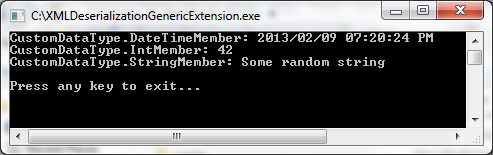
DeserializationGenericExtension

The code snippet listed above illustrates how the DeserializeXML extension discussed earlier now appears as a member method of the string type. Xml data read from the file system is “passed” to the DeserializeXML extension method, specifying <CustomDataType> is to be used as the generic type parameter implemented when performing deserialization.

C# How to: Implementing Xml Serialization through a generic extension method

Article purpose

The purpose of this article is to explore the implementation of object Xml serialization by means of a single extension method supporting generic types.

Sample source code

This article is accompanied by a sample source code Visual Studio project which is available for download here.

Example custom data type

The sample source code provided with this article provides a user defined data type, the CustomDataType class of which the code snippet is listed below.

 public class  CustomDataType
 {
     private  int intMember = 0;
     public  int IntMember
     {
         get  { return intMember; }
         set  { intMember = value ; }
     }
 
     private  string  stringMember = String.Empty;
     public  string  StringMember
     {
         get { return stringMember; }
         set { stringMember = value ; }
     }
 
     private  DateTime dateTimeMember = DateTime.MinValue;
     public  DateTime  DateTimeMember
     {
         get { return  dateTimeMember; }
         set { dateTimeMember = value ; }
     }
 }

This article’s accompanying sample source code was implemented to serialize an object instance of type CustomDataType. The resulting Xml markup representation is listed below.

 <?xml version= "1.0" encoding="utf-16"?>
 <CustomDataType xmlns:xsi="http://www.w3.org/2001/XMLSchema-instance" xmlns:xsd= "http://www.w3.org/2001/XMLSchema">
   <IntMember>42</IntMember>
   <StringMember>Some random string</StringMember>
   <DateTimeMember>2013-02-03T17:01:32.9799772+02:00</DateTimeMember>
 </CustomDataType>

The serialization method – Implementation as an extension method with generic type support

Extension method architecture enables developers to create methods which, from a syntactic and implementation point of view appear to be part of an existing data type. Extension methods create the perception of being updates or additions, literarily extending a data type as the name implies. Extension methods do not require access to the source code of the particular types being extended, nor does the implementation thereof require recompilation of the referenced types.

This article illustrates a combined implementation of extension methods extending the functionality of generic types. The following code snippet provides the extension method definition.

 public static class  ExtObject
 {
     public static string XmlSerialize<T>(this T objectToSerialize)
     {
         XmlSerializer xmlSerializer = new XmlSerializer(typeof (T));
 
         StringWriter  stringWriter = new  StringWriter ();
         XmlTextWriter  xmlWriter = new  XmlTextWriter(stringWriter);
 
         xmlWriter.Formatting = Formatting.Indented;
         xmlSerializer.Serialize(xmlWriter, objectToSerialize);
 
         return  stringWriter.ToString();
     }
 }

The XmlSerialize method satisfies the requirements of the extension method architecture by being defined as a static method, implemented as a member method of a statically defined class. In addition the method signature features the this keyword preceding all other method parameters. The seemingly contradicting statement of specifying the this keyword in a static context usually serves as a quick indication that a method is implemented as an extension method. Remember that the this keyword provides a reference to the current instance, whereas in the case of static methods and classes there is no current instance, being static results in limiting a type to only one instance accessed as a shared reference.

The definition of the XmlSerialize method also specifies the definition of a generic type <T>. When defining an extension method the first parameter specified indicates the type being extended. As an example, if an extension method definition specifies as a first parameter a variable of type string, the extension method will operate as an extension to the String class. Notice that extending a native value type is possible as a result of .net’s boxing and unboxing functionality.

The XmlSerialize method defines as a first parameter a variable of generic type <T>. Extending a generic type allows the implementing code access to the XmlSerialize method as a member of all data types, except static types. It is not possible to extend a static type.

The implementation

The XmlSerialize method discussed in the previous section appears as a member method to all non static types, provided that the implementing code applies the relevant namespace resolution by specifying the using statement where needed.

 static void Main(string [] args)
 {
     CustomDataType objectInstance = new CustomDataType();
     objectInstance.DateTimeMember = DateTime.Now;
     objectInstance.IntMember = 42;
     objectInstance.StringMember = "Some random string";
 
     string xmlString = objectInstance.XmlSerialize();
 
     Console.WriteLine(xmlString);
 
     Console.WriteLine();
     Console.WriteLine();
     Console.WriteLine("Press any key..." );
     Console.ReadKey();
 }

SerializationGenericExtension

From the code listed above the XmlSerialize method appears as a member of the CustomDataType class but in reality CustomDataType does not define the XmlSerialize method. The type being extended functions as per normal, not being aware of the extension method XmlSerialize.

The extension method now provides a uniform implementation enabling objects to be serialized to an Xml string, regardless of type.

Note: Not all types can be serialized! A commonly repeated mistake regarding object Xml serialization being that serialization will fail if a type does not provide a constructor with no parameters.

C# How to: Changing a File’s read only attribute

When working on certain types of projects you might find a commonly used/repeated task being able to determine and manipulate a file’s read only attribute. This article provides a discussion on how to determine whether a file is read only or not, provides three different methods of setting a file to read only and provides three different methods of negating a file’s read only status.

The topics discussed in this article is focussed around a Console based sample application. You can download the complete Visual Studio project source code here.

How to determine if a file is read only or not

The System.IO.FileInfo class exposes the Boolean property IsReadOnly. It is important to note that the FileInfo.IsReadOnly property reflects a file’s read only status at the point in time when the FileInfo object was instantiated or the last time the FileInfo.Refresh() method was invoked. The ReadOnly property reflects a snapshot of a file’s read only status. If a file’s read only attribute is manipulated after FileInfo object instantiation or after invoking the Refresh() method the ReadOnly property will not reflect any changes that may have occurred subsequently. It is therefore good practice to invoke FileInfo.Refresh() before accessing the ReadOnly property in order to safeguard against file attribute changes your application may be unaware of.

 private static void DisplayFileStatus(FileInfo fileInfo)
 {
     fileInfo.Refresh();
 
     Console.WriteLine("File read only: " +
         (fileInfo.IsReadOnly ? "Yes" : "No" ));
 }

The sample code provided with this article implements the DisplayFileStatus method as an easily reusable method of determining a file’s read only status and displaying the result to the Console.

Creating a new file

 Console.WriteLine("Creating new file...");
 StreamWriter streamWriter = File.CreateText("ReadOnlyFile.txt");
 streamWriter.WriteLine("This is a code sample from http://softwarebydefault.com");
 streamWriter.Close();
 Console.WriteLine("File Created.");
 
 FileInfo fileInfo = new FileInfo("ReadOnlyFile.txt");
 DisplayFileStatus(fileInfo);
 Console.WriteLine();

The code snippet listed above creates a new file called “ReadOnlyFile.txt” by implementing the File.CreateText(string) method. The CreateText() method returns an object of type StreamWriter, which is then used to write a text string to the newly created file, after which the open file handle is released by invoking StreamWriter.Close().

Furthermore the code snippet illustrates instantiating an object of type FileInfo, which is specified to reference the previously newly created file. The file’s read only attribute gets output to the Console by invoking the DisplayFileStatus() method discussed earlier.

Setting a file to read only – Method 1

 Console.WriteLine("Attempting to set read only: method 1");
 fileInfo.IsReadOnly = true;
 DisplayFileStatus(fileInfo);
 Console.WriteLine();

This method simply sets the property FileInfo.IsReadOnly to true and then determines and output the file’s read only attribute.

Setting a file to read only – Method 2

 Console.WriteLine("Attempting to set read only: method 2");
 File.SetAttributes("ReadOnlyFile.txt", FileAttributes.ReadOnly);
 DisplayFileStatus(fileInfo);
 Console.WriteLine();

Method 2 invokes the File class’ SetAttributes method, passing as parameters the name of the file created earlier and the enumeration value FileAttributes.ReadOnly.

Setting a file to read only – Method 3

 Console.WriteLine("Attempting to set read only: method 3");
 fileInfo.Attributes = fileInfo.Attributes | FileAttributes.ReadOnly;
 DisplayFileStatus(fileInfo);
 Console.WriteLine();

The third method, shown in the code snippet above, updates the value of the FileInfo class’ FileInfo.Attributes property, which is an enumeration of type System.IO.FileAttributes. The FileAttributes enumeration as part of its declaration implements [FlagsAttribute].

When an enumeration’s declaration includes the attribute FlagsAttribute, it is an indication that the enumeration is to be used as a bit field, also commonly referred to as flags. When regarding the FileInfo.Attributes property as a bit field it logically follows that bitwise operations can be performed.

The code snippet performs a bitwise OR operation specifying the enumeration value FileAttributes.ReadOnly. If the FileInfo.Attributes bit field property is already set to include FileAttributes.ReadOnly, performing a bitwise OR operation will have no effect. Inversely, if  FileInfo.Attributes is not set to include FileAttributes.ReadOnly, the bitwise OR operation will set the flag to true. 

Removing a file’s read only attribute – Method 1

 Console.WriteLine("Attempting to undo read only: method 1");
 fileInfo.IsReadOnly = false;
 DisplayFileStatus(fileInfo);
 Console.WriteLine();

The first method shown to remove a file’s read only attribute functions by achieving the exact opposite of the first method shown in setting a file to read only. Updating the value of the FileInfo.IsReadOnly Boolean property to false results in the referenced file no longer being read only.

Removing a file’s read only attribute – Method 2

 Console.WriteLine("Attempting to undo read only method 2");
 File.SetAttributes("ReadOnlyFile.txt", ~FileAttributes.ReadOnly);
 DisplayFileStatus(fileInfo);
 Console.WriteLine();

The code snippet above illustrates the second method of updating a file to not include the read only attribute. In a similar fashion to the first method described the second method implements the code required to achieve an effect opposite to that of the second method of setting a file to read only. By making use of the ~ operator a bitwise compliment operation is performed on FileAttributes.ReadOnly, the result of which is passed as a parameter to the File.SetAttributes method. An alternative explanation could be stated as reversing the bit values represented by the enumeration member FileAttributes.ReadOnly before applying the reversed bit values as a parameter to the File.SetAttributes method.

Removing a file’s read only attribute – Method 3

 Console.WriteLine("Attempting to undo read only: method 3");
 fileInfo.Attributes = fileInfo.Attributes & ~FileAttributes.ReadOnly;
 DisplayFileStatus(fileInfo);
 Console.WriteLine();

The third method, as listed above, updates FileInfo.Attributes, which is an enumeration property of type System.IO.FileAttributes, but also a bit field as discussed earlier. Based on the rules of operator precedence the bitwise compliment (~ operator) will be evaluated first, thereafter the bitwise AND operation will be executed. Reversing the bit values of FileAttributes.ReadOnly then applying the resulting values as an operand to a bitwise AND operation results in removing FileAttributes.ReadOnly as a flag set on the FileInfo.Attributes property.

Complete Sample Code

The code listing below represents the entire code sample. You can also download the complete Visual Studio project source code here.

 /*
  * The Following Code was developed by Dewald Esterhuizen
  * View Documentation at: http://softwarebydefault.com
  * Licensed under Ms-PL 
 */
 using  System;
 using  System.Collections.Generic;
 using  System.Linq;
 using  System.Text;
 using  System.IO;
 
 namespace ReadOnlyFiles
 {
     class Program
     {
         static void Main(string [] args)
         {
             Console.WriteLine("Creating new file...");
             StreamWriter streamWriter = File.CreateText("ReadOnlyFile.txt");
             streamWriter.WriteLine("This is a code sample from http://softwarebydefault.com");
             streamWriter.Close();
             Console.WriteLine("File Created.");
 
             FileInfo fileInfo = new FileInfo("ReadOnlyFile.txt");
             DisplayFileStatus(fileInfo);
             Console.WriteLine();
 
             Console.WriteLine("Attempting to set read only: method 1");
             fileInfo.IsReadOnly = true;
             DisplayFileStatus(fileInfo);
             Console.WriteLine();
 
             Console.WriteLine("Attempting to undo read only: method 1");
             fileInfo.IsReadOnly = false;
             DisplayFileStatus(fileInfo);
             Console.WriteLine();
 
             Console.WriteLine("Attempting to set read only: method 2");
             File.SetAttributes("ReadOnlyFile.txt", FileAttributes.ReadOnly);
             DisplayFileStatus(fileInfo);
             Console.WriteLine();
 
             Console.WriteLine("Attempting to undo read only method 2");
             File.SetAttributes("ReadOnlyFile.txt", ~FileAttributes.ReadOnly);
             DisplayFileStatus(fileInfo);
             Console.WriteLine();
 
             Console.WriteLine("Attempting to set read only: method 3");
             fileInfo.Attributes = fileInfo.Attributes | FileAttributes.ReadOnly;
             DisplayFileStatus(fileInfo);
             Console.WriteLine();
 
             Console.WriteLine("Attempting to undo read only: method 3");
             fileInfo.Attributes = fileInfo.Attributes & ~FileAttributes.ReadOnly;
             DisplayFileStatus(fileInfo);
             Console.WriteLine();
 
             Console.WriteLine("Press any key...");
             Console.ReadKey();
 
             File.Delete("ReadOnlyFile.txt");
         }
 
         private static void DisplayFileStatus(FileInfo fileInfo)
         {
             fileInfo.Refresh();
 
             Console.WriteLine("File read only: "+
                 (fileInfo.IsReadOnly ? "Yes" : "No"));
         }
     }
 }
[tweetmeme source=”DefaultSoftware” only_single=”false”]

Dewald Esterhuizen

Unknown's avatar

Blog Stats

  • 893,576 hits

Enter your email address to follow and receive notifications of new posts by email.

Join 91 other subscribers

Archives

RSS SoftwareByDefault on MSDN

  • An error has occurred; the feed is probably down. Try again later.