Article Purpose
In this article we explore manipulating a Bitmap image’s underlying pixel data. The process of Pixel data manipulation at its core feature the implementation of Linq Queries targeting raw pixel data.
Update: I’ve published a follow-up article – Part 2: C# How to: Linq to Bitmaps – Partial Colour Inversion The banner images in this article were generated using the concepts explored in the follow-up article. The source image has been licenced under the Creative Commons Attribution-Share Alike 3.0 Unported license and can be downloaded from Wikipedia.

Sample source code
This article is accompanied by a sample source code Visual Studio project which is available for download here.

Using the sample Application
This article’s associated sample source code defines a Windows Forms sample application, detailing the concepts explored by this article. The sample application implements two types of image filters: Swapping each pixel’s colour components and shifting pixels to different locations within the Bitmap image data buffer.
The image shown below is a screenshot of the Bitmap Pixel Manipulation application in action:

The sample application allows the user to specify an input source image which can then be modified by implementing an image filter. If desired the user has the option to save the new/result image to the file system.

Extracting Pixel values from a Bitmap image
The sample source code defines the ArgbPixel class which is implemented to represent an individual pixel. The definition as follows:
public class ArgbPixel
{
    public byte blue = 0;
    public byte green = 0;
    public byte red = 0;
    public byte alpha = 0;


    public ArgbPixel()
    {

    }


    public ArgbPixel(byte[] colorComponents)
    {
        blue = colorComponents[0];
        green = colorComponents[1];
        red = colorComponents[2];
        alpha = colorComponents[3];
    }


    public byte[] GetColorBytes()
    {
        return new byte[]{blue, green, red, alpha};
    }
}
Each pixel is defined by four member variables of type byte: blue, red, green and alpha. The ArgbPixel class defines an overloaded constructor which allows for creating an instance by specifying the four colour components as byte values. By invoking the GetColorBytes method the calling code can access the underlying colour component byte values in the form of a byte array.

The Colour Swap filter
The Colour swap filter acts as an image filter by implementing various combinations of swapping each individual pixel’s Alpha, Red, Green and Blue colour channels. The sample source code defines the ColorSwapType enum, intended to provide a collection of possible pixel colour channel swap operations. The code snippet listed below provides the definition of the ColorSwapType enum type:
public enum ColourSwapType
{
    ShiftRight,
    ShiftLeft,
    SwapBlueAndRed,
    SwapBlueAndRedFixGreen,
    SwapBlueAndGreen,
    SwapBlueAndGreenFixRed,
    SwapRedAndGreen,
    SwapRedAndGreenFixBlue
}
The following section provides an explanation of each Colour Swap method:
- ShiftRight – Starting with Blue each colour channel’s value will be copied to the colour channel to the right.
- ShiftLeft – Starting with Blue each colour channel’s value will be copied to the colour channel to the left.
- SwapBlueAndRed – Blue and Red values are swapped, Green remains unchanged.
- SwapBlueAndRedFixGreen – Blue and Red values are swapped, each pixel’s Green value is set to the same value as specified by the calling code.
- SwapBlueAndGreen – Blue and Green values are swapped, Red remains unchanged.
- SwapBlueAndGreenFixRed – Blue and Green values are swapped, each pixel’s Red value is set to the same value as specified by the calling code.
- SwapRedAndGreen – Red and Green values are swapped, Blue remains unchanged.
- SwapRedAndGreenFixBlue – Red and Green values are swapped, each pixel’s Blue value is set to the same value as specified by the calling code.

From a Bitmap buffer to a Pixel List
The sample source provides the definition for the GetPixelListFromBitmap method. The purpose behind this method is to read a Bitmap’s underlying colour component byte buffer data and create a generic List collection of type ArgbPixel. By representing the data as a generic List collection we are able implement Linq query operations. The code snippet below details the GetPixelListFromBitmap method definition.
private static List<ArgbPixel> GetPixelListFromBitmap(Bitmap sourceImage)
{
     BitmapData sourceData = sourceImage.LockBits(new Rectangle(0, 0,
                 sourceImage.Width, sourceImage.Height),
                 ImageLockMode.ReadOnly, PixelFormat.Format32bppArgb);


     byte[] sourceBuffer = new byte[sourceData.Stride * sourceData.Height];
     Marshal.Copy(sourceData.Scan0, sourceBuffer, 0, sourceBuffer.Length);
     sourceImage.UnlockBits(sourceData);


     List<ArgbPixel> pixelList = new List<ArgbPixel>(sourceBuffer.Length / 4);


     using (MemoryStream memoryStream = new MemoryStream(sourceBuffer))
     {
         memoryStream.Position = 0;
         BinaryReader binaryReader = new BinaryReader(memoryStream);


         while (memoryStream.Position + 4 <= memoryStream.Length)
         {
             ArgbPixel pixel = new ArgbPixel(binaryReader.ReadBytes(4));
             pixelList.Add(pixel);
         }


         binaryReader.Close();
     }


     return pixelList;
}
The GetPixelListFromBitmap accepts a Bitmap parameter and returns a generic List collection of type ArgbPixel. Within the method body the first operation performed involves locking the Bitmap pixel data in memory by invoking the Bitmap.LockBits method. By locking Bitmap data in memory we are in effect signalling the Garbage Collector to not shift around in memory the underlying data whilst we are busy accessing the data.
Next, the sample source code implements the Marshal.Copy method in order to copy the Bitmap’s colour component data in the form of a byte array. Once we’ve copied the pixel data we can unlock the Bitmap by invoking Bitmap.UnlockBits.
The final operation performed by the GetPixelListFromBitmap involves iterating through the byte array of colour components. With each loop we make use of a BinaryReader, reading four bytes at a time and passing the result to the overloaded constructor exposed by the ArgbPixel class.

Applying Linq queries to Pixel Data
This article’s sample source code implements Linq queries through the SwapColors extension method which targets the Bitmap class. The definition is detailed by the following code snippet:
 public static Bitmap SwapColors(this Bitmap sourceImage,
                                 ColourSwapType swapType,
                                 byte fixedValue = 0)
{
     List<ArgbPixel> pixelListSource = GetPixelListFromBitmap(sourceImage);


     List<ArgbPixel> pixelListResult = null;


     switch (swapType)
     {
         case ColourSwapType.ShiftRight:
            {
                 pixelListResult = (from t in pixelListSource
                                     select new ArgbPixel
                {    blue = t.red,
                     red = t.green,
                     green = t.blue,
                     alpha = t.alpha}).ToList();
                 break;
            }
         case ColourSwapType.ShiftLeft:
            {
                 pixelListResult = (from t in pixelListSource
                                     select new ArgbPixel
                {    blue = t.green,
                     red = t.blue,
                     green = t.red,
                     alpha = t.alpha}).ToList();
                 break;
            }
         case ColourSwapType.SwapBlueAndRed:
            {
                 pixelListResult = (from t in pixelListSource
                                     select new ArgbPixel
                {    blue = t.red,
                     red = t.blue,
                     green = t.green,
                     alpha = t.alpha}).ToList();
                 break;

         case ColourSwapType.SwapBlueAndRedFixGreen:
            {
                 pixelListResult = (from t in pixelListSource
                                     select new ArgbPixel
                {    blue = t.red,
                     red = t.blue,
                     green = fixedValue,
                     alpha = t.alpha}).ToList();
                 break;
            }
         case ColourSwapType.SwapBlueAndGreen:
            {
                 pixelListResult = (from t in pixelListSource
                                     select new ArgbPixel
                {    blue = t.green,
                     red = t.red,
                     green = t.blue,
                     alpha = t.alpha}).ToList();
                 break;
            }
         case ColourSwapType.SwapBlueAndGreenFixRed:
            {
                 pixelListResult = (from t in pixelListSource
                                     select new ArgbPixel
                {    blue = t.green,
                     red = fixedValue,
                     green = t.blue,
                     alpha = t.alpha}).ToList();
                 break;
            }
         case ColourSwapType.SwapRedAndGreen:
            {
                 pixelListResult = (from t in pixelListSource
                                     select new ArgbPixel
                {    blue = t.blue,
                     red = t.green,
                     green = t.red,
                     alpha = t.alpha}).ToList();
                 break;
            }
         case ColourSwapType.SwapRedAndGreenFixBlue:
            {
                 pixelListResult = (from t in pixelListSource
                                     select new ArgbPixel
                {    blue = fixedValue,
                     red = t.green,
                     green = t.red,
                     alpha = t.alpha}).ToList();
                 break;
            }
     }


     Bitmap resultBitmap = GetBitmapFromPixelList(pixelListResult,
                             sourceImage.Width, sourceImage.Height);


     return resultBitmap;
}
The SwapColors extension method accepts as parameters an enum value of type ColourSwapType and a byte parameter fixedValue defined with a default value of 0.
The GetPixelListFromBitmap method discussed earlier is implemented in order to create a generic List of type ArgbPixel. The bulk of the method’s implementation is performed next by applying a switch statement on the ColourSwapType enum parameter. The original List<ArgbPixel> collection is used to populate a resulting List<ArgbPixel> collection. Assignment from source to result collection occurs through a Linq query implementing the relevant ColourSwapType.
The last operation performed by the SwapColors extension method involves converting the resulting List<ArgbPixel> collection back to a Bitmap object through invoking the GetBitmapFromPixelList method. The following section provides a description of the GetBitmapFromPixelList method.

From a Pixel List to a Bitmap
In the sample source code the GetPixelListFromBitmap method discussed earlier, is complimented by its inverse, the GetBitmapFromPixelList method. As the name implied the GetBitmapFromPixelList method’s purpose is to convert a generic List of type ArgbPixel to a Bitmap object. The definition as follows:
private static Bitmap GetBitmapFromPixelList(List<ArgbPixel> pixelList, int width, int height)
{
     Bitmap resultBitmap = new Bitmap(width, height, PixelFormat.Format32bppArgb);


     BitmapData resultData = resultBitmap.LockBits(new Rectangle(0, 0,
                 resultBitmap.Width, resultBitmap.Height),
                 ImageLockMode.ReadOnly, PixelFormat.Format32bppArgb);


     byte[] resultBuffer = new byte[resultData.Stride * resultData.Height];


     using (MemoryStream memoryStream = new MemoryStream(resultBuffer))
     {
         memoryStream.Position = 0;
         BinaryWriter binaryWriter = new BinaryWriter(memoryStream);


         foreach (ArgbPixel pixel in pixelList)
         {
             binaryWriter.Write(pixel.GetColorBytes());
         }


         binaryWriter.Close();
     }


     Marshal.Copy(resultBuffer, 0, resultData.Scan0, resultBuffer.Length);
     resultBitmap.UnlockBits(resultData);


     return resultBitmap;
}
The GetBitmapFromPixelList method accepts as parameters a generic List of type ArgbPixel, width and height of type int. The width and height parameters indicates the size of the original Bitmap, which will be used when creating a new resulting Bitmap.
The first step performed by the GetBitmapFromPixelList method is to create a resulting Bitmap object and locking into memory the underlying data by invoking the Bitmap.LockBits method.
The bulk of the work performed by the GetBitmapFromPixelList method occurs in the form of iterating the List of ArgbPixel parameter and writing the Pixel’s underlying colour components to a byte buffer related to the resulting Bitmap.
In the last step being performed byte array of colour component data is copied to the resulting Bitmap by invoking Marshal.Copy.

Reversing a List of Pixels
As an additional example the sample source code also defines the FlipPixels extension method. This method provides a quick implementation of turning a Bitmap image upside down. The implementation as follows:
public static Bitmap FlipPixels(this Bitmap sourceImage)
{
     List<ArgbPixel> pixelList = GetPixelListFromBitmap(sourceImage);


     pixelList.Reverse();


     Bitmap resultBitmap = GetBitmapFromPixelList(pixelList,
                         sourceImage.Width, sourceImage.Height);


     return resultBitmap;
}
The FlipPixels extension method targets the Bitmap class and returns a Bitmap object. As discussed earlier the method invokes the GetPixelListFromBitmap and GetBitmapFromPixelList methods. Reversing the order of the ArgbPixel objects is achieved through invoking the List.Reverse method.

Filter implementation examples
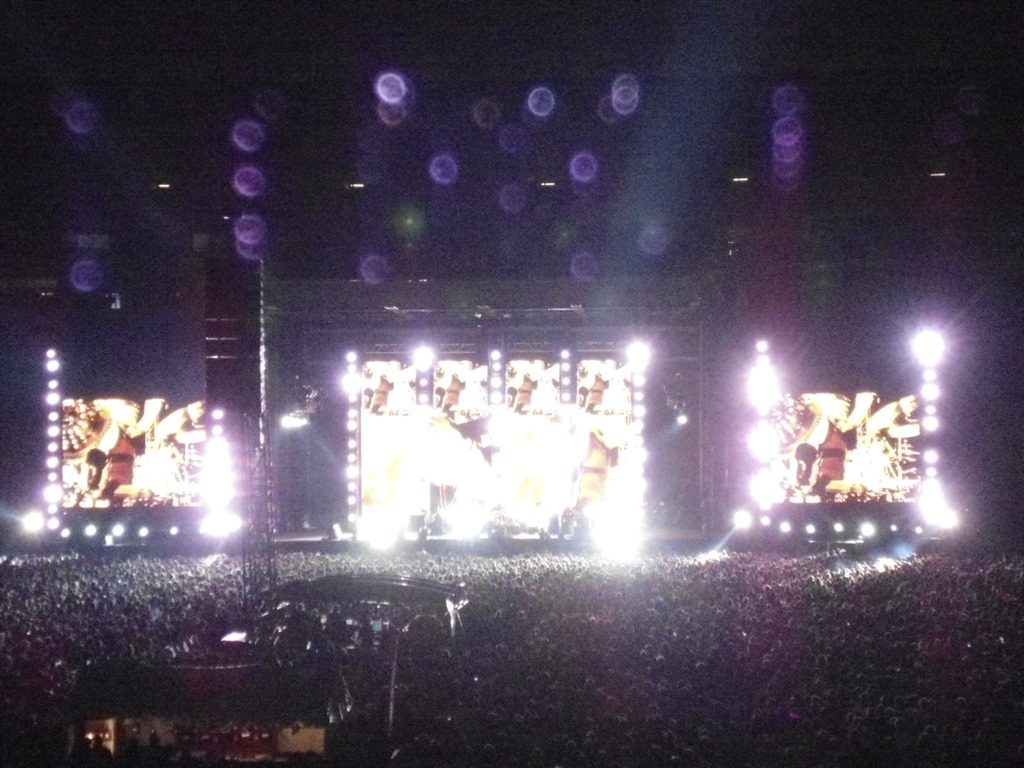
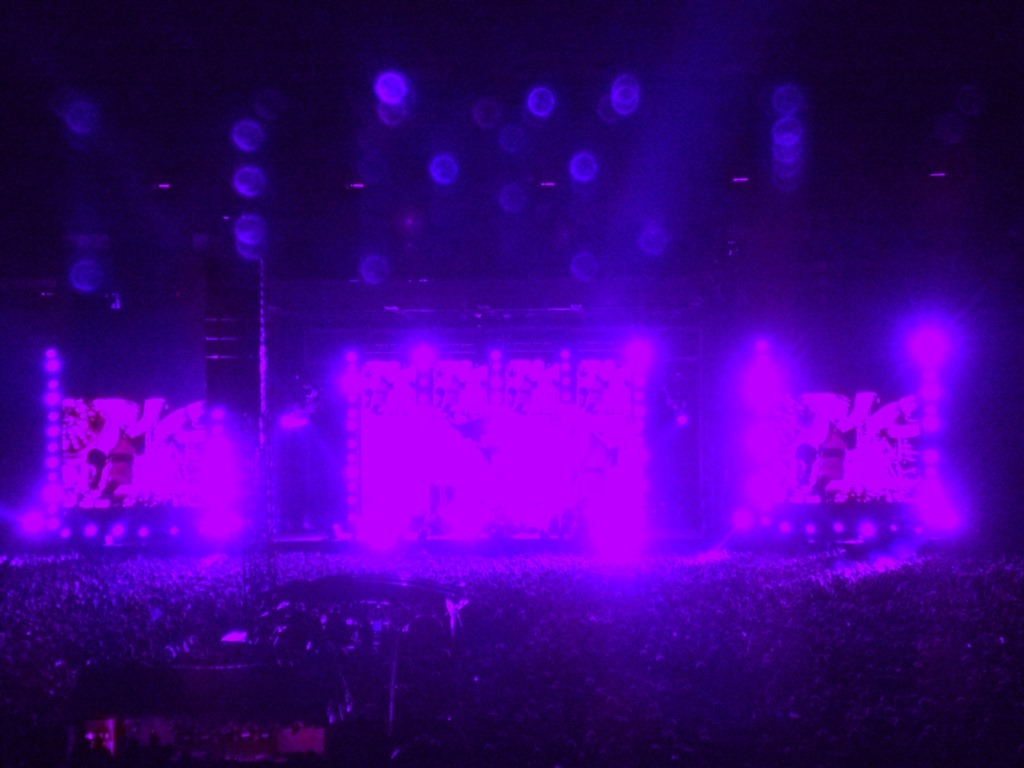
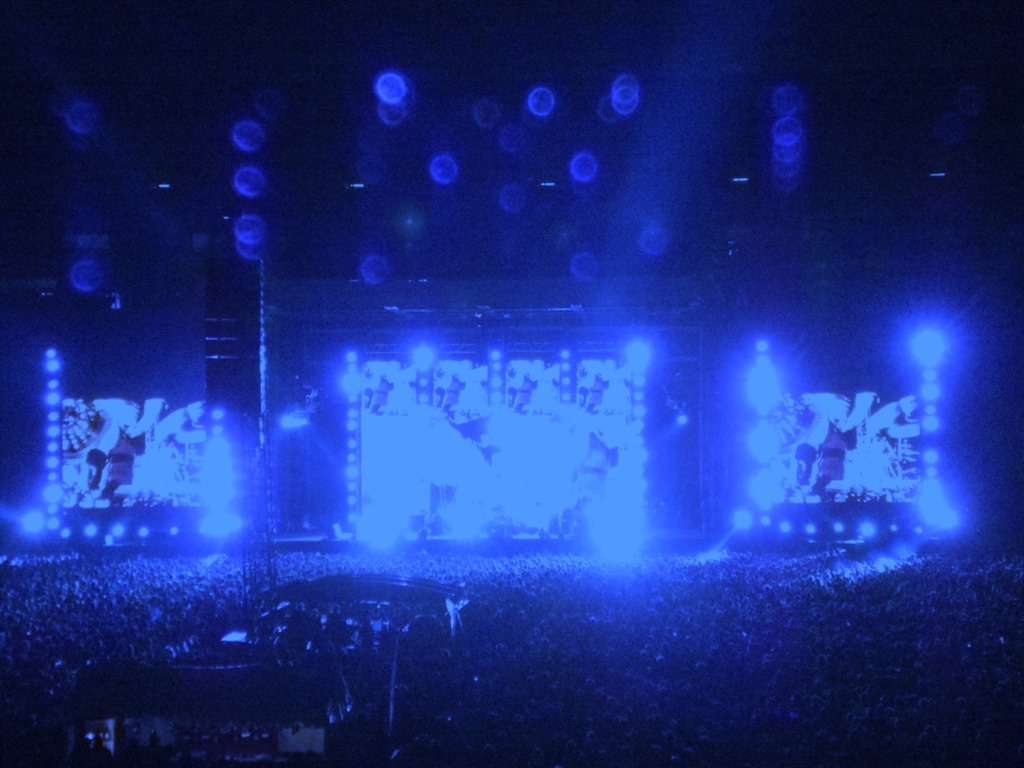
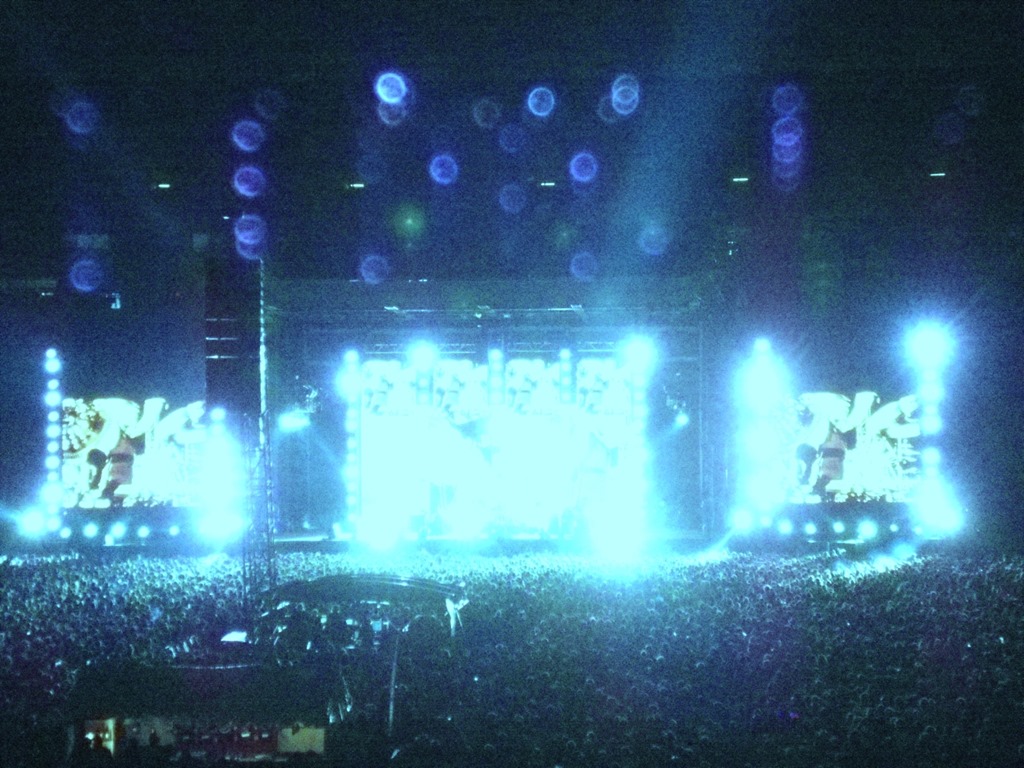
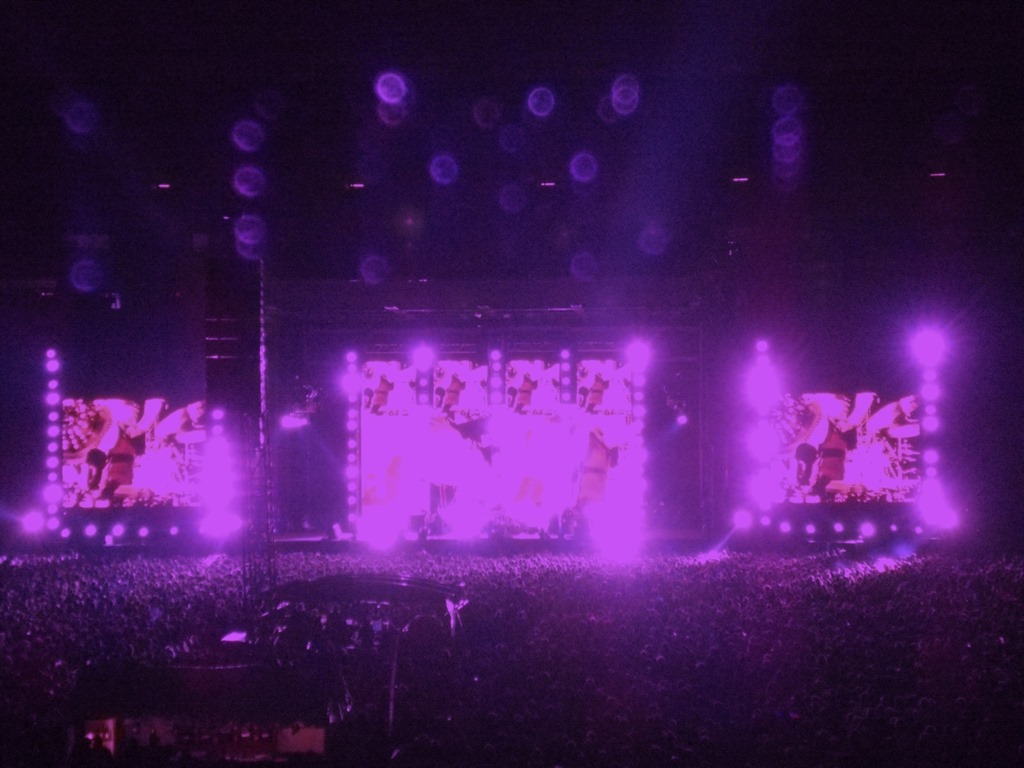
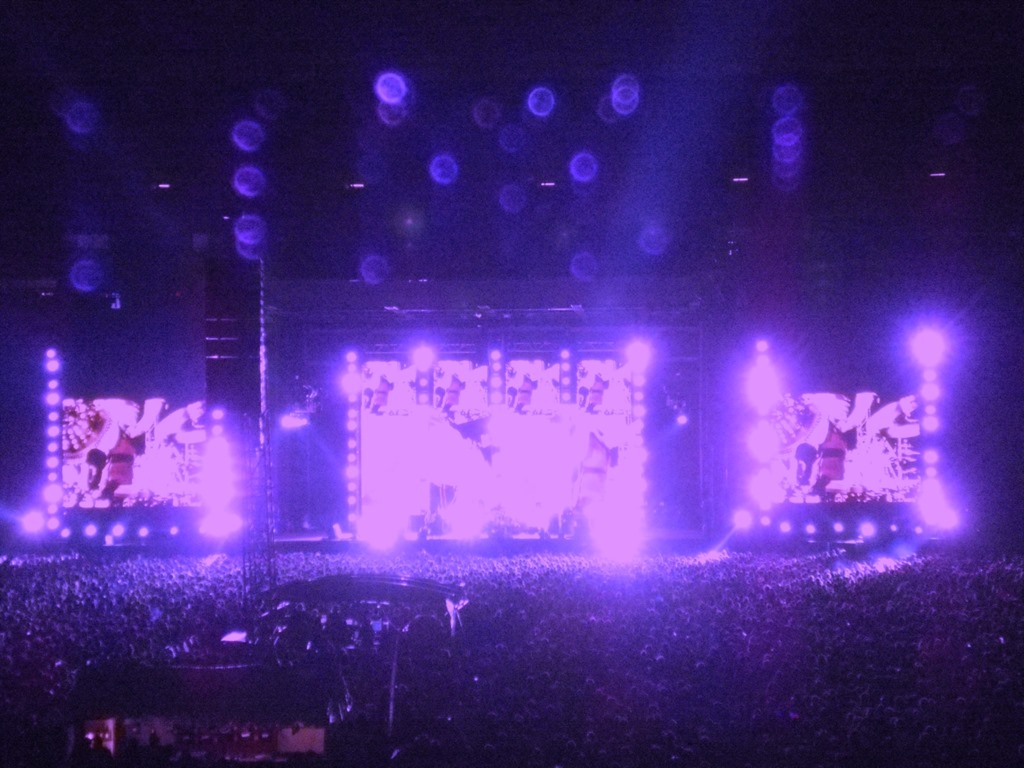
This section contains the eye candy of this article. The following set of images were created from a single input source image. The original image is licensed under the Creative Commons Attribution 2.0 Generic license and can be downloaded from Wikipedia.
The Original Image

Shift Left
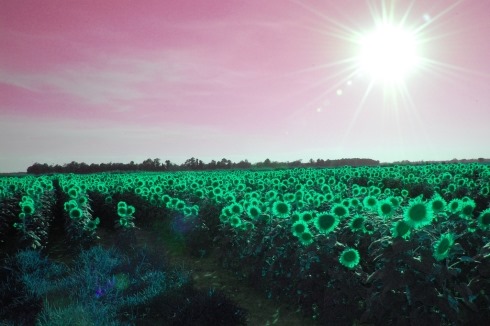
Shift Right

Swap Blue and Red

Swap Blue and Red, fix Green at 0

Swap Blue and Green

Swap Blue and Green, fix Red at 25

Swap Red and Green
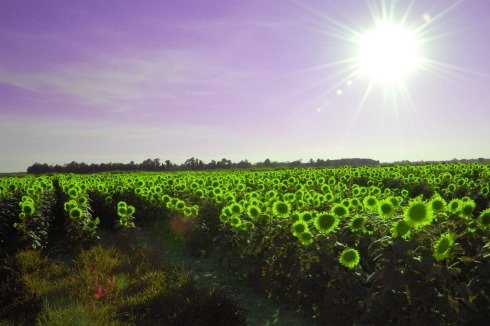
Swap Red and Green, fix Blue at 0

Swap Red and Green, fix Blue at 115

Swap Red and Green, fix Blue at 200



























































 Software by Default