Archive for the 'Opensource' Category


RSS Feed Buttons

Overview

I’ve been experimenting with lately. As an example showcasing some of the possibilities I created several images based on the standard orange RSS feed icon.

The source image used in generating all the filtered images on this page has been licensed under the and can be

If you are interested in the technical details behind the implementation you can browse the C# How to articles at and .

RSS Buttons

The following section provides a thumbnails preview of the images I created. Please note that all images have the size dimension of 2000×2000 pixels. I’ve opted to provide high resolution images to accommodate better results should images be edited further. It is not recommended using high resolution images directly due to larger file sizes when compared to typically used lower resolution images. Reducing image resolution is a fairly straight forward task easily achieved using most image editing software.

Images are provided under the . You are free to download, modify and redistribute the images.

To download an image simply click on the relevant thumbnail.

RSS Button Blue Grey RSS Button Bright Green RSS Button Brown LightBlue RSS Button Brown LightPurple RSS Button DarkBlue RSS Button DarkBlue RSS Button DarkBlue LightBlue RSS Button DarkBlue Red RSS Button DarkOrange LightOrange RSS Button DarkPink LightPurple RSS Button DarkPurple Blue RSS Button DarkPurple LightPurple RSS Button DarkPurple MediumBlue RSS Button Green DarkPink RSS Button Green LightBlue RSS Button LightBlue RSS Button Maroon Purple RSS Button Orange Yellow RSS Button PinkTint RSS Button PurpleTint RSS Button SeaGreen LightYellow RSS Button Violet DarkPink RSS Green Button RSS Purple Button

Image Filters: The Red Hot Chilli Peppers live in concert

The Original

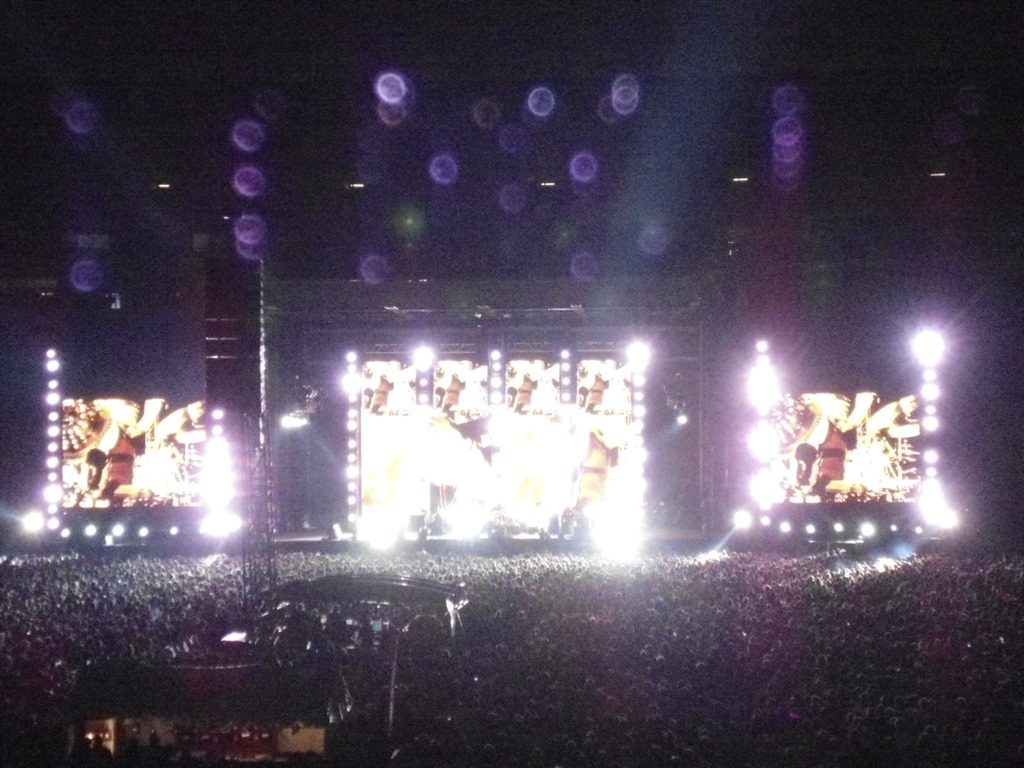
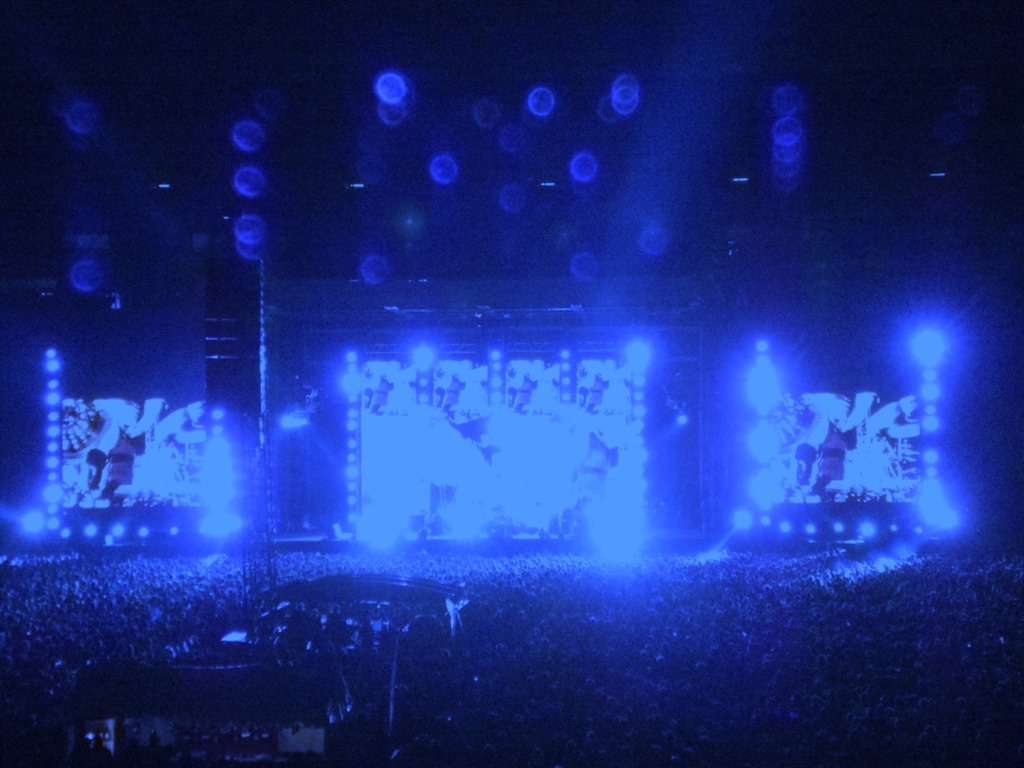
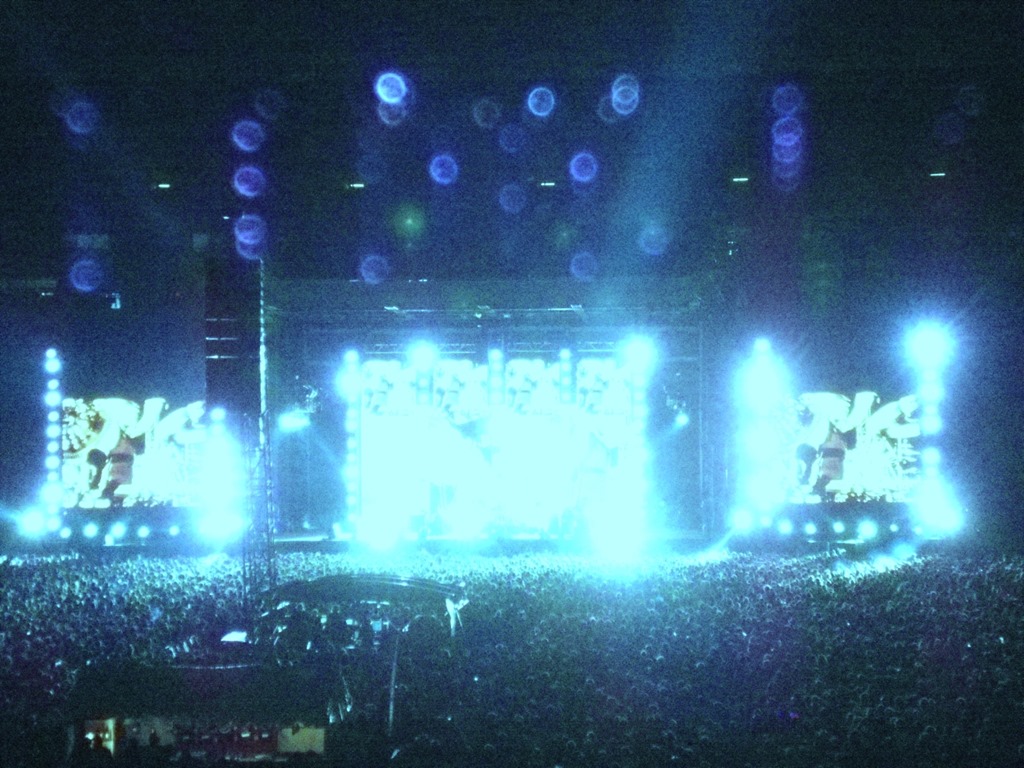
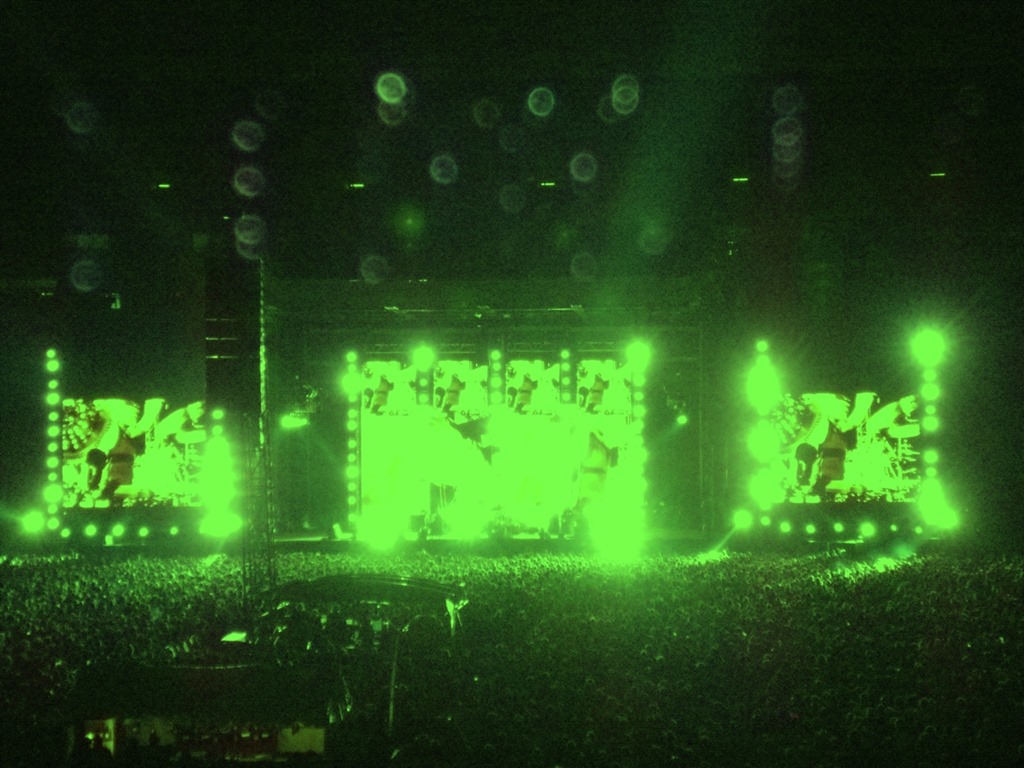
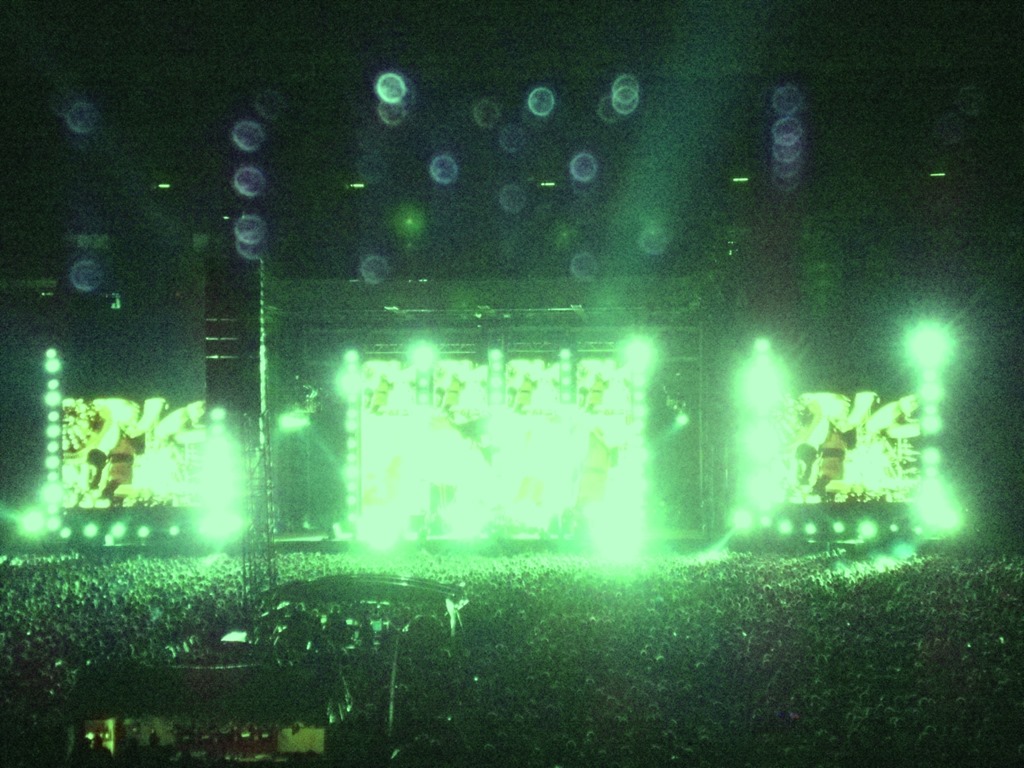
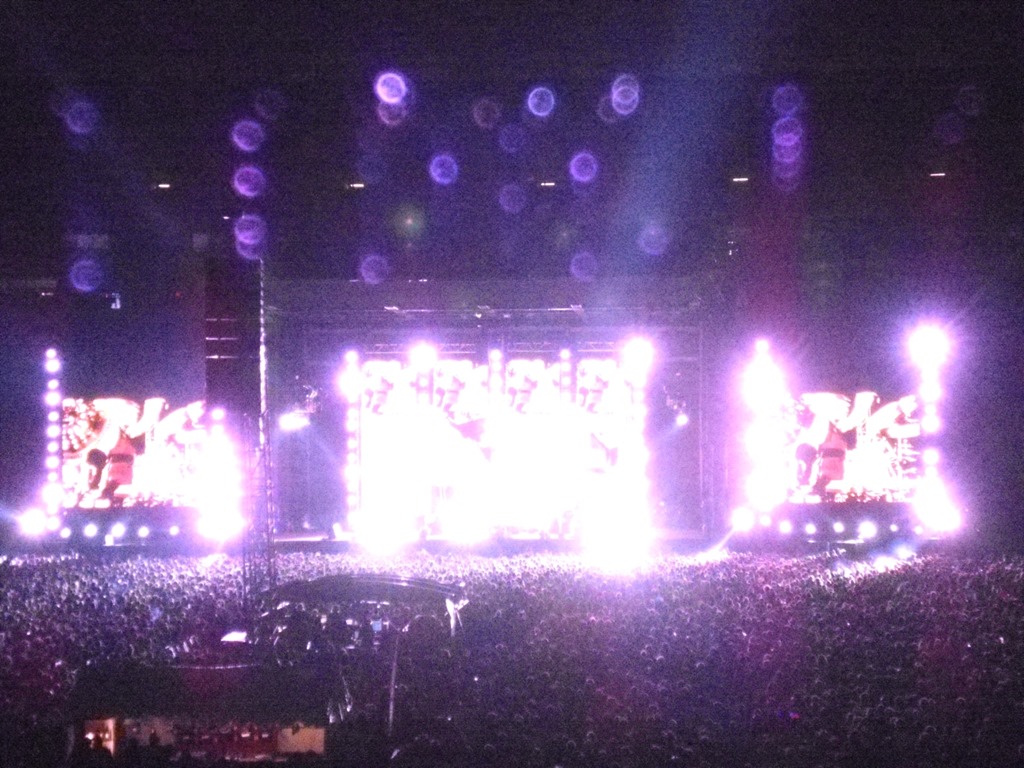
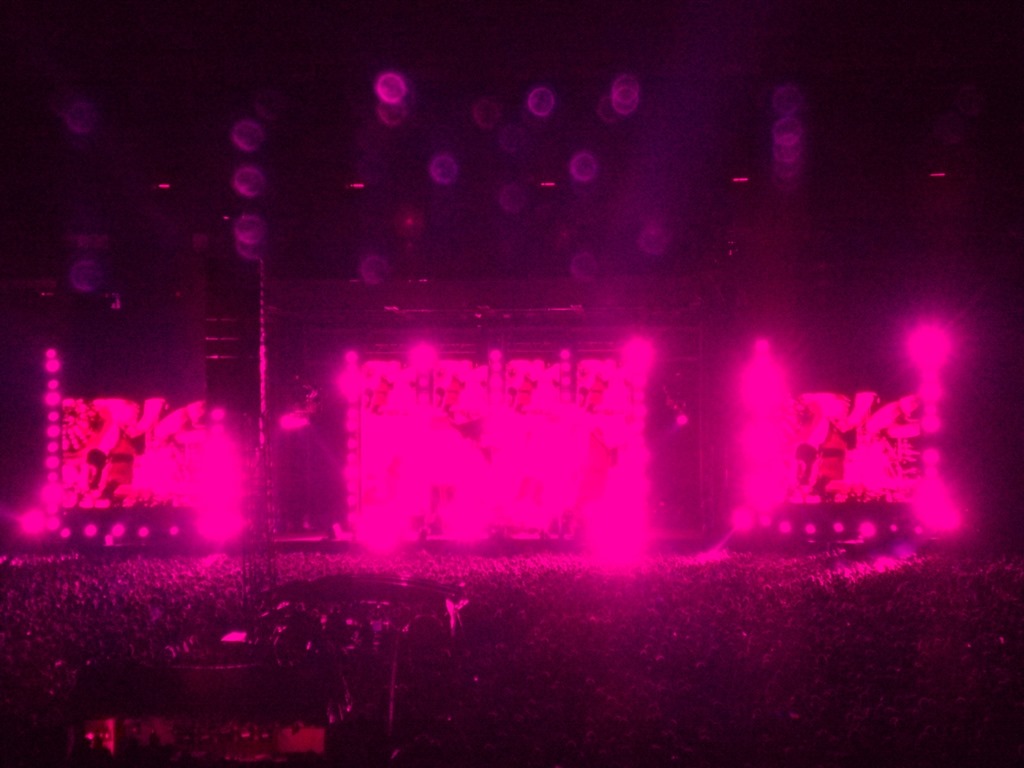
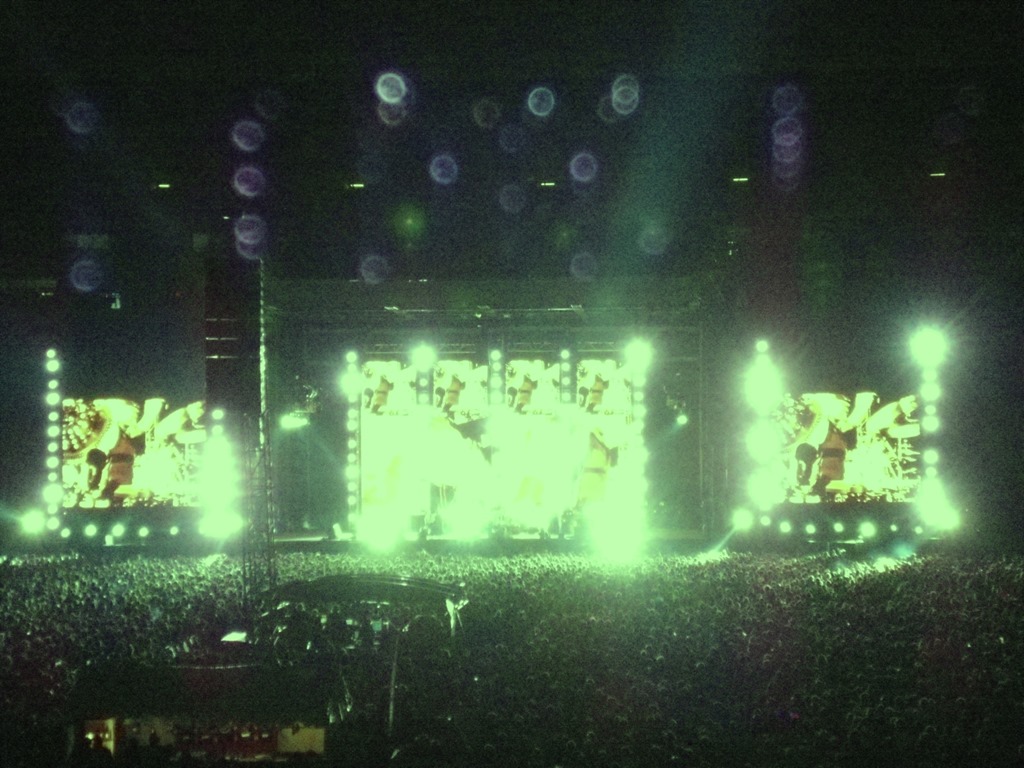
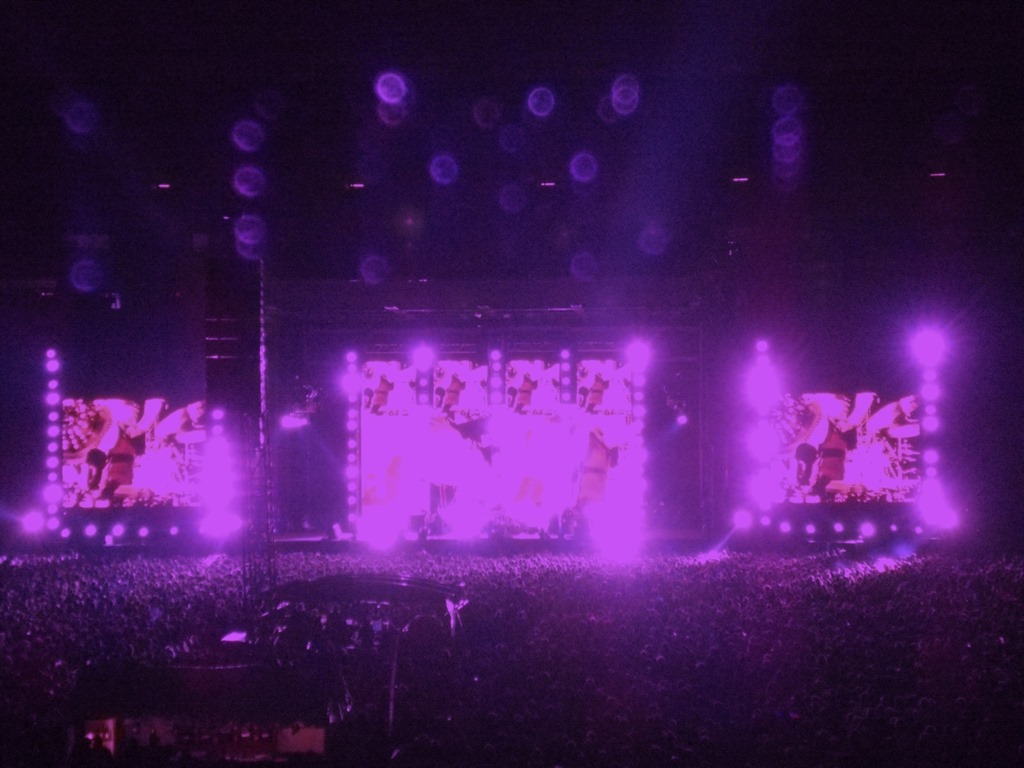
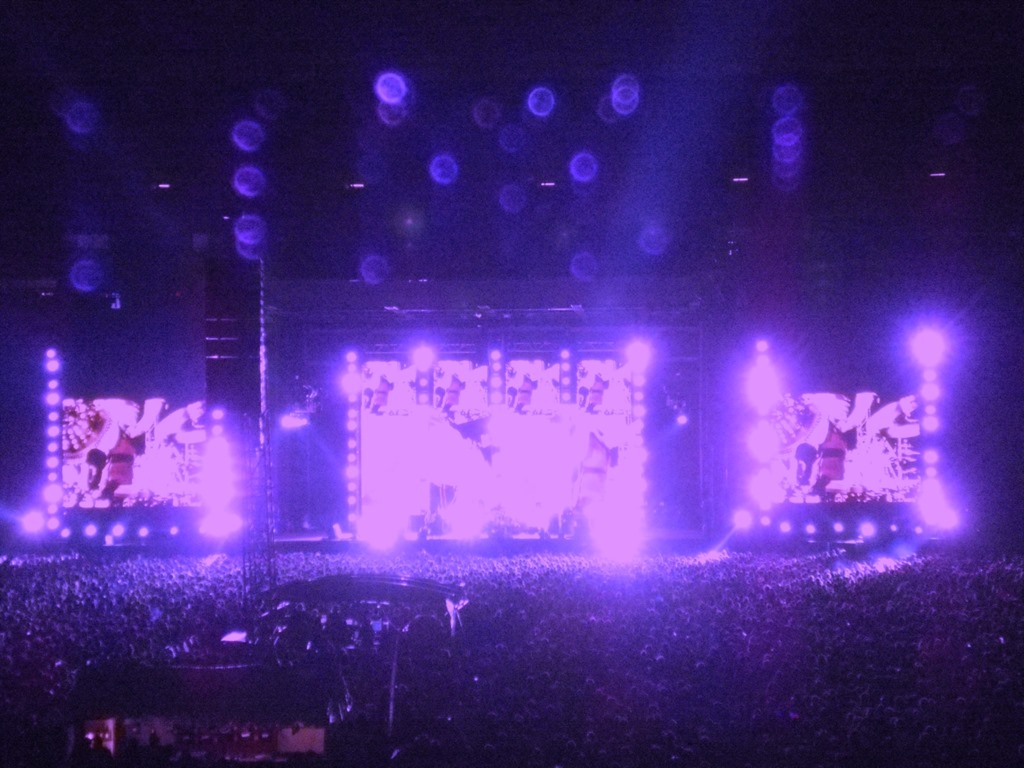
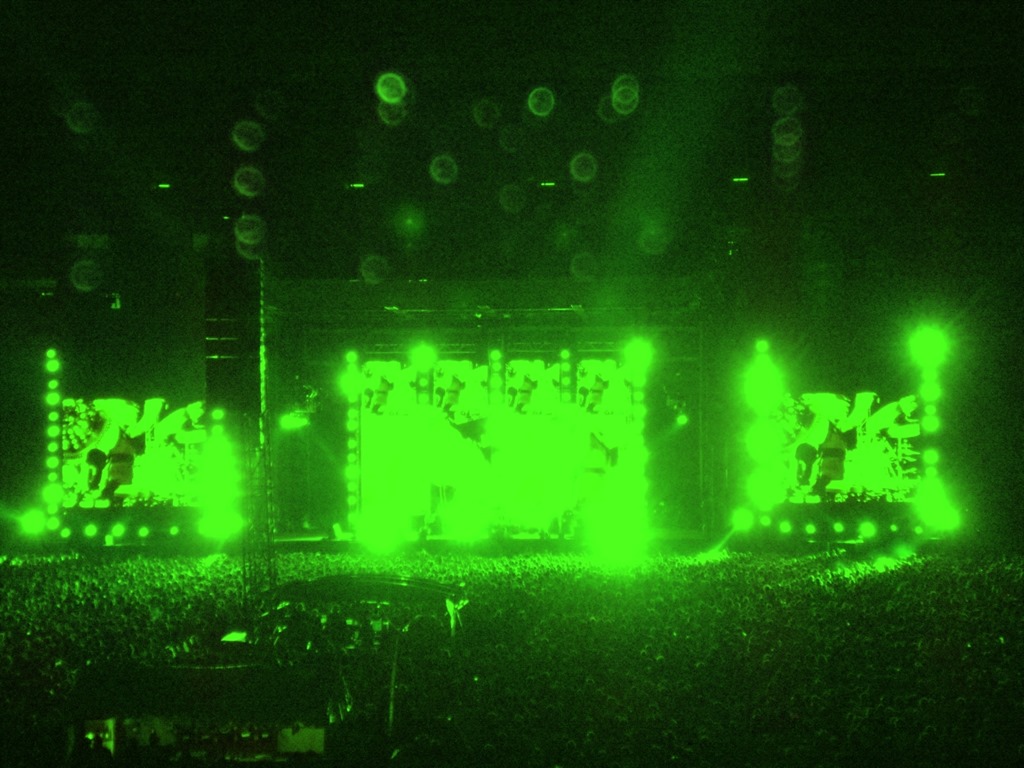
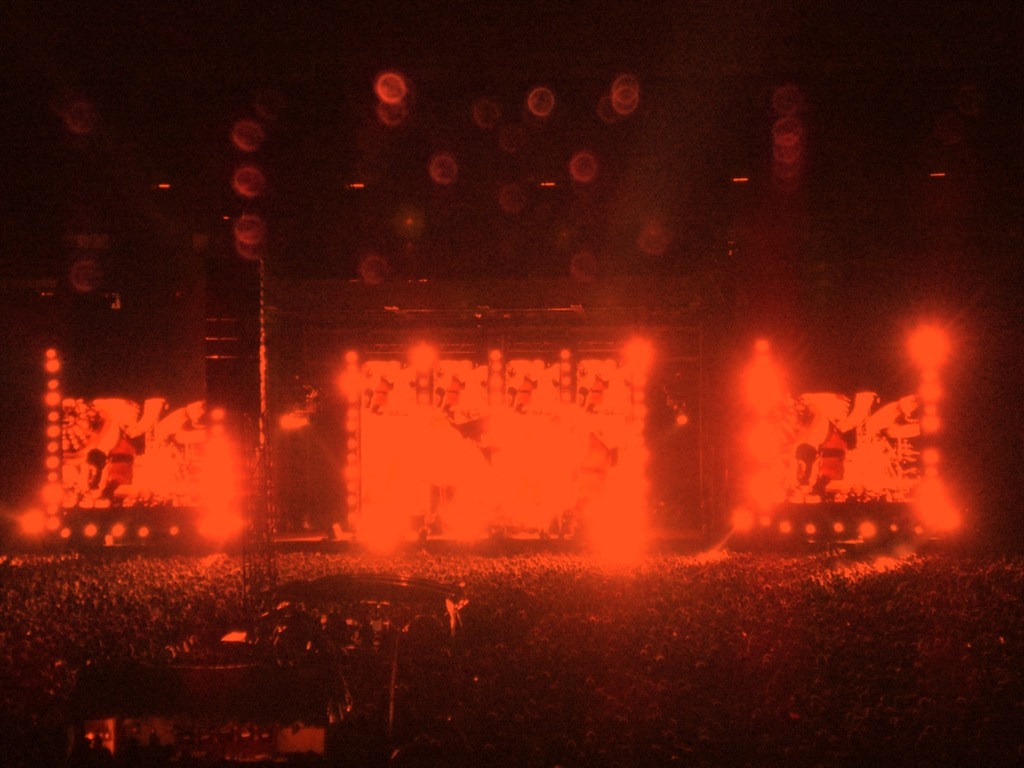
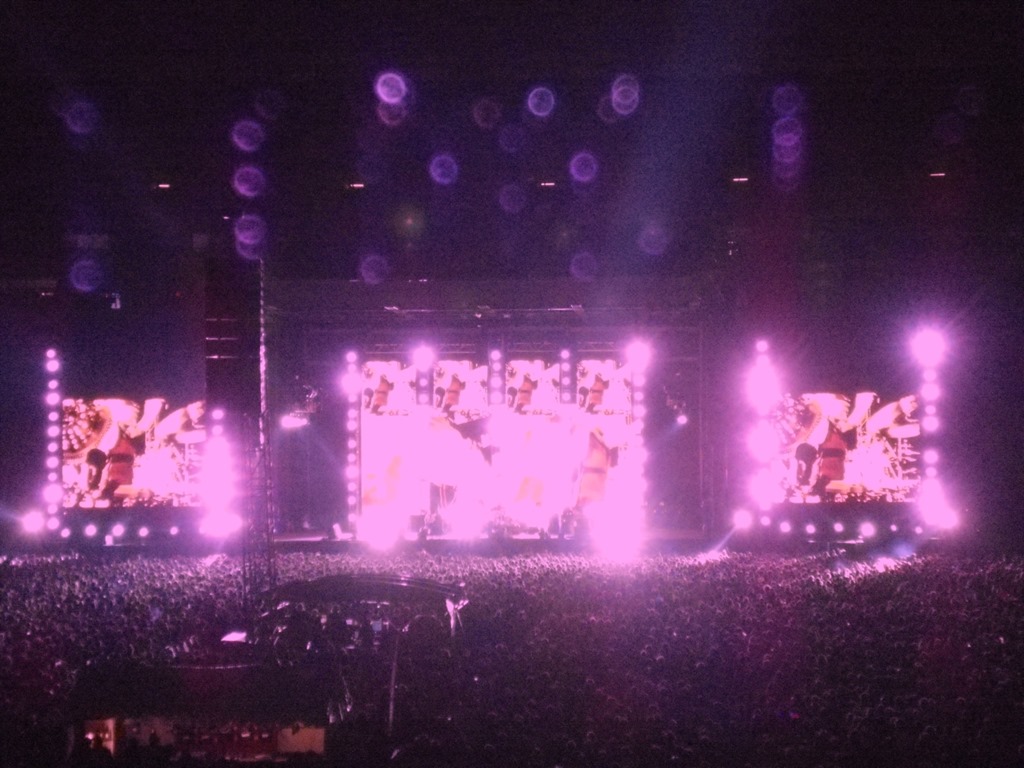
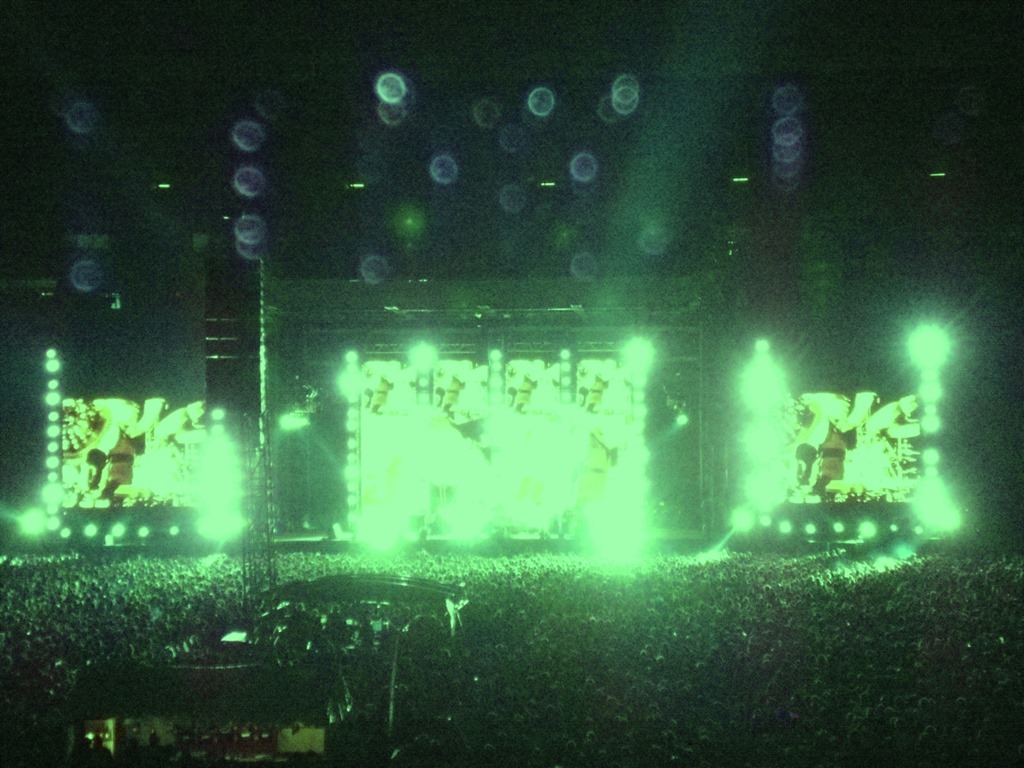
All of the images featured in this article were generated from the same the input source image file. Each image illustrates the implementation of a different colour filter.

The original source image is a photo I had taken myself during a live concert performance by The Red Hot Chilli Peppers, performed at Soccer City, Johannesburg, South Africa.

The colour filter technical details are explored in the articles: C# How to: Blending Bitmap images using colour filters and C# How to: Swapping Bitmap ARGB Colour Channels.

Original Image

RHCP_Original

Filtered Images

RHCP_AmberRHCP_BlueGreenRHCP_BluePinkRHCP_BrightBlueRHCP_BrightBlueTintRHCP_BrightGreenRHCP_BrightGreenTintRHCP_BrightWhiteRHCP_BrightYellowRHCP_DarkPinkRHCP_GreenRHCP_GreenYellowTintRHCP_LavenderRHCP_LightBlueRHCP_NeonGreenRHCP_OrangeRHCP_VioletRHCP_Yellow

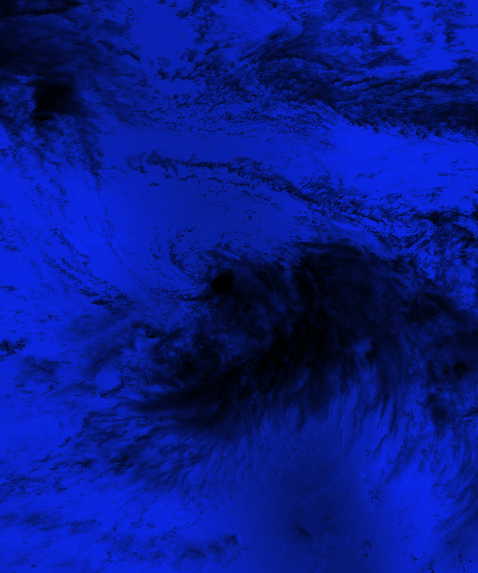
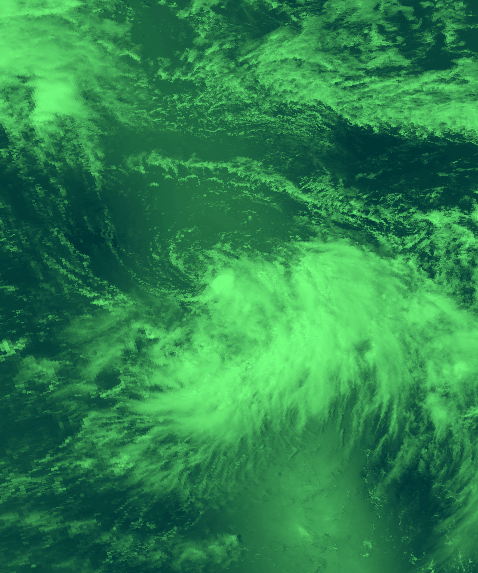
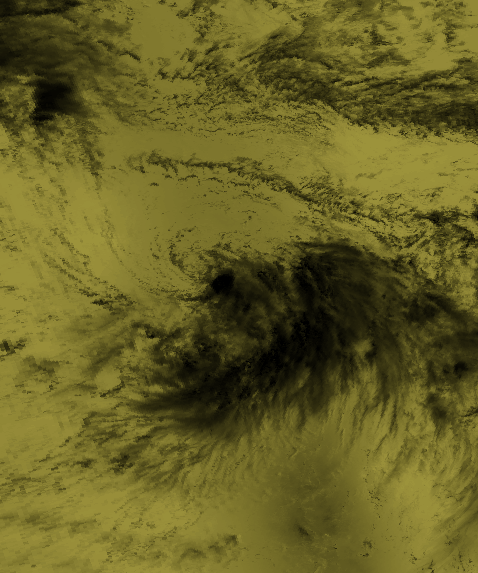
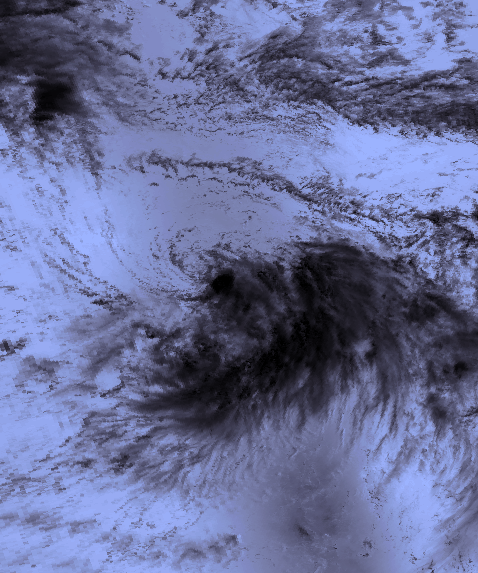
Image Filters: Tropical Storm

The Original Image

The original image file has been released into the public domain. Download the original from Wikipedia.

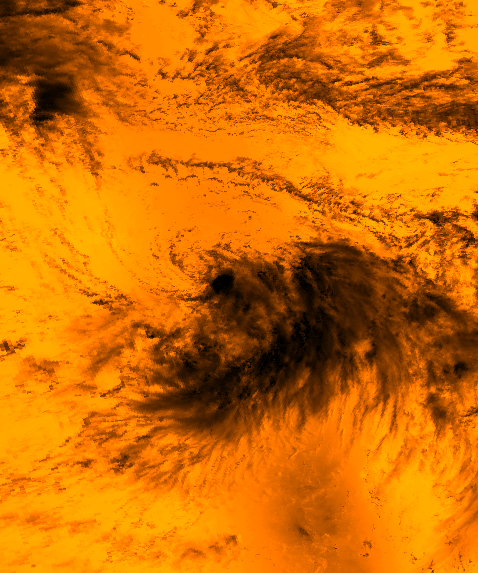
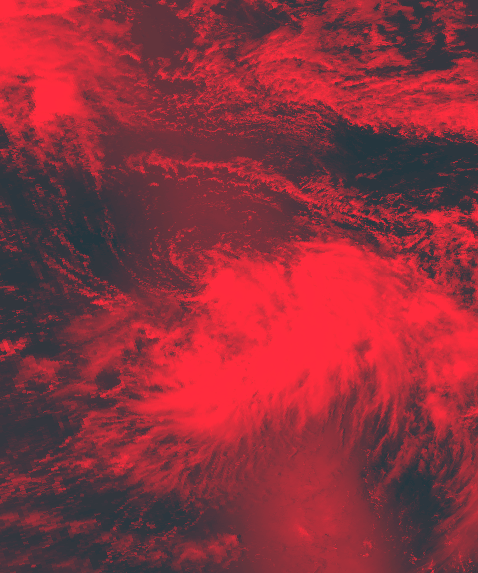
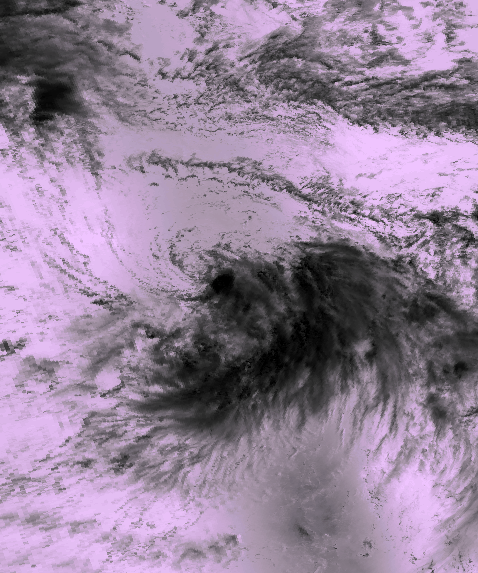
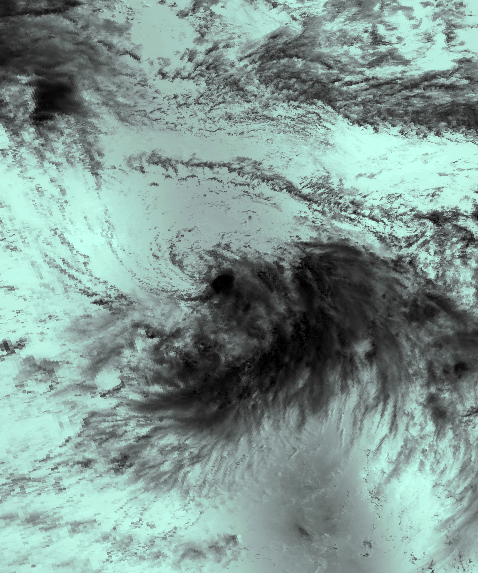
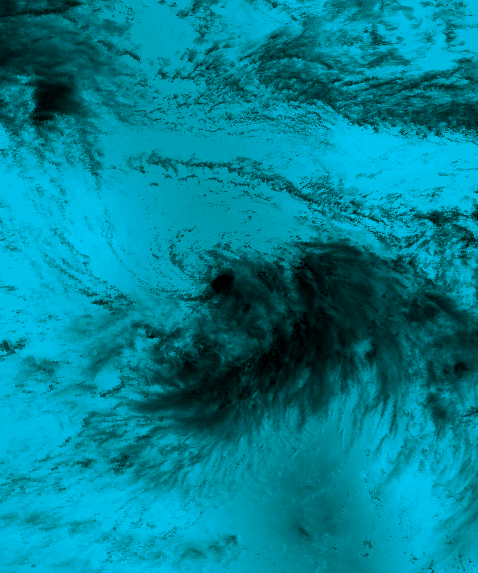
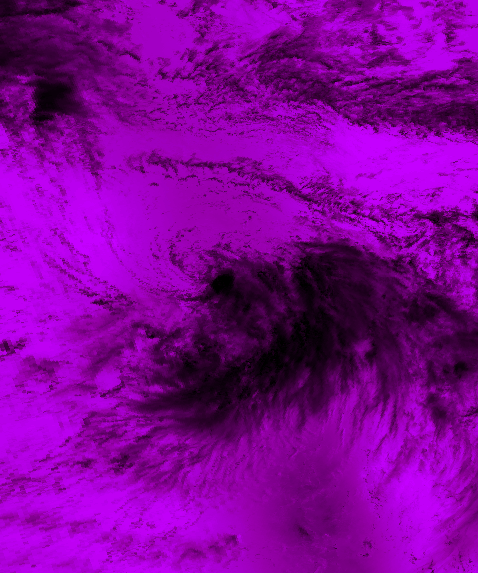
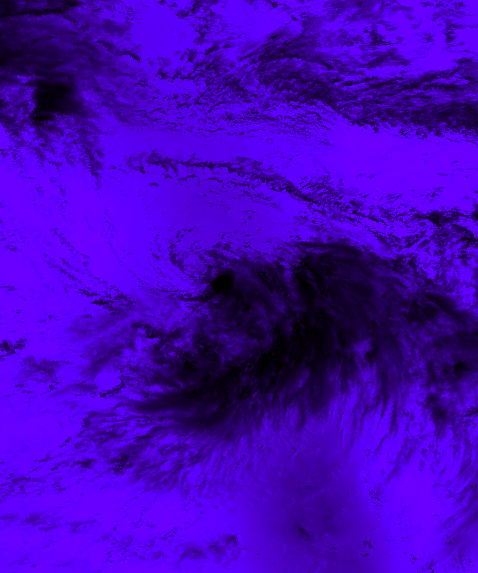
All or the images featured in this set were created using the original image and applying various colour filters. The colour filter technical details are explored in the articles: C# How to: Blending Bitmap images using colour filters and C# How to: Swapping Bitmap ARGB Colour Channels.

Original Image

17W_Aug_14_1996_0124Z

Filtered Images

TropicalStorm_BrightBlueBlendTropicalStorm_GreenGrayBlend

TropicalStorm_LightPinkBlendTropicalStorm_LightTanBlend

TropicalStorm_OffWhiteBlendTropicalStorm_OrangeBlend

TropicalStorm_PurpleBlendTropicalStorm_RedBlend

TropicalStorm_ShiftLeft_InvertedTropicalStorm_ShiftRight_Inverted

TropicalStorm_SwapBlueAndGreen_InvertedTropicalStorm_SwapBlueAndRed_Inverted

TropicalStorm_SwapRedAndGreen_InvertedTropicalStorm_VoiletBlend

Create and download PDF documents on Wikipedia.org

Overview

I consider Wikipedia.org as one of my favourite and definitely most used online resources. Recently I unintentionally discovered a really useful feature exposed by Wikipedia: Compiling ebooks from one or several Wikipedia articles. Being able to neatly package Wikipedia content for offline reference use can prove to be very useful in certain scenarios.

The Wikipedia Book Creator

The process of compiling and managing ebook formatted Wikipedia content is the responsibility of the Wikipedia Book Creator. The first step in using the Book Creator would to make sure you’ve enable Book Creator.

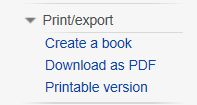
Wikipedia’s navigation pane on the left-hand side of the screen provides a link to enable Book Creator, located under the Print/Export option:

WikipediaBookCreator

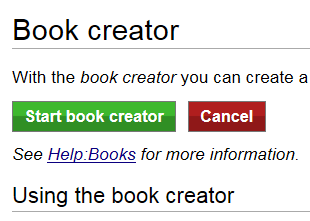
After clicking the Create a Book link, the page that loads next provides a button to start the Book Creator:

WikipediaBookCreatorEnable

In addition on this page you will find instructions relating to how to make use of the Book Creator feature. More in depth information can be found on the Book Creator Help page.

Once you’ve enabled the Book Creator you can continue browsing Wikipedia as per normal, with the exception of specifying which article pages should be added to your book.

Adding Article pages

You will notice that at the top of each Wikipedia article page you are now presented with additional links allowing you to interact with the Book Creator. As you browse through articles on Wikipedia you only have to click the link titled Add this page to your book.

BookCreator_AddArticlePages

Compiling and Downloading your Wikipedia eBook

When you decide that you have included enough article content in your book you can start reviewing your book by clicking the Show Book link located towards the top of the page.

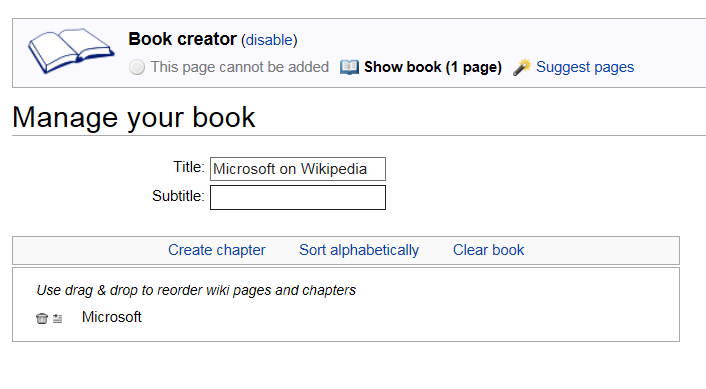
When reviewing your book you can remove Wikipedia articles you no longer want to include in the final eBook, additionally you can specify the book’s title and subtitle.

BookCreator_Review

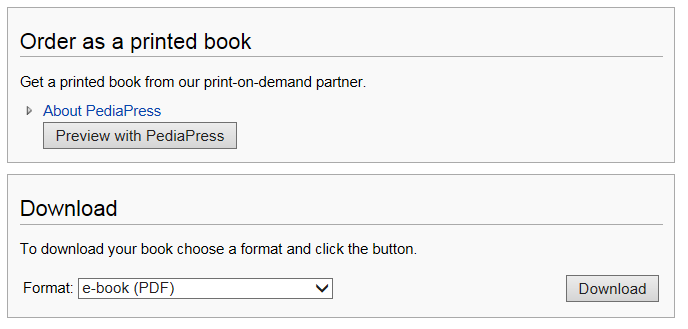
The final step required to create your book is to specify the eBook format you prefer and then to click download.

BookCreator_Download

Do note that Wikipedia also provides a service allowing users to order a printed copy of the eBook being generated.

In the steps illustrated above I created a PDF format eBook referencing Microsoft’s Wikipedia page. You can download the generated eBook here.

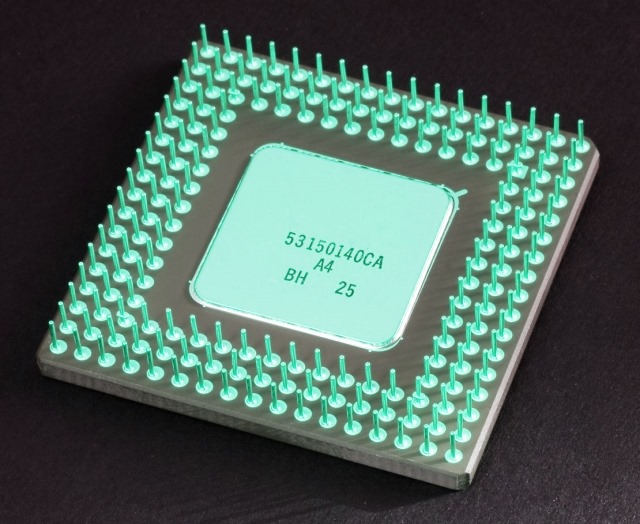
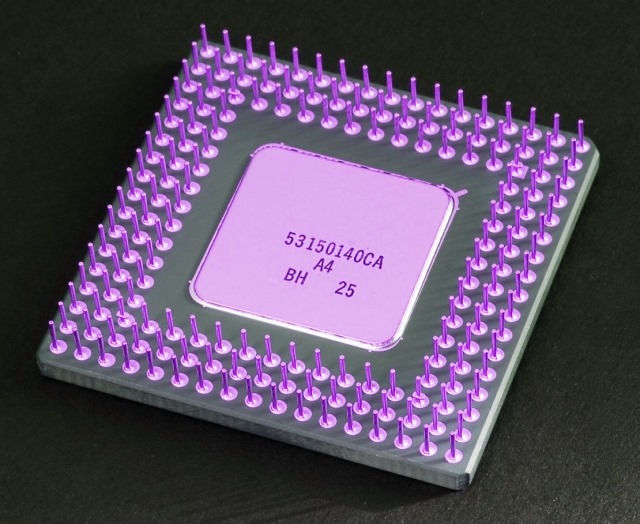
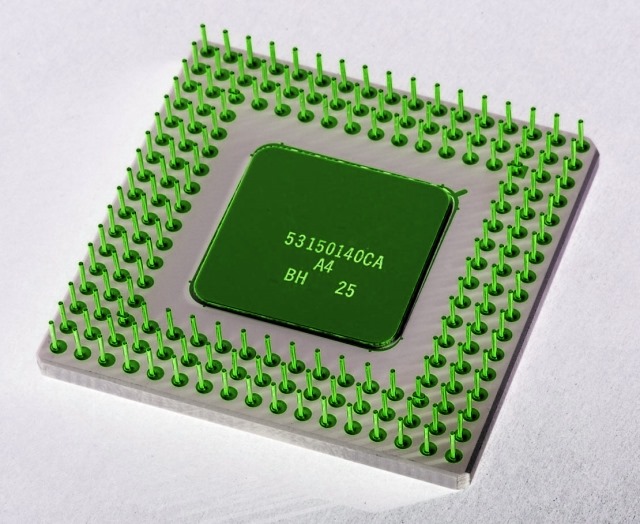
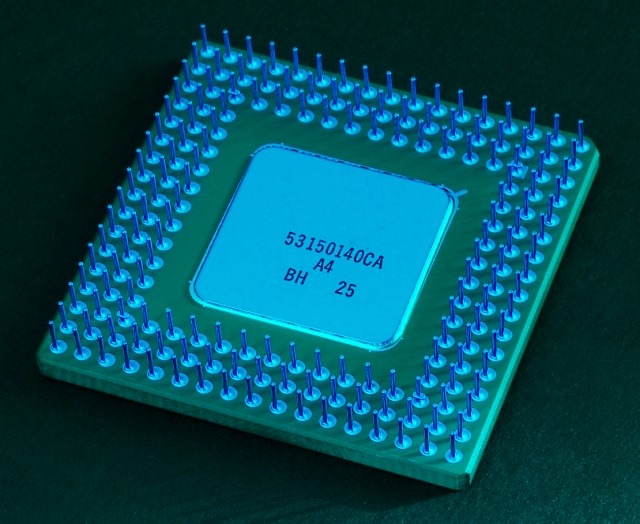
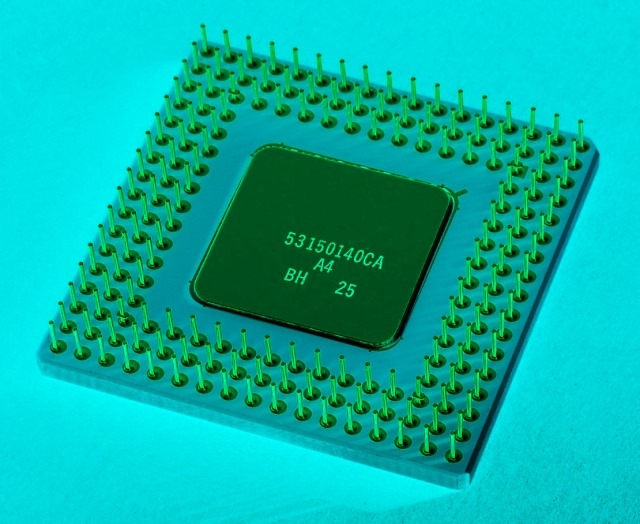
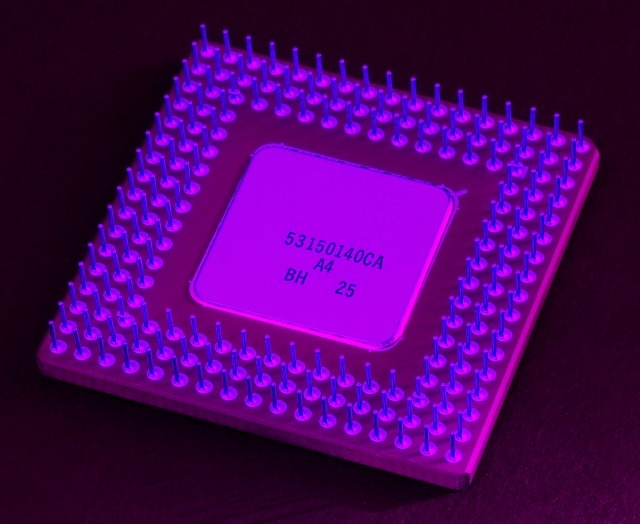
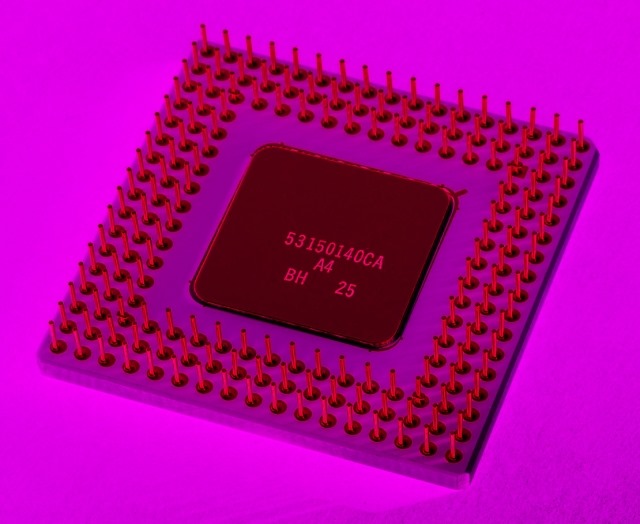
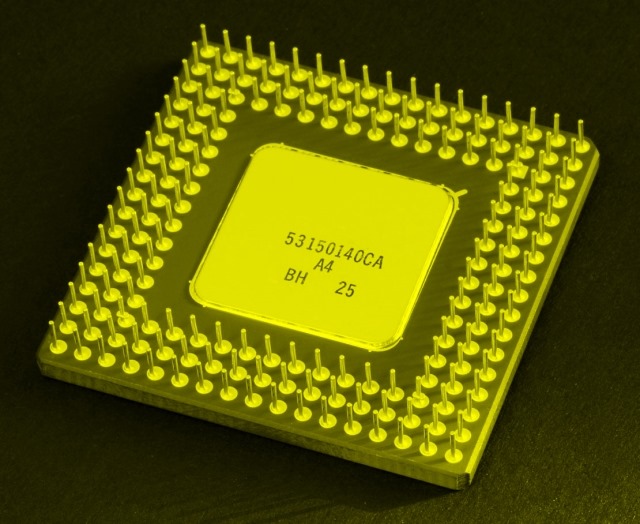
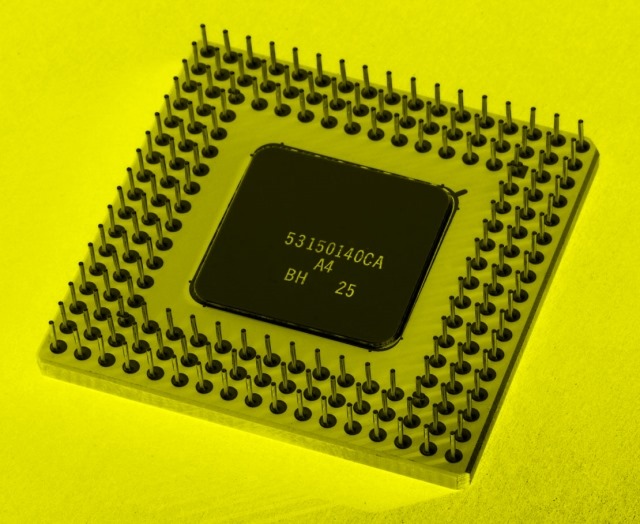
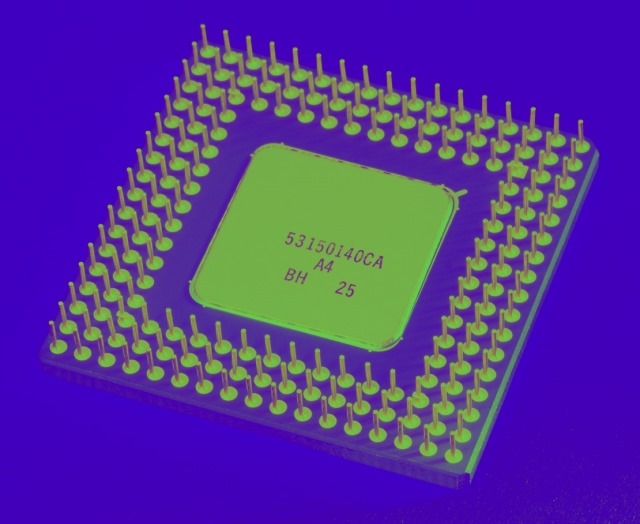
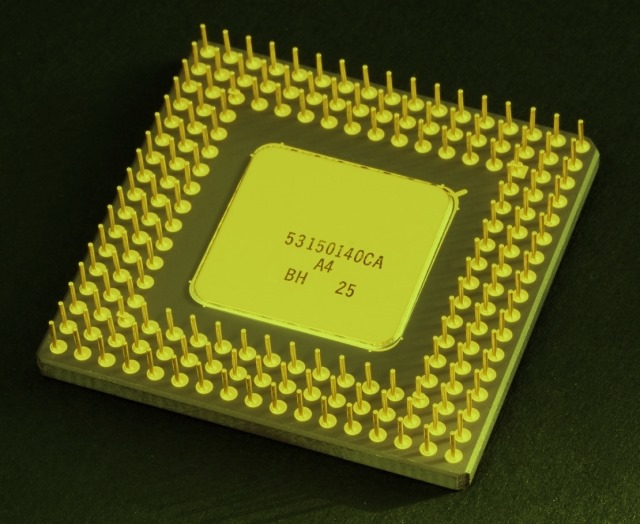
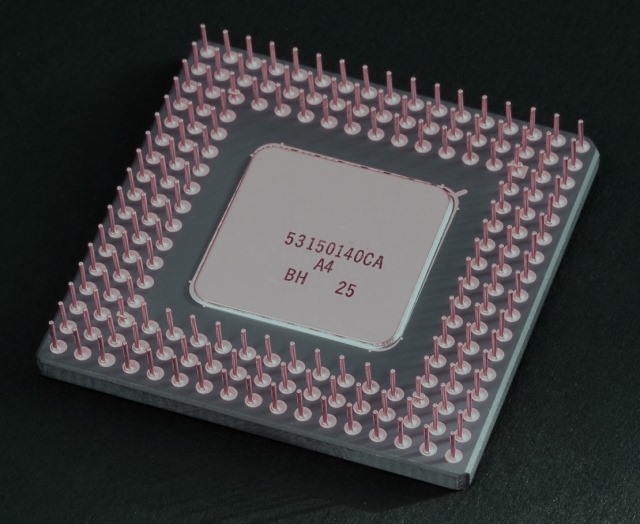
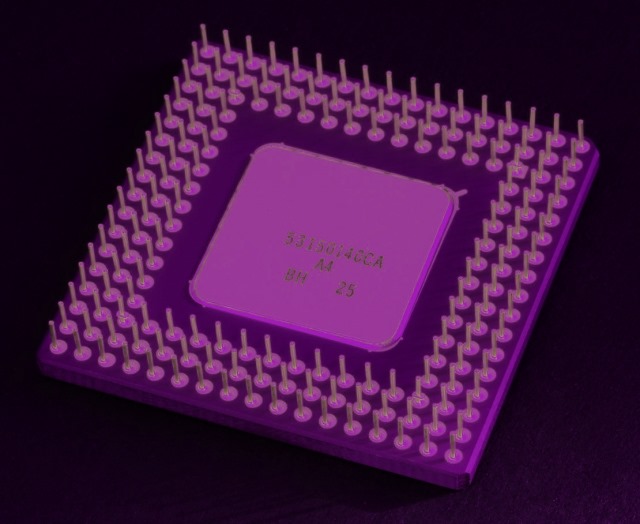
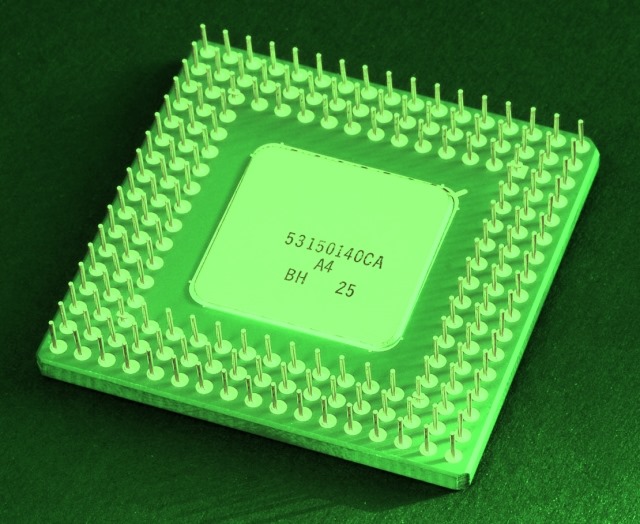
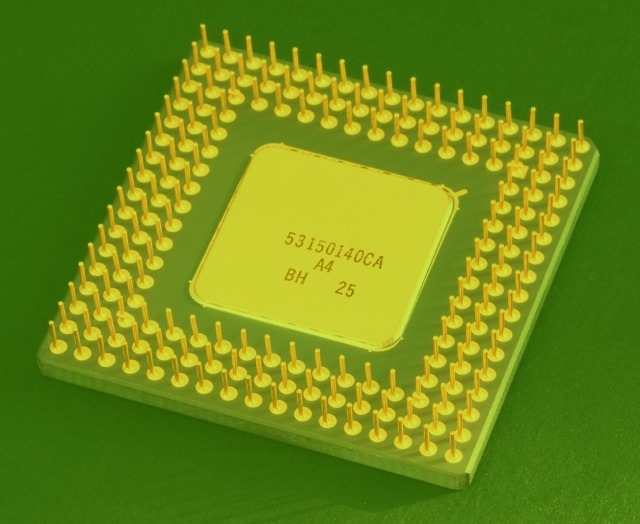
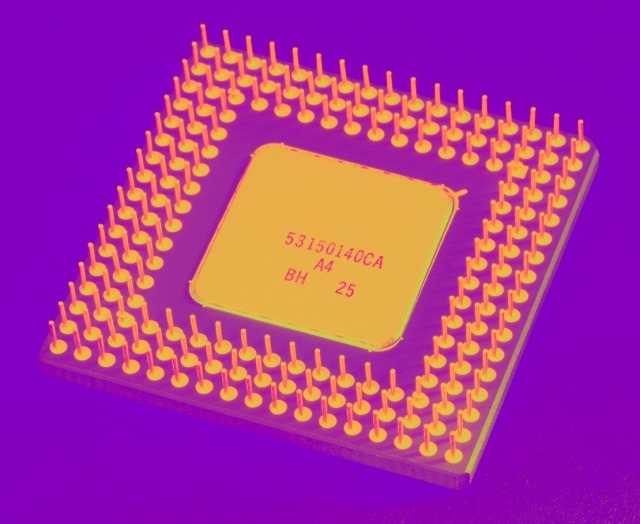
Image Filters: CPU

The Original

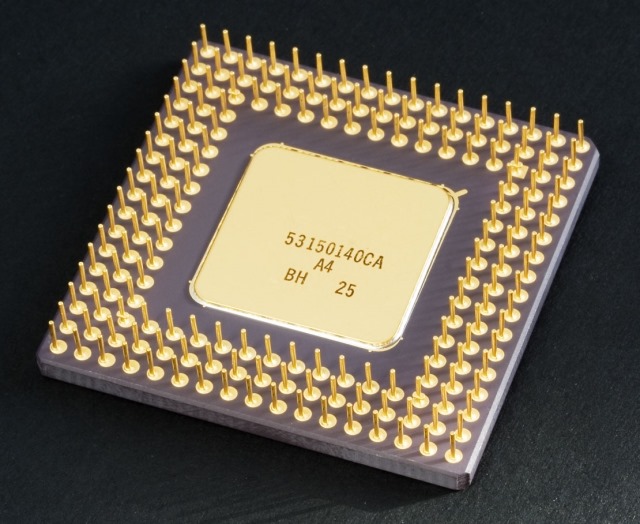
The original image file is licensed under the Creative Commons Attribution-Share Alike 2.0 Generic license. Download the original from .

The first set of images featured in this article were created from the original image by applying ARGB blending filters in a scenario where the source/base image and and overlay image were identical. An article explaining the technical details can be found at C# How to: Blending Bitmap images using colour filters

The last set of images featured were created was by swapping the original image’s ARGB colour channels. To read up on the technical details involved in Bitmap ARGB colour channel swapping you can browse to the following article: C# How to: Swapping Bitmap ARGB Colour Channels

Original Image

Intel_80486DX2_bottom

Filtered Images

CPU_ShiftRightCPU_ShiftRightInverted

CPU_ShiftLeftCPU_ShiftLeft_Inverted

CPU_SwapBlueAndGreenCPU_SwapBlueAndGreenInverted

CPU_SwapBlueAndRedCPU_SwapBlueAndRedInverted

CPU_SwapRedAndGreenCPU_SwapRedAndGreenInverted

CPU_BlueBGCPU_BrownBG

CPU_GrayCPU_GreenBG

CPU_HotPinkCPU_LimeBG

CPU_OliveBGCPU_PurpleBG


Dewald Esterhuizen

Unknown's avatar

Blog Stats

  • 893,577 hits

Enter your email address to follow and receive notifications of new posts by email.
Join 91 other subscribers

Archives

RSS SoftwareByDefault on MSDN

  • An error has occurred; the feed is probably down. Try again later.