Archive for the 'Microsoft' Category


C# How to: Check if a Tcp Port is in use

Article purpose

This article features a short illustration of how to determine if a network port is already in use.

Introduction

When creating a TCP/IP server connection on a Windows based platform you can specify a port number ranging from 1000 to 65535. It would seem unlikely that two applications executing at the same time will both attempt to open the same port number, in reality it happens quite often. It is advisable to first determine if a port is already in use before attempting to start a server connection listening on that port.

Sample source code

This article is accompanied by sample source code in a Visual Studio project which is available for download here.

Active Tcp Listeners

The namespace defines an class. Using we can determine the every server connection listens on for incoming connections. Listed below is a code snippet detailing the PortInUse method.

 public static bool PortInUse(int  port)
 {
     bool inUse = false;
             
     IPGlobalProperties ipProperties = IPGlobalProperties.GetIPGlobalProperties();
     IPEndPoint [] ipEndPoints = ipProperties.GetActiveTcpListeners();

     foreach(IPEndPoint endPoint in ipEndPoints)
     {
         if  (endPoint.Port == port)
         {
             inUse = true;
             break;
         }
     }

     return  inUse;
 }
 

The PortInUse method determines all active server connections, then proceeds to iterate an Array of objects comparing port numbers to the method’s only parameter.

The Implementation

The PortInUse method is implemented in a Console based application. First the sample source starts up an instance of the class on port 8080. The definition is followed by determining if port 8080 is in fact being used.

 static  void  Main(string [] args)
 {
     HttpListener  httpListner = new  HttpListener ();
     httpListner.Prefixes.Add("http://*:8080/" );
     httpListner.Start();

     Console .WriteLine("Port: 8080 status: "  + (PortInUse(8080) ? "in use" : "not in use" ));

     Console .ReadKey();

     httpListner.Close();
 }
 

C# How to: Using Microsoft Kinect with Windows Forms

Article purpose

This article illustrates a basic introductory level explanation of the steps required to interface with the Microsoft Kinect for Windows sensor using the Kinect for Windows Sdk implemented in a Windows Forms application.

Introduction

Most of the introduction level articles and code samples I’ve come across tend to be implemented as WPF or XNA based applications. Interfacing to the Microsoft Kinect for Windows sensor from Windows Forms based applications can be achieved fairly effortlessly. I find when wanting to create test applications a implementation can be developed quickly with relatively little hassle.

This article details creating a application which displays a live Video feed from the ’s Color camera whilst providing an option in specifying the resolution/frame rate.

Sample source code

This article is accompanied by sample source code in a Visual Studio project which is available for download here.

Sample Source Overview

The sample source code provided with this article consists of a which host a PictureBox control used to display the incoming Video feed. It is possible that more than one might be connected, the user can therefore select a sensor from a ComboBox. Possible resolutions/frame rates can also be configured via an additional ComboBox.

Available Kinect Sensors

The sample application implements the KinectSensor.KinectSensors property to retrieve a list of available . The associated ComboBox will be populated with references to available sensors.

private void PopulateAvailableSensors()
{
    cmbSensors.Items.Clear();

foreach (KinectSensor sensor in KinectSensor.KinectSensors) { cmbSensors.Items.Add(sensor.UniqueKinectId); cmbSensors.SelectedItem = sensor.UniqueKinectId; } }

Initial setup: Form Constructor

In the Form constructor we define the available display modes by adding the relevant enumeration values to the associated ComboBox.

public  MainForm() 
{ 
   InitializeComponent(); 

cmbDisplayMode.Items.Add(ColorImageFormat.RgbResolution640x480Fps30); cmbDisplayMode.Items.Add(ColorImageFormat.RgbResolution1280x960Fps12); cmbDisplayMode.SelectedIndex = 0;
PopulateAvailableSensors(); }

In this scenario we specify:

In the constructor the method PopulateAvailableSensors(), as described earlier, will be invoked after having specified available display modes.

Refreshing Available Sensors

Clicking the refresh button results in calling PopulateAvailableSensors(), which will re-determine available sensors and populate the associated ComboBox. Listed below is the click event handler subscribed to the Refresh button’s click event.

private void btnRefresh_Click(object sender, EventArgs e) 
{ 
    PopulateAvailableSensors(); 
} 

Activating the Sensor

When clicking on the “Activate Sensor” button the sample code first attempts to deactivate the sensor currently in use. After ensuring that resources related to the current sensor have been released the application attempts to assign an instance of the KinectSensor member object based on user selection.

private  void  btnActivateSensor_Click(object  sender, EventArgs  e) 
{ 
    if (cmbSensors.SelectedIndex != -1) 
    { 
        DeActivateSensor(); 

string sensorID = cmbSensors.SelectedItem.ToString();
foreach (KinectSensor sensor in KinectSensor.KinectSensors) { if (sensor.UniqueKinectId == sensorID) { kinectSensor = sensor; SetupSensorVideoInput(); } } } }

Sensor Video setup

In the sample application we implement the Kinect sensor’s ColorStream camera. The exposes an event which informs subscribed event handlers when a video frame is available for processing. The following code snippet shows the code implemented in setting up the video format.

private void SetupSensorVideoInput() 
{ 
    if (kinectSensor != null) 
    { 
         imageFormat = (ColorImageFormat)cmbDisplayMode.SelectedItem; 
         kinectSensor.ColorStream.Enable(imageFormat);     

kinectSensor.ColorFrameReady += new EventHandler<ColorImageFrameReadyEventArgs>(kinectSensor_ColorFrameReady);
kinectSensor.Start(); } }

Processing Video Frames

The ColorFrameReady event informs subscribed event handlers whenever a Color frame becomes available for processing.

private void kinectSensor_ColorFrameReady(object  sender, ColorImageFrameReadyEventArgs  e) 
{ 
    ColorImageFrame colorFrame = e.OpenColorImageFrame();   

if (colorFrame == null) { return; }
Bitmap bitmapFrame = ColorImageFrameToBitmap(colorFrame); picVideoDisplay.Image = bitmapFrame; }
private static Bitmap ColorImageFrameToBitmap(ColorImageFrame colorFrame) { byte[] pixelBuffer = new byte[colorFrame.PixelDataLength]; colorFrame.CopyPixelDataTo(pixelBuffer);
Bitmap bitmapFrame = new Bitmap(colorFrame.Width, colorFrame.Height, PixelFormat.Format32bppRgb);
BitmapData bitmapData = bitmapFrame.LockBits(new Rectangle(0, 0, colorFrame.Width, colorFrame.Height), ImageLockMode.WriteOnly, bitmapFrame.PixelFormat);
IntPtr intPointer = bitmapData.Scan0; Marshal.Copy(pixelBuffer, 0, intPointer, colorFrame.PixelDataLength);
bitmapFrame.UnlockBits(bitmapData);
return bitmapFrame; }

The event handler parameters provides access to a ColorImageFrame object. Before the video frame can be displayed the ColorImageFrame object first needs to be converted to a memory Bitmap, which can then be displayed by the Form’s PictureBox. Notice the ColorImageFrameToBitmap method, it functions by extracting data from the ColorImageFrame as a array, then creates a new memory Bitmap and copies the array of data.

Deactivating a sensor

Earlier when we activated the sensor we deactivated the active sensor. Listed below is the relevant code snippet.

private void DeActivateSensor() 
{ 
    if (kinectSensor != null) 
    { 
        kinectSensor.Stop(); 

kinectSensor.ColorFrameReady -= new EventHandler<ColorImageFrameReadyEventArgs> (kinectSensor_ColorFrameReady);
kinectSensor.Dispose(); } }

Microsoft TouchDevelop

 Introduction

I recently discovered Microsoft TouchDevelop quite by random coincidence. From what I’ve read online it would seem that not too many people are aware of Microsoft TouchDevelop and the impressive capability this technology has to offer. Imagine simplifying the complexity of application development to the extend that the average tech savvy non-programmer can create full featured applications.

Microsoft TouchDevelop is made available by Microsoft completely free of charge. You may even implement TouchDevelop in commercial scenarios such as the Windows store, although the standard Windows store developer annual fee of $50.00 for freelance/independent developers and $100.00 for companies will be applicable.

Background

In my opinion I regard Microsoft TouchDevelop as a technology that elegantly compliments the recent paradigm shift experienced in the area of technology innovation. In the past a factor that hugely affected a project or product’s success was the technical knowledge and capability of the development team.

Over the past few years large corporations such as Microsoft invested vast amounts of time and finances on research and developing application development frameworks (consider the .net framework). By implementing the development tools available today developing technically intricate solutions have certainly become extremely efficient compared to the previously held status quo.

It appears that successful development is no longer as reliant on technical skills as seen in the past. Having access to solid development skills should not be dismissed, but development projects should now more than ever focus on the ideas behind a project. Lines of code do not sell, ideas do.

Even when considering the modern application development tools available, there is still a steep learning curve involved in studying a programming language and learning to become a programmer. Microsoft TouchDevelop fills the gap between technical skills and innovative ideas.

Creative and innovative people aren’t necessarily technically inclined, the same as how not all developers are necessarily creative or ideas people. Imagine if having a good idea and being tech savvy (not necessarily a programmer) was all you needed to create the “next buzz technology”. As a teaser: Using TouchDevelop you can describe your current GPS location simply by specifying the phrase: “describe current location” – how easy is that? The technical bits are made significantly easier, allowing you to focus on your innovative ideas.

Supported Platforms

One of the features of Microsoft TouchDevelop that stood out for me was support for multiple software and hardware platforms. TouchDevelop is implemented as a mobile application as well as a browser application.

Currently the supported browsers are:

  • Internet Explorer 10
  • Chrome 22+ for PCs, Macs, Linux
  • Firefox 16+ for PCs, Macs, Linux
  • Safari 6+ for Macs
  • Mobile Safari on iOS 6 for iPad, iPhone, iPod Touch
  • Chrome 18+ for Android

It seems that currently Windows Phone is the only supported mobile platform.

What is Microsoft TouchDevelop?

From TouchDevelop.com:

TouchDevelop is a programming environment that runs on your mobile devices. You write scripts by tapping on the screen. You do not need a separate PC or keyboard. Scripts can perform various tasks similar to regular apps. Any TouchDevelop user can install, run, edit, and publish scripts. You can share your scripts with other people by publishing them to the TouchDevelop script bazaar, or by submitting them as an app to the Windows Store or Windows Phone Store.

As explained on this  MSDN Blog:

TouchDevelop lets you create and run apps on pretty much any modern computing device you might own – from smartphones to tablets and even PCs. TouchDevelop features a predictive on-screen code keyboard and a touch-optimized programming language.

Having been designed for mobile devices from the ground up, TouchDevelop is an excellent option for programming on touchscreen devices without keyboards. You can also use it with a traditional keyboard and mouse if your device supports them.

After you have designed your fun game or a useful tool, you can share it with other people with a single tap or mouse click, so that they can run it or tweak it. More than 12,000 scripts have already been shared with over 40,000 users who have signed in to the TouchDevelop experience.

TouchDevelop is also an excellent option for learning programming. The high-level programming languages makes it super easy to create simple apps. But TouchDevelop is not just for beginners – for more complicated tasks only sky is the limit, thanks to the underlying powerful language and extensive library support.

Finally, if running your creations in the TouchDevelop environment is not enough, you can export true apps and submit them to the Windows Store or the Windows Phone Store to start earning money!

The blog post quoted above was authored by Nikolai Tillmann from Microsoft Research.

What types of applications can be developed using Microsoft TouchDevelop?

Any script created using TouchDevelop can be turned into a regular Windows Phone or Windows 8 application, dependent on certain conditions being met, as is the case with traditional app development targeting Windows Phone and Windows 8. You can even earn money if you decide to place your app on the Windows store.

I find TouchDevelop to be an extremely versatile development platform. Your biggest limitation will most likely be deciding what to create as opposed to how to implement your ideas in TouchDevelop.

You can browse apps available for download at the official TouchDevelop site. Apps range from games, music/media players, even tax calculators.

How to get started

If you are interested in creating applications using Microsoft TouchDevelop your starting point should be the official TouchDevelop website https://www.touchdevelop.com. The TouchDevelop website features a variety of documentation intended to help users in getting started.

You can create and test scripts in your browser at https://www.touchdevelop.com/app. I recommend taking a look at the code synthesis game, a game where you try and determine the natural language phrase used to create a script. 

C# How to: Deep copy objects using Binary Serialization

Article purpose

This will illustrate how to create deep copies of an object by making use of binary serialization implemented in the form of an extension method with generic type support.

Sample source code

This is accompanied by a sample source code Visual Studio project which is available for download .

Shallow Copy and Deep Copy

When creating a copy of an object in memory, the type of copy can be described as either a shallow copy or a deep copy. The Object class defines the MemberwiseClone method, which performs a bit by bit copy of an object’s value type members. In the case of reference type members the MemberwiseClone method will create a copy of the reference, but not a copy of the object being referenced. Creating a copy of an object using the MemberwiseClone method will thus result in copies and the original object still referencing the same member object in memory when that object is a reference type. The MemberwiseClone method performs a shallow copy when invoked.

A deep copy of an object results in copies and the original object not referencing the same reference type member object in memory.

Example custom data type

The sample source code provided with this provides a user defined data type, the CustomDataType class of which the code snippet is listed below.

 [Serializable] 
public class CustomDataType  
{ 
   private int intMember = 0; 
   public int IntMember 
   { 
       get { return  intMember; } 
       set { intMember = value; } 
   } 

private string stringMember = String.Empty; public string StringMember { get { return stringMember; } set { stringMember = value; } }
private DateTime dateTimeMember = DateTime.MinValue; public DateTime DateTimeMember { get { return dateTimeMember; } set { dateTimeMember = value; } }
public override string ToString() { return "IntMember: " + IntMember + ", DateTimeMember: " + DateTimeMember.ToString() + ", StringMember: " + stringMember; } }

Notice that the CustomDataType class definition is marked with the . Objects of which the type definition is not marked with the cannot be serialized. Trying to perform serialization on objects not marked as will result in an exception being thrown.

The DeepCopy method – Implementation as an extension method with generic type support

Extension method architecture enables developers to create methods which, from a syntactic and implementation point of view appear to be part of an existing data type. create the perception of being updates or additions, literarily extending a data type as the name implies. do not require access to the source code of the particular types being extended, nor does the implementation thereof require recompilation of the referenced types.

This illustrates a combined implementation of extending the functionality of generic types. The following code snippet provides the definition.

public staticclassExtObject  
{ 
    public static T DeepCopy<T>(this T objectToCopy) 
    { 
         MemoryStream memoryStream = new MemoryStream(); 
         BinaryFormatter binaryFormatter = new BinaryFormatter(); 
         binaryFormatter.Serialize(memoryStream, objectToCopy); 

memoryStream.Position = 0; T returnValue = (T)binaryFormatter.Deserialize(memoryStream);
memoryStream.Close(); memoryStream.Dispose();
return returnValue; } }

The DeepCopy method is defined as an by virtue of being a static method of a static class and by specifying the keyword in its parameter definition.

DeepCopy additionally defines the generic type <T> which determines the return value’s type and the type of the parameter objectToCopy.

The method body creates an instance of a  object and an object instance of type . When is invoked the representation of the objectToCopy parameter is written to the specified . In a similar fashion is invoked next, reading the representation from the specified . The object returned is cast to the same type as the object originally serialized.

The implementation

The DeepCopy method illustrated above appears as a member method to the CustomDataType class created earlier.

 static void Main(string[] args) 
{ 
   CustomDataType originalObject = new CustomDataType(); 
   originalObject.DateTimeMember = DateTime.Now; 
   originalObject.IntMember = 42; 
   originalObject.StringMember = "Some random string"; 

CustomDataType deepCopyObject = originalObject.DeepCopy(); deepCopyObject.DateTimeMember = DateTime.MinValue; deepCopyObject.IntMember = 123; deepCopyObject.StringMember = "Something else...";
Console.WriteLine("originalObject: " ); Console.WriteLine(originalObject.ToString()); Console.WriteLine();
Console.WriteLine("deepCopyObject: " ); Console.WriteLine(deepCopyObject.ToString()); Console.WriteLine();
Console.WriteLine("Press any key..." ); Console.ReadKey(); }

The code snippet listed above is a console application which implements the DeepCopy extension method on objects of type CustomDataType. Modifying the member properties of the second object instance will not result in the first object instance properties being modified.

Deep copy objects using Binary Serialization

C# How to: Implementing Xml Serialization through a generic extension method

Article purpose

The purpose of this article is to explore the implementation of object Xml serialization by means of a single extension method supporting generic types.

Sample source code

This article is accompanied by a sample source code Visual Studio project which is available for download here.

Example custom data type

The sample source code provided with this article provides a user defined data type, the CustomDataType class of which the code snippet is listed below.

 public class  CustomDataType
 {
     private  int intMember = 0;
     public  int IntMember
     {
         get  { return intMember; }
         set  { intMember = value ; }
     }
 
     private  string  stringMember = String.Empty;
     public  string  StringMember
     {
         get { return stringMember; }
         set { stringMember = value ; }
     }
 
     private  DateTime dateTimeMember = DateTime.MinValue;
     public  DateTime  DateTimeMember
     {
         get { return  dateTimeMember; }
         set { dateTimeMember = value ; }
     }
 }

This article’s accompanying sample source code was implemented to serialize an object instance of type CustomDataType. The resulting Xml markup representation is listed below.

 <?xml version= "1.0" encoding="utf-16"?>
 <CustomDataType xmlns:xsi="http://www.w3.org/2001/XMLSchema-instance" xmlns:xsd= "http://www.w3.org/2001/XMLSchema">
   <IntMember>42</IntMember>
   <StringMember>Some random string</StringMember>
   <DateTimeMember>2013-02-03T17:01:32.9799772+02:00</DateTimeMember>
 </CustomDataType>

The serialization method – Implementation as an extension method with generic type support

Extension method architecture enables developers to create methods which, from a syntactic and implementation point of view appear to be part of an existing data type. Extension methods create the perception of being updates or additions, literarily extending a data type as the name implies. Extension methods do not require access to the source code of the particular types being extended, nor does the implementation thereof require recompilation of the referenced types.

This article illustrates a combined implementation of extension methods extending the functionality of generic types. The following code snippet provides the extension method definition.

 public static class  ExtObject
 {
     public static string XmlSerialize<T>(this T objectToSerialize)
     {
         XmlSerializer xmlSerializer = new XmlSerializer(typeof (T));
 
         StringWriter  stringWriter = new  StringWriter ();
         XmlTextWriter  xmlWriter = new  XmlTextWriter(stringWriter);
 
         xmlWriter.Formatting = Formatting.Indented;
         xmlSerializer.Serialize(xmlWriter, objectToSerialize);
 
         return  stringWriter.ToString();
     }
 }

The XmlSerialize method satisfies the requirements of the extension method architecture by being defined as a static method, implemented as a member method of a statically defined class. In addition the method signature features the this keyword preceding all other method parameters. The seemingly contradicting statement of specifying the this keyword in a static context usually serves as a quick indication that a method is implemented as an extension method. Remember that the this keyword provides a reference to the current instance, whereas in the case of static methods and classes there is no current instance, being static results in limiting a type to only one instance accessed as a shared reference.

The definition of the XmlSerialize method also specifies the definition of a generic type <T>. When defining an extension method the first parameter specified indicates the type being extended. As an example, if an extension method definition specifies as a first parameter a variable of type string, the extension method will operate as an extension to the String class. Notice that extending a native value type is possible as a result of .net’s boxing and unboxing functionality.

The XmlSerialize method defines as a first parameter a variable of generic type <T>. Extending a generic type allows the implementing code access to the XmlSerialize method as a member of all data types, except static types. It is not possible to extend a static type.

The implementation

The XmlSerialize method discussed in the previous section appears as a member method to all non static types, provided that the implementing code applies the relevant namespace resolution by specifying the using statement where needed.

 static void Main(string [] args)
 {
     CustomDataType objectInstance = new CustomDataType();
     objectInstance.DateTimeMember = DateTime.Now;
     objectInstance.IntMember = 42;
     objectInstance.StringMember = "Some random string";
 
     string xmlString = objectInstance.XmlSerialize();
 
     Console.WriteLine(xmlString);
 
     Console.WriteLine();
     Console.WriteLine();
     Console.WriteLine("Press any key..." );
     Console.ReadKey();
 }
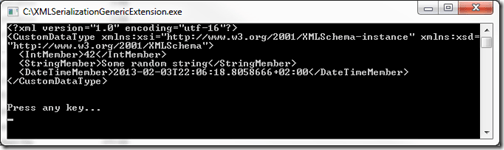
SerializationGenericExtension

From the code listed above the XmlSerialize method appears as a member of the CustomDataType class but in reality CustomDataType does not define the XmlSerialize method. The type being extended functions as per normal, not being aware of the extension method XmlSerialize.

The extension method now provides a uniform implementation enabling objects to be serialized to an Xml string, regardless of type.

Note: Not all types can be serialized! A commonly repeated mistake regarding object Xml serialization being that serialization will fail if a type does not provide a constructor with no parameters.



Dewald Esterhuizen

Unknown's avatar

Blog Stats

  • 894,561 hits

Enter your email address to follow and receive notifications of new posts by email.

Join 91 other subscribers

Archives

RSS SoftwareByDefault on MSDN

  • An error has occurred; the feed is probably down. Try again later.